

LOCK2G ransomware – a dangerous virus that asks to pay for file recovery
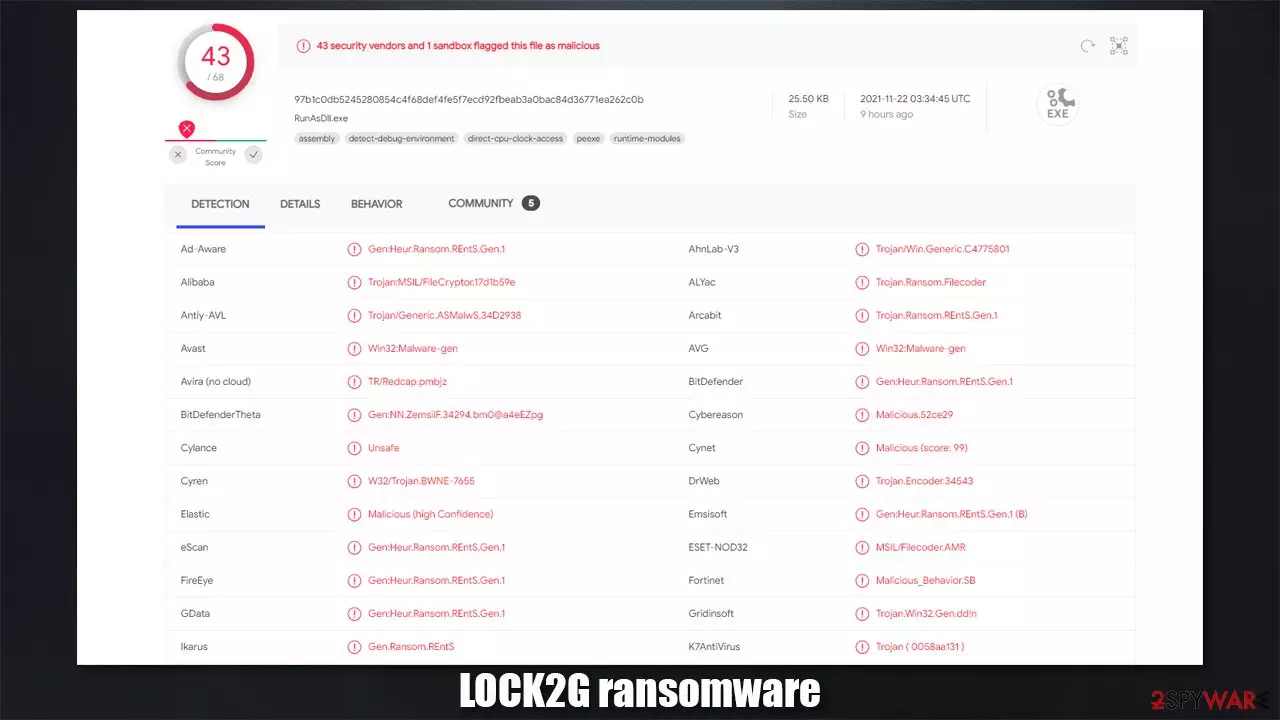
Ransomware is a devastating infection that mainly attacks Windows computers or networks. In recent years, this type of malware has been extremely successful, as more new strains have been released into the wild. Likewise, established ransomware families have also been very active, and it is not stopping anytime soon.
First spotted in the second half of November 2019, LOCK2G ransomware is a new crypto-malware that specializes in money extortion. It is not yet clear how it spreads, although most common malware distribution tactics include spam emails, software vulnerabilities, malicious ads, fake/repacked installers/software cracks, and similar.
Once installed on the device, malware does not immediately start to encrypt files. Instead, prepares the system for the process – deletes Shadow Copies, imports its own files, creates new processes. This allows the virus to proceed with the encryption of pictures, documents, videos, and other files – with the help of a strong encryption algorithm.[1]
They lose their original icons, get their name replaced with a random string of characters, and have a .LOCK2G extension attached at the end. This allows the malware to prevent victims from opening or editing data on their PC. It is important to note that files are not corrupted but rather locked behind a complex key, which is then sent out to malicious actors.
Another sign of the LOCK2G virus infection is a ransom note that is placed on a desktop and several other places on the computer. A file, titled !!!Recovery File.txt, explains to victims what happened to their data – they need to download the TOR browser and go to a specified .onion address to contact malware authors.
| Name | LOCK2G ransomware |
|---|---|
| Type | Ransomware, file locking virus |
| File extension | .LOCK2G |
| Ransom note | !!!Recovery File.txt |
| Contact | buclemylhtpbsxd7g2opjib3pzc5jgami5c3oya56j4kdo26ha4wcoad.onion |
| File Recovery | If no backups are available, recovering data is almost impossible. However, we suggest you try the alternative methods that could help you in some cases – we list them below |
| Malware removal | Perform a full system scan with powerful security software, such as SpyHunterCombo Cleaner, MalwarebytesMalwarebytes |
| System fix | Malware can seriously tamper with Windows systems, causing errors, crashes, lag, and other stability issues after it is terminated. To remediate the OS and avoid its reinstallation, we recommend scanning it with the FortectIntego repair tool |
The ransom note of the LOCK2G virus
A ransom note is the primary means for communication between the attackers and victims. In fact, almost all ransomware creators rely on this file to increase the chances of a successful payment – this is why some of them are opened automatically while others show a pop-up window.
Nonetheless, most cybercriminals use a simple text file (.txt), which can be opened with Notepad or any other application. In this case, malware authors provide a rather long explanation about what is meant to be done by victims in order to recover their files:
All of your important files have been encrypted on this PC.
All files are encrypted.To decrypt your files, you need to get a private key + decryption software.
To get the private key and decrypt software, you need to contact us and send us
To do this you need to go to the site in darkweb you can only enter through the TOR BROWSER
you can download it here https://www.torproject.org/download/
after you have installed a tor browser open this sitehttp://buclemylhtpbsxd7g2opjib3pzc5jgami5c3oya56j4kdo26ha4wcoad.onion
It shows you your current contacts.
Do not use chrome or firefox to access this site.
The site will not open with a tor browser only.Our Guarantee.
We can decrypt several files as a demonstration – you can send us up to 5 files
up to 5 MB in total weight
and we will send them back to you in their original form for FREE.How long do I have to wait for the decryption key for the whole PC?
After payment, we will send you the key within minutes.Your personal ID:
[YOUR KEY]Attention! Don't lose your money.
write to us personally. if you ask someone else to help you decrypt, they will just write to us instead of you. and this will increase our costs for their services (mediation). in the worst case you will be cheated. so write personally, this is safer for you. only we can decrypt files.Do not try to change the files and remove the extension, you may lose it forever. if you try to decrypt it yourself, experiment on the copies, do not experiment on the originals.
As it is typical to any other malware authors of this kind (for example, Iisa ransomware), free test decryption is offered. This is done in order to increase users' trust. Security experts[2] do not recommend trusting cybercriminals at all because, even if they would send you decrypted files back, they might never provide you with a working tool once the money is paid. Instead, we recommend you follow the instructions below.

Remediation plan: start with malware removal
The first step you should take is malware removal. It is yet unknown whether or not LOCK2G ransomware self-deletes after performing the data locking process, so it is best to be safe than sorry. This can be done in one way alone – by scanning the machine with powerful anti-malware software – we recommend using SpyHunterCombo Cleaner or MalwarebytesMalwarebytes.
Before you do this, it is important to disconnect your system from the internet. You can either do it by plugging out the internet connection cable. After that is done, perform a full system scan with security software. If that does not work for one reason or another, use the instructions below to access Safe Mode to avoid malware preventing you from terminating it.
Windows 7 / Vista / XP
- Click Start > Shutdown > Restart > OK.
- When your computer becomes active, start pressing the F8 button (if that does not work, try F2, F12, Del, etc. – it all depends on your motherboard model) multiple times until you see the Advanced Boot Options window.
- Select Safe Mode with Networking from the list.


Windows 10 / Windows 8
- Right-click on the Start button and select Settings.
- Scroll down to pick Update & Security.
- On the left side of the window, pick Recovery.
- Now scroll down to find the Advanced Startup section.
- Click Restart now.
- Select Troubleshoot.
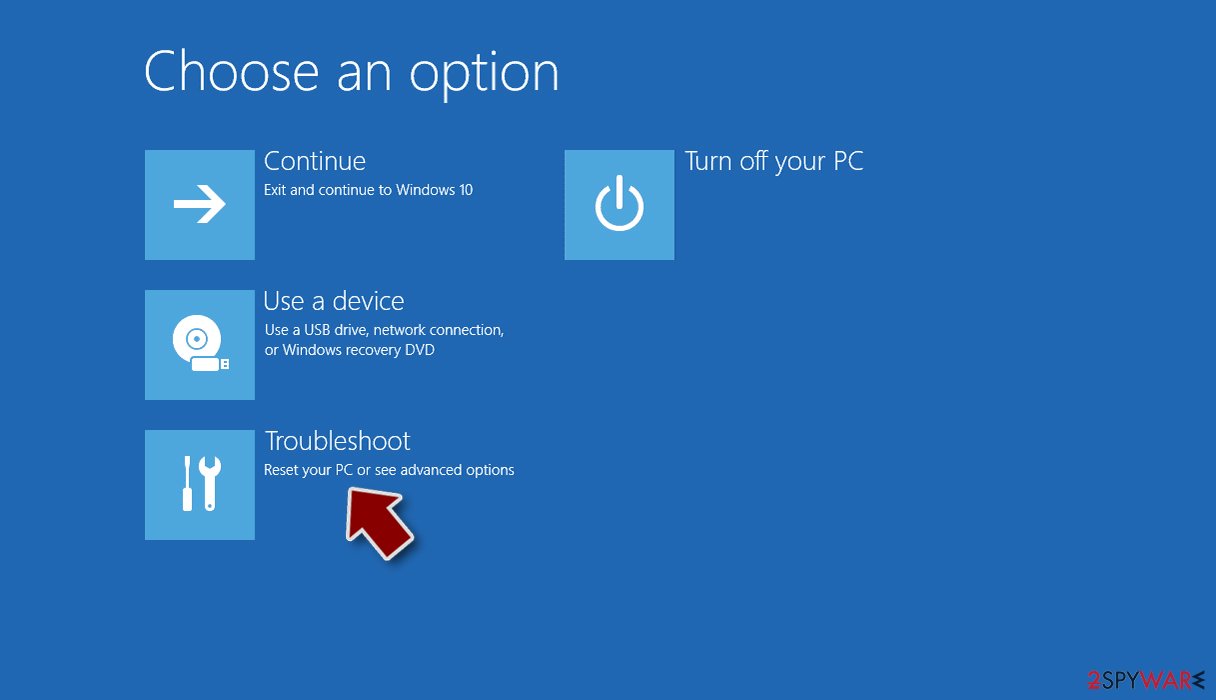
- Go to Advanced options.
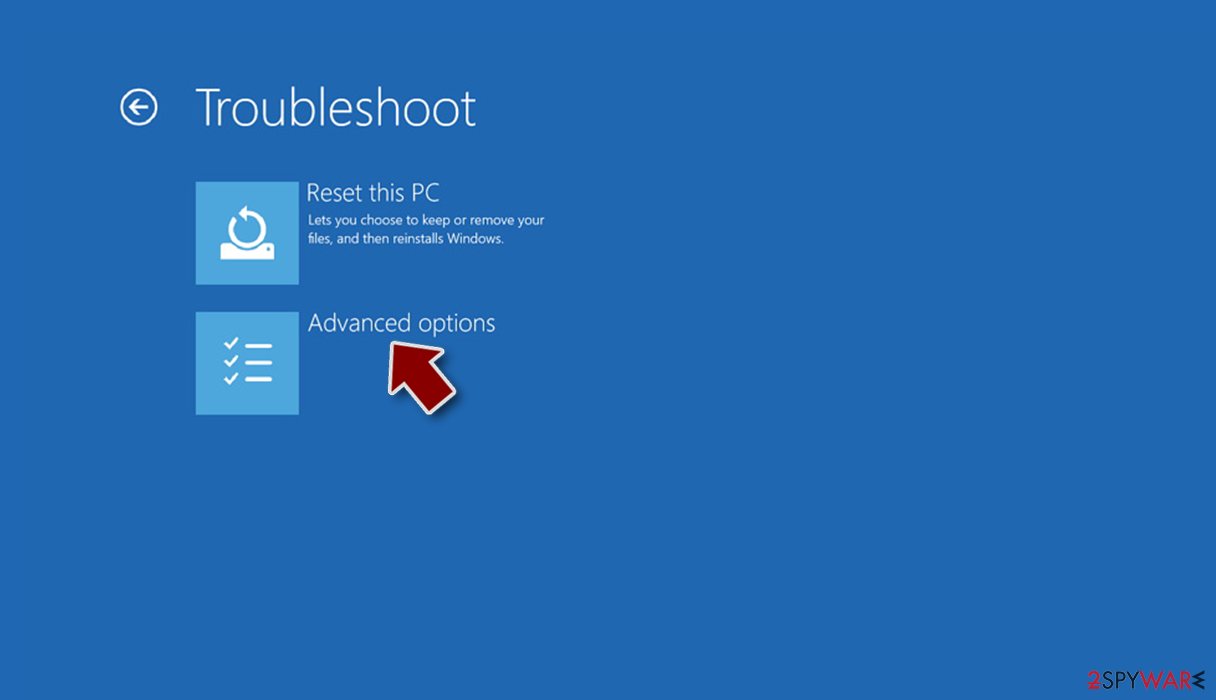
- Select Startup Settings.
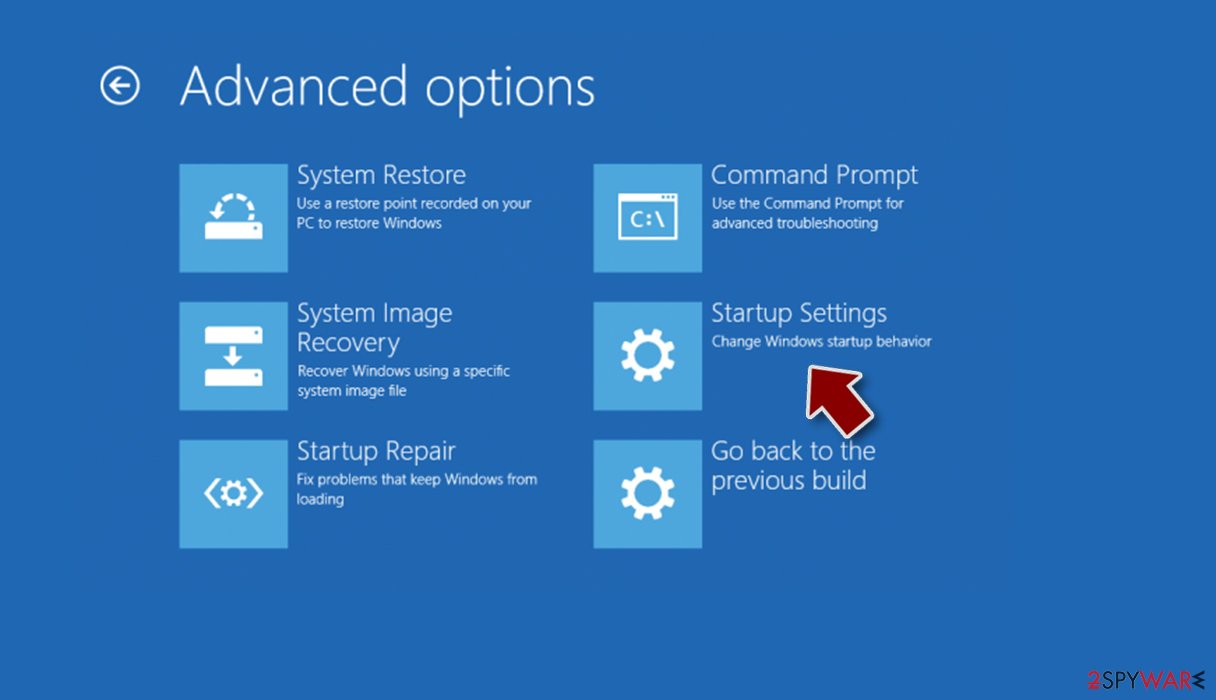
- Click Restart.
- Press 5 or click 5) Enable Safe Mode with Networking.


Once you access Safe Mode, use another anti-malware to perform a full system scan to remove all the malicious files and processes at once.
Try recovering your data without paying
Most people who get infected with ransomware know very little about or haven't even heard of it before. In other cases, some might very well know the dangers of certain online activities that could result in its infection (for example, disabling security software for a software crack to be successful) and still proceed with it.
Right now, it does not really matter how you got infected, however, and the main focus should be file recovery. If you have data backups available, you should not worry about anything, as the damages of ransomware will be minimal. Unfortunately, most people don't use them. If you need help with creating backups of your files, check out the instructions at the bottom of this post.
Anti-malware software can't restore files (even though people believe it is the case) – and it is precisely why ransomware is so devastating. Specialized data recovery software might be successful in some cases, at least with some of the encrypted files. Decryption tools might also be created in the future.
Before you proceed with alternative data recovery methods, make sure you have already performed LOCK2G virus removal.
1. Use Data recovery software
- Download Data Recovery Pro.
- Double-click the installer to launch it.

- Follow on-screen instructions to install the software.
- As soon as you press Finish, you can use the app.
- Select Everything or pick individual folders where you want the files to be recovered from.
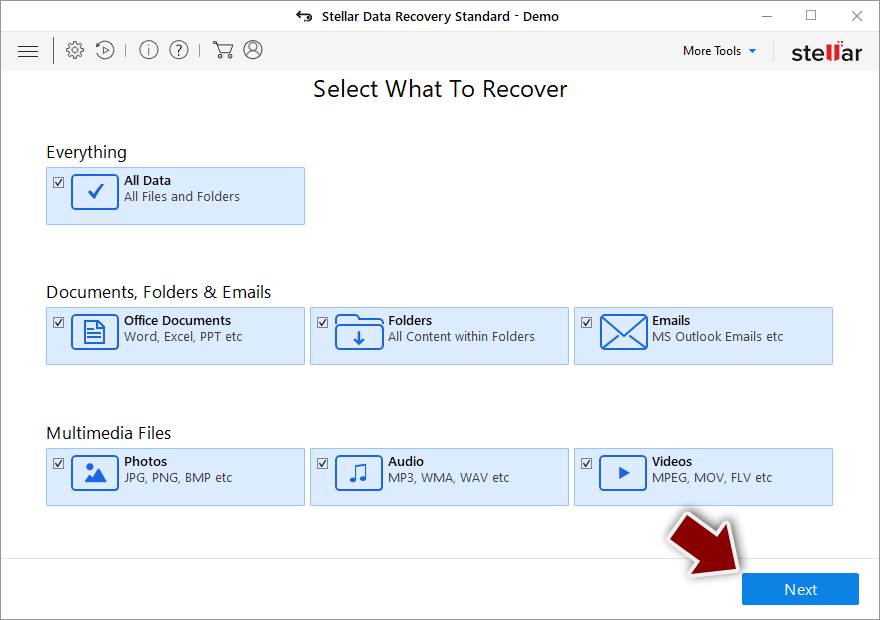
- Press Next.
- At the bottom, enable Deep scan and pick which Disks you want to be scanned.

- Press Scan and wait till it is complete.
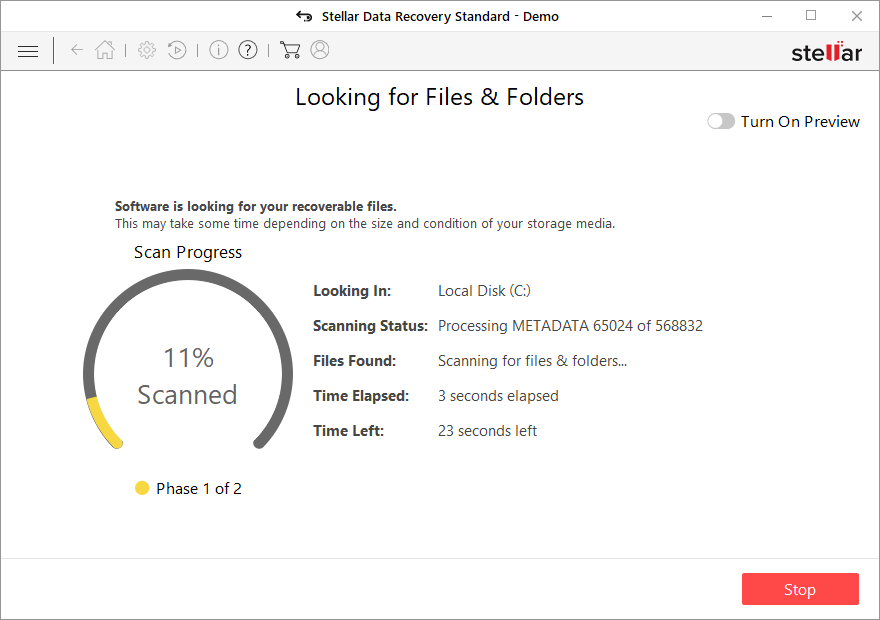
- You can now pick which folders/files to recover – don't forget you also have the option to search by the file name!
- Press Recover to retrieve your files.


2. Wait for a decryptor
Ransomware's encryption code, if not flawed, is extremely secure, and even the most sophisticated computers would not be able to calculate the decryption key for each of the victims successfully. Without the decryptor from cybercriminals, restoring files might be impossible, especially if data recovery software was of no help.
However, not all malware are created equally – some are simply programmed much worse than others and contain several bugs.[3] By finding them, cybersecurity experts can sometimes create a working decryptor that victims can use for free. Keep in mind that this might or might not happen and that it might take a while. We recommend checking the following sources for the decryptors from time to time:
- No More Ransom Project
- Free Ransomware Decryptors by Kaspersky
- Free Ransomware Decryption Tools from Emsisoft
- Avast decryptors

Fix damaged system files
After malware infection, Windows is no longer the same, as some system files might get damaged or even destroyed. This can result in system instability – crashes, failure to launch programs, BSODs, and many other issues. If you are suffering from these problems after eliminating the infection, use data recovery software as explained below.
- Download FortectIntego
- Click on the ReimageRepair.exe

- If User Account Control (UAC) shows up, select Yes
- Press Install and wait till the program finishes the installation process
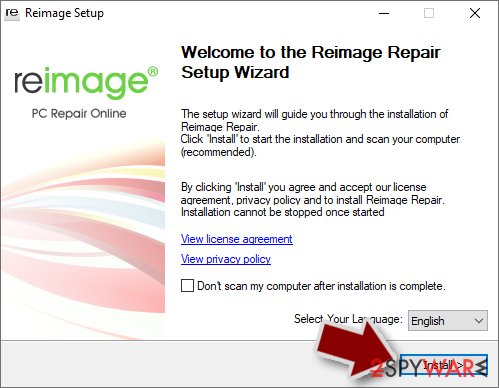
- The analysis of your machine will begin immediately
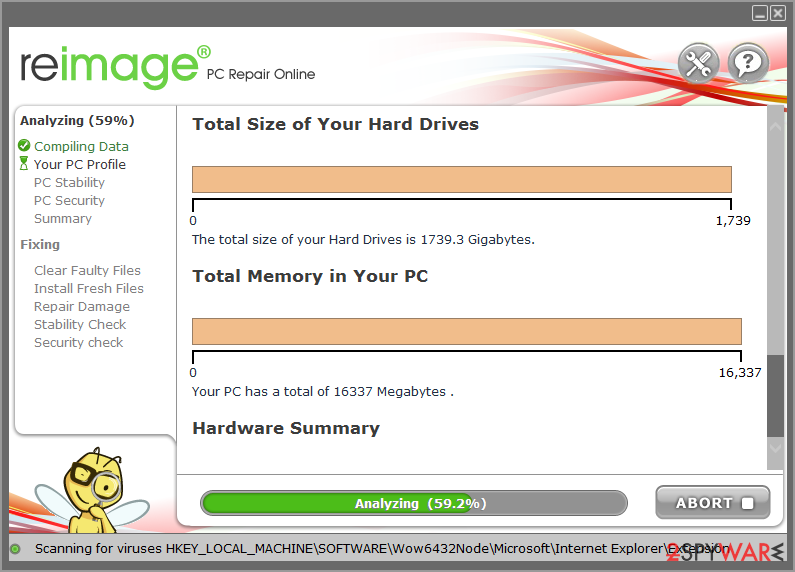
- Once complete, check the results – they will be listed in the Summary
- You can now click on each of the issues and fix them manually
- If you see many problems that you find difficult to fix, we recommend you purchase the license and fix them automatically.



By employing this tool, you would not have to worry about future computer issues, as most of them could be fixed quickly by performing a full system scan at any time. Most importantly, you could avoid the tedious process of Windows reinstallation in case things go very wrong due to one reason or another.
Did this guide help?
Be the first to comment