

MAC OS is infected with spyware – a fake warning message threatening users that their macOS devices are infected with spyware and other threats
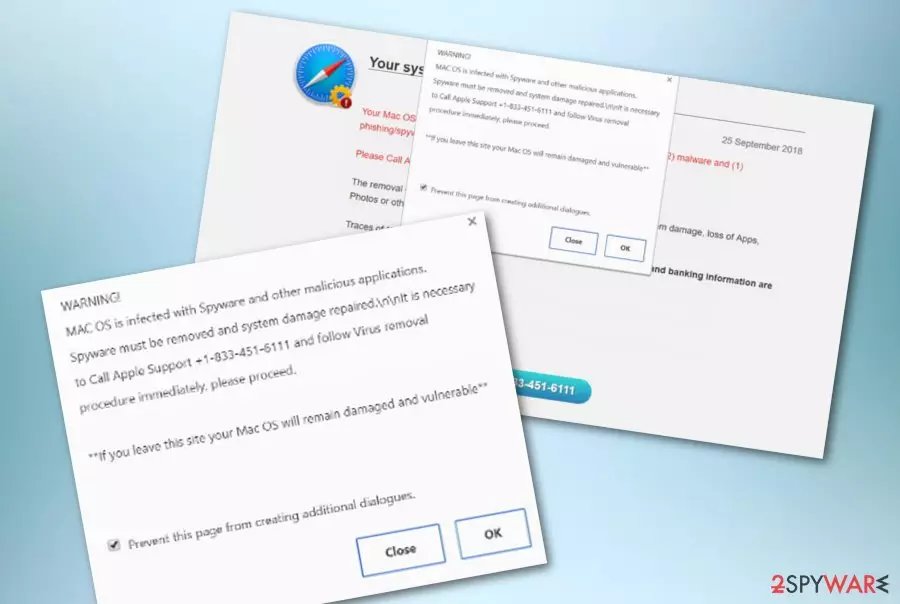
MAC OS is infected with spyware is a completely false pop-up claiming about non-existing system damage due to spyware and other parasites. The rogue note is categorized as a Mac virus that can be initiated by some type of PUP (potentially unwanted program) such as adware. Additionally, the scam can also unexpectedly appear while you are browsing on unprotected third-party websites. MAC OS is infected with spyware pop-up scam urges the users to react fast and call the given Apple Support number +1-844-295-3111 which is a fake one and provided for connection with the scammers.
Note that the official Apple company does not have anything to do with this message or its appearance. Furthermore, MAC OS is infected with spyware virus claims that you have to remove the threat to prevent further system damage, application, photo, and other file loss. To add, the scam message outlines that private and banking data are also at risk of exposure. Do not fall for believing in the content that is provided in this note and do not call the given technical support number as it is all fake and can lead to unwanted consequences that we are going to explain throughout the following paragraphs.
| Name | MAC OS is infected with spyware |
|---|---|
| Type | Mac virus/scam |
| Aim | To provide users with fake information and convince them to call the given technical support number. If you connect with the scammers, you might be provided with offers of fake security tools and services or encouraged to give remote access to the fake specialists |
| Fake number | Users are encouraged to dial the +1-844-295-3111 mobile phone number |
| The cause | You can encounter this type of message if you are frequently surfing via unprotected sources. Also, if you have been receiving the pop-up scam frequently, it might be a sign of a PUP infection |
| Distribution | Potentially unwanted programs are often spread via software bundling, infectious advertisements, hyperlinks, and fake software updates |
| Removal | If you have been dealing with this scam lately, try eliminating it by using the manual guiding steps that have been included to the end of this article or by employing reliable antimalware software |
| Fix tip | If you have discovered any damage in your computer system, try repairing it with FortectIntego |
Some users have already been complaining about the appearance of MAC OS is infected with spyware warning on their Mac computers. If this message has appeared only the first time or shows up very rarely, this is supposedly a sign that you have been visiting unsecured sources lately such as chrmophotograph.host that have been provoking the display of such messages.
MAC OS is infected with spyware is known to put the web browser on full screen and provide intrusive pop-up notifications that have nothing to do with the real state of security. This rogue message might even lock your entire browser screen, so you might have to press the Escape button on your keyboard in order to get rid of the full-screen mode and reopen your web browser in order to get rid of the lock screen.
However, if MAC OS is infected with spyware pop-up is interrupting your browsing experience all the time and you are struggling to close the message often, it might be a sign of a PUP infection, e.g. adware. If this is the case, be ready to face other unwanted activities such as advertising, redirecting, and similar.
MAC OS is infected with spyware and other malicious applications should be avoided if possible as none of the content that is provided in the message can be trusted. You should know that there are no similar cyber threats lurking on your computer system. If you want to check that, you should scan the entire device with a reliable antimalware program.

Furthermore, the Apple Support number that is given by MAC OS is infected with spyware is also a false one. You will likely get connected with the scammers and can be urged to provide remote access to your computer system that can lead to giving full control of your machine to completely random people. Afterward, you might find some type of malicious products installed on your device.
However, the most expected scenario is that MAC OS is infected with spyware scammers will encourage you to purchase some type of fake system utility that is advertised as helpful software for system repair, protection, and optimization. If you have already contacted the scammers, do not agree to spend your money on any type of software or services that they offer you.
If MAC OS is infected with spyware is a sign of a PUP infection, you can expect to receive more potentially unwanted activities. For example, adware programs are capable of producing numerous advertisements with sponsored offers and deals. This way you might be lured in some types of unneeded purchases, fake reward claims, and scams just like MAC OS is infected with spyware.
Additionally, you might find that the adware that is hiding behind MAC OS is infected with spyware starts redirecting you to affiliate domains some of which might end up being potentially malicious. This way you can easily catch some type of malware (e.g. ransomware virus, Trojan horse) infection on your computer system.

Also, various potentially unwanted programs are known for collecting browsing-related information after injecting HTTP cookies, pixels, or beacons into web browsers. As a result, the adware might record data such as recently visited websites, hyperlinks clicked, saved bookmarks, your IP address, browser type, geolocation, etc.
If you want to avoid all of these activities, you should remove MAC OS is infected with spyware together with its cause. For this purpose, employ reliable security software or complete the manual step-by-step guidelines that have been provided at the end of this article and are here to help you to clean both the operating system and web browsers.
Keep in mind that MAC OS is infected with spyware removal includes the entire computer system and all locations that might have been infected by the potentially unwanted program that is standing behind this pop-up scam. If you are not sure how to get rid of the bogus cyber threat on your own, always choose antimalware software. Also, if you have discovered any damage on your device, try repairing it with FortectIntego.
Potentially unwanted programs get delivered through software bundling
The main reason why you are frequently seeing various scam messages can definitely be a potentially unwanted program lurking on your computer system. PUPs such as adware come often hidden in bundles of free and shared products such as pdf converters, download managers, various players, and similar apps. This type of software can be downloaded from unprotected sources such as cnet.com, download.com, softonic.com, and soft32.com.
Unwanted products often land on computer systems of those people who have selected the “Recommended” and “Quick” downloading settings as default. Rather than choosing such options, you should set the configuration to “Advanced” or “Custom” where you will be able to control all of the incoming downloads and installations.
Furthermore, potentially unwanted programs can get delivered through infectious advertisements and hyperlinks that are placed on third-party websites. Be aware of stepping on such content while browsing the Internet, install AdBlock to prevent the incoming ads, and make sure that you have reliable antimalware protection that includes the safe browsing feature.
Also, do not agree with rogue software upgrade suggestions as fake flash player updates are also one of the main techniques of how adware and similar potentially unwanted programs end up on the targeted computer system.
Get rid of MAC OS is infected with spyware warning from Mac
To remove MAC OS is infected with spyware from your Apple device, you should first identify the cause of this scam. Most of the time, there is some type of potentially unwanted program that is provoking this pop-up to appear. By deleting the PUP, you should eliminate the scam also. For this process, employ reliable antimalware software that is capable of terminating such unwanted products together with all the additional content that was brought to the computer system.
As an alternative for MAC OS is infected with spyware removal, you can use the below-provided instructing steps for getting rid of all the potentially unwanted content from the operating system and web browser apps such as Google Chrome, Safari, and Mozilla Firefox. If there is adware lurking on your device, the PUP might have included suspicious extensions, plug-ins, and other additional products into the web browsers that also need to be terminated for a full clean.
Delete from macOS
Remove the unwanted application:
- From the menu bar, select Go > Applications.
- In the Applications folder, look for any suspicious entries, then drag them to Trash (or right-click and pick Move to Trash).


Delete leftover files and folders:
- Select Go > Go to Folder.
- Enter /Library/Application Support and remove any suspicious folders related to the unwanted program.
- Repeat the same check in the /Library/LaunchAgents and /Library/LaunchDaemons folders, deleting any suspicious entries.

- Finally, empty the Trash to permanently remove the leftovers.

Remove from Mozilla Firefox (FF)
Remove dangerous extensions:
- Open Mozilla Firefox browser and click on the Menu (three horizontal lines at the top-right of the window).
- Select Add-ons.
- In here, select the unwanted extension and click Remove.


Reset the homepage:
- Click three horizontal lines at the top right corner to open the menu.
- Choose Settings.
- Under Home, set your preferred homepage and new tab settings.
Clear cookies and site data:
- Click Menu and pick Settings.
- Go to Privacy & Security section.
- Scroll down to locate Cookies and Site Data.
- Click on Clear Data...
- Select Cookies and Site Data and Temporary cached files and pages, then click Clear.


Reset Mozilla Firefox
If clearing the browser as explained above did not help, reset Mozilla Firefox:
- Open Mozilla Firefox browser and click the Menu.
- Go to Help and then choose Troubleshooting Information.

- Under Give Firefox a tune up section, click on Refresh Firefox...
- Once the pop-up shows up, confirm the action by pressing on Refresh Firefox.



Remove from Google Chrome
Delete malicious extensions from Google Chrome:
- Open Google Chrome, click on the Menu (three vertical dots at the top-right corner) and select More tools > Extensions.
- In the newly opened window, you will see all the installed extensions. Uninstall all suspicious extensions related to the unwanted program by clicking Remove.


Clear cache and web data from Chrome:
- Click on Menu and pick Settings.
- Under Privacy and security, select Clear browsing data.
- Select Browsing history, Cookies and other site data, as well as Cached images and files.
- Click Clear data.


Change your homepage:
- Click menu and choose Settings.
- Look for a suspicious site in the On startup section.
- Click on Open a specific or set of pages and click on three dots to find the Remove option.
Reset Google Chrome:
If the previous methods did not help you, reset Google Chrome to eliminate all the unwanted components:
- Click on Menu and select Settings.
- In the Settings, scroll down and click Advanced.
- Scroll down and locate Reset and clean up section.
- Now click Restore settings to their original defaults.
- Confirm with Reset settings.


Delete from Safari
Remove dangerous extensions:
- Open Safari, click Safari in the menu at the top-left of the screen, and select Preferences.
- Go to the Extensions tab, look for any suspicious entries, and click Uninstall to remove them.


Clear history and website data:
- Click Safari in the menu and pick Clear History.
- Set Clear to all history and confirm with Clear History.


Reset Safari:
- Click Safari in the menu and select Preferences > Advanced.
- Enable Show Develop menu in menu bar.
- From the menu bar, click Develop and select Empty Caches.


Did this guide help?
Be the first to comment