

Mainsiteofupdatenow.best – a questionable domain that provides false Adobe Flash Player upgrades
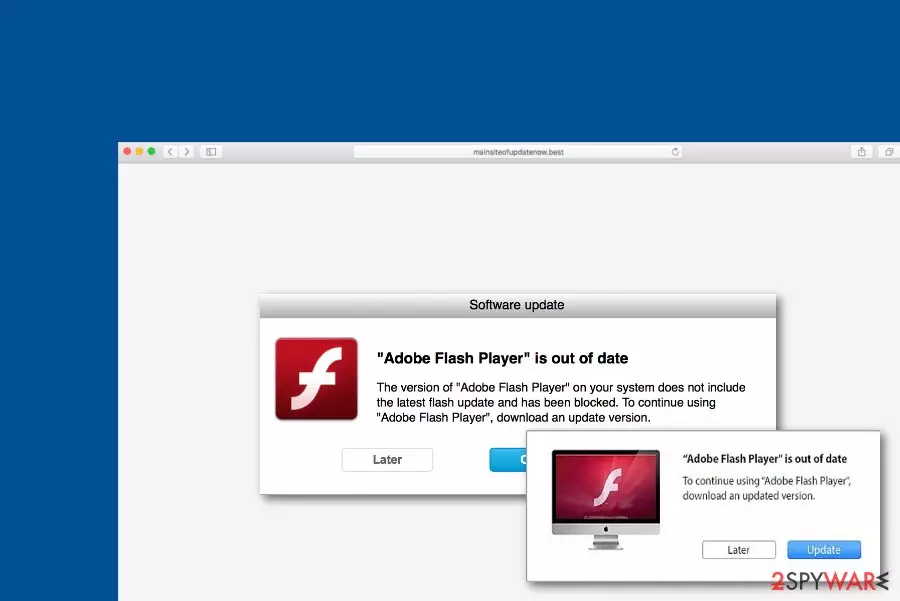
Mainsiteofupdatenow.best is a bogus website claiming that Adobe Flash Player is out of date. A big number of developers push such fake updates in order to promote their rogue apps or some type of malware. By agreeing to install some suspicious update, you might unknowingly be served with a bunch of PUPs such as adware, browser hijackers, etc. Avoid downloading any content that comes provided by Mainsiteofupdatenow.best virus and if you fail to do this, perform a full malware scan on your computer to figure out if something suspicious/malicious has escaped. It is known that this bogus updater can download and install the AdobeFlashPI_CKWH4.zip file that has been flagged by 14 AV programs.[1]
| Name | Mainsiteofupdatenow.best |
|---|---|
| Type | Suspicious domain/PUP |
| Cause | If you keep getting redirected to this domain constantly and are forced to view its content often, there might be an adware program in your system that is provoking such type of activity |
| Danger | Medium. You cannot know what you might receive when agreeing to update your Adobe Flash Player. These fake updates might bring a PUP or even a Trojan virus to your computer system |
| Related file | AdobeFlashPI_CKWH4.zip is a file that appears on the system while agreeing to download the fake update. This component has been marked as suspicious/malicious by 14 AV engines |
| Spreading | PUPs can come through software bundling in packages of third-party programs, inserted in hyperlinks/adverts, camouflaged as fake software updates, etc. |
| Elimination | You can remove the PUP with the help of automatical software or the step-by-step guidelines that have been added to the end of this article |
| Repair tip | If you have found some compromised system components, you can try repairing them with FortectIntego software |
You might encounter Mainsiteofupdatenow.best and its bogus activity while visiting questionable sources online. In this case, you should close the questionable website immediately and never return. However, if you start seeing suspicious content from this domain more usually, there might be an adware program hiding in your system somewhere that is forcing the website to pop-out frequently.
Additionally, you might start experiencing unwanted advertising and redirecting if Mainsiteofupdatenow.best is the cause of an adware program. The developers might seek to gain income from the pay-per-click method and use the bogus domain as a way to distract you. Of course, these people might also seek to install other suspicious or malicious apps. If this is the case, then you might be in big trouble if accepting the updates.

If some type of PUP ends up on your computer from Mainsiteofupdatenow.best, you might start experiencing an increased number of advertisements, constant redirecting to bogus locations, browser alterings in the homepage, new tab URL bar, or search engine, cookies, extensions, and random plug-ins might appear in your browser too. If its malware that gets into your system, then things can be worse.
Mainsiteofupdatenow.best might bring not only simple PUPs but also trojans and other malicious apps to the computer. If this happens, you might notice the increased work level of your CPU,[2] suspicious processes running in the Task Manager, freezing apps and sluggish computer system, etc. Trojan viruses and similar malware are capable of monitoring activities such as data theft, money swindling, system/software damage, installation of additional threats, and similar.
To avoid such risks, you need to remove Mainsiteofupdatenow.best from your computer system and also check your web browsers for some signs of infection. In order to stop the bogus update suggestions from this domain, you have to find the cause of its appearance. For this purpose, scan the entire machine with an antimalware program and check the results to find the guilty one.
When you know what is forcing the suspicious domain to appear on your browsers, you can succeed in the Mainsiteofupdatenow.best removal process easier. For the elimination process, use automatical tools or the step-by-step guidelines that have been added to the end of this article. Additionally, if some threats did slip into your system through the rogue updates, check for system compromisation and if you find some, try using a repair tool such as FortectIntego.

Potentially unwanted apps tend to appear in mysterious ways
PUPs, including scareware, scams, adware, and other apps are distributed alongside other third-party applications that come from sources such as softonic.com, download.com, or cnet.com. Suspicious objects find their way into a user's machine when the person has set “Quick” as his default downloading mode.
Do not take such risks and keep your machine clean from suspicious threats by activating the Advanced technique where you will be able to control all of your incoming downloads completely and opt-out all unwanted objects. However, you should also make sure that you get all of your products and services from trustworthy sources.
Additionally, potentially unwanted products can get downloaded as fake software (e.g. flash player) updates when met on unsecured websites. Before you manage to install some type of upgrades, always check if there were some updates released for particular software on its official website.
Furthermore, bogus programs can appear through infectious hyperlinks or ads and it is very important to prevent yourself from clicking on every link and ad that you meet across the Internet. Besides, employing reliable antimalware that includes safe browsing will also be a big step towards ultimate computer security.
The removal process of Mainsiteofupdatenow.best scam
To stop getting redirected to the scam website and to remove Mainsiteofupdatenow.best from your computer system completely, you should identify and eliminate the cause of the scam that mostly tends to be an adware app. You can try discovering the PUP with the help of antivirus software.
Once you identify the cause, try performing Mainsiteofupdatenow.best removal automatically or manually. This includes eliminating the adware that has been causing the scam to appear, all additional content that might have been brought by the PUP, and cleaning web browser applications thoroughly.
Cybersecurity experts from Virusai.lt[3] want to underline the importance of removing all potentially suspicious objects from web browsers and the OS as Mainsiteofupdatenow.best can otherwise return very easily.
Delete from macOS
Remove the unwanted application:
- From the menu bar, select Go > Applications.
- In the Applications folder, look for any suspicious entries, then drag them to Trash (or right-click and pick Move to Trash).


Delete leftover files and folders:
- Select Go > Go to Folder.
- Enter /Library/Application Support and remove any suspicious folders related to the unwanted program.
- Repeat the same check in the /Library/LaunchAgents and /Library/LaunchDaemons folders, deleting any suspicious entries.

- Finally, empty the Trash to permanently remove the leftovers.

Remove from Mozilla Firefox (FF)
Remove dangerous extensions:
- Open Mozilla Firefox browser and click on the Menu (three horizontal lines at the top-right of the window).
- Select Add-ons.
- In here, select the unwanted extension and click Remove.


Reset the homepage:
- Click three horizontal lines at the top right corner to open the menu.
- Choose Settings.
- Under Home, set your preferred homepage and new tab settings.
Clear cookies and site data:
- Click Menu and pick Settings.
- Go to Privacy & Security section.
- Scroll down to locate Cookies and Site Data.
- Click on Clear Data...
- Select Cookies and Site Data and Temporary cached files and pages, then click Clear.


Reset Mozilla Firefox
If clearing the browser as explained above did not help, reset Mozilla Firefox:
- Open Mozilla Firefox browser and click the Menu.
- Go to Help and then choose Troubleshooting Information.

- Under Give Firefox a tune up section, click on Refresh Firefox...
- Once the pop-up shows up, confirm the action by pressing on Refresh Firefox.



Remove from Google Chrome
Delete malicious extensions from Google Chrome:
- Open Google Chrome, click on the Menu (three vertical dots at the top-right corner) and select More tools > Extensions.
- In the newly opened window, you will see all the installed extensions. Uninstall all suspicious extensions related to the unwanted program by clicking Remove.


Clear cache and web data from Chrome:
- Click on Menu and pick Settings.
- Under Privacy and security, select Clear browsing data.
- Select Browsing history, Cookies and other site data, as well as Cached images and files.
- Click Clear data.


Change your homepage:
- Click menu and choose Settings.
- Look for a suspicious site in the On startup section.
- Click on Open a specific or set of pages and click on three dots to find the Remove option.
Reset Google Chrome:
If the previous methods did not help you, reset Google Chrome to eliminate all the unwanted components:
- Click on Menu and select Settings.
- In the Settings, scroll down and click Advanced.
- Scroll down and locate Reset and clean up section.
- Now click Restore settings to their original defaults.
- Confirm with Reset settings.


Delete from Safari
Remove dangerous extensions:
- Open Safari, click Safari in the menu at the top-left of the screen, and select Preferences.
- Go to the Extensions tab, look for any suspicious entries, and click Uninstall to remove them.


Clear history and website data:
- Click Safari in the menu and pick Clear History.
- Set Clear to all history and confirm with Clear History.


Reset Safari:
- Click Safari in the menu and select Preferences > Advanced.
- Enable Show Develop menu in menu bar.
- From the menu bar, click Develop and select Empty Caches.


Did this guide help?
Be the first to comment