

My Safe Savings is an adware program that delivers intrusive ads with information about various deals and offers
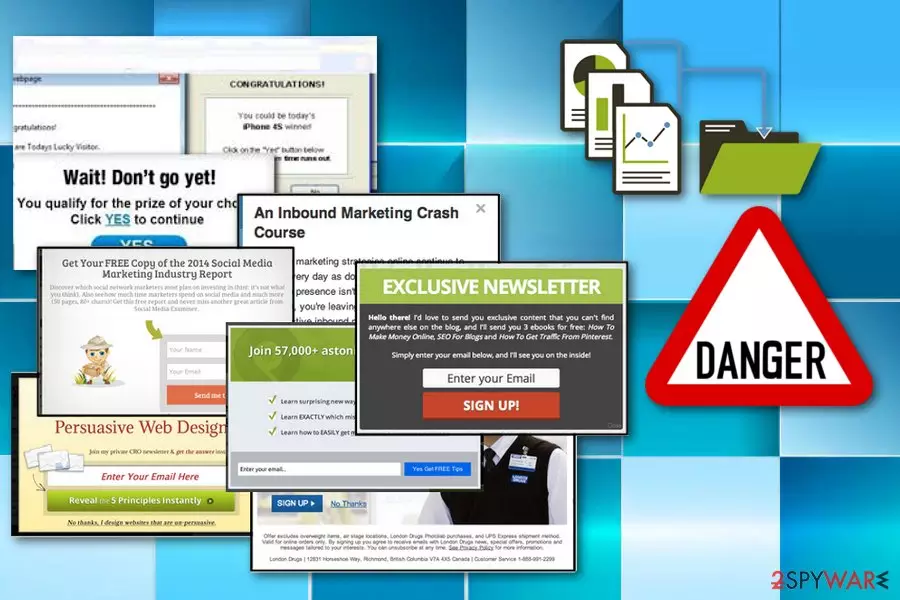
My Safe Savings is an unwanted application that will do its best to convince you into downloading it by offering you an opportunity to save money by using the best deals, price comparisons, and other handy functionalities. However, just like the most of adware-type programs,[1] it fails to stick to the promise. Besides, computer specialists have already warned users worldwide that this potentially unwanted program has some qualities that might be potentially dangerous as well as frustrating and intrusive. In particular, MySafeSavings is infamous for tracking its users, redirecting them to sponsored sites or generating ads that disrupt browsing routine. If you found app's executable file mysafesavings.exe,[2] you should end it via Windows Task Manager immediately.
| Name | My Safe Savings |
|---|---|
| Type | Adware |
| Category | Potentially unwanted program |
| Symptoms | Delivers advertisements, information about deals, coupons and offers, redirects online traffic to suspicious websites |
| Distribution | Software bundles, deceptive ads |
| Elimination | Use FortectIntego for general system cleaning |
MySafeSavings virus has been spreading together with other free programs and can be installed without the user’s knowledge. When it places its components on the system, it starts collecting information about user’s browsing preferences, and this is the main issue regarding these silent intruders.
For example, it tracks user’s browsing sessions and gathers information like browsing history, search queries, clicks, downloads, saved bookmarks, favourite websites, computer's geolocation, IP address and so on. Based on such information, adware creates and presents promotional content for the computer user whenever he/she browses the web.
This program is known for redirecting the traffic from your commonly visited sites to questionable ones, in most cases, affiliated and sponsored by the advertiser. Also, this intruder causes a lot of commercial content delivered to your screen in a banner or pop-up window form. Most of the time, ads by My Safe Savings present various online shopping-related offers, such as:
- discount codes,
- vouchers and price comparisons,
- software promotions,
- various tools “helping” save the money.
We as researchers[3] kindly suggest you avoid My Safe Savings ads at all costs, especially it those messages suggest installing any software. Trusting offers suggested to you by an application which involves you into the advertising business against your will is not safe and recommended.
Don't forget that it can also track your every step online and do nothing more than ruin your browsing experience in this way. Mostly, websites that are promoted with the help of such technique force people to install unwanted software on their computers and this activity may lead to additional cyber intruders. You need to remove My Safe Savings as quickly as you can.
If you don't want to end up with another adware, browser hijacker and similar PUP, you should avoid this untrustworthy program. To keep your computer safe, do not hesitate with the My Safe Savings removal and delete this unwanted program out of your PC. You should use FortectIntego to see if there is any malware on the system and uninstall every program or browser plug-in related to this adware.

Adware distribution includes freeware and shareware
Speaking of distribution of this adware, there is nothing unusual about it. It spreads like any other typical potentially unwanted software – via bundling technique. This technique is used to spread PUPs is used all over the world. Bundling allows software developers to pack their products together and build software bundles that look like individual programs.
Usually, such packs consist of one legitimate and well-known program and a few unpopular programs, usually browser hijackers or ad-supported apps. To avoid installing such additions, you need to be careful when installing new applications. It has been noticed that computer users tend to rely on Default and Standard installation methods while they should opt for Custom or Advanced one instead.
These options, unlike the traditional Default/Standard ones, will allow you to review all the software package components, opt the undesirable ones out and, hopefully, avoid cyber infections. Please keep this in mind the next time you download a program from the Internet and open its installation wizard.
You should remove My Safe Savings right now to prevent annoying ads and tracking
My Safe Savings removal can and should be done immediately after noticing any symptoms related to this adware. This is an annoying software which does not provide any benefits. You need to delete the program, related browser extensions and clean the system further to make sure that the infection cannot repeat itself.
Therefore, we recommend you to remove My Safe Savings from your computer for good. Please follow the guide provided below the post if you want to remove it manually. However, if you are looking not only for a method to delete this ad-supported program but also for a tool that would secure your computer from spyware and malware infiltration, you should consider installing a reputable and well-known anti-spyware or anti-malware software.
Uninstall from Windows
Uninstall from Windows 10/8:
- Type Control Panel into the Windows search box and open the result.
- Under Programs, select Uninstall a program.


Uninstall from Windows 7/XP:
- Click on Windows Start > Control Panel (Windows XP users should click on Add/Remove Programs).
- In Control Panel, select Programs > Uninstall a program.


Remove the unwanted program:
- In the Programs and Features window, look for any recently installed suspicious entries, select them, and click Uninstall.
- If User Account Control appears, click Yes to confirm, then complete the removal.


Delete from macOS
Remove the unwanted application:
- From the menu bar, select Go > Applications.
- In the Applications folder, look for any suspicious entries, then drag them to Trash (or right-click and pick Move to Trash).


Delete leftover files and folders:
- Select Go > Go to Folder.
- Enter /Library/Application Support and remove any suspicious folders related to the unwanted program.
- Repeat the same check in the /Library/LaunchAgents and /Library/LaunchDaemons folders, deleting any suspicious entries.

- Finally, empty the Trash to permanently remove the leftovers.

Reset Internet Explorer
Remove dangerous add-ons:
- Open Internet Explorer, click on the Gear icon (IE menu) on the top-right corner of the browser
- Pick Manage Add-ons.
- You will see a Manage Add-ons window. Here, look for suspicious plugins. Click on these entries and select Disable.


Change your homepage if it was altered:
- Open IE and click on the Gear icon.
- Select Internet Options.
- In the General tab, delete the Home page address and replace it by your preferred one (for example, Google.com).
- Click Apply and then select OK.


Delete temporary files:
- Press on the Gear icon and select Internet Options.
- Under Browsing history, click Delete...
- Select relevant fields and press Delete.


Reset Internet Explorer:
- Click on Gear icon > Internet options and select Advanced tab.
- Select Reset.
- In the new window, check Delete personal settings and select Reset.


Remove from Microsoft Edge
Delete unwanted extensions from MS Edge:
- Select Menu (three horizontal dots at the top-right of the browser window) and pick Extensions.
- From the list, pick the extension and click on the Gear icon.
- Click Remove.


Clear cookies and other browser data:
- Click on the Menu (three horizontal dots at the top-right of the browser window) and select Settings > Privacy, search, and services..
- Under Clear browsing data, pick Choose what to clear.
- Select Cookies and other site data and Cached images and files. (apart from passwords, although you might want to include Media licenses as well, if applicable) and click on Clear.


Restore new tab and homepage settings:
- Click the menu icon and choose Settings.
- Then find On startup section.
- Click Remove next to any suspicious startup page.
Reset MS Edge if the above steps did not work:
- Press on Ctrl + Shift + Esc to open Task Manager.
- Click on More details arrow at the bottom of the window.
- Select Details tab.
- Now scroll down and locate every entry with Microsoft Edge name in it. Right-click on each of them and select End Task to stop MS Edge from running.


Instructions for Chromium-based Edge
Delete extensions from MS Edge (Chromium):
- Open Edge and click select Settings > Extensions.
- Delete unwanted extensions by clicking Remove.


Clear cache and site data:
- Click on Menu and go to Settings.
- Select Privacy, search and services.
- Under Clear browsing data, pick Choose what to clear.
- Under Time range, pick All time.
- Select Clear now.


Reset Chromium-based MS Edge:
- Click on Menu and select Settings.
- On the left side, pick Reset settings.
- Select Restore settings to their default values.
- Confirm with Reset.
- This will disable extensions and reset startup pages but will not delete bookmarks, saved passwords, or browsing history.


Remove from Mozilla Firefox (FF)
Remove dangerous extensions:
- Open Mozilla Firefox browser and click on the Menu (three horizontal lines at the top-right of the window).
- Select Add-ons.
- In here, select the unwanted extension and click Remove.


Reset the homepage:
- Click three horizontal lines at the top right corner to open the menu.
- Choose Settings.
- Under Home, set your preferred homepage and new tab settings.
Clear cookies and site data:
- Click Menu and pick Settings.
- Go to Privacy & Security section.
- Scroll down to locate Cookies and Site Data.
- Click on Clear Data...
- Select Cookies and Site Data and Temporary cached files and pages, then click Clear.


Reset Mozilla Firefox
If clearing the browser as explained above did not help, reset Mozilla Firefox:
- Open Mozilla Firefox browser and click the Menu.
- Go to Help and then choose Troubleshooting Information.

- Under Give Firefox a tune up section, click on Refresh Firefox...
- Once the pop-up shows up, confirm the action by pressing on Refresh Firefox.



Remove from Google Chrome
Delete malicious extensions from Google Chrome:
- Open Google Chrome, click on the Menu (three vertical dots at the top-right corner) and select More tools > Extensions.
- In the newly opened window, you will see all the installed extensions. Uninstall all suspicious extensions related to the unwanted program by clicking Remove.


Clear cache and web data from Chrome:
- Click on Menu and pick Settings.
- Under Privacy and security, select Clear browsing data.
- Select Browsing history, Cookies and other site data, as well as Cached images and files.
- Click Clear data.


Change your homepage:
- Click menu and choose Settings.
- Look for a suspicious site in the On startup section.
- Click on Open a specific or set of pages and click on three dots to find the Remove option.
Reset Google Chrome:
If the previous methods did not help you, reset Google Chrome to eliminate all the unwanted components:
- Click on Menu and select Settings.
- In the Settings, scroll down and click Advanced.
- Scroll down and locate Reset and clean up section.
- Now click Restore settings to their original defaults.
- Confirm with Reset settings.


Delete from Safari
Remove dangerous extensions:
- Open Safari, click Safari in the menu at the top-left of the screen, and select Preferences.
- Go to the Extensions tab, look for any suspicious entries, and click Uninstall to remove them.


Clear history and website data:
- Click Safari in the menu and pick Clear History.
- Set Clear to all history and confirm with Clear History.


Reset Safari:
- Click Safari in the menu and select Preferences > Advanced.
- Enable Show Develop menu in menu bar.
- From the menu bar, click Develop and select Empty Caches.


Did this guide help?
7 comments
2-spyware team
Dear visitor,
Please open your Windows Task Manager (Ctrl+Alt+Del), find mysafesavings.exe and end the process. Then try to remove it again.
Perrez
just detected mysafesavings.exe. is it the only one component of this software? I want to make sure this virus is entirely gone...
Vicky
thnks, was easy to delete it;]
Daim
There is an error when I try to delete it, it says that it is open in my system. How do i fix it?
Kristen
When I try to unistall from the control panel it send me to http://uninstall.mysafesavings.com/ to download their uninstaller which I am afraid to do. There is no other option and it remains in myprograms. What should I do?
Rahul
Hi
the moment I end the process on task manager. it reappears within a second.
Raj
Even my laptop was infected with mysafesavings.exe , its really hard to delete it and so I activated mcafe virus. Im trying now let me see how it helps, also unable to open any website on chrome , scared to open my personal email id