

Mybeesearch.com – a browser hijacker that pretends to be a legitimate search engine
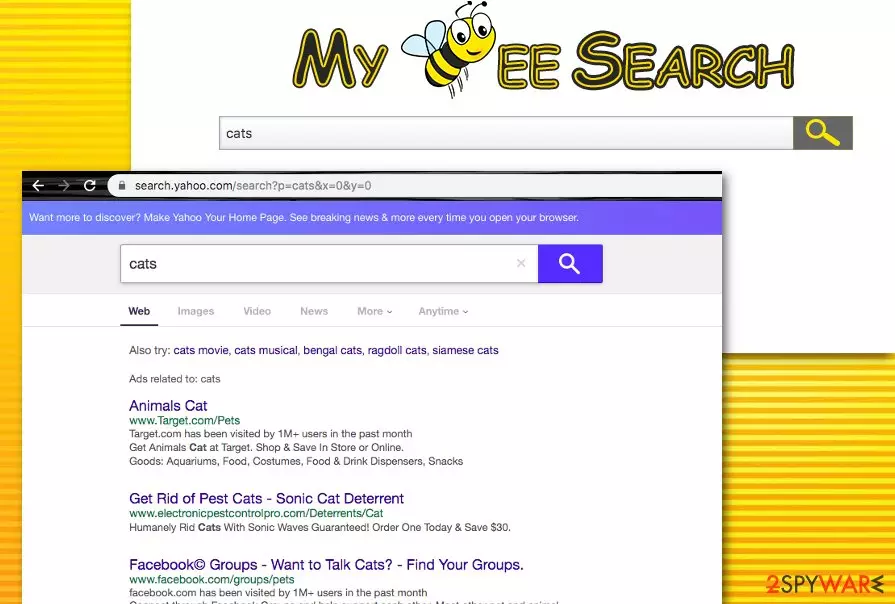
Mybeesearch.com is a browser-hijacking program that applies its own search engine to browser apps such as Chrome, Firefox, Explorer, etc. It attacks Internet browsers, installs dubious extensions, and changes major settings (search engine, new tab URL bar, and homepage).
As a result, users will be forced to use the new search provider unless they get the unwanted app eliminated from their web browser. After the secret installation process, the PUP[1] might start gathering information about your online habits and produce an increased amount of sponsored links and ads.
| Name | Mybeesearch.com |
|---|---|
| Type | Potentially unwanted program/browser hijacker |
| Danger level | Low |
| Main goal | The aim of the app is to convert major browser settings such as the search engine, homepage, new tab URL, and flood the user with beneficial-looking offers that appear to be often false |
| Removal | You can remove the browser hijacker and all additional content with the help of antivirus software or manual step-by-step instructions that have been added to end of this article |
| Repair | If you have found some system components compromised by the potentially unwanted program, you can try downloading and running FortectIntego software |
After the Mybeesearch.com virus enters a computer, it installs its extensions and then keeps a record of your visited websites, downloads, saved bookmarks, and even your recent search queries. Even though such data is considered personally non-identifiable, it can still contain some details about the user, which might reveal the user’s identity or hold contact information such as the mobile phone number or email address.
If you read the Privacy Policy, you will find that the collected information is used for improving services only and does not get involved for individual purposes:
Information we collect from you is used on an aggregate basis and for reporting purposes only. For example, we measure the total number of Toolbar installations per month in order to pay our partners, the total number of Toolbar searches conducted per month to measure growth patterns, the number of Toolbars used in Microsoft Internet Explorer or Mozilla Firefox per month to study browser trends, and so on. All information is collected in aggregate and never measured on an individual basis.
Sadly, most of the collected data is used for targeted advertising or shared with other parties for more income. The PUP might be trying to record the most beneficial deals for the moment and provide you with attractive offers that aim to trick the user into downloading an unreliable product or service.

However, this is not the worst thing yet. Mybeesearch.com tends to look like a normal search engine; moreover, it even displays Yahoo search results, so inexperienced computer users might never realize that it is a bogus search engine at first glance. However, the truth starts to come out after the user attempts to search via this website. It delivers altered Yahoo search outcomes, which are appended with rogue links that usually lead to third-party websites.
The main goal – generate targeted web traffic to these sites and generate revenue from promoting affiliate companies this way. It is a must to know that not all third-party websites are safe. However, which legal and safe company would promote its site in such a shady and indirect way? This might be a clear sign to you that the app does not hold a positive reputation and should be avoided.
You should also remember that redirects might lead you to corrupted websites filled with questionable content. Be careful – even one reckless click on a suspicious hyperlink can easily pull the trigger and download an infectious program to your PC. Continuously, the browser hijacker might try to convince you to take bogus offers, for example, purchase a suspicious system optimization program for an inadequate price.
We do strongly recommend removing Mybeesearch.com to avoid such computer infections. The safest way to remove it is by using an anti-spyware program, however, manual elimination is also a possibility in this case (scroll down to the end of the page and find the step-by-step guide). Another piece of advice would be to repair all compromised system files with the help of FortectIntego as it might work.

Most users do not install hijackers intentionally
You do not necessarily have to download potentially unwanted programs intentionally to get infected with them. Needless to say, they are often distributed indirectly. Let us explain the most popular browser hijacker and other PUP distribution methods these days – it is called “bundling.”[2] This deceptive technique allows setting a pack of several programs and presents it as an individual program.
Therefore, the potentially unwanted application hijacks the system if the user tends to install new programs on the computer carelessly. However, you should keep in mind that you can refuse to install additional products during the software installation process. All you need to do is pick Advanced or Custom installation mode, deselect the agreements to receive optional programs, and that is it.
Furthermore, browser hijackers and their siblings might disguise as Adobe Flash Player updates or other software upgrades. Before you opt for any updates on your Windows or macOS computer, you need to go to the official developer's website and make sure that there were some official updates released recently. If not, decline any offer to update your programs as it might be a trick to sneak some type of virus into your computer.
Last but not least, according to Virusai.lt specialists,[3] ensuring that reputable antimalware is operating on your computer system is also a necessary step to take. Download a program that has been positively evaluated by security experts and update it regularly.
Uninstalling Mybeesearch.com from the system and browsers
The elimination process should start from the computer itself and then expand to web browser apps. First of all, investigate all possibly-affected locations such as the Windows Registry and Task Manager.[4] The browser hijacker might have planted unwanted entries and registries which are responsible for the app's operation.
Once you have cleaned your computer, you can start deleting the leftovers of the app from your web browsers. Look for suspicious extensions, plug-ins, and add-ons that might be responsible for the intrusive advertising and redirecting you have been experiencing lately.
You can remove Mybeesearch.com virus by using one out of two options or trying both of them. The first one requires downloading and installing reliable antimalware software when the other one is based on manual guiding steps.
Uninstall from Windows
Uninstall from Windows 10/8:
- Type Control Panel into the Windows search box and open the result.
- Under Programs, select Uninstall a program.


Uninstall from Windows 7/XP:
- Click on Windows Start > Control Panel (Windows XP users should click on Add/Remove Programs).
- In Control Panel, select Programs > Uninstall a program.


Remove the unwanted program:
- In the Programs and Features window, look for any recently installed suspicious entries, select them, and click Uninstall.
- If User Account Control appears, click Yes to confirm, then complete the removal.


Delete from macOS
Remove the unwanted application:
- From the menu bar, select Go > Applications.
- In the Applications folder, look for any suspicious entries, then drag them to Trash (or right-click and pick Move to Trash).


Delete leftover files and folders:
- Select Go > Go to Folder.
- Enter /Library/Application Support and remove any suspicious folders related to the unwanted program.
- Repeat the same check in the /Library/LaunchAgents and /Library/LaunchDaemons folders, deleting any suspicious entries.

- Finally, empty the Trash to permanently remove the leftovers.

Remove from Microsoft Edge
Delete unwanted extensions from MS Edge:
- Select Menu (three horizontal dots at the top-right of the browser window) and pick Extensions.
- From the list, pick the extension and click on the Gear icon.
- Click Remove.


Clear cookies and other browser data:
- Click on the Menu (three horizontal dots at the top-right of the browser window) and select Settings > Privacy, search, and services..
- Under Clear browsing data, pick Choose what to clear.
- Select Cookies and other site data and Cached images and files. (apart from passwords, although you might want to include Media licenses as well, if applicable) and click on Clear.


Restore new tab and homepage settings:
- Click the menu icon and choose Settings.
- Then find On startup section.
- Click Remove next to any suspicious startup page.
Reset MS Edge if the above steps did not work:
- Press on Ctrl + Shift + Esc to open Task Manager.
- Click on More details arrow at the bottom of the window.
- Select Details tab.
- Now scroll down and locate every entry with Microsoft Edge name in it. Right-click on each of them and select End Task to stop MS Edge from running.


Instructions for Chromium-based Edge
Delete extensions from MS Edge (Chromium):
- Open Edge and click select Settings > Extensions.
- Delete unwanted extensions by clicking Remove.


Clear cache and site data:
- Click on Menu and go to Settings.
- Select Privacy, search and services.
- Under Clear browsing data, pick Choose what to clear.
- Under Time range, pick All time.
- Select Clear now.


Reset Chromium-based MS Edge:
- Click on Menu and select Settings.
- On the left side, pick Reset settings.
- Select Restore settings to their default values.
- Confirm with Reset.
- This will disable extensions and reset startup pages but will not delete bookmarks, saved passwords, or browsing history.


Remove from Mozilla Firefox (FF)
Remove dangerous extensions:
- Open Mozilla Firefox browser and click on the Menu (three horizontal lines at the top-right of the window).
- Select Add-ons.
- In here, select the unwanted extension and click Remove.


Reset the homepage:
- Click three horizontal lines at the top right corner to open the menu.
- Choose Settings.
- Under Home, set your preferred homepage and new tab settings.
Clear cookies and site data:
- Click Menu and pick Settings.
- Go to Privacy & Security section.
- Scroll down to locate Cookies and Site Data.
- Click on Clear Data...
- Select Cookies and Site Data and Temporary cached files and pages, then click Clear.


Reset Mozilla Firefox
If clearing the browser as explained above did not help, reset Mozilla Firefox:
- Open Mozilla Firefox browser and click the Menu.
- Go to Help and then choose Troubleshooting Information.

- Under Give Firefox a tune up section, click on Refresh Firefox...
- Once the pop-up shows up, confirm the action by pressing on Refresh Firefox.



Remove from Google Chrome
Delete malicious extensions from Google Chrome:
- Open Google Chrome, click on the Menu (three vertical dots at the top-right corner) and select More tools > Extensions.
- In the newly opened window, you will see all the installed extensions. Uninstall all suspicious extensions related to the unwanted program by clicking Remove.


Clear cache and web data from Chrome:
- Click on Menu and pick Settings.
- Under Privacy and security, select Clear browsing data.
- Select Browsing history, Cookies and other site data, as well as Cached images and files.
- Click Clear data.


Change your homepage:
- Click menu and choose Settings.
- Look for a suspicious site in the On startup section.
- Click on Open a specific or set of pages and click on three dots to find the Remove option.
Reset Google Chrome:
If the previous methods did not help you, reset Google Chrome to eliminate all the unwanted components:
- Click on Menu and select Settings.
- In the Settings, scroll down and click Advanced.
- Scroll down and locate Reset and clean up section.
- Now click Restore settings to their original defaults.
- Confirm with Reset settings.


Delete from Safari
Remove dangerous extensions:
- Open Safari, click Safari in the menu at the top-left of the screen, and select Preferences.
- Go to the Extensions tab, look for any suspicious entries, and click Uninstall to remove them.


Clear history and website data:
- Click Safari in the menu and pick Clear History.
- Set Clear to all history and confirm with Clear History.


Reset Safari:
- Click Safari in the menu and select Preferences > Advanced.
- Enable Show Develop menu in menu bar.
- From the menu bar, click Develop and select Empty Caches.


Did this guide help?
5 comments
Whiterun
very bad search engine, i hate it
penelope95
What an deceptive search engine, thank god I have googled its name before using it.
help
Did you remove it?! it seems that i cant! what to do?!! I cannot find the program!
johny
Did you open Control Panel> add/remove programs and looked for mybeesearch.exe? it should be there.
help
oh my bad! its there. thanks! did not notice it in a rush.