

MyTransitGuide Toolbar is criticised for its shady distribution method
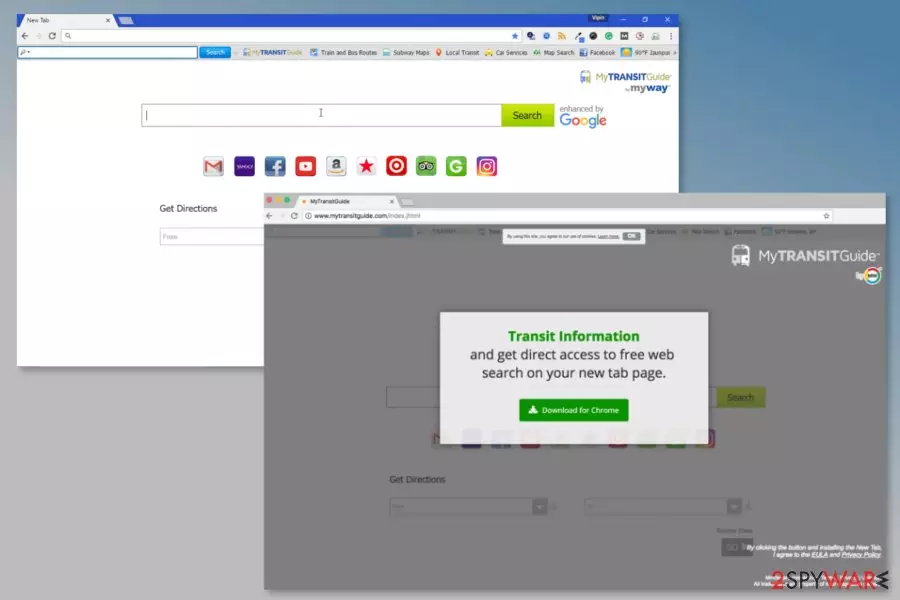
MyTransitGuide by Mindspark Interactive is a toolbar that allows accessing train, bus and subway schedules. Despite the fact that this tool seems useful for those who use public transportation, security experts warn that it’s a potentially unwanted program (PUP).[1]
The main reason why MyTransitGuide is not considered as absolutely safe is that it might get installed without asking direct user’s permission. It might happen when a user downloads freeware[2] or shareware[3] incorrectly.
Therefore, if you have noticed that your homepage and search provider has been modified by MyTransitGuide Toolbar. In this case, you have to uninstall it manually or use anti-spyware software, such as FortectIntego.
Users are advised to remove My Transit Guide toolbar because it may implement doubtful activities with an intention to promote third-party websites, increase their page rank or gain financial profit via advertising. The first sign indicating that this toolbar is hiding in your PC is the modification of your default homepage and search provider. To be more precise, instead of Google, Bing or Yahoo, you may find Ask Search or hp.myway.com.
Besides, along with these modifications, you will notice MyTransitGuide Toolbar at the top of the page. If you are in this situation right now, be prepared for constant redirects to third-party websites. We say so because this search provider is set to deliver altered search results with sponsored links in priority, so every time you enter any search query, you may receive changed search results that may contain links to unfamiliar shopping websites.
Therefore, it goes without saying that these MyTransitGuide redirect issues may become a very irritating issue. In addition, users report that they were redirected to tech support scam[4] websites or another shady site that did not seem legit.
What is more, once this toolbar gets inside your computer, it may start tracking your online activities, collect your browsing history, take some pieces of non-personal information and try to make you visit websites of the affiliates. Thus, if you are concerned about your privacy, you should check how to get rid of my transit guide at the end of this article.

EULA reveals other worrying issues with MyTransitGuide Toolbar
We have no doubts that all these previously mentioned problems should be enough to remove MyTransitGuide Toolbar from the computer. However, security experts from Finland[5] point out to other disturbing features of the program. Developers in the EULA warns that:
MS Products may provide access to search results or other links to Third Party Partner websites or resources. Mindspark has no control over such sites and resources, in which you acknowledge and agree that Mindspark is not responsible for the availability of such external sites or resources, and does not endorse nor is responsible or liable for any content, advertising, products, or other materials on or available from such sites or resources.You further acknowledge and agree that Mindspark shall not be responsible or liable, directly or indirectly, for any damage or loss caused or alleged to be caused by or in connection with use of or reliance on any such Content (as defined below), goods or services available on or through any such site or resource.
In a nutshell, it means that the developer rejects the responsibility for the irrelevant content that you may be exposed to once any of the sponsored links are clicked on. Thus, having this in mind, decide whether you need this toolbar or not. If you decide to get rid of it, you can find MyTransitGuide Toolbar removal instructions below.
Distribution methods of the toolbar
The toolbar is available on Chrome Store and has an official website that has an active download link. Therefore, users can download it directly. Undoubtedly, there’s nothing wrong with this distribution method. But developers also rely on bundling technique which allows infiltrating computers without users’ knowledge.
In order to detect MyTransitGuide on time , you have to be very careful with free software. Since users very often download and install it recklessly, for example, click the “next” button without reading notifications, it's not surprising that they end up with this potentially unwanted program.
Therefore, when installing free programs, instead of Quick or Basic installation option, opt for Advanced or Custom installation and check everything carefully. If you notice a check box saying that “I accept to set ask.com as a default search engine” or “I accept to install MyTransitGuide Toolbar,” deselect it to prevent all aforementioned issues.
Recently, the developer of this program contacted us asking us to remove this post from 2-spyware.com website. We believe that we shouldn't do that as long as programs that we offer for the removal of MyTransitGuide Toolbar can detect it and help users to remove it from the system. As it is mentioned under each of download buttons, we ARE affiliated with these anti-malware programs, and while some of them are free, others can remove a virus only after purchasing them. These mentions fully fulfill each of the requirements of FTC.
Nevertheless, we have recently decided to make a revision of this and other posts that are related to this developer. We claim that all of them are described properly.
How to remove My Transit Guide Toolbar on Mac and Windows computers
If you have installed this program from a reliable source (official website, Chrome web store) and is satisfied by it, you may certainly keep it. However, if it did not meet the expectations and you want to remove MyTransitGuide now, follow these instructions:
Uninstall programs that are related to MyTransitGuide Toolbar from your Windows computer:
- Click Start → Control Panel → Uninstall a Program.
- When in the Add/Remove Programs/Uninstall a Program, look for MyTransitGuide Toolbar and other programs that are unknown to you.
- Click “Uninstall” and then OK to save the changes.
MyTransitGuide removal instructions from Mac OS X are given down below. However, you have to do the same and delete suspicious apps from the device. Once it’s done, you have to reset the browser.
Uninstall from Windows
Uninstall from Windows 10/8:
- Type Control Panel into the Windows search box and open the result.
- Under Programs, select Uninstall a program.


Uninstall from Windows 7/XP:
- Click on Windows Start > Control Panel (Windows XP users should click on Add/Remove Programs).
- In Control Panel, select Programs > Uninstall a program.


Remove the unwanted program:
- In the Programs and Features window, look for any recently installed suspicious entries, select them, and click Uninstall.
- If User Account Control appears, click Yes to confirm, then complete the removal.


Delete from macOS
Remove the unwanted application:
- From the menu bar, select Go > Applications.
- In the Applications folder, look for any suspicious entries, then drag them to Trash (or right-click and pick Move to Trash).


Delete leftover files and folders:
- Select Go > Go to Folder.
- Enter /Library/Application Support and remove any suspicious folders related to the unwanted program.
- Repeat the same check in the /Library/LaunchAgents and /Library/LaunchDaemons folders, deleting any suspicious entries.

- Finally, empty the Trash to permanently remove the leftovers.

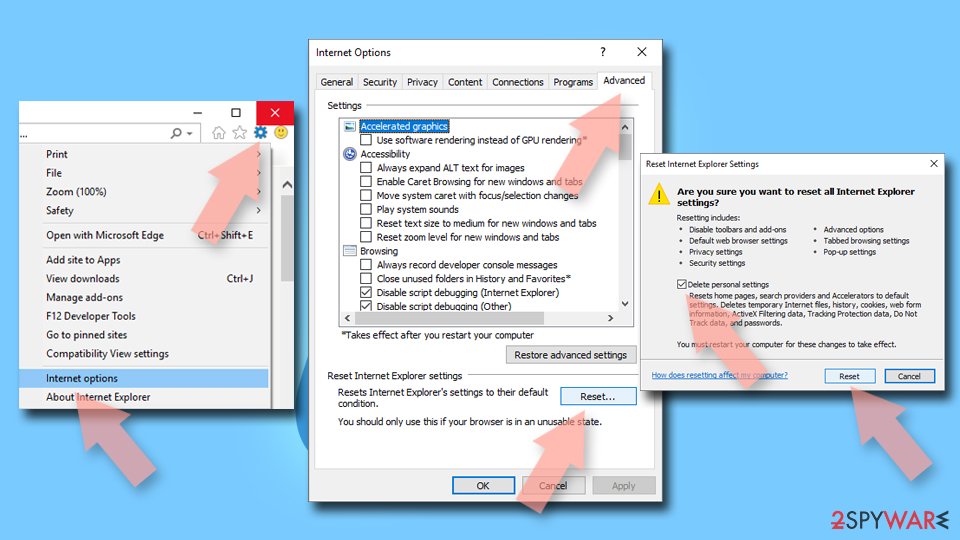
Reset Internet Explorer
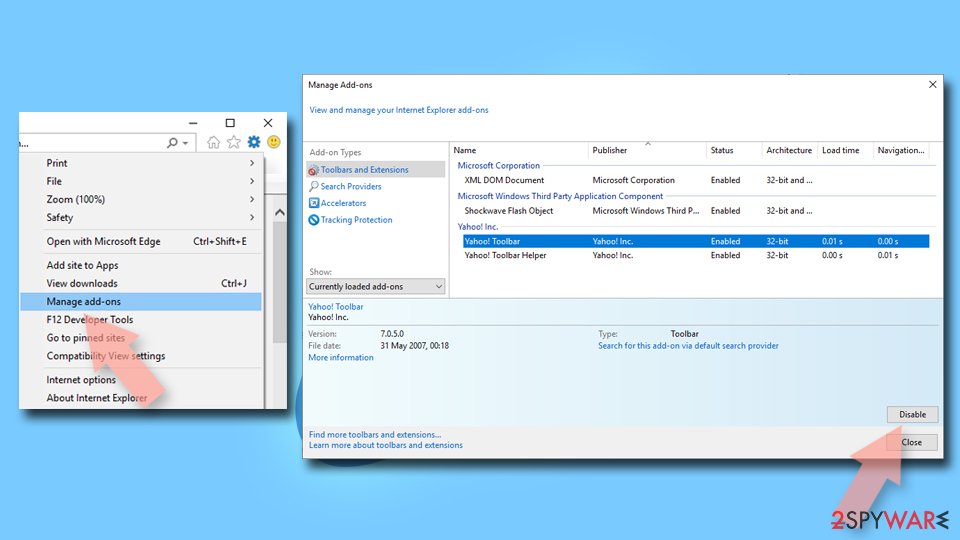
Remove dangerous add-ons:
- Open Internet Explorer, click on the Gear icon (IE menu) on the top-right corner of the browser
- Pick Manage Add-ons.
- You will see a Manage Add-ons window. Here, look for suspicious plugins. Click on these entries and select Disable.

Change your homepage if it was altered:
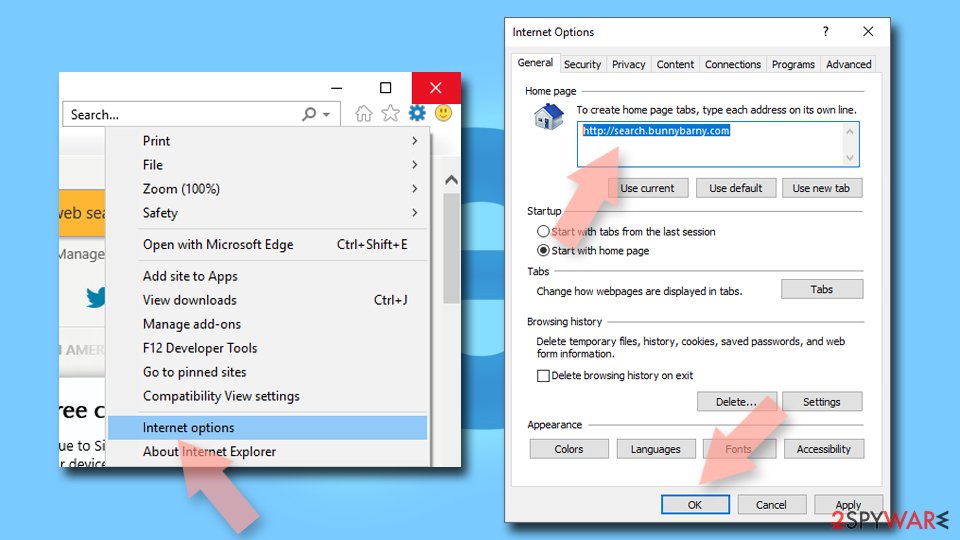
- Open IE and click on the Gear icon.
- Select Internet Options.
- In the General tab, delete the Home page address and replace it by your preferred one (for example, Google.com).
- Click Apply and then select OK.

Delete temporary files:
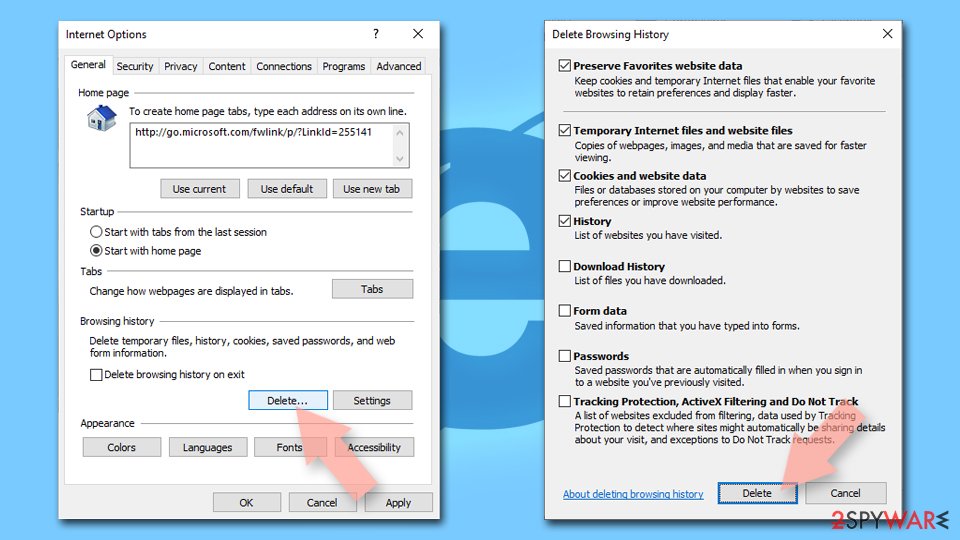
- Press on the Gear icon and select Internet Options.
- Under Browsing history, click Delete...
- Select relevant fields and press Delete.

Reset Internet Explorer:
- Click on Gear icon > Internet options and select Advanced tab.
- Select Reset.
- In the new window, check Delete personal settings and select Reset.

Remove from Microsoft Edge
Delete unwanted extensions from MS Edge:
- Select Menu (three horizontal dots at the top-right of the browser window) and pick Extensions.
- From the list, pick the extension and click on the Gear icon.
- Click Remove.


Clear cookies and other browser data:
- Click on the Menu (three horizontal dots at the top-right of the browser window) and select Settings > Privacy, search, and services..
- Under Clear browsing data, pick Choose what to clear.
- Select Cookies and other site data and Cached images and files. (apart from passwords, although you might want to include Media licenses as well, if applicable) and click on Clear.


Restore new tab and homepage settings:
- Click the menu icon and choose Settings.
- Then find On startup section.
- Click Remove next to any suspicious startup page.
Reset MS Edge if the above steps did not work:
- Press on Ctrl + Shift + Esc to open Task Manager.
- Click on More details arrow at the bottom of the window.
- Select Details tab.
- Now scroll down and locate every entry with Microsoft Edge name in it. Right-click on each of them and select End Task to stop MS Edge from running.


Instructions for Chromium-based Edge
Delete extensions from MS Edge (Chromium):
- Open Edge and click select Settings > Extensions.
- Delete unwanted extensions by clicking Remove.


Clear cache and site data:
- Click on Menu and go to Settings.
- Select Privacy, search and services.
- Under Clear browsing data, pick Choose what to clear.
- Under Time range, pick All time.
- Select Clear now.


Reset Chromium-based MS Edge:
- Click on Menu and select Settings.
- On the left side, pick Reset settings.
- Select Restore settings to their default values.
- Confirm with Reset.
- This will disable extensions and reset startup pages but will not delete bookmarks, saved passwords, or browsing history.


Remove from Mozilla Firefox (FF)
Remove dangerous extensions:
- Open Mozilla Firefox browser and click on the Menu (three horizontal lines at the top-right of the window).
- Select Add-ons.
- In here, select the unwanted extension and click Remove.


Reset the homepage:
- Click three horizontal lines at the top right corner to open the menu.
- Choose Settings.
- Under Home, set your preferred homepage and new tab settings.
Clear cookies and site data:
- Click Menu and pick Settings.
- Go to Privacy & Security section.
- Scroll down to locate Cookies and Site Data.
- Click on Clear Data...
- Select Cookies and Site Data and Temporary cached files and pages, then click Clear.


Reset Mozilla Firefox
If clearing the browser as explained above did not help, reset Mozilla Firefox:
- Open Mozilla Firefox browser and click the Menu.
- Go to Help and then choose Troubleshooting Information.

- Under Give Firefox a tune up section, click on Refresh Firefox...
- Once the pop-up shows up, confirm the action by pressing on Refresh Firefox.



Remove from Google Chrome
Delete malicious extensions from Google Chrome:
- Open Google Chrome, click on the Menu (three vertical dots at the top-right corner) and select More tools > Extensions.
- In the newly opened window, you will see all the installed extensions. Uninstall all suspicious extensions related to the unwanted program by clicking Remove.


Clear cache and web data from Chrome:
- Click on Menu and pick Settings.
- Under Privacy and security, select Clear browsing data.
- Select Browsing history, Cookies and other site data, as well as Cached images and files.
- Click Clear data.


Change your homepage:
- Click menu and choose Settings.
- Look for a suspicious site in the On startup section.
- Click on Open a specific or set of pages and click on three dots to find the Remove option.
Reset Google Chrome:
If the previous methods did not help you, reset Google Chrome to eliminate all the unwanted components:
- Click on Menu and select Settings.
- In the Settings, scroll down and click Advanced.
- Scroll down and locate Reset and clean up section.
- Now click Restore settings to their original defaults.
- Confirm with Reset settings.


Delete from Safari
Remove dangerous extensions:
- Open Safari, click Safari in the menu at the top-left of the screen, and select Preferences.
- Go to the Extensions tab, look for any suspicious entries, and click Uninstall to remove them.


Clear history and website data:
- Click Safari in the menu and pick Clear History.
- Set Clear to all history and confirm with Clear History.


Reset Safari:
- Click Safari in the menu and select Preferences > Advanced.
- Enable Show Develop menu in menu bar.
- From the menu bar, click Develop and select Empty Caches.


Did this guide help?
1 comment
Pat
It is an add on--at least in firefox. Thats where people need to go to remove it.