

News-dovode.cc is a scam website that asks users to enable push notifications in a deceptive manner
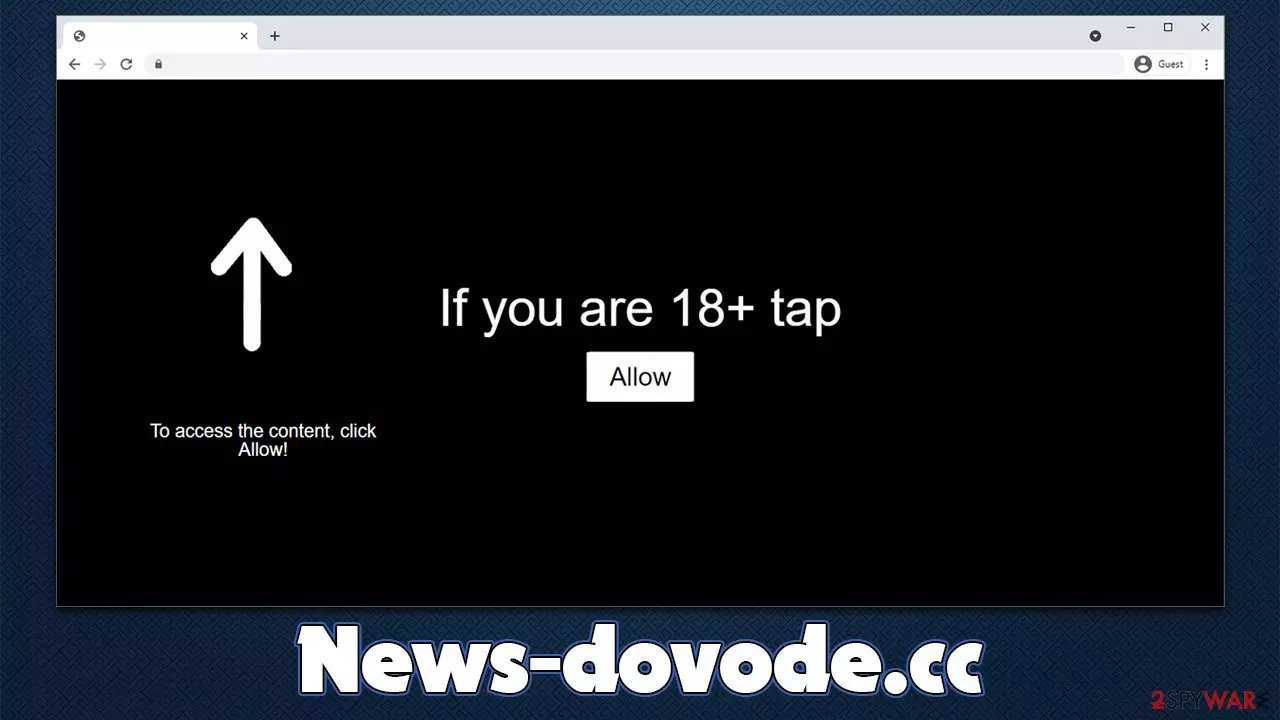
News-dovode.cc ads are a phenomenon that most users do not expect, as it seems not to be triggered by any actions that they carry out. The pop-ups usually show up at the top or bottom right corner of the screen (depending on whether Windows or macOS is used), include some type of advertisement or link, and are marked with the website's URL.
The reason for this strange behavior is the push notifications that were enabled by the users. For that to happen, they need to access the website initially and then click the “Allow” button within the notification prompt. The catch is that people are tricked into doing so, as they are shown phishing messages that encourage them to accept the offer.
Once users grant permission to show notifications, News-dovode.cc is free to send them any type of information via the push notification prompt, which runs on the system level, hence the ads can start showing up regardless of which websites are being visited. In order to stop these annoying pop-ups, you have to access your browser settings – we explain everything in detail below.
| Name | News-dovode.cc |
|---|---|
| Type | Push notifications, ads, pop-ups, scam |
| Distribution | The website gains access to deliver any information as soon as the “Allow” button is pressed within the push notification prompt |
| Symptoms | Pop-up notifications are shown on a desktop at random times |
| Risks | If you click on links provided by the website, you might end up infecting your system with malware/PUPs, disclosing your personal information to cybercriminals, or losing money for useless services |
| Elimination | Access browser settings to stop intrusive push notifications. After that, make sure that your system is not infected with adware or malware – scan it with SpyHunterCombo Cleaner |
| Recovery | You should delete web browser caches and other data from your browsers to protect your privacy and prevent information leaks. You can do that quicker with FortectIntego |
How do you enter News-dovode.cc?
It is evident that most users do not visit phishing or scam websites on purpose. The most common reason for them to enter there are redirects from other websites, which can occur after a misleading link is clicked or an automatic script[1] is triggered. In order to prevent these, you could employ an effective ad-blocker, although you should watch out for fake applications that insert their ads instead!
The most effective method to prevent malicious material exposure is to avoid visiting high-risk websites, particularly those that distribute pirated software or allow viewing of copyrighted material. These sites are often poorly monitored from a security standpoint and easily accessible to cybercriminals. Ad space is also commonly rented to suspicious parties, hence redirecting to websites like News-dovode.cc, Banibajury.website, Funksolutions.org, or similar websites, may occur.
Adware[2] could also be one of the primary reasons for redirects and intrusive ads. If you download software from third parties often, you may have installed adware along with freeware accidentally. In order to check that, you should check the list of the installed programs on the system level and also the extensions on your browser.
Nonetheless, you should scan your system with SpyHunterCombo Cleaner, MalwarebytesMalwarebytes, or another powerful anti-malware to ensure that all the malicious files and other components are eliminated at once. Likewise, you should clean your browser caches and leftover files with the help of FortectIntego. The app can also fix all the system damage that could have occurred due to the infection, which would otherwise be a primary cause for BSODs,[3] errors, program crashes, and similar.

Fake message examples
The success of social engineering attacks relies on users being caught off guard – when they expect it the least. This is why unexpected redirects from other websites or adware infections can serve as a great tool here. As soon as users land on the page, they are instantaneously presented with a misleading message and a picture that matches its theme. Here are a few different messages you might return upon entry:
- If you are 18+, click Allow.
- Click Allow to confirm that you are not a robot.
- Your file is ready to download. Press Allow to continue.
- Just one more step! “Allow” to continue, etc.
- Can't play this video! Perhaps your browser doesn't allow video playback. Click the Allow button to watch the video
Crooks are trying to portray the push notification prompt as something completely different – it should allegedly allow a video playback or simply confirm that you are not a robot. However, the push notification prompt has only one purpose – to allow that particular website to send you information without restrictions.
News-dovode.cc ads removal
Once you have checked the system for infections and you are sure it is clean, it is time to get rid of the annoying pop-ups for good. To do so, you have to access your browser settings and perform the following actions:
Google Chrome
- Open Google Chrome browser and go to Menu > Settings.
- Scroll down and click on Advanced.
- Locate the Privacy and security section and pick Site Settings > Notifications.
- Look at the Allow section and look for a suspicious URL.
- Click the three vertical dots next to it and pick Block. This should remove unwanted notifications from Google Chrome.


Mozilla Firefox
- Open Mozilla Firefox and go to Menu > Options.
- Click on Privacy & Security section.
- Under Permissions, you should be able to see Notifications. Click the Settings button next to it.
- In the Settings – Notification Permissions window, click on the drop-down menu by the URL in question.
- Select Block and then click on Save Changes. This should remove unwanted notifications from Mozilla Firefox.


Safari
- Click on Safari > Preferences…
- Go to the Websites tab and, under General, select Notifications.
- Select the web address in question, click the drop-down menu and select Deny.


MS Edge
- Open Microsoft Edge, and click the Settings and more button (three horizontal dots) at the top-right of the window.
- Select Settings and then go to Advanced.
- Under Website permissions, pick Manage permissions and select the URL in question.
- Toggle the switch to the left to turn notifications off on Microsoft Edge.


MS Edge (Chromium)
- Open Microsoft Edge, and go to Settings.
- Select Site permissions.
- Go to Notifications on the right.
- Under Allow, you will find the unwanted entry.
- Click on More actions and select Block.


Internet Explorer
- Open Internet Explorer, and click on the Gear icon at the top-right of the window.
- Select Internet options and go to the Privacy tab.
- In the Pop-up Blocker section, click on Settings.

- Locate web address in question under Allowed sites and pick Remove.

Did this guide help?
Be the first to comment