

News-xgomuvo.live – a push notification scam that shows intrusive and potentially dangerous ads
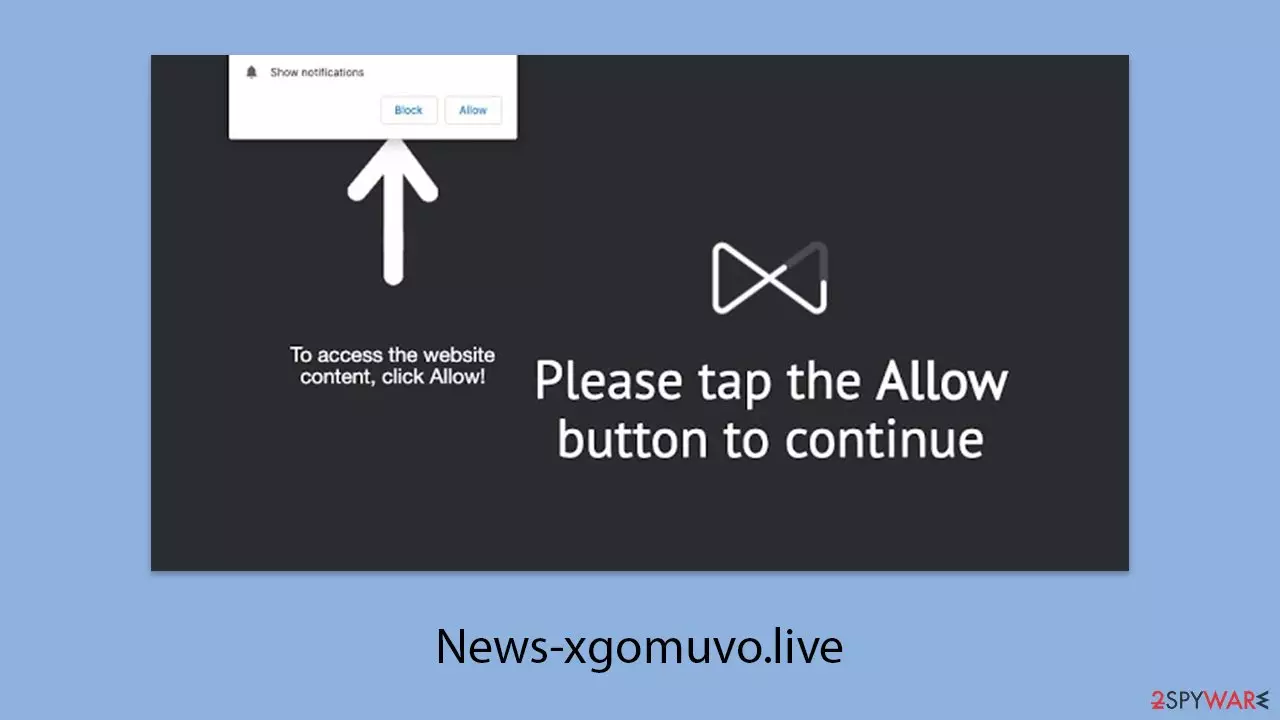
News-xgomuvo.live is a deceptive website designed to manipulate users' actions for malicious purposes. It achieves this by presenting misleading prompts about push notifications, aiming to gain permission to send frequent and disruptive pop-up messages. These notifications can appear whether the browser is actively in use or running passively in the background.
The content promoted by News-xgomuvo.live is often of questionable quality due to its association with untrustworthy advertising networks. These notifications may lead to scams, such as fake surveys or promises of quick financial gains. Additionally, they could redirect users to harmful sites, spread malware, or display alarming warnings about supposed infections on the user’s device.
To avoid these risks, it is important to steer clear of websites promoted through such questionable tactics. Furthermore, ensure your system is free of adware and block unwanted push notifications by adjusting your browser settings. For detailed instructions, refer to the guidelines provided below.
| Name | News-xgomuvo.live |
| Type | Push notifications, pop-ups, ads, scam |
| Distribution | The website gains access to deliver any information as soon as the “Allow” button is pressed within the push notification prompt |
| Symptoms | Pop-ups that are shown include fake notifications and push scams. Links can also direct you to sites filled with malware |
| Risks | Push notification prompts might include links to malicious websites, resulting in financial losses, personal information disclosure, or malware infections |
| Removal | Access browser settings to stop intrusive push notifications. After that, make sure that your system is not infected with adware or malware – scan it with SpyHunterCombo Cleaner |
| Other checks | Upon successful removal of adware and other potentially unwanted programs, it is recommended to clear your browser of cookies and other tracking elements. The FortectIntego tool can be instrumental in facilitating this cleansing process |
What are push notifications exactly?
Many people often mistake pop-up ads for push notifications, which is understandable given their similar appearance. Both involve separate windows that display commercial content randomly, aiming to generate ad revenue. However, despite their shared purpose, their functionality differs significantly.
Pop-up ads typically activate when a user visits a specific website hosting them. By avoiding that site, users can effectively escape these intrusive advertisements. On the other hand, News-xgomuvo.live operates differently by exploiting the push notification API (Application Programming Interface) integrated into browsers.
Unlike traditional ads, push notifications can appear regardless of the websites users are viewing and even when the browser is running in the background. In some cases, they might interrupt activities such as watching videos or playing games in full-screen mode, pulling users out of their current experience to display disruptive messages.
Confirm you are not a robot
Users often land on malicious websites like News-xgomuvo.live by clicking on seemingly harmless links found on other sites. This method is effective because it catches users off guard with messages that appear routine. A common example is:
Click “Allow” to confirm that you are not a robot.
This tactic is frequently used by push notification scam sites. It works well because many users are familiar with verification prompts from legitimate websites, such as captchas used to defend against DDoS attacks. These convincing imitations make it difficult to distinguish between authentic and fraudulent practices.

In some cases, users might encounter a message asking if they are over 18 years old. This creates the illusion of adult-oriented content being available, which is misleading since News-xgomuvo.live offers no real content.
Regardless of the specific prompt, agreeing to the “Allow” request immediately enables the site to send push notifications at any time. These notifications can display various types of content, often used for ad revenue, making this scheme highly profitable for scammers. This explains the proliferation of such fraudulent websites.
Removing unwanted content from your system
To tackle the problem of intrusive push notifications from malicious websites like News-xgomuvo.live, it’s essential to inspect your system for signs of adware or other malware infections. These threats not only redirect users to phishing sites but also use advanced tactics to evade detection, making them particularly challenging to address.
A comprehensive system scan using trusted security tools, such as SpyHunterCombo Cleaner or MalwarebytesMalwarebytes, is strongly recommended to identify and eliminate various types of malware. These programs are effective in removing infections that might be contributing to the issue. Additionally, using a system optimization tool like FortectIntego can enhance your computer's performance by cleaning browsers, deleting unnecessary files, and fixing problems caused by malware or related issues.
Once your device is clear of hidden threats, refer to the detailed steps provided in the following section. These instructions will guide you in disabling the disruptive push notifications linked to News-xgomuvo.live permanently.
Google Chrome
- Open the Google Chrome browser and go to Menu > Settings.
- Scroll down and click on Advanced.
- Locate the Privacy and security section and pick Site Settings > Notifications.
- Look at the Allow section and look for a suspicious URL.
- Click the three vertical dots next to it and pick Block. This should remove unwanted notifications from Google Chrome.


Google Chrome (Android)
- Open Google Chrome and tap on Settings (three vertical dots).
- Select Notifications.
- Scroll down to the Sites section.
- Locate the unwanted URL and toggle the button to the left (Off position).


Mozilla Firefox
- Open Mozilla Firefox and go to Menu > Options.
- Click on Privacy & Security section.
- Under Permissions, you should be able to see Notifications. Click the Settings button next to it.
- In the Settings – Notification Permissions window, click on the drop-down menu by the URL in question.
- Select Block and then click on Save Changes. This should remove unwanted notifications from Mozilla Firefox.


Safari
- Click on Safari > Preferences…
- Go to the Websites tab and, under General, select Notifications.
- Select the web address in question, click the drop-down menu and select Deny.


MS Edge
- Open Microsoft Edge, and go to Settings.
- Select Site permissions.
- Go to Notifications on the right.
- Under Allow, you will find the unwanted entry.
- Click on More actions and select Block.


Internet Explorer
- Open Internet Explorer, and click on the Gear icon at the top-right of the window.
- Select Internet options and go to the Privacy tab.
- In the Pop-up Blocker section, click on Settings.

- Locate the web address in question under Allowed sites and pick Remove.

Did this guide help?
Be the first to comment