

NXD Fix is not a typical browser hijacker because it does not change the main settings
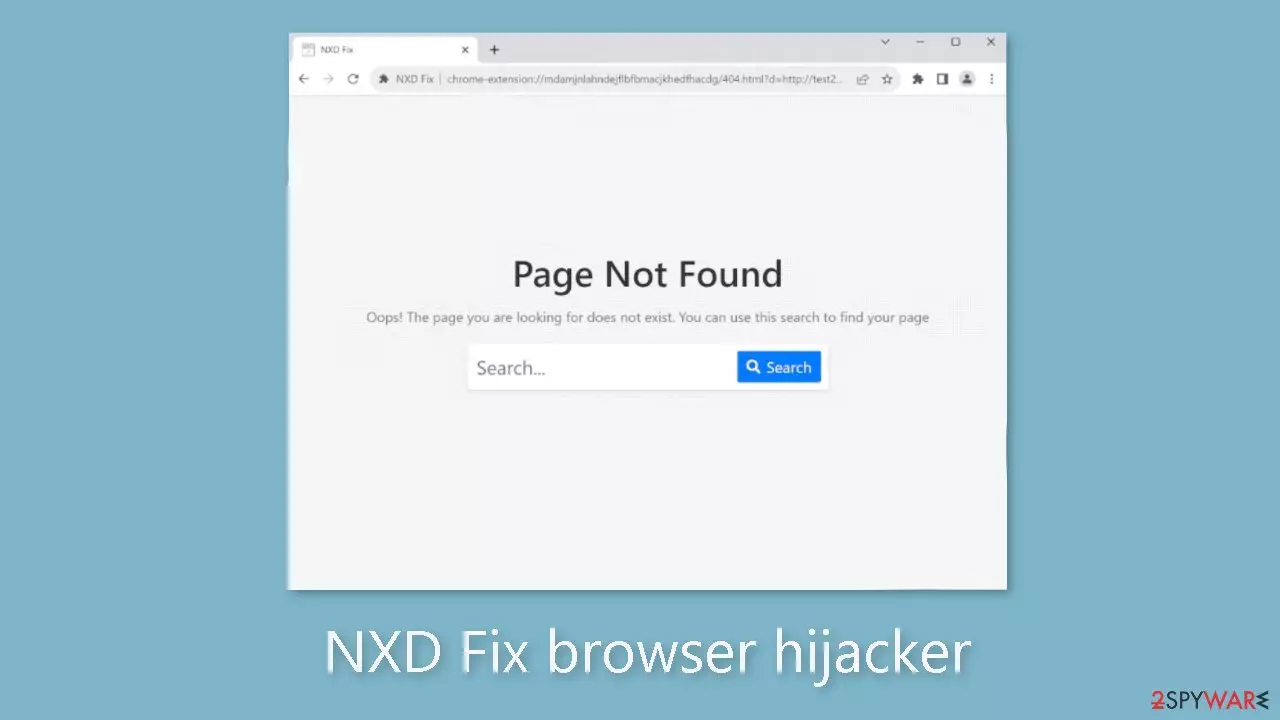
NXD Fix is a browser hijacker or a potentially unwanted program. Different from usual browser hijackers, NXD Fix has a unique operation. It doesn't do the typical hijacking activities like altering browser settings or repeatedly redirecting users to phony search engines. NXD Fix only advertises nxdfix.com in certain situations.
The majority of the time, browser hijackers change a user's homepage, default search engine, and new tab/window URLs to ensure that every search query entered into the URL bar or when opening a new tab/window results in redirections to the advertised website.
NXD Fix, on the other hand, deviates from this trend by leaving the browser settings alone. As a result, the aforementioned redirects are avoided. Instead, the extension page, which opens when an invalid website domain is typed into the URL bar, displays nxdfix.com, a bogus search engine.
When a search is made through nxdfix.com, users are forwarded to search.yahoo.com, which is the official Yahoo search engine. This conduct is characteristic of fraudulent websites since they frequently are unable to produce search results on their own and must instead rely on diverting users to reliable Internet search engines.
| NAME | NXD Fix |
| TYPE | Browser hijacker; potentially unwanted program |
| SYMPTOMS | Changed homepage, new tab address, a different search engine that displays ads leading to dangerous pages |
| DISTRIBUTION | Shady websites, deceptive ads, freeware installations |
| DANGERS | Ads can lead to users being tricked into providing their personal information, downloading PUPs, or even malware |
| ELIMINATION | Remove the extension via browser settings or deploy security software to scan your machine |
| FURTHER STEPS | FortectIntego repair tool can fix performance issues and clear your browsers as well as take care of various errors |
Distribution methods
Browser hijacking software is frequently advertised on phony websites and “official” promotional pages. Most visitors arrive at these pages via redirects sent by websites that use rogue advertising networks, typos, spammy browser notifications, invasive ads, or the presence of adware.
The risk of unintentionally allowing bundled software onto your device is increased when downloading from questionable sources (such as freeware and third-party websites, P2P sharing networks, etc.) and when rushing through the installation processes (like ignoring terms and choosing to skip certain parts of the process). Browser hijackers can also be bundled with regular programs.
Another factor contributing to the spread of browser hijackers is intrusive advertising. When clicked, some of these advertisements can launch programs that cause covert downloads and installations.

Your privacy is in danger if you keep using NXD Fix
Cookies are used by almost all websites and web-based applications to gather information on how you interact with them, what links you click, and what you buy. The likelihood that you will purchase goods and services will increase if this information is subsequently sold to advertising networks so they can customize advertisements to your preferences.
It's likely that you visited fewer reputable websites if your device has a virus, raising concerns about how your data may be handled. It might be offered for sale to third parties, in which case the website's owners wouldn't be liable for how they used it. Therefore, it's advised to safeguard your web browsers after eradicating the hijacker because dubious websites can still be watching your online activities. There is an automated solution FortectIntego for this that can also fix corrupted files, take care of system issues, and improve the speed of your device.
Remove the extension
You can remove the add-on the manual way, so you have to go to your browser settings. We have provided instructions for the most frequently used browsers. Keep in mind that this removal method might not work because it might be a potentially unwanted program. If this method does not work, proceed further:
Google Chrome
- Open Google Chrome, click on the Menu (three vertical dots at the top-right corner) and select More tools > Extensions.
- In the newly opened window, you will see all the installed extensions. Uninstall all the suspicious plugins that might be related to the unwanted program by clicking Remove.


MS Edge:
- Select Menu (three horizontal dots at the top-right of the browser window) and pick Extensions.
- From the list, pick the extension and click on the Gear icon.
- Click on Uninstall at the bottom.


MS Edge (Chromium)
- Open Edge and click select Settings > Extensions.
- Delete unwanted extensions by clicking Remove.


Mozilla Firefox
- Open Mozilla Firefox browser and click on the Menu (three horizontal lines at the top-right of the window).
- Select Add-ons.
- In here, select unwanted plugin and click Remove.


Safari
- Click Safari > Preferences…
- In the new window, pick Extensions.
- Select the unwanted extension and select Uninstall.


You might not know about a PUA until it makes changes
Potentially unwanted applications (PUAs) are most commonly distributed through a method called software bundling, often found on unofficial websites that offer freeware. Consequently, it's advisable to utilize official stores and developer websites, even though they may come at a higher cost. However, there are several precautions you can take to reduce the risk of virus infections:
- Always opt for the “Custom” or “Advanced” installation methods.
- Take the time to read and understand the Terms of Use and Privacy Policy.
- Deselect the checkboxes next to files or components that you do not require.
- Ensure you have professional security software installed.
Anti-malware tools are valuable for detecting applications that operate in the background and can also assist in removing suspicious programs, including all associated files. We recommend using SpyHunterCombo Cleaner or MalwarebytesMalwarebytes because PUAs can be challenging to identify – they can bear any name and have any icon. If manual removal is your preference, we provide instructions for both Windows and Mac machines:
Windows 10/8:
- Enter Control Panel into Windows search box and hit Enter or click on the search result.
- Under Programs, select Uninstall a program.

- From the list, find the entry of the suspicious program.
- Right-click on the application and select Uninstall.
- If User Account Control shows up, click Yes.
- Wait till uninstallation process is complete and click OK.



Windows 7/XP:
- Click on Windows Start > Control Panel located on the right pane (if you are Windows XP user, click on Add/Remove Programs).
- In Control Panel, select Programs > Uninstall a program.

- Pick the unwanted application by clicking on it once.
- At the top, click Uninstall/Change.
- In the confirmation prompt, pick Yes.
- Click OK once the removal process is finished.

Mac:
- From the menu bar, select Go > Applications.
- In the Applications folder, look for all related entries.
- Click on the app and drag it to Trash (or right-click and pick Move to Trash)


To fully remove an unwanted app, you need to access Application Support, LaunchAgents, and LaunchDaemons folders and delete relevant files:
- Select Go > Go to Folder.
- Enter /Library/Application Support and click Go or press Enter.
- In the Application Support folder, look for any dubious entries and then delete them.
- Now enter /Library/LaunchAgents and /Library/LaunchDaemons folders the same way and terminate all the related .plist files.


Did this guide help?
Be the first to comment