

Pc.avdesktop.com virus wants you to call tech support scammers
If you have received an intimidating pop-up coming from Pc.avdesktop.com after launching your web browser today, do not rush to call the support number that is provided in the message. This message is false, and it is auto-generated by a potentially unwanted program (PUP), which was silently installed on your computer without your knowledge. This program is categorized as adware, but it differs from typical adware programs a lot. Unlike other ad-supported programs, Pc.avdesktop.com adware does not display ads related to shopping – it shows bogus warnings and seeks to frighten the computer user by stating that the PC may be infected with unknown spyware, which has caused a security breach. It claims that the only possible way to fix this problem is to call “certified Microsoft technicians” for help, and provides a suspicious number. 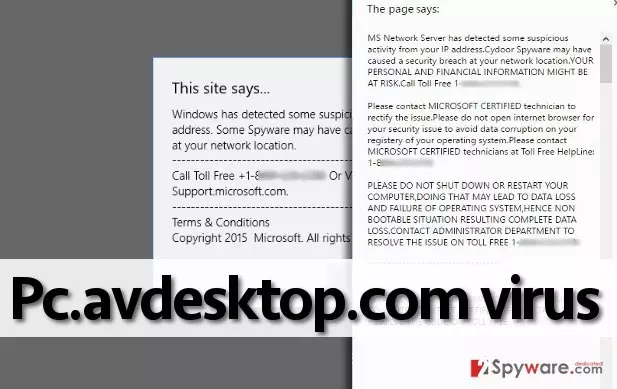
If you have received this or a similar pop-up warning, do NOT call the number that is provided in it, because there is a good chance that your computer is infected with adware that wants you to call technical support scammers. There are a variety of reasons why you should not do that – let us list them for you.
- First of all, you must know that Microsoft company has nothing to do with these bogus pop-ups. Tech support frauds just hide behind reputable Microsoft’s name to convince inexperienced computer users to listen to their commands;
- Secondly, the number that they suggest calling can be a premium rate one, no matter that it is labeled as a toll-free;
If you called them, they would tell you to go to specific computer system folders to look at particular files, and claim that they are malicious, or they would ask you to complete some confusing tasks. Cyber frauds just want to make you feel confused; - Lastly, they may ask you to buy a particular software that supposedly can fix your computer system. If you refuse, they can offer you to fix your computer for free, but then you will have to provide them access to your PC. DO NOT do that! Cyber criminals just love to take advantage of inexperienced computer users, so bear in mind that they can place malicious files on your computer system immediately after you give them access to your PC. Malware can corrupt your files and ask you to pay a ransom, or it can silently collect your personally identifiable information, bank account logins, and other important data in order to rob you.
To keep your computer safe, remove Pc.avdesktop.com malware without a delay. These false ads can deceive you, your relatives, or your friends (whoever has access to your computer), and make them call the fake support number. Do not let that happen – follow Pc.avdesktop.com removal instructions that are provided on the next page and remove this shady software immediately. You can likewise use an anti-malware software to eliminate it, for example, FortectIntego (for PC) or FortectIntego (for Mac).
How to stop potentially unwanted programs from entering your computer system?
Potentially unwanted programs like Pc.avdesktop.com hijack computers in a tricky, yet legitimate way. The problem is that the majority of computer users tend to select Default, Express, or Standard installation settings, which are not safe at all. These settings often include hidden agreements to install optional programs like Pc.avdesktop.com adware. To prevent unwanted programs from infiltrating your computer system, always choose Custom or Advanced installation settings and deselect all unwanted programs that you do not want to install.
What should you do to remove Pc.avdesktop.com from your computer?
This useless program diminishes computer’s performance and generates fake alerts, so in order to stop them, you must remove Pc.avdesktop.com virus from the system. If you are concerned about your computer’s security, scan it with a good anti-malware software like SpyHunter to find all other PUPs and malicious programs on it. However, you can also try to uninstall this shady ad-supported application on your own. If you have never done anything like this before, we suggest you to follow these Pc.avdesktop.com removal instructions:
Uninstall from Windows
Uninstall from Windows 10/8:
- Type Control Panel into the Windows search box and open the result.
- Under Programs, select Uninstall a program.


Uninstall from Windows 7/XP:
- Click on Windows Start > Control Panel (Windows XP users should click on Add/Remove Programs).
- In Control Panel, select Programs > Uninstall a program.


Remove the unwanted program:
- In the Programs and Features window, look for any recently installed suspicious entries, select them, and click Uninstall.
- If User Account Control appears, click Yes to confirm, then complete the removal.


Delete from macOS
Remove the unwanted application:
- From the menu bar, select Go > Applications.
- In the Applications folder, look for any suspicious entries, then drag them to Trash (or right-click and pick Move to Trash).


Delete leftover files and folders:
- Select Go > Go to Folder.
- Enter /Library/Application Support and remove any suspicious folders related to the unwanted program.
- Repeat the same check in the /Library/LaunchAgents and /Library/LaunchDaemons folders, deleting any suspicious entries.

- Finally, empty the Trash to permanently remove the leftovers.

Remove from Microsoft Edge
Delete unwanted extensions from MS Edge:
- Select Menu (three horizontal dots at the top-right of the browser window) and pick Extensions.
- From the list, pick the extension and click on the Gear icon.
- Click Remove.


Clear cookies and other browser data:
- Click on the Menu (three horizontal dots at the top-right of the browser window) and select Settings > Privacy, search, and services..
- Under Clear browsing data, pick Choose what to clear.
- Select Cookies and other site data and Cached images and files. (apart from passwords, although you might want to include Media licenses as well, if applicable) and click on Clear.


Restore new tab and homepage settings:
- Click the menu icon and choose Settings.
- Then find On startup section.
- Click Remove next to any suspicious startup page.
Reset MS Edge if the above steps did not work:
- Press on Ctrl + Shift + Esc to open Task Manager.
- Click on More details arrow at the bottom of the window.
- Select Details tab.
- Now scroll down and locate every entry with Microsoft Edge name in it. Right-click on each of them and select End Task to stop MS Edge from running.


Instructions for Chromium-based Edge
Delete extensions from MS Edge (Chromium):
- Open Edge and click select Settings > Extensions.
- Delete unwanted extensions by clicking Remove.


Clear cache and site data:
- Click on Menu and go to Settings.
- Select Privacy, search and services.
- Under Clear browsing data, pick Choose what to clear.
- Under Time range, pick All time.
- Select Clear now.


Reset Chromium-based MS Edge:
- Click on Menu and select Settings.
- On the left side, pick Reset settings.
- Select Restore settings to their default values.
- Confirm with Reset.
- This will disable extensions and reset startup pages but will not delete bookmarks, saved passwords, or browsing history.


Remove from Mozilla Firefox (FF)
Remove dangerous extensions:
- Open Mozilla Firefox browser and click on the Menu (three horizontal lines at the top-right of the window).
- Select Add-ons.
- In here, select the unwanted extension and click Remove.


Reset the homepage:
- Click three horizontal lines at the top right corner to open the menu.
- Choose Settings.
- Under Home, set your preferred homepage and new tab settings.
Clear cookies and site data:
- Click Menu and pick Settings.
- Go to Privacy & Security section.
- Scroll down to locate Cookies and Site Data.
- Click on Clear Data...
- Select Cookies and Site Data and Temporary cached files and pages, then click Clear.


Reset Mozilla Firefox
If clearing the browser as explained above did not help, reset Mozilla Firefox:
- Open Mozilla Firefox browser and click the Menu.
- Go to Help and then choose Troubleshooting Information.

- Under Give Firefox a tune up section, click on Refresh Firefox...
- Once the pop-up shows up, confirm the action by pressing on Refresh Firefox.



Remove from Google Chrome
Delete malicious extensions from Google Chrome:
- Open Google Chrome, click on the Menu (three vertical dots at the top-right corner) and select More tools > Extensions.
- In the newly opened window, you will see all the installed extensions. Uninstall all suspicious extensions related to the unwanted program by clicking Remove.


Clear cache and web data from Chrome:
- Click on Menu and pick Settings.
- Under Privacy and security, select Clear browsing data.
- Select Browsing history, Cookies and other site data, as well as Cached images and files.
- Click Clear data.


Change your homepage:
- Click menu and choose Settings.
- Look for a suspicious site in the On startup section.
- Click on Open a specific or set of pages and click on three dots to find the Remove option.
Reset Google Chrome:
If the previous methods did not help you, reset Google Chrome to eliminate all the unwanted components:
- Click on Menu and select Settings.
- In the Settings, scroll down and click Advanced.
- Scroll down and locate Reset and clean up section.
- Now click Restore settings to their original defaults.
- Confirm with Reset settings.


Delete from Safari
Remove dangerous extensions:
- Open Safari, click Safari in the menu at the top-left of the screen, and select Preferences.
- Go to the Extensions tab, look for any suspicious entries, and click Uninstall to remove them.


Clear history and website data:
- Click Safari in the menu and pick Clear History.
- Set Clear to all history and confirm with Clear History.


Reset Safari:
- Click Safari in the menu and select Preferences > Advanced.
- Enable Show Develop menu in menu bar.
- From the menu bar, click Develop and select Empty Caches.


Did this guide help?
4 comments
Wilma
These pop-ups really scared me! I though that my computer is infected, but thanks God it is not...
blanki28
tech support scams are getting more and more aggressive!
rOBbie
Thank you, SpyHunter fixed my computer, I can no longer see these warnings on my screen.
maxair0
filthy virus, i am so annoyed... i am so mad because i dont know how did it get into my pc @:(