

PC Health Boost is a questionable program which does not deliver the promised services
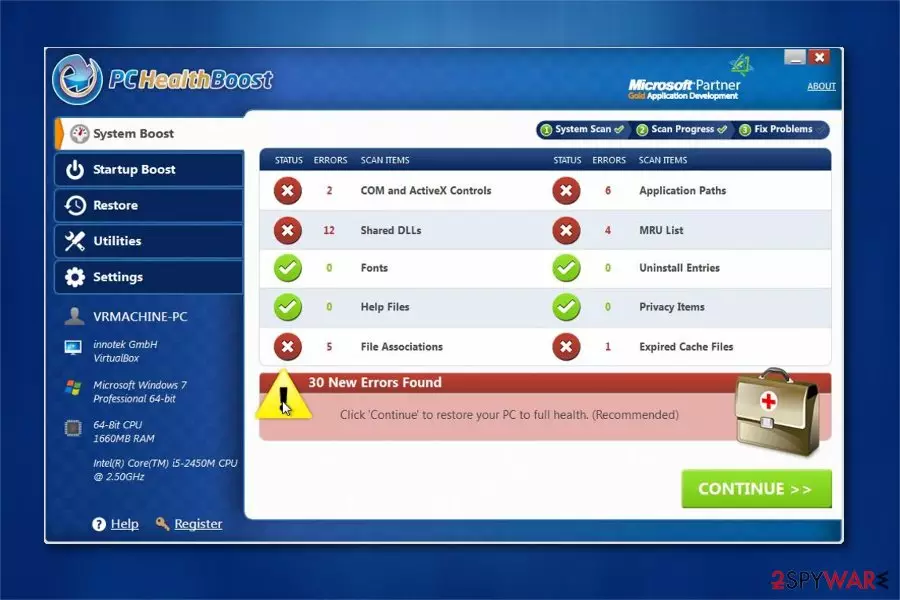
PC Health Boost is a fraudulent system optimization software which claims to repair PC registry errors and improve computer's performance. However, experts note that this is a potentially unwanted program (PUP)[1] which does not deliver the promised services. In fact, users are provided with modified and exaggerated system scan results to trick them into paying for the unnecessary computer fix.
| Name | PC Health Boost |
|---|---|
| Type | System tools |
| Sub-type | Potentially Unwanted Program (PUP) |
| Danger level | Medium. Doesn't initiate system changes |
| Symptoms | Users are provided with numerous fake notifications about PC errors |
| Distribution | You can install this software from the official website or it can stealthily enter the system in a bundle with freeware |
| Removal | We advise you to use a reliable security tool, like FortectIntego, to not only uninstall PC Health Boost but also maintain your computer's security |
Either you installed PC Health Boost intentionally, or it sneaked into your system via software-bundles, its trial version starts scanning the system as soon as it is installed on the system and shows a quite informative pop-up[2] notification that identifies various PC problems.
PC Health Boost scan results might display messages which urge you to fix or get rid of the following items:
- Damaged DLLs;
- Expired cache files;
- Potentially dangerous entries;
- Errors related to COM and ActiveX controls.
In order to fix them, people are asked to purchase a PC Health Boost license key. Even though this application is legitimate, users report that it does not improve computer's performance. Likewise, online forums are filled with PC Health Boost review requests as people are wondering whether this application is useful.
One of the most common questions asked is the following — is PC Health Boost safe? Our security researchers note that this potentially unwanted program (PUP) is not malicious itself. Although, professionals find its distribution techniques and tactics to increase profits highly unfair from the standpoint of regular computer users.

Therefore, we advise you to perform PC Health Boost uninstall and search for more reliable tools online. Be aware that if you get another system optimization software which is effective, you will notice the difference between the scan results of PC Health Boost and the other one — there will be a significantly lower number of errors detected.
For all the reasons mentioned above, our researchers suggest you remove PC Health Boost and use more reliable tools to improve your computer's performance. You can install FortectIntego for both, PC Health Boost removal and your system's security. Additionally, you can find manual PUP elimination guidelines at the end of this article.
You can install PUPs intentionally, or they might sneak into your system
We are aware that not all computer users might be able to identify potentially unwanted programs (PUPs) and end up intentionally installing them from their official websites. Usually, developers create attractive pages with compelling descriptions to lure people into believing the effectiveness of the software. However, the contrivers also employ less fair tactics to distribute PUPs, and one of them is known as bundling.
This popular marketing method is developed to spread two applications as one. Thus, in some of the cases, you may download this program in a bundle with freeware and shareware. If you want to avoid unexpected downloads, make sure that you choose Custom or Advanced installation of the free downloads.
Be aware that you will be suggested to complete the installation with Basic, Recommended or Quick mode. However, these settings will skip the steps where you are asked whether you want additional components to be installed together with freeware or not. Therefore, you must reject these parameters.
Once you select the correct installation mode, attentively follow all steps of the procedure. Researchers[3] note that you must search for pre-selected elements and opt them out if you want to avoid potentially unwanted programs (PUPs). Additionally, use a professional antivirus to double-check your system.
PC Health Boost uninstall guide
Now that you know what is PC Health Boost, you can decide whether you want it on your system or not. In case you have chosen to remove PC Health Boost, you have two options — manual or automatic elimination of the potentially unwanted program (PUP).
Keep in mind that manual PC Health Boost removal might be time-consuming and require to show specific IT knowledge. Likewise, regular computer users are advised to uninstall PC Health Boost automatically by running a full system scan with a professional malware removal software.
Although, if you believe that you are advanced enough to get rid of PC Health Boost manually, check the instructions at the end of this article. They will guide you through the procedure step-by-step and show how to eliminate all elements which are related to the PUP.
Uninstall from Windows
Uninstall from Windows 10/8:
- Type Control Panel into the Windows search box and open the result.
- Under Programs, select Uninstall a program.


Uninstall from Windows 7/XP:
- Click on Windows Start > Control Panel (Windows XP users should click on Add/Remove Programs).
- In Control Panel, select Programs > Uninstall a program.


Remove the unwanted program:
- In the Programs and Features window, look for any recently installed suspicious entries, select them, and click Uninstall.
- If User Account Control appears, click Yes to confirm, then complete the removal.


Delete from macOS
Remove the unwanted application:
- From the menu bar, select Go > Applications.
- In the Applications folder, look for any suspicious entries, then drag them to Trash (or right-click and pick Move to Trash).


Delete leftover files and folders:
- Select Go > Go to Folder.
- Enter /Library/Application Support and remove any suspicious folders related to the unwanted program.
- Repeat the same check in the /Library/LaunchAgents and /Library/LaunchDaemons folders, deleting any suspicious entries.

- Finally, empty the Trash to permanently remove the leftovers.

Reset Internet Explorer
Remove dangerous add-ons:
- Open Internet Explorer, click on the Gear icon (IE menu) on the top-right corner of the browser
- Pick Manage Add-ons.
- You will see a Manage Add-ons window. Here, look for suspicious plugins. Click on these entries and select Disable.


Change your homepage if it was altered:
- Open IE and click on the Gear icon.
- Select Internet Options.
- In the General tab, delete the Home page address and replace it by your preferred one (for example, Google.com).
- Click Apply and then select OK.


Delete temporary files:
- Press on the Gear icon and select Internet Options.
- Under Browsing history, click Delete...
- Select relevant fields and press Delete.


Reset Internet Explorer:
- Click on Gear icon > Internet options and select Advanced tab.
- Select Reset.
- In the new window, check Delete personal settings and select Reset.


Remove from Microsoft Edge
Delete unwanted extensions from MS Edge:
- Select Menu (three horizontal dots at the top-right of the browser window) and pick Extensions.
- From the list, pick the extension and click on the Gear icon.
- Click Remove.


Clear cookies and other browser data:
- Click on the Menu (three horizontal dots at the top-right of the browser window) and select Settings > Privacy, search, and services..
- Under Clear browsing data, pick Choose what to clear.
- Select Cookies and other site data and Cached images and files. (apart from passwords, although you might want to include Media licenses as well, if applicable) and click on Clear.


Restore new tab and homepage settings:
- Click the menu icon and choose Settings.
- Then find On startup section.
- Click Remove next to any suspicious startup page.
Reset MS Edge if the above steps did not work:
- Press on Ctrl + Shift + Esc to open Task Manager.
- Click on More details arrow at the bottom of the window.
- Select Details tab.
- Now scroll down and locate every entry with Microsoft Edge name in it. Right-click on each of them and select End Task to stop MS Edge from running.


Instructions for Chromium-based Edge
Delete extensions from MS Edge (Chromium):
- Open Edge and click select Settings > Extensions.
- Delete unwanted extensions by clicking Remove.


Clear cache and site data:
- Click on Menu and go to Settings.
- Select Privacy, search and services.
- Under Clear browsing data, pick Choose what to clear.
- Under Time range, pick All time.
- Select Clear now.


Reset Chromium-based MS Edge:
- Click on Menu and select Settings.
- On the left side, pick Reset settings.
- Select Restore settings to their default values.
- Confirm with Reset.
- This will disable extensions and reset startup pages but will not delete bookmarks, saved passwords, or browsing history.


Remove from Mozilla Firefox (FF)
Remove dangerous extensions:
- Open Mozilla Firefox browser and click on the Menu (three horizontal lines at the top-right of the window).
- Select Add-ons.
- In here, select the unwanted extension and click Remove.


Reset the homepage:
- Click three horizontal lines at the top right corner to open the menu.
- Choose Settings.
- Under Home, set your preferred homepage and new tab settings.
Clear cookies and site data:
- Click Menu and pick Settings.
- Go to Privacy & Security section.
- Scroll down to locate Cookies and Site Data.
- Click on Clear Data...
- Select Cookies and Site Data and Temporary cached files and pages, then click Clear.


Reset Mozilla Firefox
If clearing the browser as explained above did not help, reset Mozilla Firefox:
- Open Mozilla Firefox browser and click the Menu.
- Go to Help and then choose Troubleshooting Information.

- Under Give Firefox a tune up section, click on Refresh Firefox...
- Once the pop-up shows up, confirm the action by pressing on Refresh Firefox.



Remove from Google Chrome
Delete malicious extensions from Google Chrome:
- Open Google Chrome, click on the Menu (three vertical dots at the top-right corner) and select More tools > Extensions.
- In the newly opened window, you will see all the installed extensions. Uninstall all suspicious extensions related to the unwanted program by clicking Remove.


Clear cache and web data from Chrome:
- Click on Menu and pick Settings.
- Under Privacy and security, select Clear browsing data.
- Select Browsing history, Cookies and other site data, as well as Cached images and files.
- Click Clear data.


Change your homepage:
- Click menu and choose Settings.
- Look for a suspicious site in the On startup section.
- Click on Open a specific or set of pages and click on three dots to find the Remove option.
Reset Google Chrome:
If the previous methods did not help you, reset Google Chrome to eliminate all the unwanted components:
- Click on Menu and select Settings.
- In the Settings, scroll down and click Advanced.
- Scroll down and locate Reset and clean up section.
- Now click Restore settings to their original defaults.
- Confirm with Reset settings.


Delete from Safari
Remove dangerous extensions:
- Open Safari, click Safari in the menu at the top-left of the screen, and select Preferences.
- Go to the Extensions tab, look for any suspicious entries, and click Uninstall to remove them.


Clear history and website data:
- Click Safari in the menu and pick Clear History.
- Set Clear to all history and confirm with Clear History.


Reset Safari:
- Click Safari in the menu and select Preferences > Advanced.
- Enable Show Develop menu in menu bar.
- From the menu bar, click Develop and select Empty Caches.


Did this guide help?
9 comments
Erin Walsh, Director of Public Relations for Boost
Hi Ugnius,
I think that your website is great for the most part, and really appreciate many of the offers that you have affiliate links going to. Even though SpyHunter, MalwareBytes, and StopZilla are our competitors, we like their software and would never defame an honest and hardworking company like them. In fact, weve worked side by side with StopZilla on several occasions and dont know if theyd appreciate us being reported as an "unwanted application". I hope that having you as an affiliate works out to be a great asset to them. I can tell that you are making an earnest effort.
You might even want to consider becoming one of our affiliates. We offer a $150 bonus for your first 5 sales and up to 90% commissions after you hit a certain level of sales. Email me at erin@boostsoftware.com for more info.
This article claims that our program does a lot of things that it doesnt such as:
* being a fake program
* fake warnings
* being a parasite and installing w/out permission (we never do that)
* bundling (never do that). If you have found it bundled somewhere, please let us know because this is a serious violation of out TOC.
* fake scan, we use scan safe technology(TM)
Please note that you are also violating our trademark agreements by having the photo of our software up here without our explicit permission.
Please take this down immediately. It is false and slanderous to our company.
If you would like to provide removal instructions, that is fine as long as it doesnt violate our Trademarks. However, please refrain from calling our product a parasite or even insinuating that it is.
Sincerely,
Erin Walsh, Director of Public Relations
erin@boostsoftware.com
2spyware
Hello Erin,
We have altered our post about PC Health Boost according to some of your notes. However, we cant agree with another part of your statements. Here are they:
First of all, have never called your program a virus, malware or fake program.
Secondly, we've never mentioned about FAKE warnings and FAKE scan. Of course, the frequency of your program's alerts have initiated some doubts for us that it seeks to push user into purchasing the license.
Thirdly, our users have recently contacted us asking about your product's appearance on their computers without downloading it there. In fact, there are many discussions on the Internet reporting about this issue. Please, check the link: http://answers.microsoft.com/en-us/windows/forum/windows_other-windows_programs/is-pc-healthboost-a-legitimate-microsoft-partner/952afe36-1d46-4c2c-9513-7f62f3eded22
Finally, the screenshot was made by our research team, so we dont have to ask your explicit permission for using it on our site.
Sincerely,
2spyware
PartsMan
Wow i guess boost got a little hot under the collar there but then tried to convince you to come over to the dark side. Admit it Boost, your software is just another piece of junk software that tells the users they have all kinds of problems and scares them into buying it. I guess the properly tag would be scareware. I remove this crap all day long at our shop from clients computers and your software is just another of the thousands that are out there that try to scare customers into buying your software. Total scam.
Trent
PC HealthBoost will not uninstall from Windows XP Professional SrvPck 3 through control panel or its own uninstall. How do I remove it?
mecarthymc@aol.com
Installed PCHealth Boost 4/3/14. Removed it hours later for several reasons; am left with a fragment Startup and I cannot get rid of it. Please instruct me how.
Thank you.
Donny
So pissed takin hammer to computer after typing this line. PC Health Boost Sucks!!!!! Scam bad business. Owner should hide.
ajdixon
I have the same issues these others have It wont go away and I think it is messing up my computer
Gavin
How do you remove it. Everytime I go to uninstall, instead of uninstalling, it takes me through to setup of the program again. So frustrating and taking up way more time than I ever wanted to spend on it
bill
I have the same basic complaints about PC Health Boost. If its as good as they claim then why in the world is it so difficult to uninstall? I have tried several times to uninstall and it puts me in a loop of installing it instead; pretty damn clever of them. If anyone finds an effective way to remove it permanently, please post it for the benefit of all.