

PC Reg Boost – a misleading program for your Windows optimization
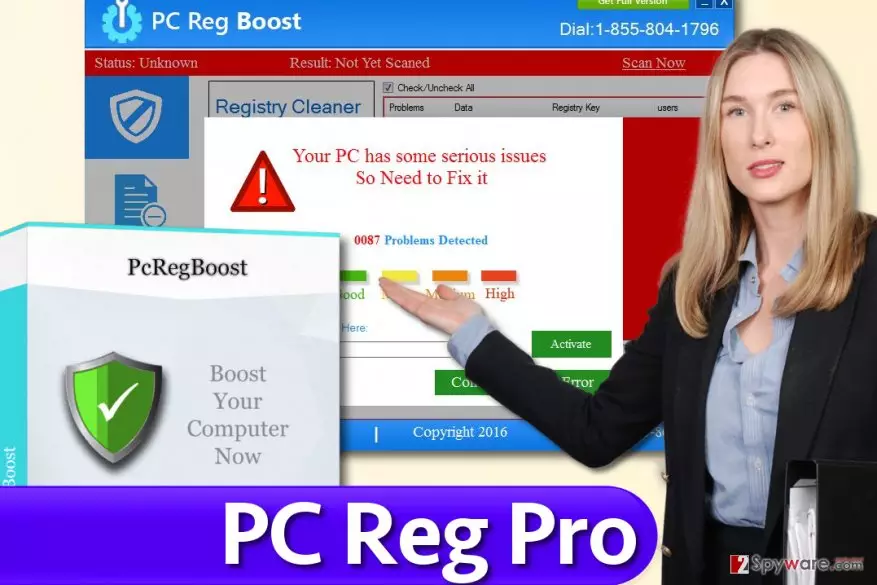
PC Reg Boost is advertised as a beneficial program that is capable of finding various computer issues, such as corrupted Windows registry files, and fix them automatically. This proposition might be especially compelling for those who use older PC configuration which result in slow operation.
However, various “PC cleaners” will not help you fix your slow computer, as registry entries that are being found by this program do not impact computer performance in any way. In other words, the developers of the app use scam techniques in order to evoke alarm senses in users, making them want to buy the full version and “increase computer performance.”
| Name | PC Reg Boost |
| Type | Potentially unwanted program |
| Distribution | Third-party websites |
| Operation | Shows harmless registry entries as problematic or damaged, claiming that cleaning those entries will improve PC operation speed. Users are then prompted to buy the full version of the app |
| Uninstall | Access the Control Panel and uninstall the app; also a scan with antivirus is recommended |
| PC repair | If you are dealing with errors, system slowdowns, and other Windows issues, we recommend using a repair tool FortectIntego |
Due to unexpected appearance on the system (the app is commonly distributed via software bundles), some users might refer to it as a virus. However, the virus is a little too strong a word to describe this program; however, its presence is entirely objectionable[1], so experts tend to rate it as a potentially unwanted program (PUP).[2]
We discovered that once installed, it acts quite shady, and it seems that it aims to convince the user to buy the full version of the software, even if there aren’t any problems to solve. The software is developed by iNextITNetworks, which claims that their product has been downloaded 10k times, and at the same time, it praises itself for having 54758 “happy user” and 47586 feedback. These numbers definitely do not make sense to us.
However, the entire boasting of the program doesn’t end with these suspicious statistics. The official website of this software states that the program can optimize, speed up your PC, prevent errors and crashes, improve the speed of PC’s startup[3], secure your browsing activities, and even more.
Sadly, it seems that this program might try to trick you into buying its full version even if the system is free of errors and other problems; in other words, it is likely to receive false-positive scan results[4] from this program. For this reason, we recommend choosing a more reliable computer optimization program and remove PC Reg Boost immediately. A great option for PC optimization is FortectIntego, and this program also works as malware removal software and maintenance utility.
If you accidentally download a program that is supposed to fix your computer and solve certain errors, but all that you get from it is problems like system slowdowns[5], crashing, and non-responsive programs, you should understand that it is software that simulates the image of a problematic computer that needs to be fixed immediately.
Do not rush to buy this program – remove it first and find out if your computer continues to perform poorly. It is also not recommended to dial the support number provided by this program (1-855-804-1796) because these “technicians” most likely will advise you to purchase the full version of the system optimizer. If it already runs on your PC, you can delete it using PC Reg Boost removal instructions given below the article.
Always opt out of “offers” when installing freeware
Considering that PCRegBoost is a potentially unwanted program and a rogue system optimizer, there is a reason to believe that it spreads using common spyware distribution techniques. It can hijack your computer with your permission only, but it needs you to provide it without realizing what you’re doing.
Therefore, it spreads in software bundles, which is a very efficient technique to promote itself. The fact is, computer users tend to hasten software installation by repeatedly clicking “Next” buttons until they reach the final “Finish” one. This way, they miss critical statements provided in fine print below Default or Standard software installation settings.
These settings should not be trusted; we highly recommend you to switch them to Custom or Advanced one and then manually opt-out all “recommended” third-party software pieces bundled to the one that you downloaded.
Remove PC Reg Boost without the hassle
If you decided to remove this suspicious PUP that fabricates problems and seeks to force you into purchasing its full version, we recommend using PC Reg Boost removal instructions provided below the article. There is no reason to keep such rogue software on your computer, so take matters into your hands without waiting. However, if you would like to remove the app manually, use the instructions provided below.
Uninstall from Windows
Uninstall from Windows 10/8:
- Type Control Panel into the Windows search box and open the result.
- Under Programs, select Uninstall a program.


Uninstall from Windows 7/XP:
- Click on Windows Start > Control Panel (Windows XP users should click on Add/Remove Programs).
- In Control Panel, select Programs > Uninstall a program.


Remove the unwanted program:
- In the Programs and Features window, look for any recently installed suspicious entries, select them, and click Uninstall.
- If User Account Control appears, click Yes to confirm, then complete the removal.


Delete from macOS
Remove the unwanted application:
- From the menu bar, select Go > Applications.
- In the Applications folder, look for any suspicious entries, then drag them to Trash (or right-click and pick Move to Trash).


Delete leftover files and folders:
- Select Go > Go to Folder.
- Enter /Library/Application Support and remove any suspicious folders related to the unwanted program.
- Repeat the same check in the /Library/LaunchAgents and /Library/LaunchDaemons folders, deleting any suspicious entries.

- Finally, empty the Trash to permanently remove the leftovers.

Remove from Microsoft Edge
Delete unwanted extensions from MS Edge:
- Select Menu (three horizontal dots at the top-right of the browser window) and pick Extensions.
- From the list, pick the extension and click on the Gear icon.
- Click Remove.


Clear cookies and other browser data:
- Click on the Menu (three horizontal dots at the top-right of the browser window) and select Settings > Privacy, search, and services..
- Under Clear browsing data, pick Choose what to clear.
- Select Cookies and other site data and Cached images and files. (apart from passwords, although you might want to include Media licenses as well, if applicable) and click on Clear.


Restore new tab and homepage settings:
- Click the menu icon and choose Settings.
- Then find On startup section.
- Click Remove next to any suspicious startup page.
Reset MS Edge if the above steps did not work:
- Press on Ctrl + Shift + Esc to open Task Manager.
- Click on More details arrow at the bottom of the window.
- Select Details tab.
- Now scroll down and locate every entry with Microsoft Edge name in it. Right-click on each of them and select End Task to stop MS Edge from running.


Instructions for Chromium-based Edge
Delete extensions from MS Edge (Chromium):
- Open Edge and click select Settings > Extensions.
- Delete unwanted extensions by clicking Remove.


Clear cache and site data:
- Click on Menu and go to Settings.
- Select Privacy, search and services.
- Under Clear browsing data, pick Choose what to clear.
- Under Time range, pick All time.
- Select Clear now.


Reset Chromium-based MS Edge:
- Click on Menu and select Settings.
- On the left side, pick Reset settings.
- Select Restore settings to their default values.
- Confirm with Reset.
- This will disable extensions and reset startup pages but will not delete bookmarks, saved passwords, or browsing history.


Remove from Mozilla Firefox (FF)
Remove dangerous extensions:
- Open Mozilla Firefox browser and click on the Menu (three horizontal lines at the top-right of the window).
- Select Add-ons.
- In here, select the unwanted extension and click Remove.


Reset the homepage:
- Click three horizontal lines at the top right corner to open the menu.
- Choose Settings.
- Under Home, set your preferred homepage and new tab settings.
Clear cookies and site data:
- Click Menu and pick Settings.
- Go to Privacy & Security section.
- Scroll down to locate Cookies and Site Data.
- Click on Clear Data...
- Select Cookies and Site Data and Temporary cached files and pages, then click Clear.


Reset Mozilla Firefox
If clearing the browser as explained above did not help, reset Mozilla Firefox:
- Open Mozilla Firefox browser and click the Menu.
- Go to Help and then choose Troubleshooting Information.

- Under Give Firefox a tune up section, click on Refresh Firefox...
- Once the pop-up shows up, confirm the action by pressing on Refresh Firefox.



Remove from Google Chrome
Delete malicious extensions from Google Chrome:
- Open Google Chrome, click on the Menu (three vertical dots at the top-right corner) and select More tools > Extensions.
- In the newly opened window, you will see all the installed extensions. Uninstall all suspicious extensions related to the unwanted program by clicking Remove.


Clear cache and web data from Chrome:
- Click on Menu and pick Settings.
- Under Privacy and security, select Clear browsing data.
- Select Browsing history, Cookies and other site data, as well as Cached images and files.
- Click Clear data.


Change your homepage:
- Click menu and choose Settings.
- Look for a suspicious site in the On startup section.
- Click on Open a specific or set of pages and click on three dots to find the Remove option.
Reset Google Chrome:
If the previous methods did not help you, reset Google Chrome to eliminate all the unwanted components:
- Click on Menu and select Settings.
- In the Settings, scroll down and click Advanced.
- Scroll down and locate Reset and clean up section.
- Now click Restore settings to their original defaults.
- Confirm with Reset settings.


Delete from Safari
Remove dangerous extensions:
- Open Safari, click Safari in the menu at the top-left of the screen, and select Preferences.
- Go to the Extensions tab, look for any suspicious entries, and click Uninstall to remove them.


Clear history and website data:
- Click Safari in the menu and pick Clear History.
- Set Clear to all history and confirm with Clear History.


Reset Safari:
- Click Safari in the menu and select Preferences > Advanced.
- Enable Show Develop menu in menu bar.
- From the menu bar, click Develop and select Empty Caches.


Did this guide help?
4 comments
Tamriel
Stupid PC optimizer! It doesnt work at all! Dont waste your time on pc reg boost.
heisenberg
This damn thing doesnt boost anything.
bethesdza
I am SO glad I didnt purchase the full version of this software before reading this article first! PC Reg Boost really sent false-positive results after scan, cant trust it!
flo
Damn, thank you. I removed PC Reg Boost and my computer suddenly started working perfectly. Now i understand what was causing all these system slowdowns!