

PCFixer – an untrustworthy app that shows exaggerated scan results to draw out your money
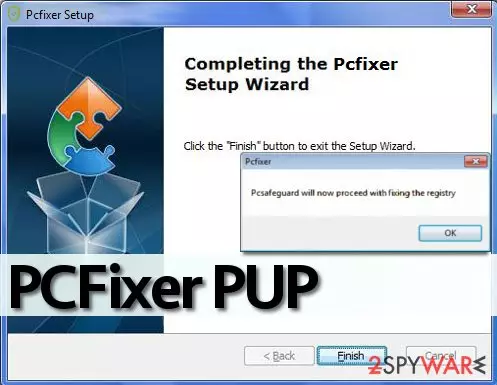
PCFixer virus might slither into your PC without asking your permission first. This program, which is also known as PCSafeguard, is not a real virus, but its activity can drive you insane. It is not surprising that it has been assigned to a potentially unwanted program’s list so quickly.
If you have installed this tool willingly because you wanted to get a program that could optimize your computer, better remove it. This program can hardly improve your computer’s performance, make it faster, clean the registry, and make other improvements that it promises to make. Once installed, it suggests scanning the system, which most users agree to do.
However, the results it delivers are unlikely to be trustworthy. It is very likely that this program displays false positive scan results just to convince the user to buy its full version, which is an unfair marketing technique. In general, this program is very suspicious because it has no official website where users could read more about it.
If this program ever wants to become reliable and have a good reputation, it needs to start with creating one first. At the moment, it deserves no better label than “digital snake oil.” This article contains its removal instructions and ways to repair corrupted system files.
| name | PCFixer |
|---|---|
| Type | System tool, potentially unwanted program |
| Risks | Monetary losses, privacy issues |
| Distribution | Software bundles, fake Flash Player updates, deceptive ads, freeware |
| Elimination | You can uninstall this program manually, but we recommend removing it with a reliable security tool that will ensure that no entries are overlooked |
| System health | Use FortectIntego software to repair corrupted system files and settings |
Once installed, the described program might start to send annoying pop-ups to your screen, saying that the system has registry errors that need to be fixed urgently. Various pop-ups and notifications coming from the icon tray might start to bother you on a daily basis.
What is more, the program might slow down your computer’s performance to hasten you to “fix” problems that might not even exist. We advise you to ignore these ads and take care of their removal as soon as you can. There are plenty more reliable PC optimizers and Registry fixers that you can use.
For PCFixer removal, we suggest using MalwarebytesMalwarebytes or SpyHunterCombo Cleaner reliable security software. It will automatically detect all malicious files and potentially unwanted programs and get rid of them. Afterward, use the FortectIntego PC tune-up software to repair all system inconsistencies so you could enjoy your device anew.
How could the app end up on my device if I didn't download it?
If this question haunts you and you feel like someone controls your PC remotely, please carefully read this paragraph. First of all PCFixer hijack typically takes place with computer user’s interaction, and surprisingly, in a legitimate way. Besides, since this program initiates annoying activities, but not malicious or illegal ones, it does not belong to the malware category.
It means that it is unlikely that hackers would put effort to install it on your PC. In reality, the program is distributed using a legitimate, but shady technique – software bundling. People who distribute such programs bundle them with other pieces of software and present these additions as “recommended downloads.” you can encounter an offer to install this registry editor when installing apps such as free games, download managers, media players, and so on.
You must go for Advanced or Custom configuration of installation settings and adjust them the way you want these settings to be. We suggest you deselect all suggested third-party applications, browser extensions, files, or search tools. After deselecting these bundled programs, you will install your desired program safely.
Remove PCFixer using easy-to-follow instructions
It is your right to choose how to remove PCFixer virus. There are two removal methods to choose from, and both of them are described below. The manual one will require some IT knowledge but with our guidance, you'll be finished in no time.
However, we tend to recommend the automatic removal method because it helps to remove all spyware and malware infections at once, and ensures that nothing is overlooked. Once the PUP is gone, run system diagnostics with compatible software to ensure a stable working environment.
Uninstall from Windows
Uninstall from Windows 10/8:
- Type Control Panel into the Windows search box and open the result.
- Under Programs, select Uninstall a program.


Uninstall from Windows 7/XP:
- Click on Windows Start > Control Panel (Windows XP users should click on Add/Remove Programs).
- In Control Panel, select Programs > Uninstall a program.


Remove the unwanted program:
- In the Programs and Features window, look for any recently installed suspicious entries, select them, and click Uninstall.
- If User Account Control appears, click Yes to confirm, then complete the removal.


Delete from macOS
Remove the unwanted application:
- From the menu bar, select Go > Applications.
- In the Applications folder, look for any suspicious entries, then drag them to Trash (or right-click and pick Move to Trash).


Delete leftover files and folders:
- Select Go > Go to Folder.
- Enter /Library/Application Support and remove any suspicious folders related to the unwanted program.
- Repeat the same check in the /Library/LaunchAgents and /Library/LaunchDaemons folders, deleting any suspicious entries.

- Finally, empty the Trash to permanently remove the leftovers.

Remove from Microsoft Edge
Delete unwanted extensions from MS Edge:
- Select Menu (three horizontal dots at the top-right of the browser window) and pick Extensions.
- From the list, pick the extension and click on the Gear icon.
- Click Remove.


Clear cookies and other browser data:
- Click on the Menu (three horizontal dots at the top-right of the browser window) and select Settings > Privacy, search, and services..
- Under Clear browsing data, pick Choose what to clear.
- Select Cookies and other site data and Cached images and files. (apart from passwords, although you might want to include Media licenses as well, if applicable) and click on Clear.


Restore new tab and homepage settings:
- Click the menu icon and choose Settings.
- Then find On startup section.
- Click Remove next to any suspicious startup page.
Reset MS Edge if the above steps did not work:
- Press on Ctrl + Shift + Esc to open Task Manager.
- Click on More details arrow at the bottom of the window.
- Select Details tab.
- Now scroll down and locate every entry with Microsoft Edge name in it. Right-click on each of them and select End Task to stop MS Edge from running.


Instructions for Chromium-based Edge
Delete extensions from MS Edge (Chromium):
- Open Edge and click select Settings > Extensions.
- Delete unwanted extensions by clicking Remove.


Clear cache and site data:
- Click on Menu and go to Settings.
- Select Privacy, search and services.
- Under Clear browsing data, pick Choose what to clear.
- Under Time range, pick All time.
- Select Clear now.


Reset Chromium-based MS Edge:
- Click on Menu and select Settings.
- On the left side, pick Reset settings.
- Select Restore settings to their default values.
- Confirm with Reset.
- This will disable extensions and reset startup pages but will not delete bookmarks, saved passwords, or browsing history.


Remove from Mozilla Firefox (FF)
Remove dangerous extensions:
- Open Mozilla Firefox browser and click on the Menu (three horizontal lines at the top-right of the window).
- Select Add-ons.
- In here, select the unwanted extension and click Remove.


Reset the homepage:
- Click three horizontal lines at the top right corner to open the menu.
- Choose Settings.
- Under Home, set your preferred homepage and new tab settings.
Clear cookies and site data:
- Click Menu and pick Settings.
- Go to Privacy & Security section.
- Scroll down to locate Cookies and Site Data.
- Click on Clear Data...
- Select Cookies and Site Data and Temporary cached files and pages, then click Clear.


Reset Mozilla Firefox
If clearing the browser as explained above did not help, reset Mozilla Firefox:
- Open Mozilla Firefox browser and click the Menu.
- Go to Help and then choose Troubleshooting Information.

- Under Give Firefox a tune up section, click on Refresh Firefox...
- Once the pop-up shows up, confirm the action by pressing on Refresh Firefox.



Remove from Google Chrome
Delete malicious extensions from Google Chrome:
- Open Google Chrome, click on the Menu (three vertical dots at the top-right corner) and select More tools > Extensions.
- In the newly opened window, you will see all the installed extensions. Uninstall all suspicious extensions related to the unwanted program by clicking Remove.


Clear cache and web data from Chrome:
- Click on Menu and pick Settings.
- Under Privacy and security, select Clear browsing data.
- Select Browsing history, Cookies and other site data, as well as Cached images and files.
- Click Clear data.


Change your homepage:
- Click menu and choose Settings.
- Look for a suspicious site in the On startup section.
- Click on Open a specific or set of pages and click on three dots to find the Remove option.
Reset Google Chrome:
If the previous methods did not help you, reset Google Chrome to eliminate all the unwanted components:
- Click on Menu and select Settings.
- In the Settings, scroll down and click Advanced.
- Scroll down and locate Reset and clean up section.
- Now click Restore settings to their original defaults.
- Confirm with Reset settings.


Delete from Safari
Remove dangerous extensions:
- Open Safari, click Safari in the menu at the top-left of the screen, and select Preferences.
- Go to the Extensions tab, look for any suspicious entries, and click Uninstall to remove them.


Clear history and website data:
- Click Safari in the menu and pick Clear History.
- Set Clear to all history and confirm with Clear History.


Reset Safari:
- Click Safari in the menu and select Preferences > Advanced.
- Enable Show Develop menu in menu bar.
- From the menu bar, click Develop and select Empty Caches.


Did this guide help?
4 comments
NyanCat
Ive been infected with this annoying threat, it does not help to improve your systems performance at all. PCFixer is very strange program, Id say. Cant understand why it advertises itself as a good product while it isnt.
olly_0
Finally got rid of this fake registry fixer. Thanks!
veela
Great guide... I couldnt believe how quickly and easily I removed the virus. Amazing. Thanks a lot.
Darren1
Uninstalled it! Thanks!!!