

Playthru Player is a potentially unwanted program that gets into users' computers with the help of software bundle packages or fake Flash updates
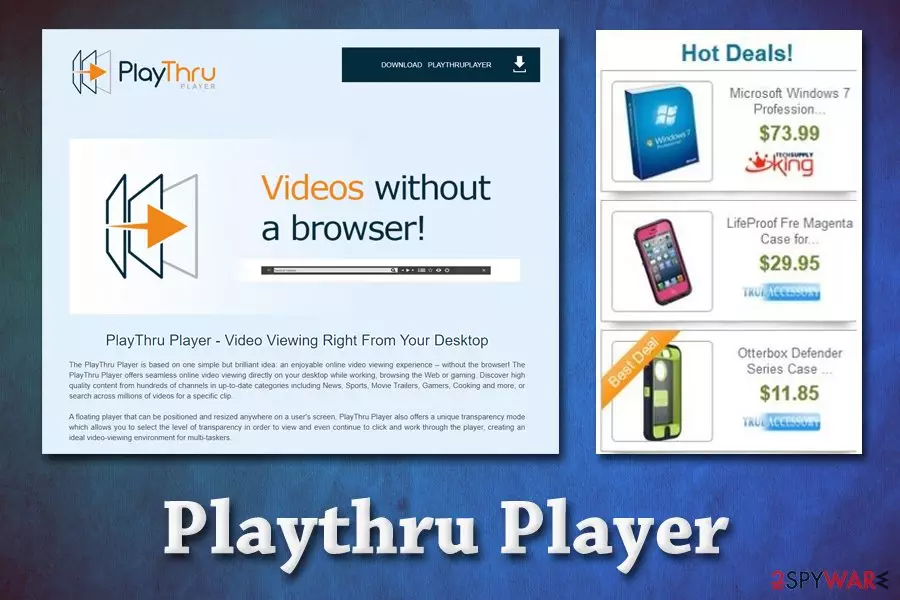
Playthru Player is an application that is advertised as a useful media player that can be used for watching online videos from YouTube, Vimeo, DailyMotion, and other sites without using Google Chrome, Internet Explorer, Safari or Mozilla Firefox browsers. While the feature might seem attractive to users, they should be aware that Playthru Player is actually an adware[1] application that displays intrusive pop-ups, in-text links, coupons, deals, offers, advertising banners, and other commercial content whether they like it or not.
While some do install Playthru Player intentionally when looking for a video player,[2] most of the users found the app on their machines after downloading a fake Flash Player update or after the installation of freeware/shareware from third-party sites.
Possibly one of the most annoying traits of Playthru Player is that most of the users found it particularly difficult to uninstall the program – it is often missing from the Control Panel. In some cases, users found that the only way to remove Playthru Player is to download and install anti-malware software or a specific uninstaller app. For full instructions, please check the bottom section of the article.
| Name | Playthru Player |
| Type | Adware |
| Program executable | playthruplayer.exe |
| Location | C:\Program Files\playthruplayer |
| Installation | The application might be installed from various fishy sites intentionally, but most users found it on their computers after falling for a fake Adobe Flash update or the installation of shareware/freeware |
| Related risks | Redirects to suspicious sites, installation of other potentially unwanted software, money loss, etc. |
| Persistence | The app does not show up under the installed program list in the Control Panel |
| Symptoms | Intrusive ads, redirects, changed web browser settings, etc. |
| Termination | Manual uninstallation might be complicated if the app does not show up in the Control Panel. In such a case, we suggest you download and install FortectIntego or other security software and perform a full system scan |
Playthru Player may look useful if you are looking for a good online video player. Its developers claim:
The PlayThru Player is based on one simple but brilliant idea: an enjoyable online video viewing experience – without the browser! The PlayThru Player offers seamless online video viewing directly on your desktop while working, browsing the Web or gaming.
There are millions of apps created by various developers, and, while some are asking for a one-off payment to fund the project, most rely on a freeware scheme – a potentially unlimited monetization thanks to advertisements. Therefore, users should always be aware if they are installing the ad-sponsored program, as some of them might be extremely persistent (hard to remove) and expose users to unsafe content online.

Unfortunately, Playthru Player belongs to the latter category. Upon installation, users will often notice advertisements on all the sites that they visit. These ads are sometimes might be marked as follows:
- Ads by Playthru Player
- Powered by Playthru Player
- Playthru Player Ads
- Brought to you by PlayThru Player, etc.
Besides all types of ads, users might also encounter browser redirect tendencies – they might be rerouted to fake, tech support scam, phishing, spoofing, or even malware-laden sites. Therefore, it is vital to not click on anything until PlayThru Player removal is performed, as the content might be unsafe and result in the installation of other PUPs or even malware.
The excessive advertising and redirects are also followed by information gathering of infected users. For example, PlayThru Player developers might be harvesting data about users like search queries, IP address, technical details of the used device, links clicked, and sites visited, etc. The process is typical to adware apps and is used to serve users with targeted ads,[3] consequently increasing profits for both parties.
If you struggle to uninstall PlayThru Player, you should run a full system scan with anti-malware software, such as FortectIntego. Nevertheless, in some cases, you might be able to terminate the app via the Startup or the Control Panel – check our instructions at the bottom of this article.

Never rush the installation of new programs you obtain from the internet – adware might get installed along with them
As we have already mentioned, you have probably downloaded this program to your computer without even knowing it. Potentially unwanted programs are called so due to their sneaky installation methods and potentially harmful activities that they perform on the browser or computer once installed. Users often install adware without realizing that their browsers will be served with endless ads, or that the app's termination will be difficult. Nevertheless, most of the PUPs enter computer together with freeware from third-party sites.
In order to avoid sneaky programs entering your computer without your knowledge, experts[4] advise to never rush the installation process and click “Next” until you are done – it is the easiest way to install PUPs or even malware on your PC. Always pay close attention to the installation instructions, check for the important documents (ToS, Privacy Policy), decline all deals or offers, and always opt for Advanced/Custom settings, avoiding Recommended/Quick method. Besides, you should also equip your computer with anti-malware software that could warn you in some cases that you are installing an app that might be unsafe.
PlayThru Player removal steps
Technically, Playthru Player is not a virus. It's just a potentially unwanted program that has been actively used for promoting related parties. Besides, it may track you and collect personally non-identifiable information behind your back. To avoid revealing too much for people you don't even know, you should remove Playthru Player form your computer.

The fastest Playthru Player removal can be performed with the help of anti-malware software – it will also make sure that no other malicious components or other potentially unwanted programs are installed on the device. However, you might also try terminating the app via Control Panel – we provide the instructions below. However, as we already mentioned Playthru Player might sometimes not show up in there, although you might find it via the Startup.
Simply click on Start > All Programs and locate the PUP, then click Uninstall.
Uninstall from Windows
Uninstall from Windows 10/8:
- Type Control Panel into the Windows search box and open the result.
- Under Programs, select Uninstall a program.


Uninstall from Windows 7/XP:
- Click on Windows Start > Control Panel (Windows XP users should click on Add/Remove Programs).
- In Control Panel, select Programs > Uninstall a program.


Remove the unwanted program:
- In the Programs and Features window, look for any recently installed suspicious entries, select them, and click Uninstall.
- If User Account Control appears, click Yes to confirm, then complete the removal.


Reset Internet Explorer
Remove dangerous add-ons:
- Open Internet Explorer, click on the Gear icon (IE menu) on the top-right corner of the browser
- Pick Manage Add-ons.
- You will see a Manage Add-ons window. Here, look for suspicious plugins. Click on these entries and select Disable.


Change your homepage if it was altered:
- Open IE and click on the Gear icon.
- Select Internet Options.
- In the General tab, delete the Home page address and replace it by your preferred one (for example, Google.com).
- Click Apply and then select OK.


Delete temporary files:
- Press on the Gear icon and select Internet Options.
- Under Browsing history, click Delete...
- Select relevant fields and press Delete.


Reset Internet Explorer:
- Click on Gear icon > Internet options and select Advanced tab.
- Select Reset.
- In the new window, check Delete personal settings and select Reset.


Remove from Microsoft Edge
Delete unwanted extensions from MS Edge:
- Select Menu (three horizontal dots at the top-right of the browser window) and pick Extensions.
- From the list, pick the extension and click on the Gear icon.
- Click Remove.


Clear cookies and other browser data:
- Click on the Menu (three horizontal dots at the top-right of the browser window) and select Settings > Privacy, search, and services..
- Under Clear browsing data, pick Choose what to clear.
- Select Cookies and other site data and Cached images and files. (apart from passwords, although you might want to include Media licenses as well, if applicable) and click on Clear.


Restore new tab and homepage settings:
- Click the menu icon and choose Settings.
- Then find On startup section.
- Click Remove next to any suspicious startup page.
Reset MS Edge if the above steps did not work:
- Press on Ctrl + Shift + Esc to open Task Manager.
- Click on More details arrow at the bottom of the window.
- Select Details tab.
- Now scroll down and locate every entry with Microsoft Edge name in it. Right-click on each of them and select End Task to stop MS Edge from running.


Instructions for Chromium-based Edge
Delete extensions from MS Edge (Chromium):
- Open Edge and click select Settings > Extensions.
- Delete unwanted extensions by clicking Remove.


Clear cache and site data:
- Click on Menu and go to Settings.
- Select Privacy, search and services.
- Under Clear browsing data, pick Choose what to clear.
- Under Time range, pick All time.
- Select Clear now.


Reset Chromium-based MS Edge:
- Click on Menu and select Settings.
- On the left side, pick Reset settings.
- Select Restore settings to their default values.
- Confirm with Reset.
- This will disable extensions and reset startup pages but will not delete bookmarks, saved passwords, or browsing history.


Remove from Mozilla Firefox (FF)
Remove dangerous extensions:
- Open Mozilla Firefox browser and click on the Menu (three horizontal lines at the top-right of the window).
- Select Add-ons.
- In here, select the unwanted extension and click Remove.


Reset the homepage:
- Click three horizontal lines at the top right corner to open the menu.
- Choose Settings.
- Under Home, set your preferred homepage and new tab settings.
Clear cookies and site data:
- Click Menu and pick Settings.
- Go to Privacy & Security section.
- Scroll down to locate Cookies and Site Data.
- Click on Clear Data...
- Select Cookies and Site Data and Temporary cached files and pages, then click Clear.


Reset Mozilla Firefox
If clearing the browser as explained above did not help, reset Mozilla Firefox:
- Open Mozilla Firefox browser and click the Menu.
- Go to Help and then choose Troubleshooting Information.

- Under Give Firefox a tune up section, click on Refresh Firefox...
- Once the pop-up shows up, confirm the action by pressing on Refresh Firefox.



Remove from Google Chrome
Delete malicious extensions from Google Chrome:
- Open Google Chrome, click on the Menu (three vertical dots at the top-right corner) and select More tools > Extensions.
- In the newly opened window, you will see all the installed extensions. Uninstall all suspicious extensions related to the unwanted program by clicking Remove.


Clear cache and web data from Chrome:
- Click on Menu and pick Settings.
- Under Privacy and security, select Clear browsing data.
- Select Browsing history, Cookies and other site data, as well as Cached images and files.
- Click Clear data.


Change your homepage:
- Click menu and choose Settings.
- Look for a suspicious site in the On startup section.
- Click on Open a specific or set of pages and click on three dots to find the Remove option.
Reset Google Chrome:
If the previous methods did not help you, reset Google Chrome to eliminate all the unwanted components:
- Click on Menu and select Settings.
- In the Settings, scroll down and click Advanced.
- Scroll down and locate Reset and clean up section.
- Now click Restore settings to their original defaults.
- Confirm with Reset settings.


Delete from Safari
Remove dangerous extensions:
- Open Safari, click Safari in the menu at the top-left of the screen, and select Preferences.
- Go to the Extensions tab, look for any suspicious entries, and click Uninstall to remove them.


Clear history and website data:
- Click Safari in the menu and pick Clear History.
- Set Clear to all history and confirm with Clear History.


Reset Safari:
- Click Safari in the menu and select Preferences > Advanced.
- Enable Show Develop menu in menu bar.
- From the menu bar, click Develop and select Empty Caches.


Did this guide help?
Be the first to comment