

“Please don’t restart your computer” – a scam that affects the machine
“Please don’t restart your computer” is a fake error that is triggered by malicious content. If BSOD (“blue screen of death”) screen suddenly emerged asking you not to reboot your device, you can be sure that the virus settled on your computer. On the one hand, there is no need to panic as it is simply a tech support scam triggered by the PUP. Usually, scammers pretend to be Microsoft specialists [1].
In this case, they also try to deceive users into calling a specific number to solve computer issues. What is more, they threaten users with Zeus virus which supposedly intends to wreak havoc on the system [2]. First of all, you should remove “Please don’t restart your computer” scam.
For that, you will need to install an anti-spyware application, e.g. MalwarebytesMalwarebytes. More information on how to perform “Please don’t restart your computer” removal is provided below. Scams comprise one of the largest groups of all computer viruses, so machines can get even more damaged by other threats.
They vary in their operation modes and designs. Some of them lock your computer while others simply display irritating messages suggesting to remove viruses from the device [3]. It is not difficult to look through the deception as all tech support scams provide a tech support number.
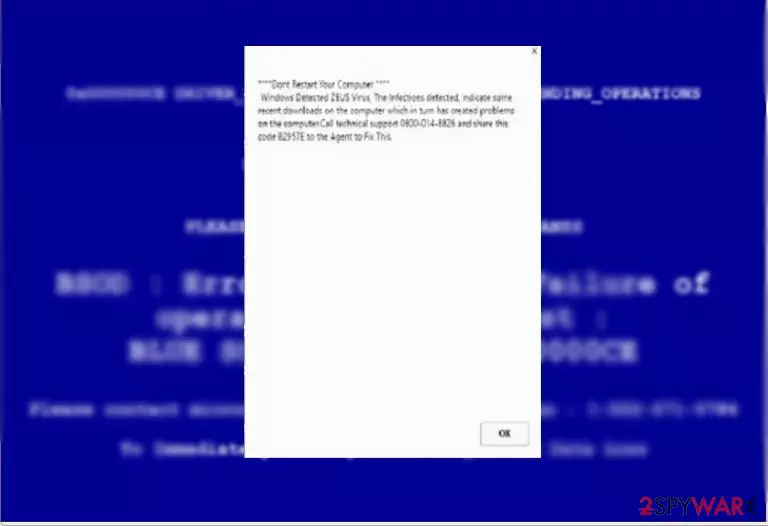
Even it is counterfeited Windows log-in window or error message, it includes the number. In original cases, Microsoft never asks you to call any number. What is more, the majority of this kind of malware includes other features which help you to realize it is a scam[4]. Even when you notice issues with the machine run FortectIntego to make sure that the system is not corrupted.
For example, you may notice that the background picture slightly differs from the original variant. What is more, crooks often leave grammar and typos when creating tech support scams. Keep the system clear and make sure to pay attention to details since this habit can help avoid cyber infections.
When the “Please don’t restart your computer” alert pops up, credulous users might get terrified by the alert of Zeus malware. Indeed, this virus is a complex computer infection that rampaged on the Web quite recently. What is more, virus researchers detected a rise in the number of this virtual threat. Nonetheless, it is a common technique to exert psychological pressure on victims.
If you dial the respective number, you will be connected to a supposed technical support specialist. Then he will guide you through a series of steps that supposedly removes the infection from your device. He might also offer you to install altered versions of Team Viewer or Supremo.
In short, by acquiring access to your computer, the scammer might access confidential personal information. Eventually, he might just remove the very “Please don’t restart your computer” malware with an ordinary anti-virus tool but send the bill of several hundred of dollars.
Alternatively, he might ask you to purchase a costly questionable rogue anti-spyware program which actually is futile in combating serious viruses. Beware of Please don’t restart your computer redirect as well since you might be directed to corrupted domains.
Malware spreads via malicious files
“Please don’t restart your computer” might occur if you prefer downloading content from file-sharing domains. Usually, they contain a series of elaborate and annoying malware. Such domains may also disguise exploit kits that facilitate ransomware infiltration [5].
In addition, tech support scams might disguise in optional applications attach to freeware. “Bundling” is often employed in distributing browser hijackers and adware. In order to spot such infections before they settle on the system, opt for “Custom” settings when installing any program. Afterward, unmark all questionable add-ons. Likewise, you will be able to escape more serious threats.
“Please don’t restart your computer” termination steps
If you prefer a fast and effective solution, install an anti-spyware application. Either of these programs helps you get rid of this scam and all its components quickly. Do not forget to update before starting the elimination process. Then you can properly remove “Please don’t restart your computer”. Keeping such tools and security software updated can help in the future.
In case, you cannot complete “Please don’t restart your computer” removal because your device is non-responding, follow the guidelines indicated below. Usually, such threats are not as complex as, for example, trojans or file-encrypting infections. Therefore, you should not take too long to remove the virus from the device.
Uninstall from Windows
Uninstall from Windows 10/8:
- Type Control Panel into the Windows search box and open the result.
- Under Programs, select Uninstall a program.


Uninstall from Windows 7/XP:
- Click on Windows Start > Control Panel (Windows XP users should click on Add/Remove Programs).
- In Control Panel, select Programs > Uninstall a program.


Remove the unwanted program:
- In the Programs and Features window, look for any recently installed suspicious entries, select them, and click Uninstall.
- If User Account Control appears, click Yes to confirm, then complete the removal.


Remove from Microsoft Edge
Delete unwanted extensions from MS Edge:
- Select Menu (three horizontal dots at the top-right of the browser window) and pick Extensions.
- From the list, pick the extension and click on the Gear icon.
- Click Remove.


Clear cookies and other browser data:
- Click on the Menu (three horizontal dots at the top-right of the browser window) and select Settings > Privacy, search, and services..
- Under Clear browsing data, pick Choose what to clear.
- Select Cookies and other site data and Cached images and files. (apart from passwords, although you might want to include Media licenses as well, if applicable) and click on Clear.


Restore new tab and homepage settings:
- Click the menu icon and choose Settings.
- Then find On startup section.
- Click Remove next to any suspicious startup page.
Reset MS Edge if the above steps did not work:
- Press on Ctrl + Shift + Esc to open Task Manager.
- Click on More details arrow at the bottom of the window.
- Select Details tab.
- Now scroll down and locate every entry with Microsoft Edge name in it. Right-click on each of them and select End Task to stop MS Edge from running.


Instructions for Chromium-based Edge
Delete extensions from MS Edge (Chromium):
- Open Edge and click select Settings > Extensions.
- Delete unwanted extensions by clicking Remove.


Clear cache and site data:
- Click on Menu and go to Settings.
- Select Privacy, search and services.
- Under Clear browsing data, pick Choose what to clear.
- Under Time range, pick All time.
- Select Clear now.


Reset Chromium-based MS Edge:
- Click on Menu and select Settings.
- On the left side, pick Reset settings.
- Select Restore settings to their default values.
- Confirm with Reset.
- This will disable extensions and reset startup pages but will not delete bookmarks, saved passwords, or browsing history.


Remove from Mozilla Firefox (FF)
Remove dangerous extensions:
- Open Mozilla Firefox browser and click on the Menu (three horizontal lines at the top-right of the window).
- Select Add-ons.
- In here, select the unwanted extension and click Remove.


Reset the homepage:
- Click three horizontal lines at the top right corner to open the menu.
- Choose Settings.
- Under Home, set your preferred homepage and new tab settings.
Clear cookies and site data:
- Click Menu and pick Settings.
- Go to Privacy & Security section.
- Scroll down to locate Cookies and Site Data.
- Click on Clear Data...
- Select Cookies and Site Data and Temporary cached files and pages, then click Clear.


Reset Mozilla Firefox
If clearing the browser as explained above did not help, reset Mozilla Firefox:
- Open Mozilla Firefox browser and click the Menu.
- Go to Help and then choose Troubleshooting Information.

- Under Give Firefox a tune up section, click on Refresh Firefox...
- Once the pop-up shows up, confirm the action by pressing on Refresh Firefox.



Remove from Google Chrome
Delete malicious extensions from Google Chrome:
- Open Google Chrome, click on the Menu (three vertical dots at the top-right corner) and select More tools > Extensions.
- In the newly opened window, you will see all the installed extensions. Uninstall all suspicious extensions related to the unwanted program by clicking Remove.


Clear cache and web data from Chrome:
- Click on Menu and pick Settings.
- Under Privacy and security, select Clear browsing data.
- Select Browsing history, Cookies and other site data, as well as Cached images and files.
- Click Clear data.


Change your homepage:
- Click menu and choose Settings.
- Look for a suspicious site in the On startup section.
- Click on Open a specific or set of pages and click on three dots to find the Remove option.
Reset Google Chrome:
If the previous methods did not help you, reset Google Chrome to eliminate all the unwanted components:
- Click on Menu and select Settings.
- In the Settings, scroll down and click Advanced.
- Scroll down and locate Reset and clean up section.
- Now click Restore settings to their original defaults.
- Confirm with Reset settings.


Did this guide help?
2 comments
torrontoThor
Is it really so profitable? Sometimes they really mess up at making it look legit.
FGvedg
Sometimes its really amusing that people still fall for such scams even though it is so easy to tell when it is a scam.