

Hardly useful Plusnetwork.com search features can cause many problems to you
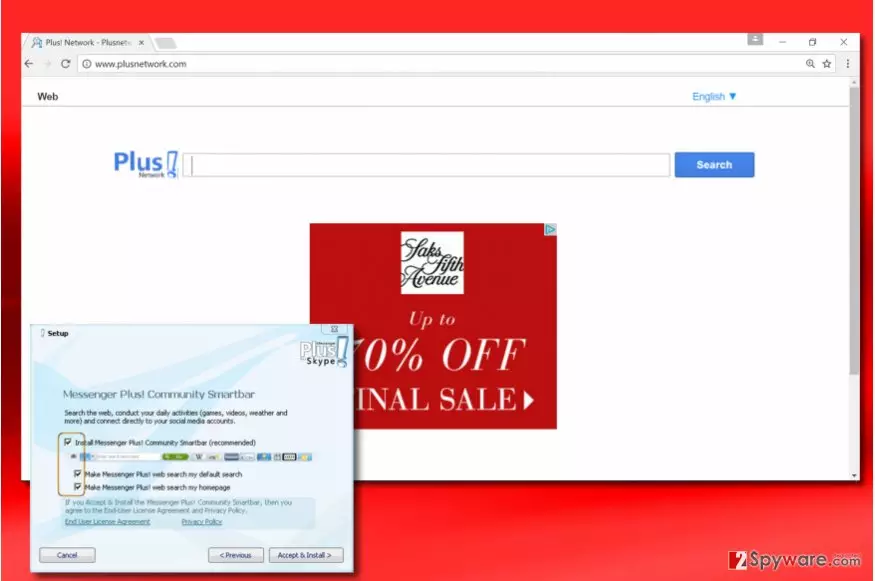
Plusnetwork.com virus may look like a reliable search engine. You can start visiting this page after installing some free program, such as CrossBrowser, Messenger Plus! Community Smartbar and others. However, due to its capability to redirect its users to commercial domains, it has been classified as a browser hijacker.
As the majority of these PUPs, this one claims to enhance people's browsing experience by displaying “the most reliable search results”. However, you should never forget the fact that Plusnetwork.com is a commercial website launched for monetization purposes. It has been found that its developers have been actively using pay-per-click scheme while trying to earn the money which is collected from different parties without checking them first.
If you don't want to find yourself on a suspicious website which seeks to infect your computer with malware, make sure you remove this hijacker from your computer.
In addition, note that this domain might share your personal information with third parties. Disclosing personal information online has been an occasional problem which concerns not only IT specialists but ordinary computer users as well[1]. Because of that, we highly recommend using FortectIntego for Plusnetwork.com removal.
This misleading search engine spreads along with Messenger Plus! Community toolbar that can be found on the list of “optional components” when installing Skype, download managers, and similar software.
PlusNetwork virus is always set to install alongside the main program by default; therefore, if you do not pay much attention to the toolbar's installation process, Plus Network can infiltrate your computer behind your back. Once it does that, it tries to replace the start page, the default search provider, and a new tab page.
This can happen on each of your web browsers, including Google Chrome, Mozilla Firefox, Internet Explorer or even Safari since both the toolbar and search site supports all the most popular web browsers.
Privacy issues
Furthermore, this search engine can also spies on its users by accumulating browser-related information and transmitting it to suspicious third parties.
Speaking in online marketing terms, user data has become one of the most wanted objects [2]. Sharing it with various third parties may result in privacy violation issues [3]. This should not be tolerated because third parties may use such pieces of information for really suspicious purposes:
- search terms;
- websites visited;
- data entered in them;
- clicks;
- PC's IP address and location;
- email address;
- and similar personally non-identifiable information.
For instance, collected data can be used for email spamming or creation of misleading ads[4].
Thus, if you do not want to slip on its redirects and land on potentially dangerous websites, we highly recommend you remove Plusnetwork.com browser hijacker from Google Chrome (as well as from Microsoft Edge, Firefox and other browsers) along with the toolbar and other components.

Many faces of Plus Network: other browser hijackers also serve its search results
It is important to understand that you can get redirected to hxxp://www.plusnetwork.com/?sp=reim5&q= site when dealing with a different browser hijacker, too. For example, some of the most prevalent browser redirect viruses known today replace victim's homepage with Saerch.net, Netfindersearch.com, Goqrench.net and other dubious domains[5].
In case one or several browsers started to load one of these sites automatically and you have no idea how to stop them from doing so, we suggest you take a look at instructions we provided. Here, you can find comprehensive tutorials on how to remove Plus Network from Microsoft Edge and other web browsers.
Do not forget to uninstall all other shady components and programs that were installed around the same time your browsers were hijacked (highly recommended).
Tricks to keep browser hijackers away from your computer
We have already mentioned how Plusnetwork.com hijack occurs. The shady search tool arrives as Messenger Plus! Community toolbar. The latter travels as an attachment to various freeware and shareware as a recommended “optional component.”
Thus, it means that if you download a download manager, media player or another free software not attentively enough, you might easily get tricked into installing the entire bundle of apps. To prevent this from happening, you should always check “Advanced” or “Custom” settings because it's the only way to see all components that piece out the freeware.
Follow each installation step and deselect all unfamiliar components, especially when they are set by default. You might also want to review your ad-blocking settings. Taking a look at the frequently used websites' privacy policies might also encourage you to treat your personal information more safely [6].
Remove Plus Network to make your browsing sessions more secure
If you have already got infected with this hijacker, don't worry if you do not know how to remove Plus Network. There is a in-depth explanation provided below the article. Although you can get rid of the hijacker manually, we highly recommend using automatic removal method to remove Plusnetwork.com virus. Don't forget that you are dealing with the program which relies on stealthy distribution and unauthorized browser's settings modification.
Moreover, as we have already noted, Plusnetwork.com removal is a must because this search engine seeks to promote affiliate websites which may be unsafe. Deleting it from your computer instantly increases your computer's security level.
To sum up, the Plusnetwork.com redirect issue might start interrupting you out of nowhere. In this case, it means that you failed to monitor installation of the freeware which was involved to the distribution of this hijacker. It is known that it has been spread by CrossBrowser, Messenger Plus! and similar PUPs, so make sure you remove these programs from your PC as well.
Uninstall from Windows
Uninstall from Windows 10/8:
- Type Control Panel into the Windows search box and open the result.
- Under Programs, select Uninstall a program.


Uninstall from Windows 7/XP:
- Click on Windows Start > Control Panel (Windows XP users should click on Add/Remove Programs).
- In Control Panel, select Programs > Uninstall a program.


Remove the unwanted program:
- In the Programs and Features window, look for any recently installed suspicious entries, select them, and click Uninstall.
- If User Account Control appears, click Yes to confirm, then complete the removal.


Delete from macOS
Remove the unwanted application:
- From the menu bar, select Go > Applications.
- In the Applications folder, look for any suspicious entries, then drag them to Trash (or right-click and pick Move to Trash).


Delete leftover files and folders:
- Select Go > Go to Folder.
- Enter /Library/Application Support and remove any suspicious folders related to the unwanted program.
- Repeat the same check in the /Library/LaunchAgents and /Library/LaunchDaemons folders, deleting any suspicious entries.

- Finally, empty the Trash to permanently remove the leftovers.

Reset Internet Explorer
Remove dangerous add-ons:
- Open Internet Explorer, click on the Gear icon (IE menu) on the top-right corner of the browser
- Pick Manage Add-ons.
- You will see a Manage Add-ons window. Here, look for suspicious plugins. Click on these entries and select Disable.


Change your homepage if it was altered:
- Open IE and click on the Gear icon.
- Select Internet Options.
- In the General tab, delete the Home page address and replace it by your preferred one (for example, Google.com).
- Click Apply and then select OK.


Delete temporary files:
- Press on the Gear icon and select Internet Options.
- Under Browsing history, click Delete...
- Select relevant fields and press Delete.


Reset Internet Explorer:
- Click on Gear icon > Internet options and select Advanced tab.
- Select Reset.
- In the new window, check Delete personal settings and select Reset.


Remove from Mozilla Firefox (FF)
Remove dangerous extensions:
- Open Mozilla Firefox browser and click on the Menu (three horizontal lines at the top-right of the window).
- Select Add-ons.
- In here, select the unwanted extension and click Remove.


Reset the homepage:
- Click three horizontal lines at the top right corner to open the menu.
- Choose Settings.
- Under Home, set your preferred homepage and new tab settings.
Clear cookies and site data:
- Click Menu and pick Settings.
- Go to Privacy & Security section.
- Scroll down to locate Cookies and Site Data.
- Click on Clear Data...
- Select Cookies and Site Data and Temporary cached files and pages, then click Clear.


Reset Mozilla Firefox
If clearing the browser as explained above did not help, reset Mozilla Firefox:
- Open Mozilla Firefox browser and click the Menu.
- Go to Help and then choose Troubleshooting Information.

- Under Give Firefox a tune up section, click on Refresh Firefox...
- Once the pop-up shows up, confirm the action by pressing on Refresh Firefox.



Remove from Google Chrome
Delete malicious extensions from Google Chrome:
- Open Google Chrome, click on the Menu (three vertical dots at the top-right corner) and select More tools > Extensions.
- In the newly opened window, you will see all the installed extensions. Uninstall all suspicious extensions related to the unwanted program by clicking Remove.


Clear cache and web data from Chrome:
- Click on Menu and pick Settings.
- Under Privacy and security, select Clear browsing data.
- Select Browsing history, Cookies and other site data, as well as Cached images and files.
- Click Clear data.


Change your homepage:
- Click menu and choose Settings.
- Look for a suspicious site in the On startup section.
- Click on Open a specific or set of pages and click on three dots to find the Remove option.
Reset Google Chrome:
If the previous methods did not help you, reset Google Chrome to eliminate all the unwanted components:
- Click on Menu and select Settings.
- In the Settings, scroll down and click Advanced.
- Scroll down and locate Reset and clean up section.
- Now click Restore settings to their original defaults.
- Confirm with Reset settings.


Delete from Safari
Remove dangerous extensions:
- Open Safari, click Safari in the menu at the top-left of the screen, and select Preferences.
- Go to the Extensions tab, look for any suspicious entries, and click Uninstall to remove them.


Clear history and website data:
- Click Safari in the menu and pick Clear History.
- Set Clear to all history and confirm with Clear History.


Reset Safari:
- Click Safari in the menu and select Preferences > Advanced.
- Enable Show Develop menu in menu bar.
- From the menu bar, click Develop and select Empty Caches.


Did this guide help?
Be the first to comment