

Rdrekt.com virus: is it a dangerous threat?
Rdrekt.com virus may target your computer wherever you are browsing the Web. This pesky application, which infects computers via its website, falls into the category of adware-type programs. Thus, its sole purpose is to annoy users with an enormous amount of irritating and intrusive advertisements. What is more, the unwanted program may also cause the emergence of alerts warning you to update your system software. Since it acts more like a rogue adware which does not allow you to access its main website, it triggers the pop-ups of various kinds. In addition, it also tends to redirect users to the domains having suspicious content. However, the latter problem might bring highly destructive outcomes. If you do not want your computer to be infected with malware, then it is high time you started rdrekt.com removal. Let FortectIntego help you.
This website might be similar to meg.picnickedinspectors.com, which acts the same way. When you enter the URL address of Rdrekt, it says that such website cannot be found. Speaking of the former adware, the access is blocked by the security program due to malware assault. However, though it seems that the website of the PUP is not active, it continues working restlessly in “underground.” It generates a number of highly disturbing rdrekt.com ads which pop-up every time you start browsing the Web.
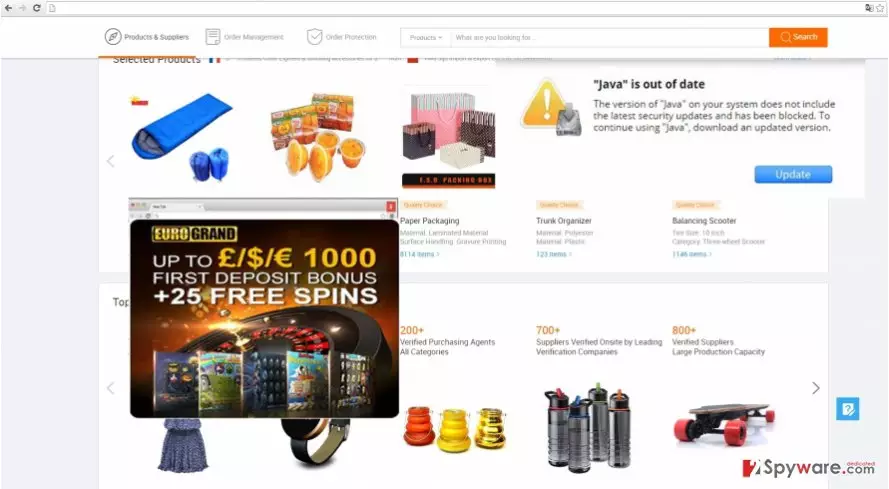
Those commercial offers, banners, coupons and in-text ads do not only cover the screen and diminish the overall browsing speed, but they also direct you to the websites of possibly malicious origin. Do not get carried away and avoid clicking on a supposed amusing video about dogs or article disclosing secret celebrity life peculiarities. After such visit, your computer might be infected with malware which causes not only occasional system crashes but entire system wrecks as well. Thus, rdrekt.com redirect might be more damaging than you think. Thus, we encourage you to remove rdrekt.com right away.
When did the adware occupy my computer?
Most likely, it happened when you installed a new pdf viewer or media player. Due to the reckless installation of the application, rdrekt.com escaped your attention and successfully infiltrated the system. Since it is adware and a highly annoying one, its developers try to pin it down to the free programs under “Recommended” settings. Thus, selecting the latter and then clicking the “Finish” button turn out to be fatal mistakes which enable rdrekt.com hijack. In order not to fall into the same trap again change your habits of installing a new program. First of all, opt for “Advanced” mode. Later on, go through each stage carefully to detect any add-ons which try to sneak into your computer.
Can I quickly and efficiently remove rdrekt.com?
You can do it within few minutes with the help of an anti-spyware program which ensures full Rdrekt.com removal within a blink of an eye. If you keep it updated, it will also secure your operating system and block various malware and more damaging viruses which attack your operating system all the time. It is not difficult to delete Rdrekt.com virus manually as well. Precision and attention are required to ensure complete elimination of the PUP. Lastly, you may also decrease the vulnerability of the OS if you carefully unpin all optional add-ons before finishing the installation wizard.
Uninstall from Windows
Uninstall from Windows 10/8:
- Type Control Panel into the Windows search box and open the result.
- Under Programs, select Uninstall a program.


Uninstall from Windows 7/XP:
- Click on Windows Start > Control Panel (Windows XP users should click on Add/Remove Programs).
- In Control Panel, select Programs > Uninstall a program.


Remove the unwanted program:
- In the Programs and Features window, look for any recently installed suspicious entries, select them, and click Uninstall.
- If User Account Control appears, click Yes to confirm, then complete the removal.


Delete from macOS
Remove the unwanted application:
- From the menu bar, select Go > Applications.
- In the Applications folder, look for any suspicious entries, then drag them to Trash (or right-click and pick Move to Trash).


Delete leftover files and folders:
- Select Go > Go to Folder.
- Enter /Library/Application Support and remove any suspicious folders related to the unwanted program.
- Repeat the same check in the /Library/LaunchAgents and /Library/LaunchDaemons folders, deleting any suspicious entries.

- Finally, empty the Trash to permanently remove the leftovers.

Remove from Microsoft Edge
Delete unwanted extensions from MS Edge:
- Select Menu (three horizontal dots at the top-right of the browser window) and pick Extensions.
- From the list, pick the extension and click on the Gear icon.
- Click Remove.


Clear cookies and other browser data:
- Click on the Menu (three horizontal dots at the top-right of the browser window) and select Settings > Privacy, search, and services..
- Under Clear browsing data, pick Choose what to clear.
- Select Cookies and other site data and Cached images and files. (apart from passwords, although you might want to include Media licenses as well, if applicable) and click on Clear.


Restore new tab and homepage settings:
- Click the menu icon and choose Settings.
- Then find On startup section.
- Click Remove next to any suspicious startup page.
Reset MS Edge if the above steps did not work:
- Press on Ctrl + Shift + Esc to open Task Manager.
- Click on More details arrow at the bottom of the window.
- Select Details tab.
- Now scroll down and locate every entry with Microsoft Edge name in it. Right-click on each of them and select End Task to stop MS Edge from running.


Instructions for Chromium-based Edge
Delete extensions from MS Edge (Chromium):
- Open Edge and click select Settings > Extensions.
- Delete unwanted extensions by clicking Remove.


Clear cache and site data:
- Click on Menu and go to Settings.
- Select Privacy, search and services.
- Under Clear browsing data, pick Choose what to clear.
- Under Time range, pick All time.
- Select Clear now.


Reset Chromium-based MS Edge:
- Click on Menu and select Settings.
- On the left side, pick Reset settings.
- Select Restore settings to their default values.
- Confirm with Reset.
- This will disable extensions and reset startup pages but will not delete bookmarks, saved passwords, or browsing history.


Remove from Mozilla Firefox (FF)
Remove dangerous extensions:
- Open Mozilla Firefox browser and click on the Menu (three horizontal lines at the top-right of the window).
- Select Add-ons.
- In here, select the unwanted extension and click Remove.


Reset the homepage:
- Click three horizontal lines at the top right corner to open the menu.
- Choose Settings.
- Under Home, set your preferred homepage and new tab settings.
Clear cookies and site data:
- Click Menu and pick Settings.
- Go to Privacy & Security section.
- Scroll down to locate Cookies and Site Data.
- Click on Clear Data...
- Select Cookies and Site Data and Temporary cached files and pages, then click Clear.


Reset Mozilla Firefox
If clearing the browser as explained above did not help, reset Mozilla Firefox:
- Open Mozilla Firefox browser and click the Menu.
- Go to Help and then choose Troubleshooting Information.

- Under Give Firefox a tune up section, click on Refresh Firefox...
- Once the pop-up shows up, confirm the action by pressing on Refresh Firefox.



Remove from Google Chrome
Delete malicious extensions from Google Chrome:
- Open Google Chrome, click on the Menu (three vertical dots at the top-right corner) and select More tools > Extensions.
- In the newly opened window, you will see all the installed extensions. Uninstall all suspicious extensions related to the unwanted program by clicking Remove.


Clear cache and web data from Chrome:
- Click on Menu and pick Settings.
- Under Privacy and security, select Clear browsing data.
- Select Browsing history, Cookies and other site data, as well as Cached images and files.
- Click Clear data.


Change your homepage:
- Click menu and choose Settings.
- Look for a suspicious site in the On startup section.
- Click on Open a specific or set of pages and click on three dots to find the Remove option.
Reset Google Chrome:
If the previous methods did not help you, reset Google Chrome to eliminate all the unwanted components:
- Click on Menu and select Settings.
- In the Settings, scroll down and click Advanced.
- Scroll down and locate Reset and clean up section.
- Now click Restore settings to their original defaults.
- Confirm with Reset settings.


Delete from Safari
Remove dangerous extensions:
- Open Safari, click Safari in the menu at the top-left of the screen, and select Preferences.
- Go to the Extensions tab, look for any suspicious entries, and click Uninstall to remove them.


Clear history and website data:
- Click Safari in the menu and pick Clear History.
- Set Clear to all history and confirm with Clear History.


Reset Safari:
- Click Safari in the menu and select Preferences > Advanced.
- Enable Show Develop menu in menu bar.
- From the menu bar, click Develop and select Empty Caches.


Did this guide help?
2 comments
Cecile
What an annoying adware!
Ann
At least, I have a powerful anti-spyware program.