

ReceiverHelper virus is a high threat to your personal safety and Mac security
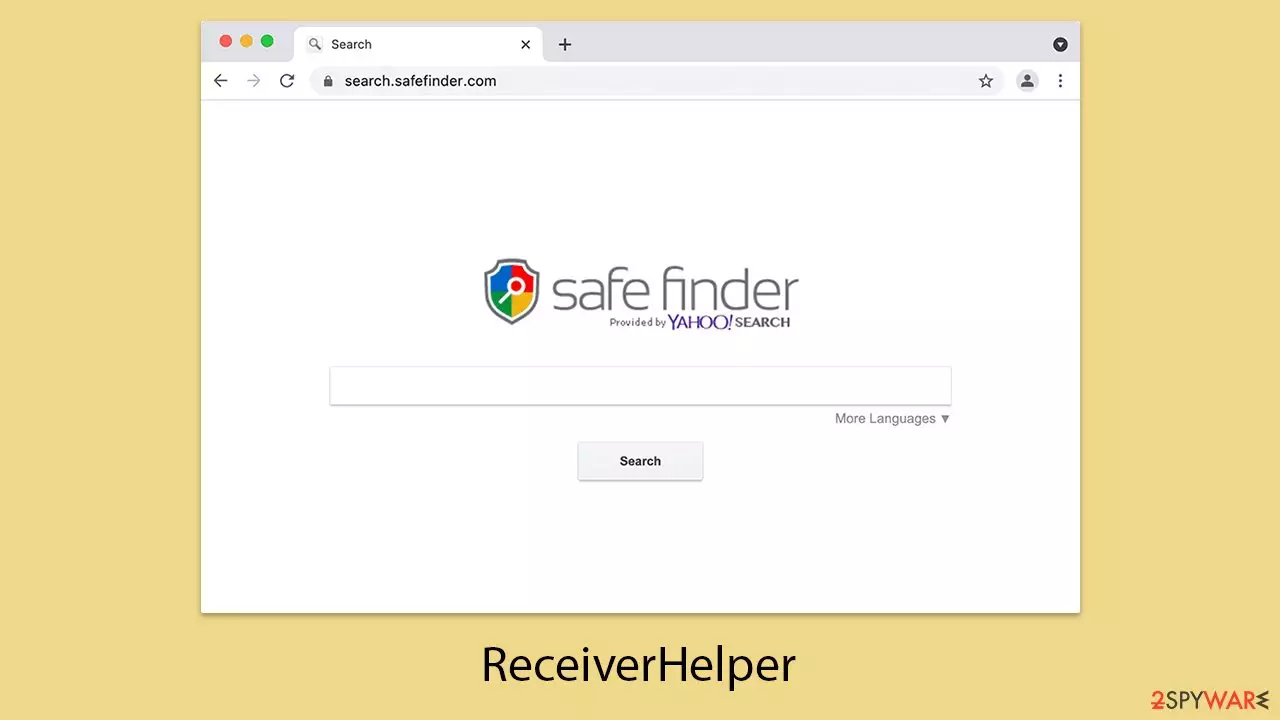
ReceiverHelper is a harmful application targeting Mac devices, classified under the Adload malware family. It is notorious for its ability to control browser behavior and display intrusive advertisements, making its removal a complex task. Cybercriminals have developed numerous variations of this malware, each with distinct and damaging traits.
ReceiverHelper primarily spreads through fake software updates or the installation of pirated programs. These deceptive methods effectively lure users, resulting in a significant number of infections.
Once installed, ReceiverHelper often alters browser configurations, such as replacing the homepage or default search engine with specific services that generate revenue through sponsored content. This change leads to a flood of unwanted advertisements and can redirect users to phishing pages, exposing them to fraudulent activities or fake virus warnings.
The malware also includes a browser extension component designed to gather sensitive information. This may involve capturing private data like login credentials or financial details, posing severe risks to users’ privacy and security. Addressing these threats and preventing future infections requires comprehensive removal strategies.
| Name | ReceiverHelper |
| Type | Mac virus, adware, browser hijacker |
| Malware family | Adload |
| Distribution | Third-party websites distributing pirated software, software bundles, fake Flash Player updates |
| Symptoms | Installs a new extension and application on the system; changes homepage and new tab of the browser; inserts ads and malicious links; tracks sensitive user data via extension |
| Removal | The easiest way to remove Mac malware is to perform a full system scan with SpyHunterCombo Cleaner security software. We also provide a manual guide below |
| System optimization | Once you've removed the virus and all its components, we also recommend scanning your device with FortectIntego to clean out your browsers and any other leftover or junk files |
How Adload-type infections spread
ReceiverHelper is a malicious program designed to target Mac users, belonging to a broader category of malware that focuses on browser hijacking and intrusive advertising. It typically spreads through deceptive means, with cybercriminals often relying on fake software updates or downloads from unofficial sources to trick users into unknowingly installing it on their devices.
A common method for distributing this malware involves fake prompts, often imitating system updates or software installers. These prompts frequently appear on phishing websites, luring users with messages claiming essential updates are needed for their system or specific software. Once users download and execute these files, ReceiverHelper virus silently installs itself in the background, sometimes disguising its presence as part of a legitimate installation package.
Another widespread tactic involves bundling the malware with cracked or pirated software. Many users unknowingly introduce the threat onto their devices while attempting to bypass paid licenses for premium applications. These unofficial installers often carry hidden malicious components, allowing malware to gain access without raising suspicion.
After infiltration, the malware is capable of changing browser settings or the default search engine by showing persistent advertisements. Furthermore, users may be also redirected to fraud websites for pushing onto users fake security alerts or phishing schemes-which might lead to disclosure of information or financial losses.
Such perils can be avoided if the user pays heed to a set of responsible browsing behavior, which includes not downloading unofficial software, avoiding suspicious pop-ups, and updating antivirus tools regularly. All these measures will be required in order to keep Mac systems secure and safe.

Remove the virus from the system properly
ReceiverHelper is notorious for its ability to bypass Mac’s built-in security features. This resilience makes it particularly challenging to remove without assistance from advanced anti-malware tools such as SpyHunterCombo Cleaner or MalwarebytesMalwarebytes. These specialized tools are capable of detecting and eliminating all traces of the malware, significantly reducing the risks and challenges associated with manual removal.
While manual removal of ReceiverHelper is technically possible, it requires a high level of caution and expertise. A single mistake during the process could leave behind hidden components, potentially allowing the malware to re-establish itself on the system.
Even after using automated tools, there’s no guarantee that browser settings will return to their original state. Malware of this kind often alters search engines, homepage settings, and other configurations, leaving persistent traces. To fully clean browser-related issues, utilizing a dedicated browser cleaning tool such as FortectIntego or performing detailed manual cleaning steps is essential.
To reduce the risk of future infections, users should ensure their anti-malware software is always updated with the latest security patches. Regular updates provide ongoing protection, not only against ReceiverHelper but also against other members of the Adload family and similar threats that exploit system vulnerabilities.
For users opting for manual removal, the process typically starts with accessing the Activity Monitor to identify and terminate suspicious processes associated with the malware. Proceeding carefully is key to ensuring complete eradication without causing unintended system issues.
- Open Applications folder
- Select Utilities
- Double-click Activity Monitor
- Here, look for suspicious processes related to adware and use the Force Quit command to shut them down
- Go back to the Applications folder
- Locate the malicious app and move it to Trash.


Upon infiltration, malware might establish new User profiles and Login items for persistence. This might be the reason why you can't get rid of the app or the extension.
- Go to Preferences and select Accounts
- Click Login items and delete everything suspicious
- Next, pick System Preferences > Users & Groups
- Find Profiles and remove unwanted profiles from the list.
Lastly, it's important to search for any remaining elements, specifically .plist files. These files, known as property list files, are used for configuration purposes and can potentially enhance the functionality of adware.
- Select Go > Go to Folder.
- Enter /Library/Application Support and click Go or press Enter.
- In the Application Support folder, look for any dubious entries and then delete them.
- Now enter /Library/LaunchAgents and /Library/LaunchDaemons folders the same way and delete all the related .plist files.


Taking care of the browsers
When manually removing a serious infection, one should realize that just deleting the main application is seldom enough. This type of malware embeds itself into browser extensions, which may continue running and executing their malicious activities – be it personal data harvesting or showing intrusive ads.
First of all, manual removal involves handling the browser extension. These extensions will be installed even if the main application is deleted; in this way, ReceiverHelper is capable of taking control over the browser settings and activity tracking.
Users should also check their browser extensions for unfamiliar entries. Normally, such are generic names or promise improved functionality. If found, remove the malicious extension and any related files to prevent reactivation.
Resetting browser settings to default is an important step after working on the extension. This will delete traces of malware, such as changed search engines and unwanted redirects.
Manual cleaning of every browser installed is very important, as ReceiverHelper can affect more than one. Skipping this step may allow the malware to come back and re-do all the previous removal processes.
Safari
- Click Safari > Preferences…
- In the new window, pick Extensions.
- Select the unwanted extension and select Uninstall.


Google Chrome
- Open Google Chrome, click on the Menu (three vertical dots at the top-right corner) and select More tools > Extensions.
- In the newly opened window, you will see all the installed extensions. Uninstall all the suspicious plugins that might be related to the unwanted program by clicking Remove.


Once you uninstall the extension, be sure also to delete all its cached data from your local folders, or it may continue to track your activities.
Safari
- Click Safari > Clear History…
- From the drop-down menu under Clear, pick all history.
- Confirm with Clear History.


Google Chrome
- Click on Menu and pick Settings.
- Under Privacy and security, select Clear browsing data.
- Select Browsing history, Cookies and other site data, as well as Cached images and files.
- Click Clear data.


If you can't remove malware components from your web browser, resetting it is a good option. Your bookmarks and other settings will not be deleted.
Safari
- Click Safari > Preferences…
- Go to the Advanced tab.
- Tick the Show Develop menu in the menu bar.
- From the menu bar, click Develop, and then select Empty Caches.


Google Chrome
- Click on Menu and select Settings.
- In the Settings, scroll down and click Advanced.
- Scroll down and locate Reset and clean up section.
- Now click Restore settings to their original defaults.
- Confirm with Reset settings.


Remove from Mozilla Firefox (FF)
Remove dangerous extensions:
- Open Mozilla Firefox browser and click on the Menu (three horizontal lines at the top-right of the window).
- Select Add-ons.
- In here, select the unwanted extension and click Remove.


Reset the homepage:
- Click three horizontal lines at the top right corner to open the menu.
- Choose Settings.
- Under Home, set your preferred homepage and new tab settings.
Clear cookies and site data:
- Click Menu and pick Settings.
- Go to Privacy & Security section.
- Scroll down to locate Cookies and Site Data.
- Click on Clear Data...
- Select Cookies and Site Data and Temporary cached files and pages, then click Clear.


Reset Mozilla Firefox
If clearing the browser as explained above did not help, reset Mozilla Firefox:
- Open Mozilla Firefox browser and click the Menu.
- Go to Help and then choose Troubleshooting Information.

- Under Give Firefox a tune up section, click on Refresh Firefox...
- Once the pop-up shows up, confirm the action by pressing on Refresh Firefox.



Did this guide help?
Be the first to comment