

RegTool is a fake registry cleaner that seeks to scare its users
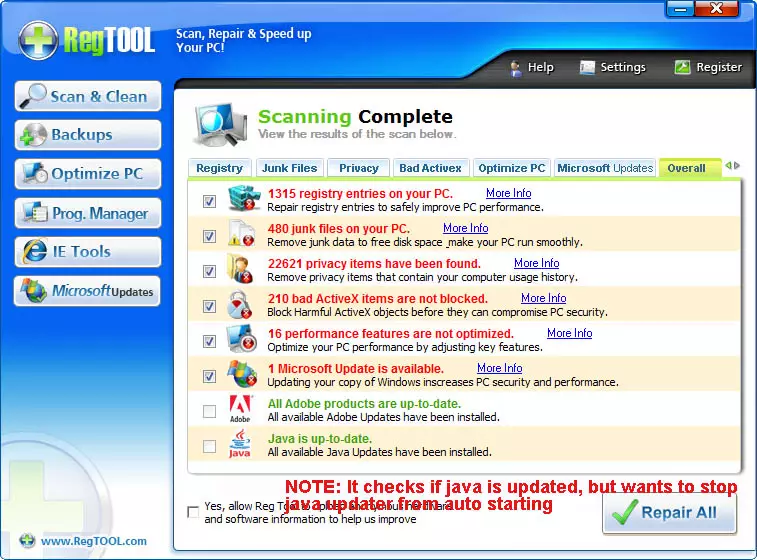
RegTool is a potentially unwanted Windows registry cleaner and system optimization tool. It is advertised as an award-winning advanced registry cleaner with more than 40 useful features and tools, and that it has the ability to increase the speed of your PC by 70%.
However, the operation of this program is suspicious, to say the least. It uses various care tactics to intentionally mislead users into believing that their systems need fixing as soon as possible. It also provides questionable suggestions to disable automatic updates for software such as Adobe Flash or Java. We strongly recommend uninstalling this app by following our instructions below.
| Name | RegTool |
| Type | Potentially unwanted program fake registry cleaner |
| Background process | RegTool.exe |
| Operation | Uses misleading scan results to make users buy its full version |
| Removal | Perform the steps we provide below; some security programs might also be able to detect and eliminate the PUP for you automatically |
| System fix | If you experience registry errors or system crashes, we recommend using PC repair tool FortectIntego |
It is important to note that the distribution techniques of this PUP are rather unfair. Nowadays, the app can be found on various suspicious third-party websites or might be bundled with freeware or shareware.
The main marketing pitch of this software is its ability to speed up users' computers. In fact, the program includes the following features that can be used for this alleged purpose:
- registry cleaner
- internet optimizer
- junk file remover
- smart disk defragger, etc.
While the list of features sounds amazing, the operation of the program is highly questionable. For example, it uses red color and inadequate numbers of the allegedly found threats to mark files or registry entries that are actually neutral or even beneficial for the computer operation.
Therefore, the app might delete useful registry keys and negatively impact Windows operation. In fact, there is no need to “clean” the registry if no problems within the database are present. All the claims that such a process can increase the speed of a computer are completely bogus and misleading, so don't believe them.
If you want reliable optimization software that does not use scare tactics to display diagnostics results and clean areas for better optimization, we recommend using FortectIntego.
Avoid potentially unwanted apps and delete the installed ones
As already explained, RegTool is likely to be found on various questionable websites or as an optional component within the software bundle. In order to prevent infiltration of PUPs, you should be more careful when browsing the web online and when you download free apps from the internet.
Always choose official download sources and never trust websites that claim that your system is infected with a virus, and offer you a fake removal tool. Also, when installing apps from third parties, never rush the installation process and always pick Advanced/Custom settings.
Regardless of how RegTool managed to get on your PC, you should take the steps below in order to uninstall it thoroughly. We also recommend clearing the web browsers to delete the web data and cookies to stop unwanted activity tracking.
Uninstall from Windows
Uninstall from Windows 10/8:
- Type Control Panel into the Windows search box and open the result.
- Under Programs, select Uninstall a program.


Uninstall from Windows 7/XP:
- Click on Windows Start > Control Panel (Windows XP users should click on Add/Remove Programs).
- In Control Panel, select Programs > Uninstall a program.


Remove the unwanted program:
- In the Programs and Features window, look for any recently installed suspicious entries, select them, and click Uninstall.
- If User Account Control appears, click Yes to confirm, then complete the removal.


Remove from Microsoft Edge
Delete unwanted extensions from MS Edge:
- Select Menu (three horizontal dots at the top-right of the browser window) and pick Extensions.
- From the list, pick the extension and click on the Gear icon.
- Click Remove.


Clear cookies and other browser data:
- Click on the Menu (three horizontal dots at the top-right of the browser window) and select Settings > Privacy, search, and services..
- Under Clear browsing data, pick Choose what to clear.
- Select Cookies and other site data and Cached images and files. (apart from passwords, although you might want to include Media licenses as well, if applicable) and click on Clear.


Restore new tab and homepage settings:
- Click the menu icon and choose Settings.
- Then find On startup section.
- Click Remove next to any suspicious startup page.
Reset MS Edge if the above steps did not work:
- Press on Ctrl + Shift + Esc to open Task Manager.
- Click on More details arrow at the bottom of the window.
- Select Details tab.
- Now scroll down and locate every entry with Microsoft Edge name in it. Right-click on each of them and select End Task to stop MS Edge from running.


Instructions for Chromium-based Edge
Delete extensions from MS Edge (Chromium):
- Open Edge and click select Settings > Extensions.
- Delete unwanted extensions by clicking Remove.


Clear cache and site data:
- Click on Menu and go to Settings.
- Select Privacy, search and services.
- Under Clear browsing data, pick Choose what to clear.
- Under Time range, pick All time.
- Select Clear now.


Reset Chromium-based MS Edge:
- Click on Menu and select Settings.
- On the left side, pick Reset settings.
- Select Restore settings to their default values.
- Confirm with Reset.
- This will disable extensions and reset startup pages but will not delete bookmarks, saved passwords, or browsing history.


Remove from Mozilla Firefox (FF)
Remove dangerous extensions:
- Open Mozilla Firefox browser and click on the Menu (three horizontal lines at the top-right of the window).
- Select Add-ons.
- In here, select the unwanted extension and click Remove.


Reset the homepage:
- Click three horizontal lines at the top right corner to open the menu.
- Choose Settings.
- Under Home, set your preferred homepage and new tab settings.
Clear cookies and site data:
- Click Menu and pick Settings.
- Go to Privacy & Security section.
- Scroll down to locate Cookies and Site Data.
- Click on Clear Data...
- Select Cookies and Site Data and Temporary cached files and pages, then click Clear.


Reset Mozilla Firefox
If clearing the browser as explained above did not help, reset Mozilla Firefox:
- Open Mozilla Firefox browser and click the Menu.
- Go to Help and then choose Troubleshooting Information.

- Under Give Firefox a tune up section, click on Refresh Firefox...
- Once the pop-up shows up, confirm the action by pressing on Refresh Firefox.



Remove from Google Chrome
Delete malicious extensions from Google Chrome:
- Open Google Chrome, click on the Menu (three vertical dots at the top-right corner) and select More tools > Extensions.
- In the newly opened window, you will see all the installed extensions. Uninstall all suspicious extensions related to the unwanted program by clicking Remove.


Clear cache and web data from Chrome:
- Click on Menu and pick Settings.
- Under Privacy and security, select Clear browsing data.
- Select Browsing history, Cookies and other site data, as well as Cached images and files.
- Click Clear data.


Change your homepage:
- Click menu and choose Settings.
- Look for a suspicious site in the On startup section.
- Click on Open a specific or set of pages and click on three dots to find the Remove option.
Reset Google Chrome:
If the previous methods did not help you, reset Google Chrome to eliminate all the unwanted components:
- Click on Menu and select Settings.
- In the Settings, scroll down and click Advanced.
- Scroll down and locate Reset and clean up section.
- Now click Restore settings to their original defaults.
- Confirm with Reset settings.


Delete from Safari
Remove dangerous extensions:
- Open Safari, click Safari in the menu at the top-left of the screen, and select Preferences.
- Go to the Extensions tab, look for any suspicious entries, and click Uninstall to remove them.


Clear history and website data:
- Click Safari in the menu and pick Clear History.
- Set Clear to all history and confirm with Clear History.


Reset Safari:
- Click Safari in the menu and select Preferences > Advanced.
- Enable Show Develop menu in menu bar.
- From the menu bar, click Develop and select Empty Caches.


Did this guide help?
Be the first to comment