

Safe.search.tools offers you “safe” search services
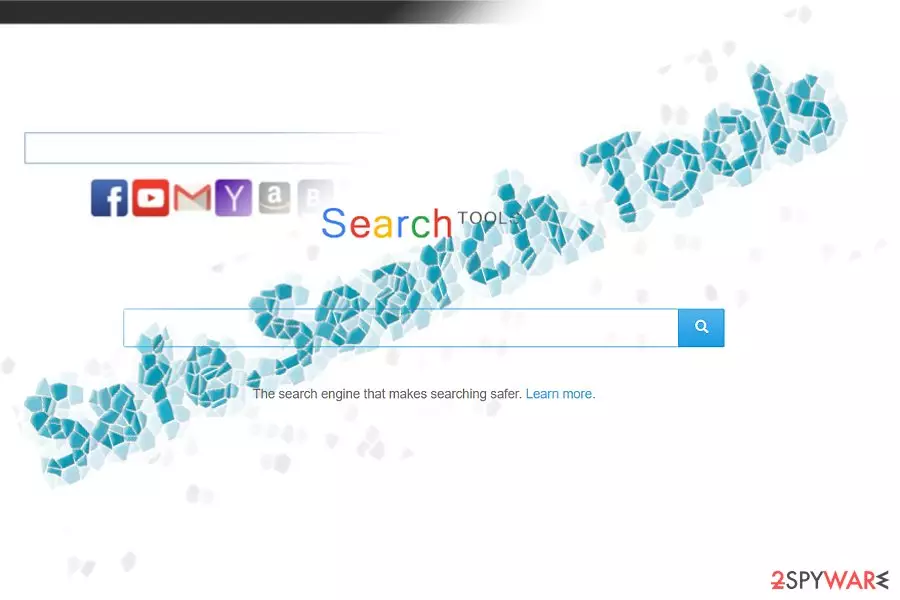
Safe.search.tools virus is another search engine originating from SafeSearch family of browser hijackers. Though they are not as aggressive and bothersome as, for instance, Safer Browser virus.
Regarding its veneer, it does not suspicious at all. It also displays sufficient amount of search results. Though a number of ads is not bothersome alongside search results, within a while, you might notice the increasing number of advertisements distracting you during the browsing sessions.
In addition, the browsing tool which is promoted as “safe” does not support security plug-ins. Thus, the question whether the search tool is safe to use it becomes relevant. The tool also tracks your online activities with the help of cookies and other web elements:
SearchTools™ may automatically receive and record certain non-personally identifiable information on its server logs from your browser, including your IP address, browser type, internet service provider (ISP), cookie information, and the webpage that a user visits. SearchTools™ collects non-personally identifiable information for general purposes, including but not limited to analyzing trends, administering the site, tracking user movements, conducting research, and providing anonymous reporting to internal and external clients.
If you cannot tolerate such behavior, it is high time you initiated safely.search.tools removal. FortectIntego or MalwarebytesMalwarebytes will help you deal with the PUP.
Due to its tracking of information, It experts have labeled it as a browser hijacker. Usually, they tend to:
- Direct to sponsored domains
- Replace the default search engine
- Display persistent commercial offers
Though this browser infection will hardly bombard you with ads on every site, you may still get irritated by safe.search.tools redirect tendency. Since this site collects information about your visited search entries and browsing history, the toll will transmit the data to SearchTools™, LLC and its partner companies.
After processing the received data, they will be capable of generating personalized pay-per-click ads[1]. However, sometimes these ads may be more troublesome as they might mislead to poorly protected web pages[2]. Thus, these arguments may encourage you to perform Safe.search.tools removal.
Transmission peculiarities
This hijacker can be found on its official site. There are also a couple of other PUP promotion strategies. It is likely that you may use this tool as optional program pinned down to free media players or file converters. In order to prevent “safe.search.tools hijack” you should opt for “Custom” installation mode and then remove the checkmarks from unwanted applications.
Alternatively, other hijackers may be advertised with the assistance of web scripts. Once you visit an affiliated site and click on an ad or a video link, you might get redirected to this Safe Search Tools hijacker.
Eliminate the PUP effectively
You can get rid of the hijacker manually or automatically. Luckily, you should not encounter any difficulties. You can remove safe.search.tools virus scripts by scanning the browser with the malware elimination tool.
You can get rid of the hijacker web elements manually as well. Below instructions will be of assistance to you. Note that the hijacker does not manifest any preference in targeting users. Thus, even if you live in Bulgaria[3] you may notice this hijacker.
Uninstall from Windows
Uninstall from Windows 10/8:
- Type Control Panel into the Windows search box and open the result.
- Under Programs, select Uninstall a program.


Uninstall from Windows 7/XP:
- Click on Windows Start > Control Panel (Windows XP users should click on Add/Remove Programs).
- In Control Panel, select Programs > Uninstall a program.


Remove the unwanted program:
- In the Programs and Features window, look for any recently installed suspicious entries, select them, and click Uninstall.
- If User Account Control appears, click Yes to confirm, then complete the removal.


Delete from macOS
Remove the unwanted application:
- From the menu bar, select Go > Applications.
- In the Applications folder, look for any suspicious entries, then drag them to Trash (or right-click and pick Move to Trash).


Delete leftover files and folders:
- Select Go > Go to Folder.
- Enter /Library/Application Support and remove any suspicious folders related to the unwanted program.
- Repeat the same check in the /Library/LaunchAgents and /Library/LaunchDaemons folders, deleting any suspicious entries.

- Finally, empty the Trash to permanently remove the leftovers.

Reset Internet Explorer
Remove dangerous add-ons:
- Open Internet Explorer, click on the Gear icon (IE menu) on the top-right corner of the browser
- Pick Manage Add-ons.
- You will see a Manage Add-ons window. Here, look for suspicious plugins. Click on these entries and select Disable.


Change your homepage if it was altered:
- Open IE and click on the Gear icon.
- Select Internet Options.
- In the General tab, delete the Home page address and replace it by your preferred one (for example, Google.com).
- Click Apply and then select OK.


Delete temporary files:
- Press on the Gear icon and select Internet Options.
- Under Browsing history, click Delete...
- Select relevant fields and press Delete.


Reset Internet Explorer:
- Click on Gear icon > Internet options and select Advanced tab.
- Select Reset.
- In the new window, check Delete personal settings and select Reset.


Remove from Microsoft Edge
Delete unwanted extensions from MS Edge:
- Select Menu (three horizontal dots at the top-right of the browser window) and pick Extensions.
- From the list, pick the extension and click on the Gear icon.
- Click Remove.


Clear cookies and other browser data:
- Click on the Menu (three horizontal dots at the top-right of the browser window) and select Settings > Privacy, search, and services..
- Under Clear browsing data, pick Choose what to clear.
- Select Cookies and other site data and Cached images and files. (apart from passwords, although you might want to include Media licenses as well, if applicable) and click on Clear.


Restore new tab and homepage settings:
- Click the menu icon and choose Settings.
- Then find On startup section.
- Click Remove next to any suspicious startup page.
Reset MS Edge if the above steps did not work:
- Press on Ctrl + Shift + Esc to open Task Manager.
- Click on More details arrow at the bottom of the window.
- Select Details tab.
- Now scroll down and locate every entry with Microsoft Edge name in it. Right-click on each of them and select End Task to stop MS Edge from running.


Instructions for Chromium-based Edge
Delete extensions from MS Edge (Chromium):
- Open Edge and click select Settings > Extensions.
- Delete unwanted extensions by clicking Remove.


Clear cache and site data:
- Click on Menu and go to Settings.
- Select Privacy, search and services.
- Under Clear browsing data, pick Choose what to clear.
- Under Time range, pick All time.
- Select Clear now.


Reset Chromium-based MS Edge:
- Click on Menu and select Settings.
- On the left side, pick Reset settings.
- Select Restore settings to their default values.
- Confirm with Reset.
- This will disable extensions and reset startup pages but will not delete bookmarks, saved passwords, or browsing history.


Remove from Mozilla Firefox (FF)
Remove dangerous extensions:
- Open Mozilla Firefox browser and click on the Menu (three horizontal lines at the top-right of the window).
- Select Add-ons.
- In here, select the unwanted extension and click Remove.


Reset the homepage:
- Click three horizontal lines at the top right corner to open the menu.
- Choose Settings.
- Under Home, set your preferred homepage and new tab settings.
Clear cookies and site data:
- Click Menu and pick Settings.
- Go to Privacy & Security section.
- Scroll down to locate Cookies and Site Data.
- Click on Clear Data...
- Select Cookies and Site Data and Temporary cached files and pages, then click Clear.


Reset Mozilla Firefox
If clearing the browser as explained above did not help, reset Mozilla Firefox:
- Open Mozilla Firefox browser and click the Menu.
- Go to Help and then choose Troubleshooting Information.

- Under Give Firefox a tune up section, click on Refresh Firefox...
- Once the pop-up shows up, confirm the action by pressing on Refresh Firefox.



Remove from Google Chrome
Delete malicious extensions from Google Chrome:
- Open Google Chrome, click on the Menu (three vertical dots at the top-right corner) and select More tools > Extensions.
- In the newly opened window, you will see all the installed extensions. Uninstall all suspicious extensions related to the unwanted program by clicking Remove.


Clear cache and web data from Chrome:
- Click on Menu and pick Settings.
- Under Privacy and security, select Clear browsing data.
- Select Browsing history, Cookies and other site data, as well as Cached images and files.
- Click Clear data.


Change your homepage:
- Click menu and choose Settings.
- Look for a suspicious site in the On startup section.
- Click on Open a specific or set of pages and click on three dots to find the Remove option.
Reset Google Chrome:
If the previous methods did not help you, reset Google Chrome to eliminate all the unwanted components:
- Click on Menu and select Settings.
- In the Settings, scroll down and click Advanced.
- Scroll down and locate Reset and clean up section.
- Now click Restore settings to their original defaults.
- Confirm with Reset settings.


Delete from Safari
Remove dangerous extensions:
- Open Safari, click Safari in the menu at the top-left of the screen, and select Preferences.
- Go to the Extensions tab, look for any suspicious entries, and click Uninstall to remove them.


Clear history and website data:
- Click Safari in the menu and pick Clear History.
- Set Clear to all history and confirm with Clear History.


Reset Safari:
- Click Safari in the menu and select Preferences > Advanced.
- Enable Show Develop menu in menu bar.
- From the menu bar, click Develop and select Empty Caches.


Did this guide help?
Be the first to comment