

Can I stay safe while using Safesurfs?
If Safesurfs.com virus showed up on your browser, you should know that you have become a victim of a browser hijacker. Just like its “twin” Safesurs.net, it spreads like a useful search engine which is capable of improving people’s browsing. Unfortunately, but neither the first page nor the second is capable of showing you legitimate search results. They are designed to modify your computer, hijack each of web browsers, and display search results that are considered untrustworthy. Because of these results, you may find yourself redirected to malicious domains seeking to infect your computer with malware. There is no doubt that you must think about Safesurfs removal and stop using this search engine because it has nothing in common with staying safe while browsing on the Internet. The easiest way to fix computer is to rely on such programs as FortectIntego. We used it while testing this redirect virus and we must say that it showed great results in detecting each of its components. Of course, it is also possible to remove this hijacker manually. For that, you should scroll down to see each of removal steps.
Once installed on the system, Safesurfs virus is assigned to each of web browsers that are installed on the affected PC system. Beware that it can affect each of web browsers, including Mozilla Firefox, Google Chrome, Safari, Microsoft Edge, etc. Here, it appears instead of the start page, a default search engine, and a new tab page. For protecting itself, this hijacker uses various browser helper objects, such as third party installers, browser plugins and similar components that can be seen easily. They start working as soon as they get a notification that user is trying to reset browser settings and remove Safesurfs from the system.
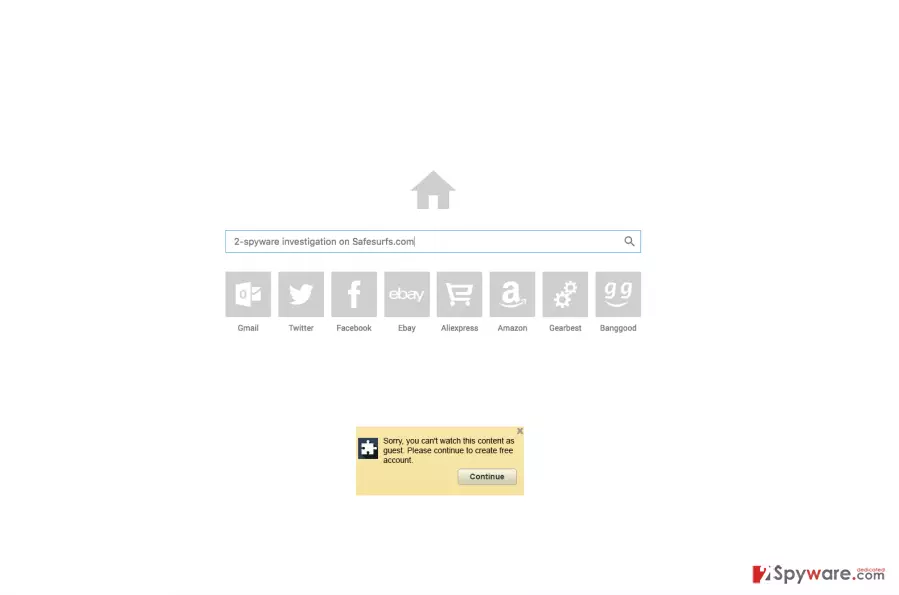
Why should you be careful with Safesurfs.com? This search engine is commercial one and its developers have been using it to promote suspicious third parties in exchange for money. So, you should realize that its search results are corrupted and filled with sponsored links. After clicking one of such search results, so you can easily be redirected to a malicious website. In addition to SafeSurfs.com redirect activity, there is another thing that you must keep in mind. It is related to previously-mentioned BHOs (browser helper objects) that can not only protect this browser hijacker. These “objects” can also track people and collect information related to their activity on the Internet. Unfortunately, we can’t guarantee that personal information that you share thru Safesurfs can’t get into hands of unreliable people. If you are against tracking and redirected searches, you should not postpone the removal of this browser hijacker.
Why should I treat this search engine as risky and how can I avoid it?
While Safesurfs.com seems like a trustworthy search engine with a search box and quick links, security experts believe it to be a risk (although minor) to people’s privacy and virtual security. There are several reasons for such assumptions. The research has revealed that this search engine is quite controversial. Although it may boast being able to provide selectively chosen and customized search results, it may rather present people with altered search results. It means that the majority of links and advertisements that it provides may be sponsored, i.e. linked to affiliate websites. Unfortunately, but its redirects can make you visit both, reliable and unsafe, domains which is why this search engine is considered a threat to people’s virtual security.
To prevent yourself from Safesurfs hijack, you must monitor installation of the freeware by selecting Advanced or Custom installation option. Also, make sure you read the Privacy Policy, End User’s License Agreement and similar information provided by the developer of the software. If you can find suspicious statements, you should choose another program. However, if you have been using this browser hijacker, you need to think about Safesurfs.com removal from the system. For that, you can use instructions that are provided down below.
How can I remove Safesurfs.com?
We hope that you understand that you must remove Safesurfs from your computer because it is a seriously suspicious program which uses BHOs for tracking its users. Security experts have already warned people by saying that they discovered about the accumulation of personally identifiable and non-identifiable information. For example, it may accumulate search terms, downloads and uploads, software and hardware information, browser’s type, language, email address, and so on. However, third parties may apply it for unfair purposes, so there is no doubt that Safesurfs.com removal should be considered. Of course, just like any other PUP, it may pose you difficulties while trying to get rid of it, so we highly recommend you to apply an automatic removal method. Using a reliable anti-spyware will eliminate this hijacker along with its counterparts without any difficulties. However, if you do not want to use additional software, you can use the guide given below:
Uninstall from Windows
Uninstall from Windows 10/8:
- Type Control Panel into the Windows search box and open the result.
- Under Programs, select Uninstall a program.


Uninstall from Windows 7/XP:
- Click on Windows Start > Control Panel (Windows XP users should click on Add/Remove Programs).
- In Control Panel, select Programs > Uninstall a program.


Remove the unwanted program:
- In the Programs and Features window, look for any recently installed suspicious entries, select them, and click Uninstall.
- If User Account Control appears, click Yes to confirm, then complete the removal.


Delete from macOS
Remove the unwanted application:
- From the menu bar, select Go > Applications.
- In the Applications folder, look for any suspicious entries, then drag them to Trash (or right-click and pick Move to Trash).


Delete leftover files and folders:
- Select Go > Go to Folder.
- Enter /Library/Application Support and remove any suspicious folders related to the unwanted program.
- Repeat the same check in the /Library/LaunchAgents and /Library/LaunchDaemons folders, deleting any suspicious entries.

- Finally, empty the Trash to permanently remove the leftovers.

Reset Internet Explorer
Remove dangerous add-ons:
- Open Internet Explorer, click on the Gear icon (IE menu) on the top-right corner of the browser
- Pick Manage Add-ons.
- You will see a Manage Add-ons window. Here, look for suspicious plugins. Click on these entries and select Disable.


Change your homepage if it was altered:
- Open IE and click on the Gear icon.
- Select Internet Options.
- In the General tab, delete the Home page address and replace it by your preferred one (for example, Google.com).
- Click Apply and then select OK.


Delete temporary files:
- Press on the Gear icon and select Internet Options.
- Under Browsing history, click Delete...
- Select relevant fields and press Delete.


Reset Internet Explorer:
- Click on Gear icon > Internet options and select Advanced tab.
- Select Reset.
- In the new window, check Delete personal settings and select Reset.


Remove from Mozilla Firefox (FF)
Remove dangerous extensions:
- Open Mozilla Firefox browser and click on the Menu (three horizontal lines at the top-right of the window).
- Select Add-ons.
- In here, select the unwanted extension and click Remove.


Reset the homepage:
- Click three horizontal lines at the top right corner to open the menu.
- Choose Settings.
- Under Home, set your preferred homepage and new tab settings.
Clear cookies and site data:
- Click Menu and pick Settings.
- Go to Privacy & Security section.
- Scroll down to locate Cookies and Site Data.
- Click on Clear Data...
- Select Cookies and Site Data and Temporary cached files and pages, then click Clear.


Reset Mozilla Firefox
If clearing the browser as explained above did not help, reset Mozilla Firefox:
- Open Mozilla Firefox browser and click the Menu.
- Go to Help and then choose Troubleshooting Information.

- Under Give Firefox a tune up section, click on Refresh Firefox...
- Once the pop-up shows up, confirm the action by pressing on Refresh Firefox.



Remove from Google Chrome
Delete malicious extensions from Google Chrome:
- Open Google Chrome, click on the Menu (three vertical dots at the top-right corner) and select More tools > Extensions.
- In the newly opened window, you will see all the installed extensions. Uninstall all suspicious extensions related to the unwanted program by clicking Remove.


Clear cache and web data from Chrome:
- Click on Menu and pick Settings.
- Under Privacy and security, select Clear browsing data.
- Select Browsing history, Cookies and other site data, as well as Cached images and files.
- Click Clear data.


Change your homepage:
- Click menu and choose Settings.
- Look for a suspicious site in the On startup section.
- Click on Open a specific or set of pages and click on three dots to find the Remove option.
Reset Google Chrome:
If the previous methods did not help you, reset Google Chrome to eliminate all the unwanted components:
- Click on Menu and select Settings.
- In the Settings, scroll down and click Advanced.
- Scroll down and locate Reset and clean up section.
- Now click Restore settings to their original defaults.
- Confirm with Reset settings.


Delete from Safari
Remove dangerous extensions:
- Open Safari, click Safari in the menu at the top-left of the screen, and select Preferences.
- Go to the Extensions tab, look for any suspicious entries, and click Uninstall to remove them.


Clear history and website data:
- Click Safari in the menu and pick Clear History.
- Set Clear to all history and confirm with Clear History.


Reset Safari:
- Click Safari in the menu and select Preferences > Advanced.
- Enable Show Develop menu in menu bar.
- From the menu bar, click Develop and select Empty Caches.


Did this guide help?
4 comments
2Egisss2
Hi guys!! Ive found this hijacker on my computer right after installing a PDF viewer. It doesnt bother me a lot, but it has been redirecting me to websites that I see for the first time. Ive removed it successfully, but I have some doubts that it might have helped other threats infect my computer because I keep receiving ads during browsing.
Patricia
Hi 2Egisss2! I have the same issue in my web browser. Im using Chrome, but I cant get rid of it manually. I have removed it from the plug-ins list and replaced it by Google.com in the field of homepage. However, it reappears as soon as I reopen my web browser. What did I do wrong?
LeoB
I dont know whats the problem with me because its a second time when Safesurfs.com hijacks my computer. I assume that it has infiltrated my computer as a free addition of a freeware. The next time I will install free programs much much much more carefully.
MirandaEdgley
I cant believe Ive been using this search engine instead of Google! It actually seemed to be useful until Ive noticed that most of the links that it provides are sponsored. Dont use Safesurfs.com hijacker because it can cause you inconveniences and expose to suspicious websites! To remove it, Ive used SpyHunter. Successfully detected and removed.