

Scanprotectiontoday.com is a website created by crooks: it shows fake virus infection alerts to frighten users
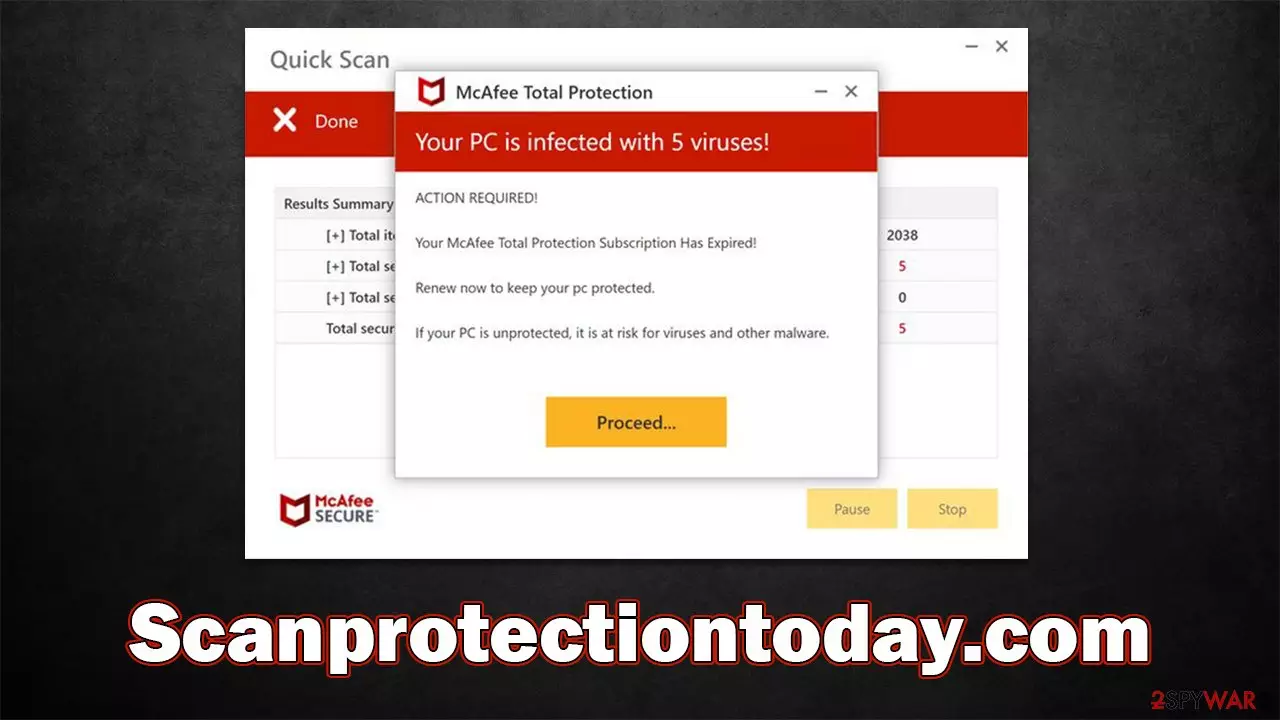
Scanprotectiontoday.com is one of the thousands of fake websites that attempts to imitate scans performed by a prominent security vendor such as Norton or McAfee. It tries to mimic the scan process of the said vendor, which later comes back if fake results, and they are never positive – it is claimed that the system is infected with several viruses and that they need to be removed as soon as possible. Here's the message that comes on top of it all:
Your PC is infected with 5 viruses!
ACTION REQUIRED!
Your McAfee Subscription Has Expired!
Renew now to keep your pc protected.
If your PC is unprotected, it is at risk for viruses and other malware.
Scanprotectiontoday.com then says that the security software has expired and its license needs to be renewed. This is just another attempt to monetize affiliate links by cybercriminals – the security vendor has nothing to do with this message; in fact, it is illegal to advertise software by using social engineering.[1]
An important thing to point out is that redirects to Scanprotectiontoday.com or similar websites may be a sign of adware or other malware infection, so it is important to check your system for those, all while completely disregarding scam messages shown by fake websites.
| Name | Scanprotectiontoday.com |
| Type | Scam, ads, redirect |
| Infiltration | Redirects from other websites, pop-up ads, potentially unwanted applications |
| Scam content | The scam is based on scaring users into believing that their systems are infected and that they need to remove those infections with promoted software |
| Dangers | Installation of potentially unwanted programs or malware, personal information disclosure to unknown parties/cybercriminals, monetary losses |
| Removal | It's dangerous to engage with fraudulent material since scammers may market rogue antivirus software. Instead, utilize reputable security tools on your system. |
| Other tips | If you're concerned about third-party cookies tracking your online activities, we recommend clearing your browser cache and deleting any leftover PUP files with FortectIntego |
What to do now
Online scams and phishing content is extremely prevalent, as there are thousands of unfair individuals willing to trick users into doing something they otherwise wouldn't. From rather harmless requests to enable push notifications (which may pose security risks later, in fact) to spoof websites[2] where cybercriminals attempt to steal login credentials of unsuspecting users – all of this content should be avoided as much as possible.
Scanprotectiontoday.com simply uses a template employed by so many other scam sites, such as Cadom.live, Stally.click, Alliedarnold.store, and many others. All of these websites are mere copies of one another and provide no real insights into how infected one's PC is, as all the users entering these sites would be provided with the same results.
Some users may be tricked into believing that these results are real and proceed with the instructions provided by crooks. In this case, they are likely to be rerouted to a purchase page of a security vendor they tried to imitate earlier, only to retrieve the affiliate link revenue, regardless if users were tricked into coming there by a fake ad. It goes without saying that such illegitimate monetization attempts should not be rewarded. Additionally, people may be redirected to pages that promote rogue security software or malware disguised as legitimate tools, so it's another reason not to proceed.

In other cases, people might realize that the site is deceptive and not engage with it, although many still have doubts whether or not their systems are infected because they entered Scanprotectiontoday.com in the first place. While it is good to be concerned about this, it is highly unlikely for you to get infected automatically without clicking any links or installing something yourself, so if you didn't do that, you should be secure.
That being said, adware could be involved in redirects to suspicious websites, so we recommend checking the device thoroughly, as we explain below. Clearing browser caches and stopping push notifications, if such were enabled, is also divisible to get rid of all the unwanted symptoms.
Clear your system from adware and get rid of the trackers
After you've been exposed to the fraud website, your first step is to do an adware check. The quickest and simplest method to guarantee that your PC is free of adware is to use SpyHunterCombo Cleaner or MalwarebytesMalwarebytes security software, which would quickly and efficiently eliminate all malicious components from the system.
Manual removal might be difficult and time-consuming. Unwanted programs can be removed automatically, so you don't have to. Furthermore, it's possible that deleting helpful applications will do more harm than good. Nonetheless, after you've verified your device is malware and adware-free, you should clean your browsers' cookies and other trackers as soon as possible. You may either use FortectIntego to perform this task or follow the techniques below to accomplish it on your own:
Google Chrome
- Click on Menu and pick Settings.
- Under Privacy and security, select Clear browsing data.
- Select Browsing history, Cookies and other site data, as well as Cached images and files.
- Click Clear data.


Mozilla Firefox
- Click Menu and pick Options.
- Go to Privacy & Security section.
- Scroll down to locate Cookies and Site Data.
- Click on Clear Data…
- Select Cookies and Site Data, as well as Cached Web Content, and press Clear.


MS Edge (Chromium)
- Click on Menu and go to Settings.
- Select Privacy and services.
- Under Clear browsing data, pick Choose what to clear.
- Under Time range, pick All time.
- Select Clear now.


Safari
- Click Safari > Clear History…
- From the drop-down menu under Clear, pick all history.
- Confirm with Clear History.


Remove push notifications
Websites that show misleading information about users' computer status usually do so in order to make money. They may try to sell software to users or ask them to enable push notifications as soon as they enter the website. By accepting push notifications, crooks may monetize further thanks to advertisements shown on their desktops via the push notification API[3] in the browser at any time, regardless of which websites are being visited at the time.
Thus, if you have accidentally enabled this feature, you can stop the intrusive pop-ups by accessing browser settings and blocking the website's URL as follows:
Google Chrome
- Open the Google Chrome browser and go to Menu > Settings.
- Scroll down and click on Advanced.
- Locate the Privacy and security section and pick Site Settings > Notifications.
- Look at the Allow section and look for a suspicious URL.
- Click the three vertical dots next to it and pick Block. This should remove unwanted notifications from Google Chrome.


Mozilla Firefox
- Open Mozilla Firefox and go to Menu > Options.
- Click on Privacy & Security section.
- Under Permissions, you should be able to see Notifications. Click the Settings button next to it.
- In the Settings – Notification Permissions window, click on the URL's drop-down menu.
- Select Block and then click on Save Changes. This should remove unwanted notifications from Mozilla Firefox.


MS Edge (Chromium)
- Open Microsoft Edge, and go to Settings.
- Select Site permissions.
- Go to Notifications on the right.
- Under Allow, you will find the unwanted entry.

- Click on More actions and select Block.

Safari
- Click on Safari > Preferences…
- Go to the Websites tab and, under General, select Notifications.
- Select the web address in question, click the drop-down menu and select Deny.


Did this guide help?
Be the first to comment