

Can Search Extender virus be a serious threat?
The design of Search Extender easily appeals to the users and creates the impression that with the help of this search engine, browsing rises to a different level. Despite the first impression, you should not get carried away and do not set it as your homepage. This browsing tool falls into the category of browser hijackers. Likewise, it might fail in delivering promoted better search results. Instead, your screen might be covered with irritating banners, coupons and other sorts of advertisements. In addition, reaching the destination might become a problem due to the hijacker’s tendency to direct to sponsored domains. All in all, this browsing tool is surely less effective than a legitimate search engine. Do not waste time and remove Search Extender virus. For that purpose, FortectIntego comes in handy.
When you enter the official website of this hijacker, you may not have the slightest idea that it is not a legitimate search engine. Its appealing design clears out any suspicions. Moreover, it presents itself as an easy-to-use browsing tool which is compatible with Windows and Mac operating system. It also ensures that the tool remains free of charge forever. The PUP also offers you to add its extension to your search engine. Another possible advantage promoted by
searchextender.com is that it offers smooth availability despite your location. All this might seem fine and dandy, but you should not forget that this PUP is a browser hijacker.
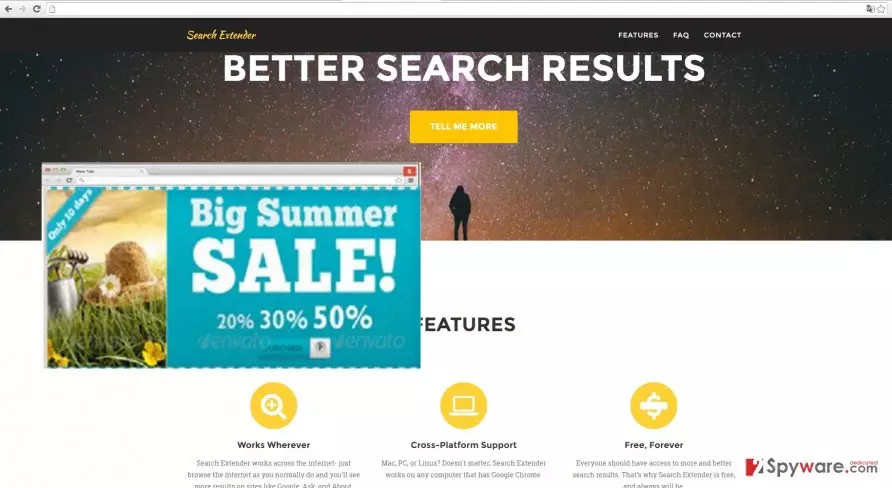
One of the prevalent drawbacks of this browsing tool is Search Extender redirect. It occurs when you enter a specific search query and attempt to access your desired web age. To your bewilderment, you are redirected to a secondary website. You might find yourself either in advertising, gambling domain or website full of low-quality articles about private celebrity life. If you give in to curiosity and remain surfing in those websites, you may drag along a whole bunch of minor or more destructive viruses hiding in those redirects. Later on, meddling with them takes up a lot of time and energy.
In addition, Search Extender browser hijacker also collects your non-personal information. One of the provisions of its Privacy Policy state that they collect the information about your visited websites and URL data. It might include personal information. Thus, by using their services, you give consent that such information might be shared with third-parties. Regarding the fact that it might include your personal information, it is better to proceed to Search Extender removal.
How does the hijacker disperse?
Generally speaking, almost all browser hijackers cling onto free applications. Once users install a free media player or image design tool, they ignore the probability that there might be additional programs attempting to enter your computer. As a result of such mistake, Search Extender hijack takes place. If you are interested in how you can delete the hijacker, keep in mind these tips. After starting the installation wizard, choose “Advanced” settings instead of “Recommended.” This will enable you to spot any pre-ticked applications which await the opportunity to enter your computer. Only after each of unnecessary add-on is unmarked, finish the installation instructions.
Search Extender removal steps
There are two ways how you can effectively eliminate the PUP. The first solution is manual removal. Make sure you follow the guidelines with attention and precision. If you want to decrease the probability of Search Extender virus infecting the PC, you should remove all related files and programs. The latter task may cause inconveniences for some users. Thus, it is better to use the services of the anti-spyware application. It does not only remove Search Extender, but it can effectively eliminate more aggressive viruses. Lastly, keeping your security software updated and reviewing the installation instructions before hitting the “Install” button may also improve the general security of your computer.
Uninstall from Windows
Uninstall from Windows 10/8:
- Type Control Panel into the Windows search box and open the result.
- Under Programs, select Uninstall a program.


Uninstall from Windows 7/XP:
- Click on Windows Start > Control Panel (Windows XP users should click on Add/Remove Programs).
- In Control Panel, select Programs > Uninstall a program.


Remove the unwanted program:
- In the Programs and Features window, look for any recently installed suspicious entries, select them, and click Uninstall.
- If User Account Control appears, click Yes to confirm, then complete the removal.


Delete from macOS
Remove the unwanted application:
- From the menu bar, select Go > Applications.
- In the Applications folder, look for any suspicious entries, then drag them to Trash (or right-click and pick Move to Trash).


Delete leftover files and folders:
- Select Go > Go to Folder.
- Enter /Library/Application Support and remove any suspicious folders related to the unwanted program.
- Repeat the same check in the /Library/LaunchAgents and /Library/LaunchDaemons folders, deleting any suspicious entries.

- Finally, empty the Trash to permanently remove the leftovers.

Remove from Microsoft Edge
Delete unwanted extensions from MS Edge:
- Select Menu (three horizontal dots at the top-right of the browser window) and pick Extensions.
- From the list, pick the extension and click on the Gear icon.
- Click Remove.


Clear cookies and other browser data:
- Click on the Menu (three horizontal dots at the top-right of the browser window) and select Settings > Privacy, search, and services..
- Under Clear browsing data, pick Choose what to clear.
- Select Cookies and other site data and Cached images and files. (apart from passwords, although you might want to include Media licenses as well, if applicable) and click on Clear.


Restore new tab and homepage settings:
- Click the menu icon and choose Settings.
- Then find On startup section.
- Click Remove next to any suspicious startup page.
Reset MS Edge if the above steps did not work:
- Press on Ctrl + Shift + Esc to open Task Manager.
- Click on More details arrow at the bottom of the window.
- Select Details tab.
- Now scroll down and locate every entry with Microsoft Edge name in it. Right-click on each of them and select End Task to stop MS Edge from running.


Instructions for Chromium-based Edge
Delete extensions from MS Edge (Chromium):
- Open Edge and click select Settings > Extensions.
- Delete unwanted extensions by clicking Remove.


Clear cache and site data:
- Click on Menu and go to Settings.
- Select Privacy, search and services.
- Under Clear browsing data, pick Choose what to clear.
- Under Time range, pick All time.
- Select Clear now.


Reset Chromium-based MS Edge:
- Click on Menu and select Settings.
- On the left side, pick Reset settings.
- Select Restore settings to their default values.
- Confirm with Reset.
- This will disable extensions and reset startup pages but will not delete bookmarks, saved passwords, or browsing history.


Remove from Mozilla Firefox (FF)
Remove dangerous extensions:
- Open Mozilla Firefox browser and click on the Menu (three horizontal lines at the top-right of the window).
- Select Add-ons.
- In here, select the unwanted extension and click Remove.


Reset the homepage:
- Click three horizontal lines at the top right corner to open the menu.
- Choose Settings.
- Under Home, set your preferred homepage and new tab settings.
Clear cookies and site data:
- Click Menu and pick Settings.
- Go to Privacy & Security section.
- Scroll down to locate Cookies and Site Data.
- Click on Clear Data...
- Select Cookies and Site Data and Temporary cached files and pages, then click Clear.


Reset Mozilla Firefox
If clearing the browser as explained above did not help, reset Mozilla Firefox:
- Open Mozilla Firefox browser and click the Menu.
- Go to Help and then choose Troubleshooting Information.

- Under Give Firefox a tune up section, click on Refresh Firefox...
- Once the pop-up shows up, confirm the action by pressing on Refresh Firefox.



Remove from Google Chrome
Delete malicious extensions from Google Chrome:
- Open Google Chrome, click on the Menu (three vertical dots at the top-right corner) and select More tools > Extensions.
- In the newly opened window, you will see all the installed extensions. Uninstall all suspicious extensions related to the unwanted program by clicking Remove.


Clear cache and web data from Chrome:
- Click on Menu and pick Settings.
- Under Privacy and security, select Clear browsing data.
- Select Browsing history, Cookies and other site data, as well as Cached images and files.
- Click Clear data.


Change your homepage:
- Click menu and choose Settings.
- Look for a suspicious site in the On startup section.
- Click on Open a specific or set of pages and click on three dots to find the Remove option.
Reset Google Chrome:
If the previous methods did not help you, reset Google Chrome to eliminate all the unwanted components:
- Click on Menu and select Settings.
- In the Settings, scroll down and click Advanced.
- Scroll down and locate Reset and clean up section.
- Now click Restore settings to their original defaults.
- Confirm with Reset settings.


Delete from Safari
Remove dangerous extensions:
- Open Safari, click Safari in the menu at the top-left of the screen, and select Preferences.
- Go to the Extensions tab, look for any suspicious entries, and click Uninstall to remove them.


Clear history and website data:
- Click Safari in the menu and pick Clear History.
- Set Clear to all history and confirm with Clear History.


Reset Safari:
- Click Safari in the menu and select Preferences > Advanced.
- Enable Show Develop menu in menu bar.
- From the menu bar, click Develop and select Empty Caches.


Did this guide help?
2 comments
Kelly
I used this search engine until it started redirecting me to some unknown gaming websites.
Amber
No need to betray Chrome.