

Is Search.hr really effective search engine?
Search.hr virus leaves the impression that it is an ordinary search engine. One of the few advantages is that it employs legitimate database for delivering search results – Yahoo. On the other hand, the previous year was tough for this company for multiple broad-scale data breach incidents[1]. Certainly, the overall reputation of the company and its products deteriorated. Even if this search engine contains legitimate features and does not trigger any suspicion, it is not recommended to use it. Certain provisions of its privacy policy should concern you if you value your online privacy[2]. Employing this search engine for a while, you might be bothered by search.hr redirect tendency. Here you will get acquainted with the key features of this browsing tool. They will encourage you to remove Search.hr. A faster solution is to install FortectIntego and let it take care of this browsing tool.
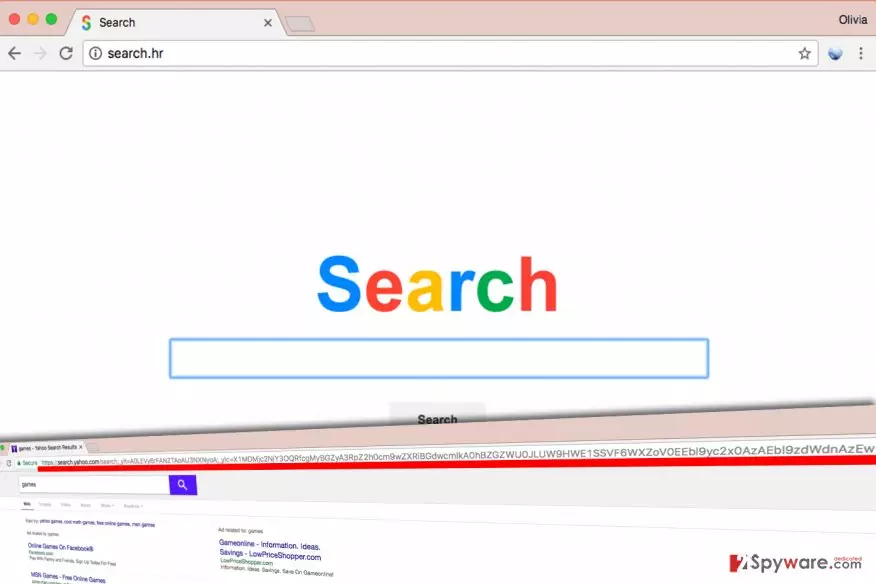
Initially, this tool may not cause any suspicions. However, after analyzing several specifications, IT experts have come up with the conclusion that the search engine is a browser hijacker. Search.hr hijack does not happen like the ordinary virus hijack. Specifically, users accidentally install it themselves. Otherwise, if you got bored of your previous search engine, this PUP might have caught your attention. As the privacy policy indicates that this search engine is the property of Cro-bit Ltd. In contrast to other PUPs which neither contain no privacy policy at all or provide a very limited piece of information, the company provides 16-page long document. However, this extent does not raise the overall reliability of the website.

Such multiple-page long privacy policy might, even more, discourage users from inspecting it. However, it holds crucial information. It mentions that Search.hr collects not only technical information which includes browsing data, frequently visited search websites, and other statistical data related to your browsing habits[3]. What is more, your personal information may also serve the “service improvement purposes.” The following provisions even claim that the search engine might even offer you to complete online surveys. What is more, your data will also be used for customizing commercial offers. This phenomenon may lead to quite destructive consequences. Spam emails remain the main distribution method for ransomware distribution and phishing campaign[4]. These are perfect reasons for you to advance to Search.hr removal.
Peculiarities of the hijacker transmission
Despite constant warnings, netizens still carelessly install new applications without being aware that they install highly questionable additional applications. Likewise, you might have accelerated the installation of Search.hr accidentally. When you are about to install a new application, select “Advanced” settings and then pinpoint unwanted add-ons. Deselect irrelevant applications and only then hit the “Install” button. Such cautiousness will help evade unwanted and even fraudulent applications. In fact, legitimate and well-known applications are especially prone to contain such add-ons[5].
Getting rid of Search.hr
Fortunately, you can easily remove Search.hr virus manually or automatically. Indeed, the latter options save your time and provide more guarantees that even registry keys of the hijacker will be removed. On the other hand, manual Search.hr removal guide might be beneficial as well. The instructions display how you can restore the browser to the previous state. On the final note, bear in mind that your personal engagement in securing your privacy and the effectiveness of your computer plays a significant role as well.
Uninstall from Windows
Uninstall from Windows 10/8:
- Type Control Panel into the Windows search box and open the result.
- Under Programs, select Uninstall a program.


Uninstall from Windows 7/XP:
- Click on Windows Start > Control Panel (Windows XP users should click on Add/Remove Programs).
- In Control Panel, select Programs > Uninstall a program.


Remove the unwanted program:
- In the Programs and Features window, look for any recently installed suspicious entries, select them, and click Uninstall.
- If User Account Control appears, click Yes to confirm, then complete the removal.


Delete from macOS
Remove the unwanted application:
- From the menu bar, select Go > Applications.
- In the Applications folder, look for any suspicious entries, then drag them to Trash (or right-click and pick Move to Trash).


Delete leftover files and folders:
- Select Go > Go to Folder.
- Enter /Library/Application Support and remove any suspicious folders related to the unwanted program.
- Repeat the same check in the /Library/LaunchAgents and /Library/LaunchDaemons folders, deleting any suspicious entries.

- Finally, empty the Trash to permanently remove the leftovers.

Reset Internet Explorer
Remove dangerous add-ons:
- Open Internet Explorer, click on the Gear icon (IE menu) on the top-right corner of the browser
- Pick Manage Add-ons.
- You will see a Manage Add-ons window. Here, look for suspicious plugins. Click on these entries and select Disable.


Change your homepage if it was altered:
- Open IE and click on the Gear icon.
- Select Internet Options.
- In the General tab, delete the Home page address and replace it by your preferred one (for example, Google.com).
- Click Apply and then select OK.


Delete temporary files:
- Press on the Gear icon and select Internet Options.
- Under Browsing history, click Delete...
- Select relevant fields and press Delete.


Reset Internet Explorer:
- Click on Gear icon > Internet options and select Advanced tab.
- Select Reset.
- In the new window, check Delete personal settings and select Reset.


Remove from Microsoft Edge
Delete unwanted extensions from MS Edge:
- Select Menu (three horizontal dots at the top-right of the browser window) and pick Extensions.
- From the list, pick the extension and click on the Gear icon.
- Click Remove.


Clear cookies and other browser data:
- Click on the Menu (three horizontal dots at the top-right of the browser window) and select Settings > Privacy, search, and services..
- Under Clear browsing data, pick Choose what to clear.
- Select Cookies and other site data and Cached images and files. (apart from passwords, although you might want to include Media licenses as well, if applicable) and click on Clear.


Restore new tab and homepage settings:
- Click the menu icon and choose Settings.
- Then find On startup section.
- Click Remove next to any suspicious startup page.
Reset MS Edge if the above steps did not work:
- Press on Ctrl + Shift + Esc to open Task Manager.
- Click on More details arrow at the bottom of the window.
- Select Details tab.
- Now scroll down and locate every entry with Microsoft Edge name in it. Right-click on each of them and select End Task to stop MS Edge from running.


Instructions for Chromium-based Edge
Delete extensions from MS Edge (Chromium):
- Open Edge and click select Settings > Extensions.
- Delete unwanted extensions by clicking Remove.


Clear cache and site data:
- Click on Menu and go to Settings.
- Select Privacy, search and services.
- Under Clear browsing data, pick Choose what to clear.
- Under Time range, pick All time.
- Select Clear now.


Reset Chromium-based MS Edge:
- Click on Menu and select Settings.
- On the left side, pick Reset settings.
- Select Restore settings to their default values.
- Confirm with Reset.
- This will disable extensions and reset startup pages but will not delete bookmarks, saved passwords, or browsing history.


Remove from Mozilla Firefox (FF)
Remove dangerous extensions:
- Open Mozilla Firefox browser and click on the Menu (three horizontal lines at the top-right of the window).
- Select Add-ons.
- In here, select the unwanted extension and click Remove.


Reset the homepage:
- Click three horizontal lines at the top right corner to open the menu.
- Choose Settings.
- Under Home, set your preferred homepage and new tab settings.
Clear cookies and site data:
- Click Menu and pick Settings.
- Go to Privacy & Security section.
- Scroll down to locate Cookies and Site Data.
- Click on Clear Data...
- Select Cookies and Site Data and Temporary cached files and pages, then click Clear.


Reset Mozilla Firefox
If clearing the browser as explained above did not help, reset Mozilla Firefox:
- Open Mozilla Firefox browser and click the Menu.
- Go to Help and then choose Troubleshooting Information.

- Under Give Firefox a tune up section, click on Refresh Firefox...
- Once the pop-up shows up, confirm the action by pressing on Refresh Firefox.



Remove from Google Chrome
Delete malicious extensions from Google Chrome:
- Open Google Chrome, click on the Menu (three vertical dots at the top-right corner) and select More tools > Extensions.
- In the newly opened window, you will see all the installed extensions. Uninstall all suspicious extensions related to the unwanted program by clicking Remove.


Clear cache and web data from Chrome:
- Click on Menu and pick Settings.
- Under Privacy and security, select Clear browsing data.
- Select Browsing history, Cookies and other site data, as well as Cached images and files.
- Click Clear data.


Change your homepage:
- Click menu and choose Settings.
- Look for a suspicious site in the On startup section.
- Click on Open a specific or set of pages and click on three dots to find the Remove option.
Reset Google Chrome:
If the previous methods did not help you, reset Google Chrome to eliminate all the unwanted components:
- Click on Menu and select Settings.
- In the Settings, scroll down and click Advanced.
- Scroll down and locate Reset and clean up section.
- Now click Restore settings to their original defaults.
- Confirm with Reset settings.


Delete from Safari
Remove dangerous extensions:
- Open Safari, click Safari in the menu at the top-left of the screen, and select Preferences.
- Go to the Extensions tab, look for any suspicious entries, and click Uninstall to remove them.


Clear history and website data:
- Click Safari in the menu and pick Clear History.
- Set Clear to all history and confirm with Clear History.


Reset Safari:
- Click Safari in the menu and select Preferences > Advanced.
- Enable Show Develop menu in menu bar.
- From the menu bar, click Develop and select Empty Caches.


Did this guide help?
Be the first to comment