

Search.kimosachi.com is a browser hijacker that causes tons of redirects on your Mac
| Name | Search.kimosachi.com |
|---|---|
| Type | Browser hijacker |
| Category | Potentially unwanted program |
| Symptoms | Changed homepage, search engine, new tab. Constant redirects causing slowness on the browser |
| Affected system | Mac OS |
| Distribution | Software bundles, deceptive ads, websites |
| Removal | Use FortectIntego and scan the system to get rid of Search.kimosachi.com or other PUPs |
Usually, Search.kimosachi.com browser hijacker and similar programs come through advertisements or get bundled with ofter software. This is why people have no idea where these redirects and changes came from. Due to this silent infiltration, you may also notice additional browser content like extensions, add-ons or plugins installed without your permission.
Every little browser addition makes your Safari, Chrome or Firefox running slower than usual or even cause crashes and freezes. Search.kimosachi.com is designed to change your browser search provider, redirect to other pages and deliver altered search results. Additionally potentially unwanted programs can:
- Change the appearance of your browser;
- Set Search.kimosachi.com or another search engine as the default on your browser;
- Modify the new tab, homepage settings;
- Load advertisements to commonly visited sites;
- Redirect your online traffic to suspicious pages and domains;
- Install additional content;
- Track information about your online preferences.[1]
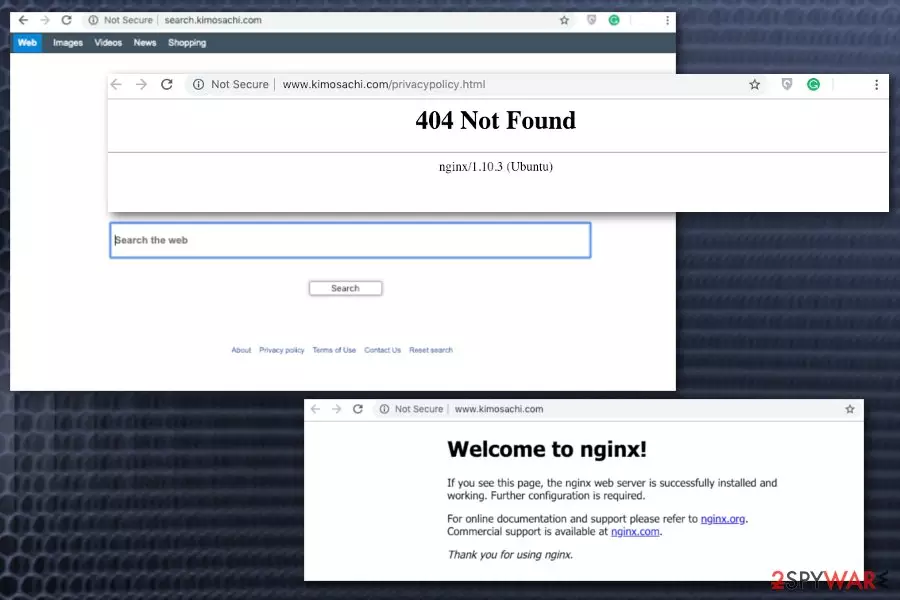
Since the main purpose of programs like Search.kimosachi.com virus is to gather various data about the user including their browsing habits you shouldn't trust the website as a useful search engine. Often websites like this provide users with information about the use and determine what information is gathered in the Privacy Policy section, but at the time of writing, the site delivered 404 Error instead.[2]
Although Search.kimosachi.com website might not work properly or provide you with any information or features, you need to get rid of the program immediately. For that, you should get a reputable program because the website is not the main intruder you need to delete.
Get a tool like FortectIntego and scan the system to remove Search.kimosachi.com and the main PUP that is responsible for the intrusive behavior. A full system scan provides you with thorough results and suggests what applications you need to terminate.
Since Search.kimosachi.com removal takes a few minutes, you can get back to browsing online normally immediately. However, experts[3] advise checking your browsers directly and removing any suspicious content. We have a few tips regarding this step down below.

Mac devices can get infected when you browse questionable websites
Although there is a common belief that Apple devices are immune to cyber infections, there is an opportunity to get unwanted programs or even more severe mac malware.[4] When you get software from questionable providers, online websites or p2p networks, you risk getting additional products during the wanted installation.
Always opt for Advanced or Custom installations, so you can see and de-select unwanted application in the provided bundle. Downloading programs from other than official websites can lead to suspicious installations so read the Privacy policy or Terms of use section. The best tip is to keep your software up-to-date using official providers.
Clean the system and remove Search.kimosachi.com using reputable tools
You should make sure that every PUP or suspicious tool installed by the same browser hijacker is appropriately deleted. The only way you can do so is by employing an antivirus program suitable for the Mac operating system. Then a full system scan helps you with further Search.kimosachi.com removal.
You shouldn't try to remove Search.kimosachi.com manually because it takes more time and you cannot find all related files or programs. This way browser hijacker remains running on the system. If you need a reputable program, check our suggestions.
Delete from macOS
Remove the unwanted application:
- From the menu bar, select Go > Applications.
- In the Applications folder, look for any suspicious entries, then drag them to Trash (or right-click and pick Move to Trash).


Delete leftover files and folders:
- Select Go > Go to Folder.
- Enter /Library/Application Support and remove any suspicious folders related to the unwanted program.
- Repeat the same check in the /Library/LaunchAgents and /Library/LaunchDaemons folders, deleting any suspicious entries.

- Finally, empty the Trash to permanently remove the leftovers.

Remove from Mozilla Firefox (FF)
Remove dangerous extensions:
- Open Mozilla Firefox browser and click on the Menu (three horizontal lines at the top-right of the window).
- Select Add-ons.
- In here, select the unwanted extension and click Remove.


Reset the homepage:
- Click three horizontal lines at the top right corner to open the menu.
- Choose Settings.
- Under Home, set your preferred homepage and new tab settings.
Clear cookies and site data:
- Click Menu and pick Settings.
- Go to Privacy & Security section.
- Scroll down to locate Cookies and Site Data.
- Click on Clear Data...
- Select Cookies and Site Data and Temporary cached files and pages, then click Clear.


Reset Mozilla Firefox
If clearing the browser as explained above did not help, reset Mozilla Firefox:
- Open Mozilla Firefox browser and click the Menu.
- Go to Help and then choose Troubleshooting Information.

- Under Give Firefox a tune up section, click on Refresh Firefox...
- Once the pop-up shows up, confirm the action by pressing on Refresh Firefox.



Remove from Google Chrome
Delete malicious extensions from Google Chrome:
- Open Google Chrome, click on the Menu (three vertical dots at the top-right corner) and select More tools > Extensions.
- In the newly opened window, you will see all the installed extensions. Uninstall all suspicious extensions related to the unwanted program by clicking Remove.


Clear cache and web data from Chrome:
- Click on Menu and pick Settings.
- Under Privacy and security, select Clear browsing data.
- Select Browsing history, Cookies and other site data, as well as Cached images and files.
- Click Clear data.


Change your homepage:
- Click menu and choose Settings.
- Look for a suspicious site in the On startup section.
- Click on Open a specific or set of pages and click on three dots to find the Remove option.
Reset Google Chrome:
If the previous methods did not help you, reset Google Chrome to eliminate all the unwanted components:
- Click on Menu and select Settings.
- In the Settings, scroll down and click Advanced.
- Scroll down and locate Reset and clean up section.
- Now click Restore settings to their original defaults.
- Confirm with Reset settings.


Delete from Safari
Remove dangerous extensions:
- Open Safari, click Safari in the menu at the top-left of the screen, and select Preferences.
- Go to the Extensions tab, look for any suspicious entries, and click Uninstall to remove them.


Clear history and website data:
- Click Safari in the menu and pick Clear History.
- Set Clear to all history and confirm with Clear History.


Reset Safari:
- Click Safari in the menu and select Preferences > Advanced.
- Enable Show Develop menu in menu bar.
- From the menu bar, click Develop and select Empty Caches.


Did this guide help?
Be the first to comment