

Search Manager New Tab – Chrome extension that manifests as a browser hijacker
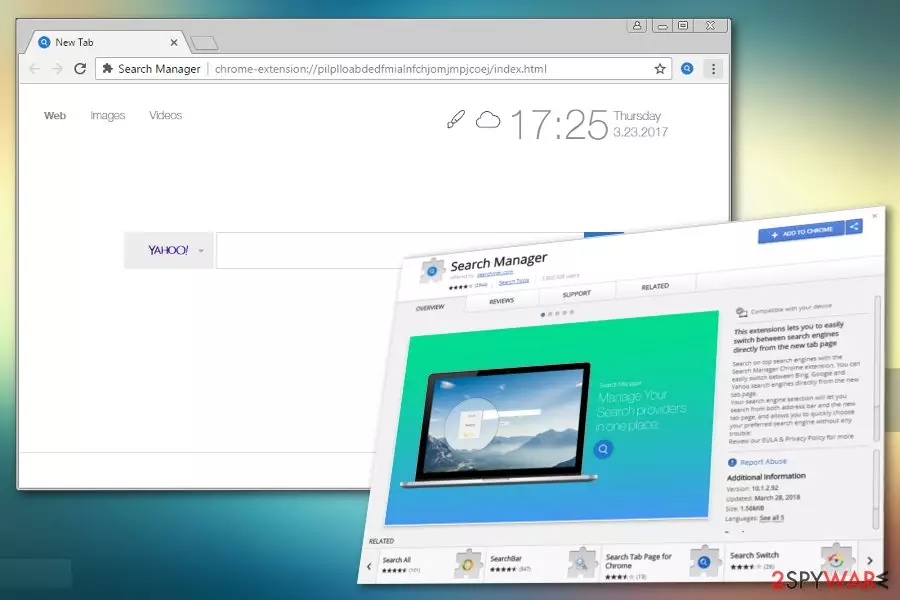
Search Manager virus is an untrustworthy Google Chrome extension that can hijack the browser without permission and force its user to use it unwillingly. The official web page of this extension claims that it can provide a custom search experience by replacing the start page with http://searchmgr.com and search engine with Yahoo. It is also said to be exclusive in terms of design (background image, colors, start page preferences, etc.). However, it's yet another browser hijacker[1] and potentially unwanted program (PUP) that seeks to gain profit by promoting third-party websites and monitoring its user's browsing activities.
| Name | Search Manager Virus |
| Type | Browser hijacker |
| Distribution | Software bundling, safe software updates |
| Compatible browser | Google Chrome |
| Targeted OS | Windows and Mac OS |
| Symptoms | Start page replaced with http://searchmgr.com. Search engine changed to Yahoo. Suspicious links among search results and increment of online ads. |
| Elimination | Manual removal possible (instructions below this article). Automatic removal recommended with SpyHunterCombo Cleaner |
| System fix | After PUP elimination, scan your device with FortectIntego to fix virus damage |
The cybersecurity community is actively searching for virus removal options since 2016 up until now. According to netizens, the tool gets inside PCs without authorization and hijacks Google Chrome. After that, it renders browser helper objects and resists them from being removed.
Search Manager has an official website and is also actively promoted on Chrome Web Store. The ratings show that this program is evaluated quite well. It has accumulated 4 out of 5 stars and, according to the statistics, has been downloaded over 4 million times.
User reviews, on the other hand, already suggest something funny about this program. Most of the users who rated the app with top scores have only submitted obscure and very laconic comments, such as “Really nice,” “Love it!” or “Outstanding.” Such comments can hardly be trusted because malware creators often use such automatically generated content to increase the rating and value of the product.
However, there are some negative reviews though. Dissatisfied users claim that this program generates annoying ads, redirects to random domains, and gets installed on the computer by default along with freeware. These are the typical features of a browser hijacker. Thus, you should be very careful when installing and using this app.
As we have pointed out already, the hijacker promotes customized Yahoo search results. Beware that “customized” in this particular case means that the search results contain links to affiliated websites. Here's the fraction of the program's Privacy Policy:
The Software includes links to third party sites and/or content (collectively, “Third Party Content”), or desktop short cuts to Third Party Content. Any use by you of Third Party Content that is available via the Software is subject to the terms and conditions of any such Third Party Content. You acknowledge that we have no control over and assume no responsibility for Third Party Content.
Thus, by using the this extension you risk exposing your PC to potentially dangerous or even malicious content. Besides, as soon as this misleading extensions settles down on Chrome, Search Data starts leaking to third parties via cookies.

If you are unhappy with the service it provides or if you did not ask for it at all, you should remove the app from your computer unhesitatingly. Unfortunately, the program creators will not be much of help here since the support page does not work and only urges the user to install the Search Manager New Tab extension.
Luckily, you will find a couple of useful elimination tips later in the article. Nevertheless, the easiest way to get rid of PUPs is to scan the system with reliable security tools like FortectIntego.
Experts from virukset.fi[2] also prompt people do not delay the PUP elimination process. The reputation of this domain is often very poor, so it is possible that some of the related websites could potentially be involved in malware promotion too.
The extension can enter PCs via freeware
As far as we know, this particular Chrome's extension is officially distributed via two main channels. You can download it from the official website, or you can implement the on Chrome browser straight from the Google Store. However, multitude of dissatisfied users claiming that this program being installed on their computers without their consent proves the fact that it is also actively distributed via freeware.[3]
Besides, the program might spread with the help of a bogus software update. When browsing the web, you may see a notification, informing that your software, say, Java, has expired. The notification will insist that you download the update here and now. In reality, what really gets installed is a potentially unwanted program that you did not wish to see on your PC in the first place.
To maintain safe web browsing experience, avoid installing freeware, especially from untrustworthy sources. Besides, opt for Advanced/Custom installation to unpack the bundle and reject installation of PUPs.
Last, but not least, do not install software updates that are promoted online. Unexpected prompts to update browser, Java, Flash Player, etc. are a catch used by cyber crooks to spread PUPs or malware.
Remove Search Manager from your PC
Basically, there are two techniques applied for the hijacker's removal. It is possible to get rid of it manually by initiating an in-depth analysis of the programs that have recently been installed on your PC and elimination of the ones that do not indicate a developer or seems suspicious. Of course, you have to remove Search Manager in the first place.
The other method to get rid of malware is to run a full system scan with a powerful security tool. Anyway, follow the instructions provided below. We hope these guidelines help you get rid of the unwanted app. If you still experience difficulties, do not hesitate to contact us on the Ask Us platform.
Uninstall from Windows
Uninstall from Windows 10/8:
- Type Control Panel into the Windows search box and open the result.
- Under Programs, select Uninstall a program.


Uninstall from Windows 7/XP:
- Click on Windows Start > Control Panel (Windows XP users should click on Add/Remove Programs).
- In Control Panel, select Programs > Uninstall a program.


Remove the unwanted program:
- In the Programs and Features window, look for any recently installed suspicious entries, select them, and click Uninstall.
- If User Account Control appears, click Yes to confirm, then complete the removal.


Delete from macOS
Remove the unwanted application:
- From the menu bar, select Go > Applications.
- In the Applications folder, look for any suspicious entries, then drag them to Trash (or right-click and pick Move to Trash).


Delete leftover files and folders:
- Select Go > Go to Folder.
- Enter /Library/Application Support and remove any suspicious folders related to the unwanted program.
- Repeat the same check in the /Library/LaunchAgents and /Library/LaunchDaemons folders, deleting any suspicious entries.

- Finally, empty the Trash to permanently remove the leftovers.

Remove from Microsoft Edge
Delete unwanted extensions from MS Edge:
- Select Menu (three horizontal dots at the top-right of the browser window) and pick Extensions.
- From the list, pick the extension and click on the Gear icon.
- Click Remove.


Clear cookies and other browser data:
- Click on the Menu (three horizontal dots at the top-right of the browser window) and select Settings > Privacy, search, and services..
- Under Clear browsing data, pick Choose what to clear.
- Select Cookies and other site data and Cached images and files. (apart from passwords, although you might want to include Media licenses as well, if applicable) and click on Clear.


Restore new tab and homepage settings:
- Click the menu icon and choose Settings.
- Then find On startup section.
- Click Remove next to any suspicious startup page.
Reset MS Edge if the above steps did not work:
- Press on Ctrl + Shift + Esc to open Task Manager.
- Click on More details arrow at the bottom of the window.
- Select Details tab.
- Now scroll down and locate every entry with Microsoft Edge name in it. Right-click on each of them and select End Task to stop MS Edge from running.


Instructions for Chromium-based Edge
Delete extensions from MS Edge (Chromium):
- Open Edge and click select Settings > Extensions.
- Delete unwanted extensions by clicking Remove.


Clear cache and site data:
- Click on Menu and go to Settings.
- Select Privacy, search and services.
- Under Clear browsing data, pick Choose what to clear.
- Under Time range, pick All time.
- Select Clear now.


Reset Chromium-based MS Edge:
- Click on Menu and select Settings.
- On the left side, pick Reset settings.
- Select Restore settings to their default values.
- Confirm with Reset.
- This will disable extensions and reset startup pages but will not delete bookmarks, saved passwords, or browsing history.


Remove from Mozilla Firefox (FF)
Remove dangerous extensions:
- Open Mozilla Firefox browser and click on the Menu (three horizontal lines at the top-right of the window).
- Select Add-ons.
- In here, select the unwanted extension and click Remove.


Reset the homepage:
- Click three horizontal lines at the top right corner to open the menu.
- Choose Settings.
- Under Home, set your preferred homepage and new tab settings.
Clear cookies and site data:
- Click Menu and pick Settings.
- Go to Privacy & Security section.
- Scroll down to locate Cookies and Site Data.
- Click on Clear Data...
- Select Cookies and Site Data and Temporary cached files and pages, then click Clear.


Reset Mozilla Firefox
If clearing the browser as explained above did not help, reset Mozilla Firefox:
- Open Mozilla Firefox browser and click the Menu.
- Go to Help and then choose Troubleshooting Information.

- Under Give Firefox a tune up section, click on Refresh Firefox...
- Once the pop-up shows up, confirm the action by pressing on Refresh Firefox.



Remove from Google Chrome
Delete malicious extensions from Google Chrome:
- Open Google Chrome, click on the Menu (three vertical dots at the top-right corner) and select More tools > Extensions.
- In the newly opened window, you will see all the installed extensions. Uninstall all suspicious extensions related to the unwanted program by clicking Remove.


Clear cache and web data from Chrome:
- Click on Menu and pick Settings.
- Under Privacy and security, select Clear browsing data.
- Select Browsing history, Cookies and other site data, as well as Cached images and files.
- Click Clear data.


Change your homepage:
- Click menu and choose Settings.
- Look for a suspicious site in the On startup section.
- Click on Open a specific or set of pages and click on three dots to find the Remove option.
Reset Google Chrome:
If the previous methods did not help you, reset Google Chrome to eliminate all the unwanted components:
- Click on Menu and select Settings.
- In the Settings, scroll down and click Advanced.
- Scroll down and locate Reset and clean up section.
- Now click Restore settings to their original defaults.
- Confirm with Reset settings.


Delete from Safari
Remove dangerous extensions:
- Open Safari, click Safari in the menu at the top-left of the screen, and select Preferences.
- Go to the Extensions tab, look for any suspicious entries, and click Uninstall to remove them.


Clear history and website data:
- Click Safari in the menu and pick Clear History.
- Set Clear to all history and confirm with Clear History.


Reset Safari:
- Click Safari in the menu and select Preferences > Advanced.
- Enable Show Develop menu in menu bar.
- From the menu bar, click Develop and select Empty Caches.


Did this guide help?
Be the first to comment