

Search.myprivacyswitch.com might track certain data when you browse the web
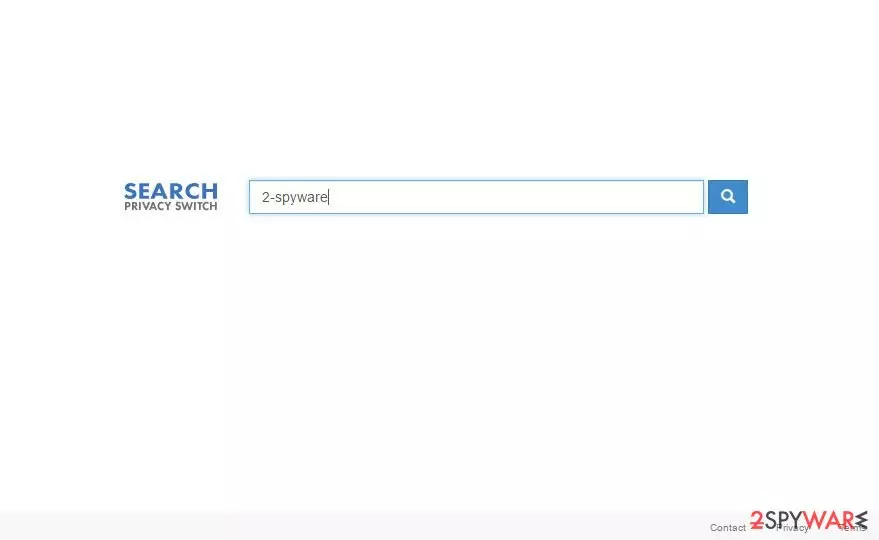
You might have noticed that Search.myprivacyswitch.com has replaced your homepage without asking – this is because you have installed a browser hijacker on your system. These infections are generally considered to be minor, although they cause significant inconveniences by disrupting browsing sessions.
These programs are distributed using a variety of different deceptive techniques, so their appearance on the computer does not necessarily depend on the user’s will. For instance, you may start seeing this web address as your homepage after the shady Privacy Switch extension is installed on your computer disguised as some software update or an additional component in your downloaded software package.
Besides, other suspicious software may come along with this hijacker, all designed to ensure that this intruder-of-a-site remains as the default search engine and the homepage of the affected PC. We will talk about the reasons for this persistence in a minute, but before we do, we would like to remind you that Search.myprivacyswitch.com removal instructions and recommendations are presented at the end of this article.
| Name | Search.myprivacyswitch.com |
| Type | Browser hijacker |
| Distribution | Software bundles, deceptive ads, third-party websites |
| Operation |
|
| Elimination | You can easily get rid of suspicious extensions manually, although scanning the device with anti-malware might be quicker |
| System fix | If security software indicates malware on your system, don't forget to fix virus damage – we recommend using FortectIntego for the job |
The easiest way to remove potentially unwanted programs is by performing a scan with security software, such as SpyHunterCombo Cleaner. Manual elimination is also possible – here are instructions on extension uninstallation from Google Chrome:
- Open Google Chrome, click on the Menu (three vertical dots at the top-right corner) and select More tools > Extensions.
- In the newly opened window, you will see all the installed extensions. Uninstall all the suspicious plugins that might be related to the unwanted program by clicking Remove.


Unfortunately, this might not be enough if the browser hijacker is installed as a program (Windows) or Application (Mac). If that is the case, you would have access to the Control Panel or Application sections and delete the PUP manually. For more details, refer to the section below.
Additionally, you might want to clear your browsing data if you can't get rid of the ads or redirects (you can also do it automatically with a PC repair and maintenance utility FortectIntego):
- Click on Menu and pick Settings.
- Under Privacy and security, select Clear browsing data.
- Select Browsing history, Cookies and other site data, as well as Cached images and files.
- Click Clear data.
So what are the main reasons for the browser hijack? In fact, there is no mystery in that. Creators of the application simply want to generate easy money from affiliate advertising, and a legitimate-looking search engine seems to them as a suitable platform to implement this plan. They have the full power to control over what search results to provide and what these results will promote.
Unfortunately, creators of this hijacker mainly focus on the first part and fill the search results with a variety of sponsored content while their legitimacy, trustworthiness, or simple security remain unexplored. So, it is not uncommon to experience redirects to some obscure, infectious, and phishing-oriented sites.
We recommend staying away from web browsing while the program is still on the computer. In the meantime, you should equip your computer with proper software and remove the PUP from the computer.
PUP distribution methods explained
Search.myprivacyswitch.com usually finds its way on the computer by exploiting the inappropriate software installation settings. While installing the downloaded freeware or shareware, users often opt for the quick modes to get their hands on the desired software as soon as possible.
What they are not aware of, though, is that software downloaded off the Internet is commonly bundled with various additional components, not all of which might be useful or safe. In such a case, the quick software installer is not helpful at all. On the opposite, it automatically allows all software package components to install on the computer without allowing you to opt-out of the undesirable ones.
Thus, opting for the “Advanced” or “Custom” modes is a much safer option since it allows you to run the installation step-by-step, monitoring all the software traffic into your computer.
Fix your browser by deleting unwanted apps
If you keep on running into the Search.myprivacyswitch.com virus every time you open your browser and cannot seem to get rid of this parasite regardless of what you do, do not panic. Everything is not as bad as it might seem. Your computer is not infected with some severe cyber infection, and problems with the app's removal probably arise only because you are not using the proper techniques for this purpose.
Thus, we recommend leaving this job for the professional antivirus tool to sort out. Run a full system scan and watch as the virus defense utilities remove Search.myprivacyswitch.com files one by one.
Uninstall from Windows
Uninstall from Windows 10/8:
- Type Control Panel into the Windows search box and open the result.
- Under Programs, select Uninstall a program.


Uninstall from Windows 7/XP:
- Click on Windows Start > Control Panel (Windows XP users should click on Add/Remove Programs).
- In Control Panel, select Programs > Uninstall a program.


Remove the unwanted program:
- In the Programs and Features window, look for any recently installed suspicious entries, select them, and click Uninstall.
- If User Account Control appears, click Yes to confirm, then complete the removal.


Delete from macOS
Remove the unwanted application:
- From the menu bar, select Go > Applications.
- In the Applications folder, look for any suspicious entries, then drag them to Trash (or right-click and pick Move to Trash).


Delete leftover files and folders:
- Select Go > Go to Folder.
- Enter /Library/Application Support and remove any suspicious folders related to the unwanted program.
- Repeat the same check in the /Library/LaunchAgents and /Library/LaunchDaemons folders, deleting any suspicious entries.

- Finally, empty the Trash to permanently remove the leftovers.

Did this guide help?
Be the first to comment