

What do you must know about Search.mystartabsearch.com?
Your homepage address might be altered by Search.mystartabsearch.com virus if you tend not to care how you install computer programs. As a result, browser redirects, web ads, system slowdowns and other problems might start bothering you. This virus comes with MyStartab extension, which gets installed on Firefox and Chrome browsers. It keeps the previously mentioned URL as the default start page and search engine address, trying to convince the user to use the questionable search engine that is situated on that site. Now, even if this site looks useful and entertaining, you shouldn’t rush to explore the services that it provides or click on links presented on it. We have to disappoint you and tell you that links provided by that suspicious site or its search tool might lead you to highly questionable sites featuring possibly malicious downloads. It must be noted that this hijacker alters browser’s settings in an untrustworthy way, seeking to present third-party content and make users visit their affiliate websites because it generates pay-per-click revenue for each visitor it points to a certain third-party website.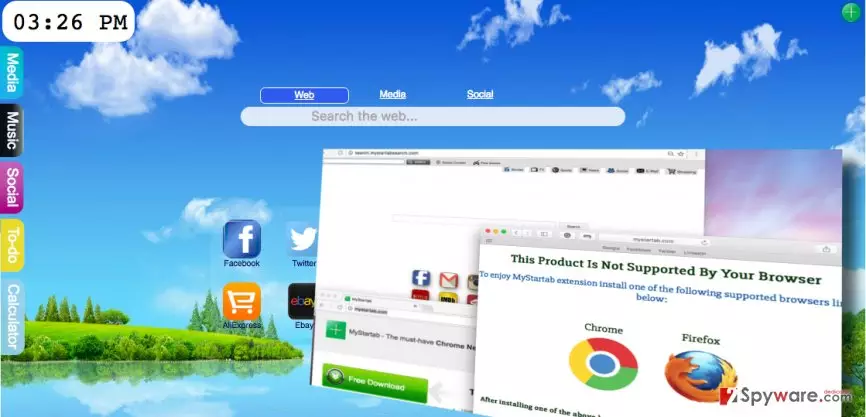
If you do not want to be involved in such scheme and if you would like to use a search tool that would provide you with relevant and not sponsored search results, you should start thinking about Search.mystartabsearch.com removal. This browser hijacker is a product of Imali Media, which has already released hundreds of useless hijackers that are made to promote questionable search tools, such as SearchInVietnam.com, Search.newtabtvplussearch.com, and many more. Due to suspicious activities on the infected computer system, it is recommended to remove Search.mystartabsearch.com redirect virus for good. Plus, another significant disadvantage that this ad-supported software has is that it might start displaying third-party advertisements or redirecting the user to predetermined websites during his/hers browsing sessions. Annoying promotional offers that show up in new tabs or pop up in new windows are something that the majority of computer users wish to avoid. Therefore, Search.mystartabsearch.com hijack should not be tolerated. As we have mentioned, this potentially unwanted program should be uninstalled, and you can use FortectIntego for that.
How does the developer of this hijacker propagate it?
If you question yourself how did this program hijack my computer system, you should look to the past and remember what programs you have decided to install lately. Remember – the Internet is full of free and entertaining programs, sadly, some of them can be bundled with not so useful applications, so it is important to learn how to opt them out before they get installed on the system. You can reject bundled software when installing your desired program simply by adjusting installation settings. Hence, instead of relying on Default or Standard installation settings, you should choose Advanced or Custom option. Do not forget to alter these settings once you choose them – they reveal what additional components can be installed alongside your download, so make sure you deselect them all. Avoid any suspicious search tools, apps, browser extensions, and other pieces of unknown software suggested to you.
How does one remove Search.mystartabsearch.com?
Typically, people who experience problems caused by this hijacker seek to remove Search.mystartabsearch.com virus as soon as they can. Luckily, it is not that hard to do that. You just need an anti-spyware software, which scans the computer system and detects spyware and malware threats automatically. Alternatively, you can use Search.mystartabsearch.com removal instructions prepared by the 2-Spyware team. You can find them below. Please follow each step carefully and uninstall this hijacker properly if you do not want to encounter it residing in your browser ever again.
Uninstall from Windows
Uninstall from Windows 10/8:
- Type Control Panel into the Windows search box and open the result.
- Under Programs, select Uninstall a program.


Uninstall from Windows 7/XP:
- Click on Windows Start > Control Panel (Windows XP users should click on Add/Remove Programs).
- In Control Panel, select Programs > Uninstall a program.


Remove the unwanted program:
- In the Programs and Features window, look for any recently installed suspicious entries, select them, and click Uninstall.
- If User Account Control appears, click Yes to confirm, then complete the removal.


Delete from macOS
Remove the unwanted application:
- From the menu bar, select Go > Applications.
- In the Applications folder, look for any suspicious entries, then drag them to Trash (or right-click and pick Move to Trash).


Delete leftover files and folders:
- Select Go > Go to Folder.
- Enter /Library/Application Support and remove any suspicious folders related to the unwanted program.
- Repeat the same check in the /Library/LaunchAgents and /Library/LaunchDaemons folders, deleting any suspicious entries.

- Finally, empty the Trash to permanently remove the leftovers.

Remove from Mozilla Firefox (FF)
Remove dangerous extensions:
- Open Mozilla Firefox browser and click on the Menu (three horizontal lines at the top-right of the window).
- Select Add-ons.
- In here, select the unwanted extension and click Remove.


Reset the homepage:
- Click three horizontal lines at the top right corner to open the menu.
- Choose Settings.
- Under Home, set your preferred homepage and new tab settings.
Clear cookies and site data:
- Click Menu and pick Settings.
- Go to Privacy & Security section.
- Scroll down to locate Cookies and Site Data.
- Click on Clear Data...
- Select Cookies and Site Data and Temporary cached files and pages, then click Clear.


Reset Mozilla Firefox
If clearing the browser as explained above did not help, reset Mozilla Firefox:
- Open Mozilla Firefox browser and click the Menu.
- Go to Help and then choose Troubleshooting Information.

- Under Give Firefox a tune up section, click on Refresh Firefox...
- Once the pop-up shows up, confirm the action by pressing on Refresh Firefox.



Remove from Google Chrome
Delete malicious extensions from Google Chrome:
- Open Google Chrome, click on the Menu (three vertical dots at the top-right corner) and select More tools > Extensions.
- In the newly opened window, you will see all the installed extensions. Uninstall all suspicious extensions related to the unwanted program by clicking Remove.


Clear cache and web data from Chrome:
- Click on Menu and pick Settings.
- Under Privacy and security, select Clear browsing data.
- Select Browsing history, Cookies and other site data, as well as Cached images and files.
- Click Clear data.


Change your homepage:
- Click menu and choose Settings.
- Look for a suspicious site in the On startup section.
- Click on Open a specific or set of pages and click on three dots to find the Remove option.
Reset Google Chrome:
If the previous methods did not help you, reset Google Chrome to eliminate all the unwanted components:
- Click on Menu and select Settings.
- In the Settings, scroll down and click Advanced.
- Scroll down and locate Reset and clean up section.
- Now click Restore settings to their original defaults.
- Confirm with Reset settings.


Did this guide help?
Be the first to comment