

Search.obituarysearchtab.com – a browser hijacker that promotes nationalweatheragency.org, news.mynewswire.co, familyecho.com, and similar websites
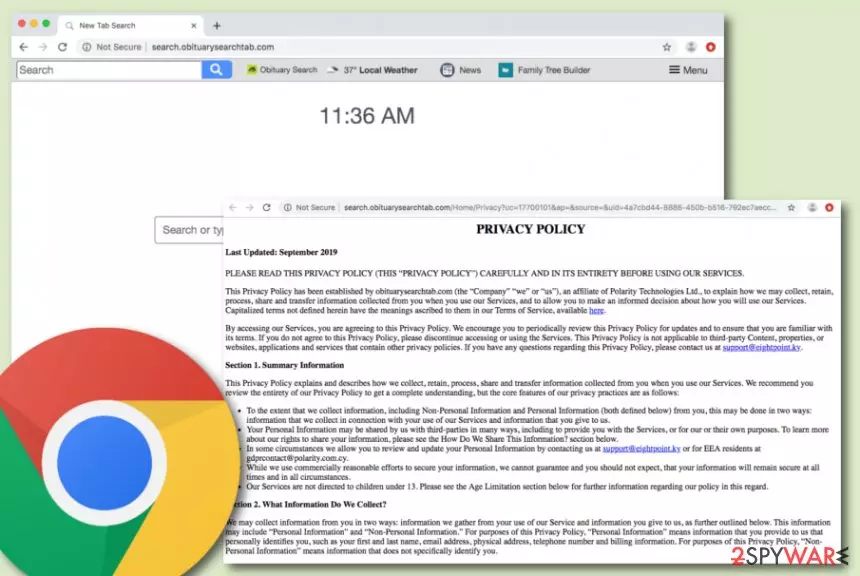
Search.obituarysearchtab.com, also known as Obituary Search, is marked as a browser hijacker[1] that brings various affiliate weather, news, and family-related pages with itself. If your search engine ever gets hijacked and turned to Search.obituarysearchtab.com, do not be surprised to see a promotion of other third-party sources that, according to the developers, might appear very useful to the user. In addition, Obituary Search provides these pages within shortcuts that are attached to the browser bookmark bar so that they could be reached at any moment. However, you might also find other suspicious products that have come together with this potentially unwanted as it is known to bring Hide My Searches (hidemysearches.com) browser hijacker along its side too.
| Name | Search.obituarysearchtab.com/Obituary Search |
|---|---|
| Type | Browser hijacker/potentially unwanted program |
| Promoted content | Once your browser gets hijacked, you will supposedly see some shortcuts to affiliate sources on your homepage window. This app aims to promote websites such as news-reading, weather-watching, name-finding, and similar |
| Additional product(s) | It is known that this browser hijacker gets delivered in bundles with another hijacked named Hide My Searches (also known as hidemysearches.com) |
| Developer | This browser-hijacking product is developed by an affiliate from Polarity Technologies Ltd. |
| IP address | According to research, the domain name of this browser hijacker is linked to the 52.87.108.155 IP address |
| Main activities | The potentially unwanted program hijacks major browser settings such as the default search provider, new tab search, homepage. Also, it might start providing adverts, redirects, and inject tracking cookies into your browsers in order to spy on your online activities |
| Spreading | Browser hijackers are apps that get distributed through bundles of software, they might also come inserted in suspicious hyperlinks/adverts on third-party networks |
| Preventing | Always use the Custom/Advanced configuration which allows tracking all incoming downloads, keep a distance from third-party websites that are unsafe |
| Identification/removal | Use FortectIntego software to find all suspicious content on your system. Continuously, proceed with automatical or manual removal instructions that are added to the end of this article |
Search.obituarysearchtab.com virus, which is linked to the 52.87.108.155 IP address, is an app released to collect income from gullible people and it truly supports only the developers' needs. It is known that the browser hijacker is provided by an affiliate of Polarity Technologies Ltd. In addition, you will see the PUP itself promoting these kinds of sources once your default search provider gets hijacked:
- nationalweatheragency.org;
- news.mynewswire.co;
- familyecho.com;
- ancestry.com;
- meaningsofnames.com;
- familyhistory.com.
Obituary Search virus provides some type of small menu on the upper right corner of your browser window. If you click on that spot, you will be encouraged to search for Name Meanings, Family History, and Ancestry via some websites that we have provided in the list below. This is just a way to seem attractive to you and other users.
Besides this, Obituary Search can promote itself by providing fast access to popular communication platforms such as Facebook, Instagram, Twitter, recipe-viewing pages, and various shopping websites. We suggest not to use these services as they cannot be trusted while provided by such a questionable program and developer.
In addition, if see the homepage of Search.obituarysearchtab.com, you will be warned that by continuing to use the provided websites and the services, you agree with the cookie activity. According to the Privacy Policy, these components are here just to improve their service quality, however, they truly capture the user's browsing results instead:
When you visit our Services, we may send your computer or mobile device a cookie that uniquely identifies your browser. Cookies that we may use may only be read by the server that placed them there. Our use of cookies is primarily focused on improving the quality of our Services and your use of those Services. By way of example, we use cookies to deliver our Services in your language of choice, to filter results and fulfill other preferences you may have, and to analyze how our users, including you, interact with our Services, such as by tracking user trends and patterns of how people search.
Once the developers of Search.obituarysearchtab.com collect information about your browsing sessions such as commonly visited destinations, they are able to bombard your screen with adverts that carry deals supposedly relevant for you. However, avoid clicking on such offers as they might redirect you to somewhere potentially malicious or just simple trick you into spending a big amount of money for a useless program/service.

Continuously, Obituary Search redirects might become a problem too. Developers often bombard the user with annoying redirects willing to take them to affiliate sources that promote some rogue security software, or similar content. However, the worst part of this activity is that it might force you to accidentally land on a malware-filled website.
All these activities provided by Obituary Search combined together might increase the work of your CPU and GPU. Overloading the computer's processors with lots of jobs might lead to overheating and various system issues. You might find yourself struggling to perform even very simple actions on the affected computer.
Search.obituarysearchtab.com removal is the best option here as you will not only get rid of all unwanted browser changes but also prevent bogus activities from continuing. You can choose a tool such as FortectIntego to track all suspicious objects on the system. After that, go to the end of the article and opt for the most appropriate elimination technique.
Depending on what type of antimalware software you have been employing, the detection name of Obituary Search might differ. According to Virus Total different antivirus engines find this potentially unwanted program as:[2]
- Adware.BrowserIO (Malwarebytes);
- Win32:AdwareSig [Adw] (AVG);
- Application.Toolbar (A) (Emsisoft);
- W32.Adware.Gen (Webroot);
- GenericR-PBK!B860CF8C4CB5 (McAfee).
Keep in mind that once your web browser gets hijacked, you will be forced to use the new default search engine. Some browser hijackers provide results via Bing or Yahoo while others use completely unknown providers. Prevent misleading search results from appearing, remove Search.obituarysearchtab.com, and use a safe engine instead.

Browser hijacker distribution and prevention tips for all users
Tech experts from LesVirus.fr[3] encourage all users to put online safety as their top priority while browsing the web. Not only browser hijackers might reach careless users but also advanced malware might approach. However, this time we are talking about browser hijackers and want to inform you about their most famous hiding places.
Usually, potentially unwanted content gets distributed in software packages of free or shared programs. This happens more often for users who choose the Quick or Recommended installation settings. We recommend selecting the Custom or Advanced option and taking full control of your incoming downloads/installations.
In addition, downloading a reliable AV product, if you do not employ one yet, is a good option as it will guard you through all of your online activities and ensure safe browsing. Online sessions, especially while visiting third-party networks might bring bogus content on your computer unexpectedly when you are the least ready for it.
Detailed removal instructions for Obituary Search
If you have been looking for effective ways that will help you to remove Search.obituarysearchtab.com safely, you have come to the right destination. In this article, our experts have tried to provide you with some knowledge on what is this browser hijacker capable of and how to prevent its appearance. Now we are looking forward to guiding you throughout the entire removal process and helping to choose the right option.
There are two different techniques that will help you to achieve satisfying results in Search.obituarysearchtab.com removal. The first one is known as the automatical movement when you have to employ a reliable tool. This option is better for less-experienced people and those who are running into a lack of time currently. In addition, you can use the below-provided steps to get rid of the cyber threat by putting your own effort.
Uninstall from Windows
Uninstall from Windows 10/8:
- Type Control Panel into the Windows search box and open the result.
- Under Programs, select Uninstall a program.


Uninstall from Windows 7/XP:
- Click on Windows Start > Control Panel (Windows XP users should click on Add/Remove Programs).
- In Control Panel, select Programs > Uninstall a program.


Remove the unwanted program:
- In the Programs and Features window, look for any recently installed suspicious entries, select them, and click Uninstall.
- If User Account Control appears, click Yes to confirm, then complete the removal.


Delete from macOS
Remove the unwanted application:
- From the menu bar, select Go > Applications.
- In the Applications folder, look for any suspicious entries, then drag them to Trash (or right-click and pick Move to Trash).


Delete leftover files and folders:
- Select Go > Go to Folder.
- Enter /Library/Application Support and remove any suspicious folders related to the unwanted program.
- Repeat the same check in the /Library/LaunchAgents and /Library/LaunchDaemons folders, deleting any suspicious entries.

- Finally, empty the Trash to permanently remove the leftovers.

Reset Internet Explorer
Remove dangerous add-ons:
- Open Internet Explorer, click on the Gear icon (IE menu) on the top-right corner of the browser
- Pick Manage Add-ons.
- You will see a Manage Add-ons window. Here, look for suspicious plugins. Click on these entries and select Disable.


Change your homepage if it was altered:
- Open IE and click on the Gear icon.
- Select Internet Options.
- In the General tab, delete the Home page address and replace it by your preferred one (for example, Google.com).
- Click Apply and then select OK.


Delete temporary files:
- Press on the Gear icon and select Internet Options.
- Under Browsing history, click Delete...
- Select relevant fields and press Delete.


Reset Internet Explorer:
- Click on Gear icon > Internet options and select Advanced tab.
- Select Reset.
- In the new window, check Delete personal settings and select Reset.


Remove from Microsoft Edge
Delete unwanted extensions from MS Edge:
- Select Menu (three horizontal dots at the top-right of the browser window) and pick Extensions.
- From the list, pick the extension and click on the Gear icon.
- Click Remove.


Clear cookies and other browser data:
- Click on the Menu (three horizontal dots at the top-right of the browser window) and select Settings > Privacy, search, and services..
- Under Clear browsing data, pick Choose what to clear.
- Select Cookies and other site data and Cached images and files. (apart from passwords, although you might want to include Media licenses as well, if applicable) and click on Clear.


Restore new tab and homepage settings:
- Click the menu icon and choose Settings.
- Then find On startup section.
- Click Remove next to any suspicious startup page.
Reset MS Edge if the above steps did not work:
- Press on Ctrl + Shift + Esc to open Task Manager.
- Click on More details arrow at the bottom of the window.
- Select Details tab.
- Now scroll down and locate every entry with Microsoft Edge name in it. Right-click on each of them and select End Task to stop MS Edge from running.


Instructions for Chromium-based Edge
Delete extensions from MS Edge (Chromium):
- Open Edge and click select Settings > Extensions.
- Delete unwanted extensions by clicking Remove.


Clear cache and site data:
- Click on Menu and go to Settings.
- Select Privacy, search and services.
- Under Clear browsing data, pick Choose what to clear.
- Under Time range, pick All time.
- Select Clear now.


Reset Chromium-based MS Edge:
- Click on Menu and select Settings.
- On the left side, pick Reset settings.
- Select Restore settings to their default values.
- Confirm with Reset.
- This will disable extensions and reset startup pages but will not delete bookmarks, saved passwords, or browsing history.


Remove from Mozilla Firefox (FF)
Remove dangerous extensions:
- Open Mozilla Firefox browser and click on the Menu (three horizontal lines at the top-right of the window).
- Select Add-ons.
- In here, select the unwanted extension and click Remove.


Reset the homepage:
- Click three horizontal lines at the top right corner to open the menu.
- Choose Settings.
- Under Home, set your preferred homepage and new tab settings.
Clear cookies and site data:
- Click Menu and pick Settings.
- Go to Privacy & Security section.
- Scroll down to locate Cookies and Site Data.
- Click on Clear Data...
- Select Cookies and Site Data and Temporary cached files and pages, then click Clear.


Reset Mozilla Firefox
If clearing the browser as explained above did not help, reset Mozilla Firefox:
- Open Mozilla Firefox browser and click the Menu.
- Go to Help and then choose Troubleshooting Information.

- Under Give Firefox a tune up section, click on Refresh Firefox...
- Once the pop-up shows up, confirm the action by pressing on Refresh Firefox.



Remove from Google Chrome
Delete malicious extensions from Google Chrome:
- Open Google Chrome, click on the Menu (three vertical dots at the top-right corner) and select More tools > Extensions.
- In the newly opened window, you will see all the installed extensions. Uninstall all suspicious extensions related to the unwanted program by clicking Remove.


Clear cache and web data from Chrome:
- Click on Menu and pick Settings.
- Under Privacy and security, select Clear browsing data.
- Select Browsing history, Cookies and other site data, as well as Cached images and files.
- Click Clear data.


Change your homepage:
- Click menu and choose Settings.
- Look for a suspicious site in the On startup section.
- Click on Open a specific or set of pages and click on three dots to find the Remove option.
Reset Google Chrome:
If the previous methods did not help you, reset Google Chrome to eliminate all the unwanted components:
- Click on Menu and select Settings.
- In the Settings, scroll down and click Advanced.
- Scroll down and locate Reset and clean up section.
- Now click Restore settings to their original defaults.
- Confirm with Reset settings.


Delete from Safari
Remove dangerous extensions:
- Open Safari, click Safari in the menu at the top-left of the screen, and select Preferences.
- Go to the Extensions tab, look for any suspicious entries, and click Uninstall to remove them.


Clear history and website data:
- Click Safari in the menu and pick Clear History.
- Set Clear to all history and confirm with Clear History.


Reset Safari:
- Click Safari in the menu and select Preferences > Advanced.
- Enable Show Develop menu in menu bar.
- From the menu bar, click Develop and select Empty Caches.


Did this guide help?
Be the first to comment