

Search.pe-cmf.com is a PUP that appeals to users with game offers
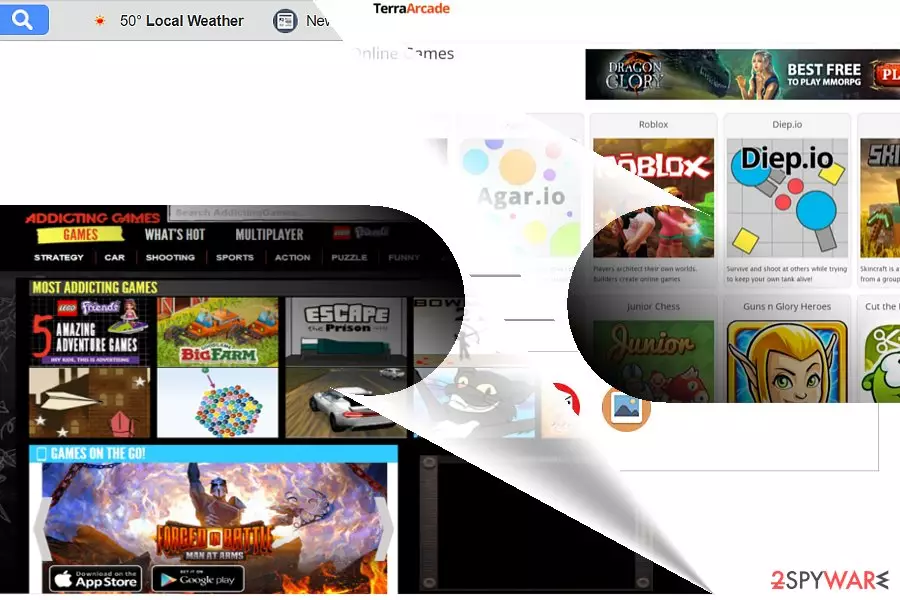
Search.pe-cmf.com is the URL name of the search engine provided by Polarity Technologies. It has gained notorious popularity among the virtual community and cybersecurity experts for devising multiple browsing tools, which, later on, get labeled as browser hijackers.
You might see the changes to your homepage as soon as you install an app that induces them. You could have installed it willingly, although browser hijackers often travel within software bundles, resulting in them being installed without acquiring consent from the affected users. Furthermore, the partnership with numerous advertising companies results in occasional pop-ups.
| Name | Search.pe-cmf.com |
| Type | Browser hijacker |
| Distribution | Software bundling, third-party websites |
| Operation | Changes New tab functionality and homepage; uses an alternative search engine; shows ads and sponsored links in search results; tracks online user activity |
| Elimination | Uninstall PUPs by following our manual guide or employ antivirus program |
| Browser fix | Don't forget to delete web data and cookies from your browsers – FortectIntego can help you do that efficiently |
It is also important to note that it does not possess HTTPS protocol. HTTP is regarded insecure and vulnerable to cyberattacks,[1] and many reputable and respectable websites seek to acquire the extra security that HTTPS protocol brings.
Since the PUP collects and shares your browsing-related information – browser history, IP address, and search entries – the ads become more customized. They are part of pay-per-click marketing technique. Though such technique brings benefit for their owners, such ads[2] might divert users to insecure domains. Therefore, redirects might turn out into a troublesome phenomenon.
Furthermore, some of Polarity Technologies browsing engines exhibited a relation to Safer Browser hijacker. It rooted into the browser and had a sort of immunity to removal measures.
Furthermore, though the hijacker uses legitimate Yahoo database, Yahoo email owners, who were affected by either of the multiple data breaches[3], might take this aspect as another reason to remove the browser hijacker from your browser. FortectIntego can help you clean the app's leftovers such as cookies that would otherwise continue tracking activities.
You can do it manually or automatically. The latter is a faster solution as an anti-malware tool, e.g. SpyHunterCombo Cleaner or MalwarebytesMalwarebytes will delete search.pe-cmf.com virus web scripts completely. Before we proceed to the elimination options, it would be useful to get acquainted with the promotion campaigns.

PUP transmission techniques remain the same
All search tools of this company have their own official websites. However, it is not the only distribution technique. Regarding the odd URL name, the search engine might be advertised via web scripts. They are placed in the domains of partner sites.
After clicking one or another link or image, you might be redirected to the site. In any case, paying attention to the installation guides is a must. You should keep in mind that PUP developers and distributors often use deception to make users install these apps unintentionally.
Thus, in order to avoid such outcomes, always monitor the installation process of freeware carefully:
- untick all the pre-ticked checkboxes;
- opt for Advanced or Custom settings;
- avoid Recommended/Quick installation mode;
- watch out for misplaced buttons or misleading offers.
Search.pe-cmf.com elimination steps
Though the search tool includes the button which helps restore Chrome as a default search engine, there is no button that allows setting this PUP as a home page. Thus, the removal of the app should not be that complicated.
Run the scan with a security tool. If you intend to remove the search.pe-cmf.com virus manually, follow the below guidelines. Note that the hijacker does not fish for users in English but in Russian or Swedish[4] sites.
Uninstall from Windows
Uninstall from Windows 10/8:
- Type Control Panel into the Windows search box and open the result.
- Under Programs, select Uninstall a program.


Uninstall from Windows 7/XP:
- Click on Windows Start > Control Panel (Windows XP users should click on Add/Remove Programs).
- In Control Panel, select Programs > Uninstall a program.


Remove the unwanted program:
- In the Programs and Features window, look for any recently installed suspicious entries, select them, and click Uninstall.
- If User Account Control appears, click Yes to confirm, then complete the removal.


Delete from macOS
Remove the unwanted application:
- From the menu bar, select Go > Applications.
- In the Applications folder, look for any suspicious entries, then drag them to Trash (or right-click and pick Move to Trash).


Delete leftover files and folders:
- Select Go > Go to Folder.
- Enter /Library/Application Support and remove any suspicious folders related to the unwanted program.
- Repeat the same check in the /Library/LaunchAgents and /Library/LaunchDaemons folders, deleting any suspicious entries.

- Finally, empty the Trash to permanently remove the leftovers.

Remove from Microsoft Edge
Delete unwanted extensions from MS Edge:
- Select Menu (three horizontal dots at the top-right of the browser window) and pick Extensions.
- From the list, pick the extension and click on the Gear icon.
- Click Remove.


Clear cookies and other browser data:
- Click on the Menu (three horizontal dots at the top-right of the browser window) and select Settings > Privacy, search, and services..
- Under Clear browsing data, pick Choose what to clear.
- Select Cookies and other site data and Cached images and files. (apart from passwords, although you might want to include Media licenses as well, if applicable) and click on Clear.


Restore new tab and homepage settings:
- Click the menu icon and choose Settings.
- Then find On startup section.
- Click Remove next to any suspicious startup page.
Reset MS Edge if the above steps did not work:
- Press on Ctrl + Shift + Esc to open Task Manager.
- Click on More details arrow at the bottom of the window.
- Select Details tab.
- Now scroll down and locate every entry with Microsoft Edge name in it. Right-click on each of them and select End Task to stop MS Edge from running.


Instructions for Chromium-based Edge
Delete extensions from MS Edge (Chromium):
- Open Edge and click select Settings > Extensions.
- Delete unwanted extensions by clicking Remove.


Clear cache and site data:
- Click on Menu and go to Settings.
- Select Privacy, search and services.
- Under Clear browsing data, pick Choose what to clear.
- Under Time range, pick All time.
- Select Clear now.


Reset Chromium-based MS Edge:
- Click on Menu and select Settings.
- On the left side, pick Reset settings.
- Select Restore settings to their default values.
- Confirm with Reset.
- This will disable extensions and reset startup pages but will not delete bookmarks, saved passwords, or browsing history.


Remove from Mozilla Firefox (FF)
Remove dangerous extensions:
- Open Mozilla Firefox browser and click on the Menu (three horizontal lines at the top-right of the window).
- Select Add-ons.
- In here, select the unwanted extension and click Remove.


Reset the homepage:
- Click three horizontal lines at the top right corner to open the menu.
- Choose Settings.
- Under Home, set your preferred homepage and new tab settings.
Clear cookies and site data:
- Click Menu and pick Settings.
- Go to Privacy & Security section.
- Scroll down to locate Cookies and Site Data.
- Click on Clear Data...
- Select Cookies and Site Data and Temporary cached files and pages, then click Clear.


Reset Mozilla Firefox
If clearing the browser as explained above did not help, reset Mozilla Firefox:
- Open Mozilla Firefox browser and click the Menu.
- Go to Help and then choose Troubleshooting Information.

- Under Give Firefox a tune up section, click on Refresh Firefox...
- Once the pop-up shows up, confirm the action by pressing on Refresh Firefox.



Remove from Google Chrome
Delete malicious extensions from Google Chrome:
- Open Google Chrome, click on the Menu (three vertical dots at the top-right corner) and select More tools > Extensions.
- In the newly opened window, you will see all the installed extensions. Uninstall all suspicious extensions related to the unwanted program by clicking Remove.


Clear cache and web data from Chrome:
- Click on Menu and pick Settings.
- Under Privacy and security, select Clear browsing data.
- Select Browsing history, Cookies and other site data, as well as Cached images and files.
- Click Clear data.


Change your homepage:
- Click menu and choose Settings.
- Look for a suspicious site in the On startup section.
- Click on Open a specific or set of pages and click on three dots to find the Remove option.
Reset Google Chrome:
If the previous methods did not help you, reset Google Chrome to eliminate all the unwanted components:
- Click on Menu and select Settings.
- In the Settings, scroll down and click Advanced.
- Scroll down and locate Reset and clean up section.
- Now click Restore settings to their original defaults.
- Confirm with Reset settings.


Delete from Safari
Remove dangerous extensions:
- Open Safari, click Safari in the menu at the top-left of the screen, and select Preferences.
- Go to the Extensions tab, look for any suspicious entries, and click Uninstall to remove them.


Clear history and website data:
- Click Safari in the menu and pick Clear History.
- Set Clear to all history and confirm with Clear History.


Reset Safari:
- Click Safari in the menu and select Preferences > Advanced.
- Enable Show Develop menu in menu bar.
- From the menu bar, click Develop and select Empty Caches.


Did this guide help?
Be the first to comment