

Search.playeti.com is a browser hijacker that is related to potentially unwanted program Playeti for macOS
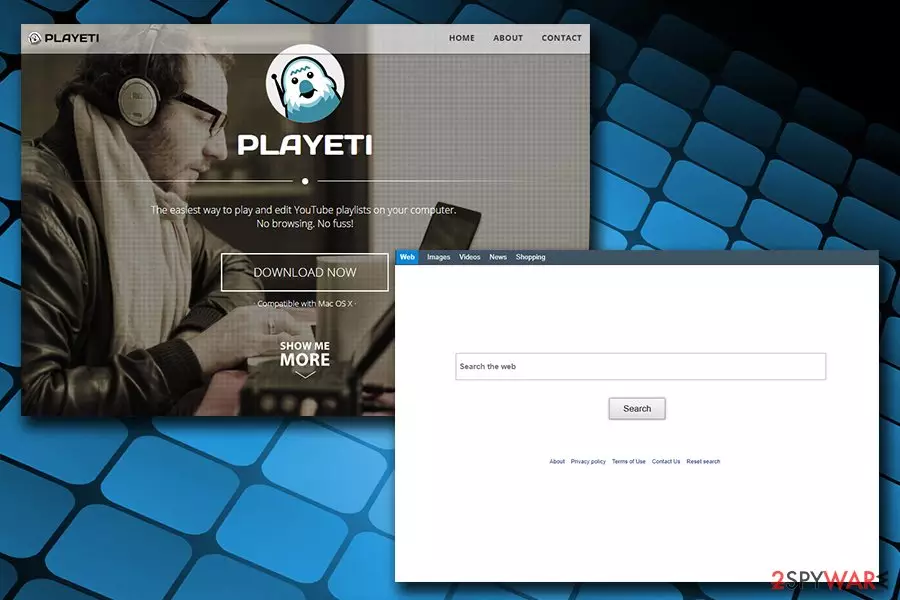
Search.playeti.com is a potentially unwanted program that spreads with the help of software bundling or is installed via third-party websites intentionally. Once installed, the PUP changes settings of Google Chrome, Internet Explorer, Mozilla Firefox, Safari, Opera, or another browser, and sets the homepage to hxxp://search.playeti.com. From that point of time, users are forced to browse the internet via the hijacked[1] search engine, which pushes fake search results filled with sponsored links, redirects users to questionable sites, and displays excessive advertisement on various websites. For that reason, users should hurry up and remove Search.playeti.com from their browsers, along with the unwanted extension Playeti.
| Name | Search.playeti.com |
| Type | Browser hijacker, PUP |
| Extension | Playeti |
| Developer | Genieo |
| Operating system | macOS |
| Browsers | Google Chrome, Mozilla Firefox, Safari, Opera, etc. |
| Symptoms | Changed browser settings, intrusive commercial content, fake search results, etc. |
| Main dangers | Installation of other PUPs, money loss, malware infections |
| Removal | Use reputable security software, such as FortectIntego or make use of our manual removal instructions below |
The change to the main page of the browser occurs after users willingly or not install the app Playeti. An app, which is originally designed and distributed by Genieo, an Israeli-based company, is designed for Mac operating systems. Allegedly, users can play and edit YouTube playlists using it. However, they never mention the Search.playeti.com hijack that affects all the installed browsers.
As soon as Search.playeti.com PUP settles, it performs a variety of changes to the installed browsers, changing the default homepage. This action makes users browse via a hijacked search engine. While all the search results are redirected to Yahoo (a legitimate service), the infected users will quickly notice several sponsored links on top of the results. These are usually related to Playeti affiliates, and every click brings developers revenue.
Those who want to keep using the original search engine, would not be able to do so unless Search.playeti.com removal is performed, because, if trying to reverse the settings, the unwanted application will automatically reassign them to predetermined ones every attempt. To terminate Search.playeti.com virus, either use reputable security software like FortectIntego or make use of our instructions below.
Besides showing alternative search results and pop-up ads, Search.playeti.com also gathers a variety of information related to users' web browsing activities. As it is explained in the Privacy Policy, the developers of the PUP might collect certain personal information that you provide, along with anonymous one such as URLs visited, installed browser type, operating system info, visited websites and its times/dates, etc. Additionally, Search.playeti.com authors also claim that they record the information regarding the files that you compile using the software:[2]
In addition, certain of our products may allow you to store, send, receive, edit, sync, share, or otherwise organize or manage files and folders (including any information or data stored in those folders) (“User Files”). We may record and store information regarding the size and name of all User Files that you make available via these products.
To conclude, we do not recommend using Playeti application, as it is considered a PUP and might bring users to unsafe sites, which consequently might result in loss of money, installation of other PUPs or even malware infections.

Do not get tricked by the alleged usefulness of potentially unwanted apps
Usually, there are two ways to install potentially unwanted software on the system:
- You were looking for a program that would help you with its functionality, for example, PDF converter, playlist organizer, system optimizer, video player, etc. In such a case, you might stumble upon a variety of such tools on the internet, including third-party sites.
- You downloaded and installed an application from the internet and did not pay enough attention to the installation procedure. In such a case, the PUP entered when you did not notice the pre-ticked boxes or did not pick Custom/Advanced installation settings.
Thus, experts[3] advise being attentive when dealing with the installation of (free) software from the internet. While even paid products may offer optional installs, shareware and freeware are almost guaranteed to include optional components within their installers.
Thus, pick Advanced/Custom settings instead of Recommended ones, and carefully follow each step of the installation procedure. Be aware that developers use a variety of tricks to mislead users into installing potentially unwanted software, such as grayed out buttons, their placement, pre-ticked boxes hidden in Advanced mode, etc.
Terminate Search.playeti.com browser hijacker and the Playeti app
It is true that not all free software is adware or a browser hijacker. However, users do not like ads, and they would most likely not install something that would compromise their browsers and make them view intrusive pop-ups, banners, in-text links and other commercial content. Therefore, most free apps will use some sort of monetization method, and ad revenue is the most used one.
To remove Search.playeti.com from your hijacked browser, you will have to terminate Playeti application from your Mac. For that, you can rely on our manual instructions or make use of automated security software. For those who are less tech-savvy, we recommend going with the former.
Once you complete Search.playeti.com removal, you should also reset the web browser settings to default, as the unwanted app might leave traces behind. We also explain how to perform this below.
Delete from macOS
Remove the unwanted application:
- From the menu bar, select Go > Applications.
- In the Applications folder, look for any suspicious entries, then drag them to Trash (or right-click and pick Move to Trash).


Delete leftover files and folders:
- Select Go > Go to Folder.
- Enter /Library/Application Support and remove any suspicious folders related to the unwanted program.
- Repeat the same check in the /Library/LaunchAgents and /Library/LaunchDaemons folders, deleting any suspicious entries.

- Finally, empty the Trash to permanently remove the leftovers.

Reset Internet Explorer
Remove dangerous add-ons:
- Open Internet Explorer, click on the Gear icon (IE menu) on the top-right corner of the browser
- Pick Manage Add-ons.
- You will see a Manage Add-ons window. Here, look for suspicious plugins. Click on these entries and select Disable.


Change your homepage if it was altered:
- Open IE and click on the Gear icon.
- Select Internet Options.
- In the General tab, delete the Home page address and replace it by your preferred one (for example, Google.com).
- Click Apply and then select OK.


Delete temporary files:
- Press on the Gear icon and select Internet Options.
- Under Browsing history, click Delete...
- Select relevant fields and press Delete.


Reset Internet Explorer:
- Click on Gear icon > Internet options and select Advanced tab.
- Select Reset.
- In the new window, check Delete personal settings and select Reset.


Remove from Microsoft Edge
Delete unwanted extensions from MS Edge:
- Select Menu (three horizontal dots at the top-right of the browser window) and pick Extensions.
- From the list, pick the extension and click on the Gear icon.
- Click Remove.


Clear cookies and other browser data:
- Click on the Menu (three horizontal dots at the top-right of the browser window) and select Settings > Privacy, search, and services..
- Under Clear browsing data, pick Choose what to clear.
- Select Cookies and other site data and Cached images and files. (apart from passwords, although you might want to include Media licenses as well, if applicable) and click on Clear.


Restore new tab and homepage settings:
- Click the menu icon and choose Settings.
- Then find On startup section.
- Click Remove next to any suspicious startup page.
Reset MS Edge if the above steps did not work:
- Press on Ctrl + Shift + Esc to open Task Manager.
- Click on More details arrow at the bottom of the window.
- Select Details tab.
- Now scroll down and locate every entry with Microsoft Edge name in it. Right-click on each of them and select End Task to stop MS Edge from running.


Instructions for Chromium-based Edge
Delete extensions from MS Edge (Chromium):
- Open Edge and click select Settings > Extensions.
- Delete unwanted extensions by clicking Remove.


Clear cache and site data:
- Click on Menu and go to Settings.
- Select Privacy, search and services.
- Under Clear browsing data, pick Choose what to clear.
- Under Time range, pick All time.
- Select Clear now.


Reset Chromium-based MS Edge:
- Click on Menu and select Settings.
- On the left side, pick Reset settings.
- Select Restore settings to their default values.
- Confirm with Reset.
- This will disable extensions and reset startup pages but will not delete bookmarks, saved passwords, or browsing history.


Remove from Mozilla Firefox (FF)
Remove dangerous extensions:
- Open Mozilla Firefox browser and click on the Menu (three horizontal lines at the top-right of the window).
- Select Add-ons.
- In here, select the unwanted extension and click Remove.


Reset the homepage:
- Click three horizontal lines at the top right corner to open the menu.
- Choose Settings.
- Under Home, set your preferred homepage and new tab settings.
Clear cookies and site data:
- Click Menu and pick Settings.
- Go to Privacy & Security section.
- Scroll down to locate Cookies and Site Data.
- Click on Clear Data...
- Select Cookies and Site Data and Temporary cached files and pages, then click Clear.


Reset Mozilla Firefox
If clearing the browser as explained above did not help, reset Mozilla Firefox:
- Open Mozilla Firefox browser and click the Menu.
- Go to Help and then choose Troubleshooting Information.

- Under Give Firefox a tune up section, click on Refresh Firefox...
- Once the pop-up shows up, confirm the action by pressing on Refresh Firefox.



Remove from Google Chrome
Delete malicious extensions from Google Chrome:
- Open Google Chrome, click on the Menu (three vertical dots at the top-right corner) and select More tools > Extensions.
- In the newly opened window, you will see all the installed extensions. Uninstall all suspicious extensions related to the unwanted program by clicking Remove.


Clear cache and web data from Chrome:
- Click on Menu and pick Settings.
- Under Privacy and security, select Clear browsing data.
- Select Browsing history, Cookies and other site data, as well as Cached images and files.
- Click Clear data.


Change your homepage:
- Click menu and choose Settings.
- Look for a suspicious site in the On startup section.
- Click on Open a specific or set of pages and click on three dots to find the Remove option.
Reset Google Chrome:
If the previous methods did not help you, reset Google Chrome to eliminate all the unwanted components:
- Click on Menu and select Settings.
- In the Settings, scroll down and click Advanced.
- Scroll down and locate Reset and clean up section.
- Now click Restore settings to their original defaults.
- Confirm with Reset settings.


Delete from Safari
Remove dangerous extensions:
- Open Safari, click Safari in the menu at the top-left of the screen, and select Preferences.
- Go to the Extensions tab, look for any suspicious entries, and click Uninstall to remove them.


Clear history and website data:
- Click Safari in the menu and pick Clear History.
- Set Clear to all history and confirm with Clear History.


Reset Safari:
- Click Safari in the menu and select Preferences > Advanced.
- Enable Show Develop menu in menu bar.
- From the menu bar, click Develop and select Empty Caches.


Did this guide help?
Be the first to comment