

Searcreetch.com – a browser hijacker that ends up on the browser after the installation of SearCreetch extension
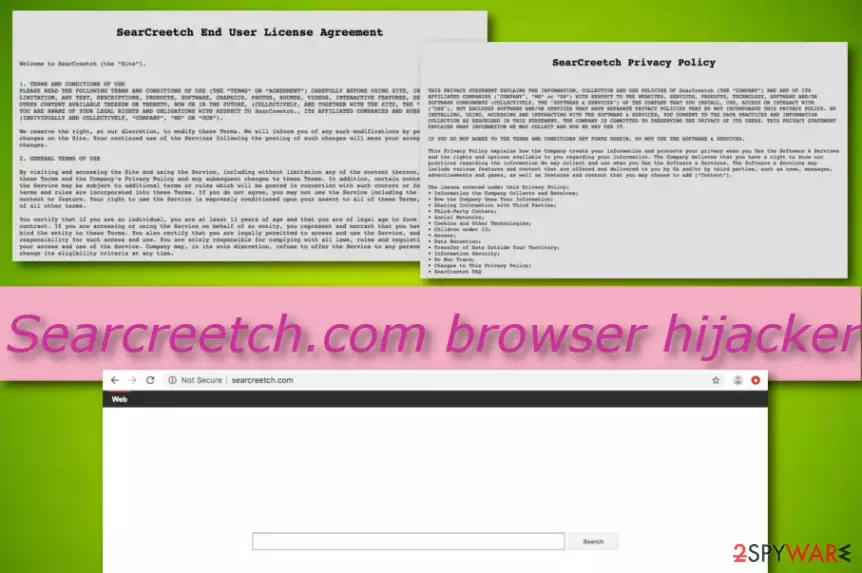
Searcreetch.com is a browser-hijacking tool[1] that comes together with the SearCreetch plug-in. The hijacking process begins once the user opens a particular bundle of software and the PUP silently sneaks into the system to take over browser apps. Afterward, the search engine is set to http://searcreetch.com/ and when users try to perform search queries through the modified search zone they end up with results provided by webcrawler.com.
Searcreetch.com virus is also a term used to describe the browser hijacker as its activities and distribution process always remain unknown. For this purpose, the application also falls into the potentially unwanted program category. If you ever have dealt with this threat, you supposedly could not have avoided its annoying processes performed.
| Name | Searcreetch.com |
|---|---|
| Type | Browser-hijacking application |
| Category | Potentially unwanted program |
| Extension | SearCreetch |
| Engine | http://searcreetch.com/ |
| Searching sphere | Once you perform search requests via the modified search engine, you will be provided with results through the webcrawler.com domain |
| Distribution | Software bundling and unsecured web sources |
| Removal tip | Try FortectIntego for a full system scan. Afterward, remove the PUP manually or automatically |
Even though browser hijackers such as Searcreetch.com might offer you a faster browsing process, accessing popular websites within one click, and similar functions, note that these features are not worth everything else that will supposedly be brought by the potentially unwanted application. This includes redirecting, advertising, collecting browsing-related data, and modifying the default search engine, homepage, and new tab zone of hijacked browsers.
Searcreetch.com redirects might be a very big problem if passed to you frequently and you start landing on potentially dangerous websites. Usually, developers use such activity for promoting other third-party sources but sometimes redirecting might force some type of malware on you that you are very likely to catch during visits to odd websites.
Continuously, Searcreetch.com might start loading pop-up ads for pay-per-click[2] income that is generated from each notification clicked. Also, this way developers might try to promote fake security software or other products that bring revenue in unfair and illegitimate ways. Be careful not to fall for the tricks you might be provided with.

In addition, we have read the Privacy Policy belonging to Searcreetch.com and discovered that this browser hijacker collects various non-personal information which just makes it even more uncomfortable to use. Mostly, browsing data is the main target of third-parties but technical information about the computer also appears to be valuable:
When you Use the Software & Services, we automatically collect and store the following types of information:
1. Technical Information. Certain technical information regarding your device, and your Use of the Software & Services and other third party software and applications installed on your device (the “Other Software”), including the type, name and version of operating system and Other Software including, without limitation, their interactions with the Software & Services, ISP (Internet Service Provider), location, Internet protocol (IP) address, anonymous user identifiers, device configuration and identifiers (IDFA (Identifier for Advertisers used in IOS), Advertising ID (Identifier for Advertisers used in Android) and the like), version of the Software & Services, and your configuration and settings of the Software & Services;
Searcreetch.com removal is the only option you have if you want to stop the annoying activities and reverse your web browsers back to their previous states. Good news is that this process can be completed by using two different tactics. However, first of all, we recommend scanning the entire system with a tool such as FortectIntego just for a full threat check-up.
Also, you can try to remove Searcreetch.com on your own. However, this method requires specific skills and experience, otherwise, you might make some mistakes and fail to complete your tasks. If you think that you are capable enough to perform the elimination on yourself, take a look at some guiding lines that are placed at the end of this page.
Stabilizing your computer. Adware prevention tip
Technology experts from LesVirus.fr[3] believe that the best way to prevent secret infiltration of adware programs is to combine both manual and automatical security. However, you should always start from yourself first and make sure that the actions you are completing do not posses any danger.

What you have to do is always choose the right downloading/installing technique which is usually listed as “Custom” or “Advanced'. Be aware of configuration that claims to be “Quick” or “Recommended” as these modes are the ones that allow successful infiltration of potentially unwanted programs.
Another thing to do towards the safety mission accomplishment is to keep an eye on what kind of sites you are visiting during your browsing sessions. Be careful and avoid various piracy[4] networks, gambling pages, online-gaming, and adult-dating sources as these sites lack required protection.
Last but not least, we end up with automatical safety measures. This step requires finding a reliable antivirus tool to download on your machine. Once you discover such a program, make sure to regularly update it for proper functioning. If you do this, you should be happy with the operating of the antimalware software.
Elimination possibilities for Searcreetch.com virus
Searcreetch.com virus might have entered not only your Mac computer system but your web browsers also. This is why it is so important to clean all infected locations properly. It also includes refreshing browser apps such as Chrome, Firefox, Explorer, and Safari.
You have two Searcreetch.com removal possibilities that you can choose from. There is an automatized variant that requires only downloading and installing reliable antimalware products. Besides, this option allows you to save some of your time as the entire job will be completed for you.
However, if you have been looking for ways to remove Searcreetch.com on your own, you can also do that in this case. Just keep in mind that this type of method requires good elimination skills and some experience. If you are sure that you have all of that, take a look at the following instructions.
Delete from macOS
Remove the unwanted application:
- From the menu bar, select Go > Applications.
- In the Applications folder, look for any suspicious entries, then drag them to Trash (or right-click and pick Move to Trash).


Delete leftover files and folders:
- Select Go > Go to Folder.
- Enter /Library/Application Support and remove any suspicious folders related to the unwanted program.
- Repeat the same check in the /Library/LaunchAgents and /Library/LaunchDaemons folders, deleting any suspicious entries.

- Finally, empty the Trash to permanently remove the leftovers.

Reset Internet Explorer
Remove dangerous add-ons:
- Open Internet Explorer, click on the Gear icon (IE menu) on the top-right corner of the browser
- Pick Manage Add-ons.
- You will see a Manage Add-ons window. Here, look for suspicious plugins. Click on these entries and select Disable.


Change your homepage if it was altered:
- Open IE and click on the Gear icon.
- Select Internet Options.
- In the General tab, delete the Home page address and replace it by your preferred one (for example, Google.com).
- Click Apply and then select OK.


Delete temporary files:
- Press on the Gear icon and select Internet Options.
- Under Browsing history, click Delete...
- Select relevant fields and press Delete.


Reset Internet Explorer:
- Click on Gear icon > Internet options and select Advanced tab.
- Select Reset.
- In the new window, check Delete personal settings and select Reset.


Remove from Mozilla Firefox (FF)
Remove dangerous extensions:
- Open Mozilla Firefox browser and click on the Menu (three horizontal lines at the top-right of the window).
- Select Add-ons.
- In here, select the unwanted extension and click Remove.


Reset the homepage:
- Click three horizontal lines at the top right corner to open the menu.
- Choose Settings.
- Under Home, set your preferred homepage and new tab settings.
Clear cookies and site data:
- Click Menu and pick Settings.
- Go to Privacy & Security section.
- Scroll down to locate Cookies and Site Data.
- Click on Clear Data...
- Select Cookies and Site Data and Temporary cached files and pages, then click Clear.


Reset Mozilla Firefox
If clearing the browser as explained above did not help, reset Mozilla Firefox:
- Open Mozilla Firefox browser and click the Menu.
- Go to Help and then choose Troubleshooting Information.

- Under Give Firefox a tune up section, click on Refresh Firefox...
- Once the pop-up shows up, confirm the action by pressing on Refresh Firefox.



Remove from Google Chrome
Delete malicious extensions from Google Chrome:
- Open Google Chrome, click on the Menu (three vertical dots at the top-right corner) and select More tools > Extensions.
- In the newly opened window, you will see all the installed extensions. Uninstall all suspicious extensions related to the unwanted program by clicking Remove.


Clear cache and web data from Chrome:
- Click on Menu and pick Settings.
- Under Privacy and security, select Clear browsing data.
- Select Browsing history, Cookies and other site data, as well as Cached images and files.
- Click Clear data.


Change your homepage:
- Click menu and choose Settings.
- Look for a suspicious site in the On startup section.
- Click on Open a specific or set of pages and click on three dots to find the Remove option.
Reset Google Chrome:
If the previous methods did not help you, reset Google Chrome to eliminate all the unwanted components:
- Click on Menu and select Settings.
- In the Settings, scroll down and click Advanced.
- Scroll down and locate Reset and clean up section.
- Now click Restore settings to their original defaults.
- Confirm with Reset settings.


Delete from Safari
Remove dangerous extensions:
- Open Safari, click Safari in the menu at the top-left of the screen, and select Preferences.
- Go to the Extensions tab, look for any suspicious entries, and click Uninstall to remove them.


Clear history and website data:
- Click Safari in the menu and pick Clear History.
- Set Clear to all history and confirm with Clear History.


Reset Safari:
- Click Safari in the menu and select Preferences > Advanced.
- Enable Show Develop menu in menu bar.
- From the menu bar, click Develop and select Empty Caches.


Did this guide help?
Be the first to comment