

Secochkd.xyz is a fake website made to make people allow notifications for ad delivery
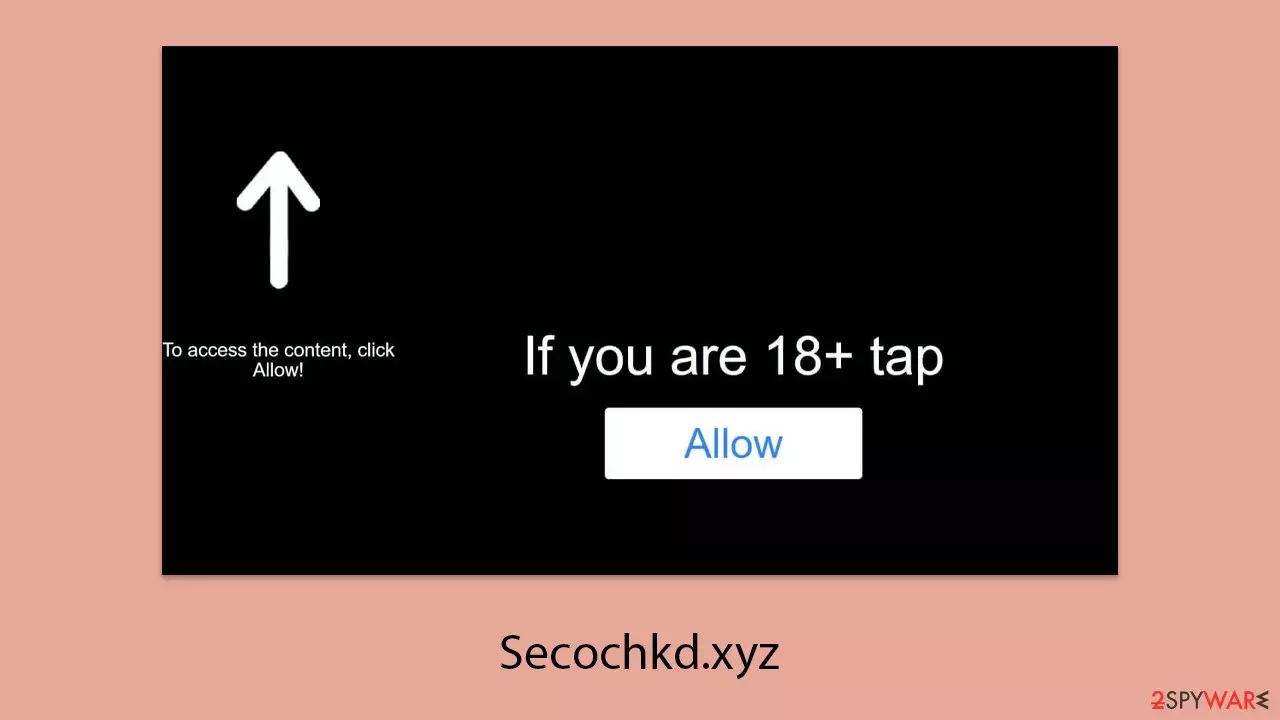
Secochkd.xyz is a fraudulent website created by cybercriminals to deceive internet users. The primary tactic used by these scammers is to persuade individuals that accepting push notifications is a routine verification step, prompting them to click the “Allow” button in a pop-up message. They use advanced phishing techniques that may not be immediately obvious to the victims.
Users often come across Secochkd.xyz through intrusive pop-ups that can appear over other applications, not just within the browser. This not only causes inconvenience but also poses a significant risk if users interact with the links or messages. Clicking on these can lead to redirections to harmful websites, potential financial scams, the downloading of dangerous software, or the sharing of personal information with malicious parties.
We strongly recommend avoiding interaction with these pop-ups. Instead, users should disable Secochkd.xyz notifications through their web browser's settings. This article provides a guide on how to do this. It's important to remain cautious, as those who encounter these pop-ups are vulnerable to phishing and other online threats. Additionally, it is advisable to check the device for any signs of adware or malware infections.
| Name | Secochkd.xyz |
| Type | Push notifications, ads, pop-ups, scam |
| Distribution | Push notifications show up at some point after the “Allow” button in the notification prompt is clicked |
| Symptoms | Pop-up notifications are shown on a desktop at random times |
| Risks | Links from the site might cause you to go to harmful websites, which may result in malware infections, financial losses, or personal data exposure. |
| Removal | Access browser settings to stop intrusive push notifications. After that, make sure that your system is not infected with adware or malware – scan it with SpyHunterCombo Cleaner |
| Other tips | It is important to clean your browsers after removing potentially unwanted programs from your system – use FortectIntego for quick and reliable results |
What exactly are push notifications?
A push notification API was designed for legitimate purposes, similar to other features. For example, a news site might ask visitors if they want to receive notifications to stay updated on the latest events, which helps capture their attention quickly. This increase in popularity and engagement benefits the website as well.
Most people ignore push notification requests, which is understandable since many users find them intrusive. The ability to send a pop-up at any time can be seen as bothersome.
As a result, even though many websites offer push notifications, most users choose not to accept them. This lack of experience with push notifications is something scammers exploit. By using fake messages and phishing techniques, they trick users into subscribing and then bombard them with advertisements. With limited knowledge about how to deal with this, many users struggle with Secochkd.xyz ads removal. Fortunately, it is not difficult to accomplish by following the instructions below.

Removing Secochkd.xyz
Receiving numerous push notifications from sites like Secochkd.xyz can be annoying, but it doesn't necessarily mean your system is infected. However, the possibility of adware or other malicious software should not be ignored. Adware often redirects users to harmful websites and includes dangerous links, so performing a thorough system check is a prudent step.
Using robust security software like SpyHunterCombo Cleaner or MalwarebytesMalwarebytes can effectively identify and remove potential threats. These tools are excellent at scanning your system and eliminating a range of threats, from adware to more serious malware, ensuring a safer online experience.
After eliminating any threats, it is recommended to clear cookies and other web data to remove any remnants of the infection completely. Specialized tools, such as FortectIntego, for this purpose, are particularly helpful, as they clean your digital environment and repair any damage caused by malware, restoring your system to optimal condition.
To stop unwanted push notifications, you need to unsubscribe from them in your browser settings. The steps for this vary slightly depending on the browser, but generally involve accessing the site settings and revoking the permission for the site to send notifications.
Detailed instructions for this process, specific to various browsers, are included in the removal guide provided. Following these steps will effectively eliminate unwanted push notifications and help you regain control of your online experience.
Google Chrome (desktop)
- Open the Google Chrome browser and go to Menu > Settings.
- Scroll down and click on Advanced.
- Locate the Privacy and security section and pick Site Settings > Notifications.
- Look at the Allow section and look for a suspicious URL.
- Click the three vertical dots next to it and pick Block. This should remove unwanted notifications from Google Chrome.


Google Chrome (Android)
- Open Google Chrome and tap on Settings (three vertical dots).
- Select Notifications.
- Scroll down to the Sites section.
- Locate the unwanted URL and toggle the button to the left (Off setting).


Mozilla Firefox
- Open Mozilla Firefox and go to Menu > Options.
- Click on Privacy & Security section.
- Under Permissions, you should be able to see Notifications. Click the Settings button next to it.
- In the Settings – Notification Permissions window, click on the drop-down menu by the URL in question.
- Select Block and then click on Save Changes. This should remove unwanted notifications from Mozilla Firefox.


MS Edge (Chromium)
- Open Microsoft Edge, and go to Settings.
- Select Site permissions.
- Go to Notifications on the right.
- Under Allow, you will find the unwanted entry.
- Click on More actions and select Block.


Safari
- Click on Safari > Preferences…
- Go to the Websites tab and, under General, select Notifications.
- Select the web address in question, click the drop-down menu and select Deny.


Internet Explorer
- Open Internet Explorer, and click on the Gear icon at the top-right of the window.
- Select Internet options and go to the Privacy tab.
- In the Pop-up Blocker section, click on Settings.

- Locate the web address in question under Allowed sites and pick Remove.

How to avoid push notification scams in the future?
Scammers have developed sophisticated methods to deceive users through push notifications, often mimicking legitimate online interactions. These tactics typically start with an invitation to enable notifications under the pretense of routine actions.
These invitations are carefully crafted to exploit users' trust and their familiarity with standard internet practices. Among the manipulative prompts encountered are:
“Click Allow to confirm you're not a robot.” This tactic leverages standard verification processes, such as captchas, giving the scam an air of credibility.
“If you are 18+, click Allow.” This simulates age verification, a common security measure on many legitimate sites, making it seem more believable.
“Click 'Allow' to win a prize and collect it from our store!” By promising non-existent rewards, this lure plays on the temptation of free gifts, misleading users about the reality of the offer.
“Click Allow to play the video.” Presenting a fake video thumbnail or implying a video is about to play, this trick mimics platforms like YouTube to persuade users to engage.
Understanding these deceptive strategies is crucial for internet users to protect themselves from push notification scams perpetrated by sites such as Secochkd.xyz. Awareness of these tactics allows individuals to navigate the web more securely, avoiding the pitfalls set by fraudulent websites.
Did this guide help?
Be the first to comment