

Serp App is a rogue extension that sets sponsored search site to generate advertising revenue
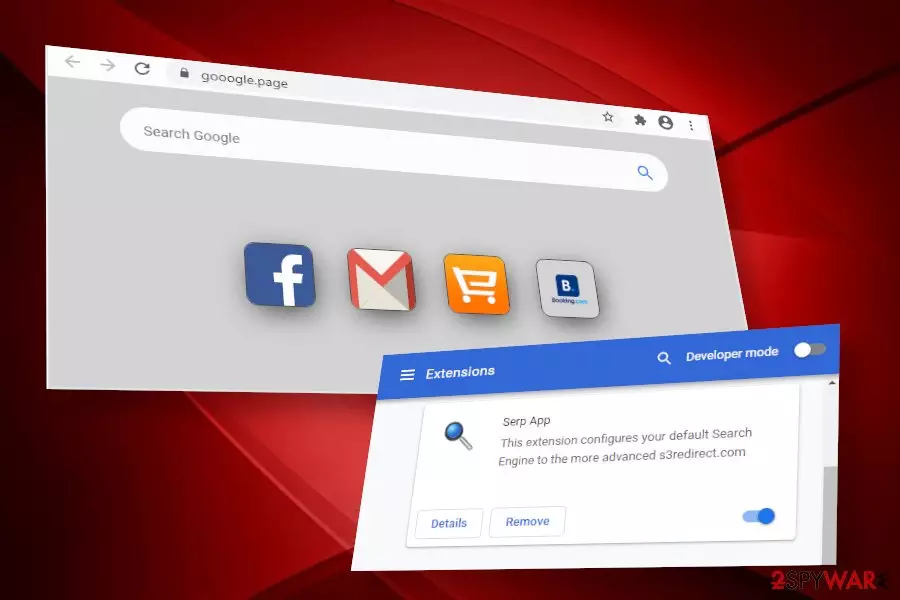
Serp App is a web browser's extension for Google Chrome, Mozilla Firefox, Safari, Opera, and others. Its developers represent itself as a handy search tool for the customized search processes and the most accurate search results. However, it will hardly fulfill the promise since it's a typical browser hijacker[1] in its nature.
In fact, the Serp App virus seeks to promote s3redirect.com search site, which is programmed to display links and ads managed by affiliate third-parties. This way, the developers of the extension and affiliated parties generate income, but the end-user gains no use at all. Therefore, if you have accidentally installed this extension, do not postpone its removal.
Although the extension itself is not dangerous, the Serp App redirects via s3redirect.com servers can automatically open suspicious or sometimes even dangerous websites filled with questionable downloads. Therefore, clicking on any online content while this extension is installed can end up with malware infiltration or other security-related issues.
| Name | Serp App |
| Type | Browser hijacker |
| Sub-category | Potentially Unwanted Program (PUP) |
| Promoted website | s3redirect.com start page |
| Distribution | The extension used to be offered on Chrome Web Store (the page is not active anymore). Additionally, it is promoted via freeware packages as a pre-selected installer |
| Main dangers | The extension itself does not pose any harm. However, it's content cannot be trusted. The tool is used to promote third parties, so you can never know what hides under those ads and links |
| Symptoms | Right after the installation, it sets s3redirect.com as a start page and S3 search site. Besides, people will find the Serp App extension installed by default. Search results contain sponsored links in priority, as well as ads on the right side of the window |
| Removal | Automatic and manual removal options available (the guides are given below) |
| A scan with FortectIntego tool helps to recover the machine's performance after malware infiltration. Before running a scan, make sure that the system is malware-free | |
This web browsing tool has already been available online for quite a while. However, since the beginning of summer 2020, users started reporting the intrusive behavior of the extension, especially the method of infiltration. As people claim, it gets installed without permission and corrupts the web browser's settings without authorization. Such behavior can be simply explained – the Serp App virus spreads bundled with freeware under Quick installation. Thus, on one hand, PUPs get installed due to the inattentiveness of the user.

Anyway, users report that this extension behaves in an unwanted way. For example, it alters the start page, search tool, and new tab URL window, and other settings on Chrome, Firefox, Opera, Edge, and other browsers. Upon these changes, the browser becomes an advertising platform where every click redirects to sponsored sites that offer to purchase something, download something, or participate somewhere. We strongly recommend being careful with Serp App redirects because there's a high risk of being exposed to suspicious or dangerous sites that may contain click-to-download ads or other misleading content.
To end browser-based activities that you do not with, take a look at the below given Serp App removal guidelines. Manual elimination of the browser hijacker is possible and can efficiently be initiated by eliminating all potentially unwanted programs.
However, experts from virusai.lt[2] recommend people to remove Serp App virus automatically using a professional anti-malware tool. That's because this suspicious extension is typically bundled with other unwanted apps that may silently be running on the machine.
Even if the Serp App does not interfere with your browsing activities and you have been considering to keep it, you should eliminate it to protect your privacy. Suchlike third-party tools usually install tracking cookies to monitor users' web browsing activities and provide them with personalized content. Unfortunately, but you can also be tricked into disclosing personal details, such as name, address, email address, or telephone number by being redirected to phishing sites.

Ways to prevent hijackers from installing onto the web browsers
Like most of the PUPs, this misleading extension is spreading in the software bundles as a pre-selected optional download. Therefore, if the user agrees to install freeware under Quick or Recommended settings, they give permission to install all optional downloads unintentionally.

To prevent such happening, you should always look for the Advanced or Custom installation setup option. However, even selecting this setup and continuously clicking the Next button is the same as selecting a Quick installation. After selecting the Advanced installation, carefully monitor every window, and deselect optional downloads.
Look for the setup windows that contain pre-selected checkboxes and statements saying that by clicking the Next button you agree with the installation of add-ons, toolbars, or other browser-based apps. After all, navigate to the Apps folder to double-check if malware[3] did not sneak inside the system.
Get rid of Serp App from Chrome browser
Serp App uninstall process should be initiated in phases. First of all, you should eliminate malware from your machine (look for it on Apps folder). After that, open the web browser and navigate to the Settings. Here you should find suspicious extensions that you are not familiar with. Disable the extension and reset start page, search engine, and other settings. The quickest way to do that is to reset the web browser's settings.

However, sometimes Serp App removal may fail. That may be because the malware runs a bunch of browser object helpers and gets support from registry entries. In this case, the removal process should be performed with the help of a professional anti-virus program.
Last, but not least, experts highly recommend users to optimize the system after malware infiltration. Each unwanted application leaves its traces within the Registries. Our recommended program for fixing malware damage is FortectIntego.
Uninstall from Windows
Uninstall from Windows 10/8:
- Type Control Panel into the Windows search box and open the result.
- Under Programs, select Uninstall a program.


Uninstall from Windows 7/XP:
- Click on Windows Start > Control Panel (Windows XP users should click on Add/Remove Programs).
- In Control Panel, select Programs > Uninstall a program.


Remove the unwanted program:
- In the Programs and Features window, look for any recently installed suspicious entries, select them, and click Uninstall.
- If User Account Control appears, click Yes to confirm, then complete the removal.


Reset Internet Explorer
Remove dangerous add-ons:
- Open Internet Explorer, click on the Gear icon (IE menu) on the top-right corner of the browser
- Pick Manage Add-ons.
- You will see a Manage Add-ons window. Here, look for suspicious plugins. Click on these entries and select Disable.


Change your homepage if it was altered:
- Open IE and click on the Gear icon.
- Select Internet Options.
- In the General tab, delete the Home page address and replace it by your preferred one (for example, Google.com).
- Click Apply and then select OK.


Delete temporary files:
- Press on the Gear icon and select Internet Options.
- Under Browsing history, click Delete...
- Select relevant fields and press Delete.


Reset Internet Explorer:
- Click on Gear icon > Internet options and select Advanced tab.
- Select Reset.
- In the new window, check Delete personal settings and select Reset.


Remove from Microsoft Edge
Delete unwanted extensions from MS Edge:
- Select Menu (three horizontal dots at the top-right of the browser window) and pick Extensions.
- From the list, pick the extension and click on the Gear icon.
- Click Remove.


Clear cookies and other browser data:
- Click on the Menu (three horizontal dots at the top-right of the browser window) and select Settings > Privacy, search, and services..
- Under Clear browsing data, pick Choose what to clear.
- Select Cookies and other site data and Cached images and files. (apart from passwords, although you might want to include Media licenses as well, if applicable) and click on Clear.


Restore new tab and homepage settings:
- Click the menu icon and choose Settings.
- Then find On startup section.
- Click Remove next to any suspicious startup page.
Reset MS Edge if the above steps did not work:
- Press on Ctrl + Shift + Esc to open Task Manager.
- Click on More details arrow at the bottom of the window.
- Select Details tab.
- Now scroll down and locate every entry with Microsoft Edge name in it. Right-click on each of them and select End Task to stop MS Edge from running.


Instructions for Chromium-based Edge
Delete extensions from MS Edge (Chromium):
- Open Edge and click select Settings > Extensions.
- Delete unwanted extensions by clicking Remove.


Clear cache and site data:
- Click on Menu and go to Settings.
- Select Privacy, search and services.
- Under Clear browsing data, pick Choose what to clear.
- Under Time range, pick All time.
- Select Clear now.


Reset Chromium-based MS Edge:
- Click on Menu and select Settings.
- On the left side, pick Reset settings.
- Select Restore settings to their default values.
- Confirm with Reset.
- This will disable extensions and reset startup pages but will not delete bookmarks, saved passwords, or browsing history.


Remove from Mozilla Firefox (FF)
Remove dangerous extensions:
- Open Mozilla Firefox browser and click on the Menu (three horizontal lines at the top-right of the window).
- Select Add-ons.
- In here, select the unwanted extension and click Remove.


Reset the homepage:
- Click three horizontal lines at the top right corner to open the menu.
- Choose Settings.
- Under Home, set your preferred homepage and new tab settings.
Clear cookies and site data:
- Click Menu and pick Settings.
- Go to Privacy & Security section.
- Scroll down to locate Cookies and Site Data.
- Click on Clear Data...
- Select Cookies and Site Data and Temporary cached files and pages, then click Clear.


Reset Mozilla Firefox
If clearing the browser as explained above did not help, reset Mozilla Firefox:
- Open Mozilla Firefox browser and click the Menu.
- Go to Help and then choose Troubleshooting Information.

- Under Give Firefox a tune up section, click on Refresh Firefox...
- Once the pop-up shows up, confirm the action by pressing on Refresh Firefox.



Remove from Google Chrome
Delete malicious extensions from Google Chrome:
- Open Google Chrome, click on the Menu (three vertical dots at the top-right corner) and select More tools > Extensions.
- In the newly opened window, you will see all the installed extensions. Uninstall all suspicious extensions related to the unwanted program by clicking Remove.


Clear cache and web data from Chrome:
- Click on Menu and pick Settings.
- Under Privacy and security, select Clear browsing data.
- Select Browsing history, Cookies and other site data, as well as Cached images and files.
- Click Clear data.


Change your homepage:
- Click menu and choose Settings.
- Look for a suspicious site in the On startup section.
- Click on Open a specific or set of pages and click on three dots to find the Remove option.
Reset Google Chrome:
If the previous methods did not help you, reset Google Chrome to eliminate all the unwanted components:
- Click on Menu and select Settings.
- In the Settings, scroll down and click Advanced.
- Scroll down and locate Reset and clean up section.
- Now click Restore settings to their original defaults.
- Confirm with Reset settings.


Delete from Safari
Remove dangerous extensions:
- Open Safari, click Safari in the menu at the top-left of the screen, and select Preferences.
- Go to the Extensions tab, look for any suspicious entries, and click Uninstall to remove them.


Clear history and website data:
- Click Safari in the menu and pick Clear History.
- Set Clear to all history and confirm with Clear History.


Reset Safari:
- Click Safari in the menu and select Preferences > Advanced.
- Enable Show Develop menu in menu bar.
- From the menu bar, click Develop and select Empty Caches.


Did this guide help?
Be the first to comment