

Solo84.biz is the browser pop-up scam that tricks people into subscribing to nonsense push notifications
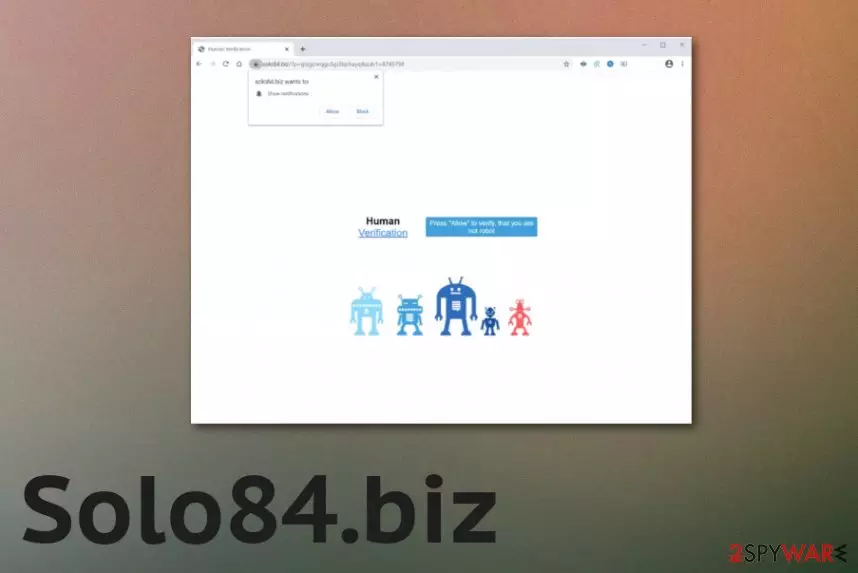
Solo84.biz virus is an adware-type infection that focuses on generating page views, visits, and pay-per-click revenue.[2] This program can even be called push notifications virus because it triggers the subscription of notifications that come directly to your desktop even when the web browsers are closed and not in use. The occurrence of such redirects can also affect mobile devices, tablets, and mobile phones, so you should be aware of such cyber infection. Since the site delivers you various other pages and manages to affect the speed, the more time the PUP has on the computer the more issues it creates.
| Name | Solo84.biz |
|---|---|
| Type | Adware/ redirect virus |
| Tactics | Social engineering[3] methods get used to trick people into subscribing to these push notifications. Verification claims encourage people to click on the banner or a browser pop-up |
| Distribution methods | Freeware downloading sites and malicious pages created with promotional purposes can distribute potentially unwanted programs during the installation of software due to the method called software bundling |
| Symptoms | Pop-ups on the browser state about the need to allow notifications or verify that you are a human to access the material on the page. One-click on the message triggers display of additional pop-ups and redirects |
| Danger | This is the potentially unwanted program that can track, collect and share data about your preferences and habits online because each advertising site contains cookies and other methods designed to obtain such information |
| Elimination | Solo84.biz removal is the important process, so when you use proper anti-malware programs you can fully terminate all the symptoms, and the only issue is to repair the possible damage |
| Repair | PUP can affect performance from the system folders and functions when various files and apps get loaded behind you back. Such damage can significantly diminish your time on the computer, so rely on FortectIntego or a similar program, so this damage can get repaired |
Solo84.biz is one of the thousands of unreliable pages, rogue sites designed to feed visitors unreliable content to generate redirects to additional content online that cannot be considered trustworthy. Users are forced to click on the human verification forms or browser pop-ups to make the needed online traffic reroutes and expose victims to intrusive ads.
Aside from causing those redirects and advertisement campaigns, Solo84.biz PUP can gather data about your device that got affected and particular preferences regarding online browsing and searches or even social medial likes and behavior. This is not the behavior that should require your attention or permission, and cush activities can take place behind your back as many additional PUP functions do.
Even though you notice these pop-ups, banners, redirects, and other symptoms of the infection, Solo84.biz is not only serving as a redirecting program or the site, that shows ads, and that is it. PUP manages to inject files in system folders, disable or add new programs on the device, so some security functions can be managed, and adware evades quick detection, can run on the computer for longer.
This is also the reason why you need to remove Solo84.biz using professional anti-malware tools, so all the potentially related files and programs get to be eliminated and stopped. Your machine can start to work even better than before after such a cleaning process. However, if you decide to wait longer, you may end up with more powerful malware installed or get exposed to a hacker-controlled page. 
Solo84.biz wants to Show notifications
Click “Allow” to close this window
This window can be closed by pressing “Allow”. If you wish to continue browsing this website just click the more info button
Click Allow to confirm that you are not a robot!
Exiting the browser can help right then in there, but the proper Solo84.biz removal process should include the usage of an anti-malware program and the full system scan. This method allows for finding all materials related to the intruder and terminating them once and for all. As for your web browser that gets affected when PUP adds tools, extensions, and applications, you may need help from a guide below.
Web browser settings that manage notifications ay get altered to allow Solo84.biz or any other similar or even related page to send notifications, pop-ups to your screen. You need to change those settings back to default by going to Site settings on the browser and selecting to Block or Remove the site entirely from the preferences list.
Then the only step left to do is the virus damage repair after proper cleaning. When the Solo84.biz is completely terminated, and you are sure that PUP is not running anymore, get a system optimizer or a security tool, and run it on the machine. Applications like FortectIntego can search for issues regarding system files and affected apps or functions and repair such parts of the machine for you. 
Deceptive messages claiming all sorts of things to trigger PUP installations
Tons of different pages online are designed to display questionable material that encourages to click on a banner, pop-up, or even visit the needed site. There are various tactics that claim for a need for human verification, offer prizes or congratulates on the winning.
When you continuously visit such sites, you get exposed to shady material all the time and cannot even notice the PUP than managed to get added on the system without your permission. This also happens when you install freeware on purpose from unreliable sites, torrent services, and so on.
However, choosing Advanced or Custom options may help you to avoid the issue of the unwanted installation. When you go for Recommended or Quick installation all the included apps get downloaded at once, and when you rely on Advanced methods, you can see the full list with pre-packed programs and de-select anything that seems suspicious.
Solo84.biz PUP elimination steps
The first thing that you need to consider is the Solo84.biz virus capability of installing other files and programs. To clean all the associated applications and browser-based programs, you need to either find them all over the system or run the automatic program that can locate malicious files or potential intruders and quarantine or delete them for you.
This procedure can be achieved with an anti-malware program that is based on dangerous file detection and can remove Solo84.biz itself, the PUP that controls processes and other files scattered throughout the machine. You may try to do that manually, but it takes time, and since some of the changes are made in system folders, you may damage the computer further.
It is advised to go for the automatic Solo84.biz removal method that saves time and provides better results quicker. Anti-malware tools, AV detection engines, and security software can find, detect, indicate and delete any type of cyber threat, so your device after such a process may start to work even better than before.
Delete from macOS
Remove the unwanted application:
- From the menu bar, select Go > Applications.
- In the Applications folder, look for any suspicious entries, then drag them to Trash (or right-click and pick Move to Trash).


Delete leftover files and folders:
- Select Go > Go to Folder.
- Enter /Library/Application Support and remove any suspicious folders related to the unwanted program.
- Repeat the same check in the /Library/LaunchAgents and /Library/LaunchDaemons folders, deleting any suspicious entries.

- Finally, empty the Trash to permanently remove the leftovers.

Remove from Mozilla Firefox (FF)
Remove dangerous extensions:
- Open Mozilla Firefox browser and click on the Menu (three horizontal lines at the top-right of the window).
- Select Add-ons.
- In here, select the unwanted extension and click Remove.


Reset the homepage:
- Click three horizontal lines at the top right corner to open the menu.
- Choose Settings.
- Under Home, set your preferred homepage and new tab settings.
Clear cookies and site data:
- Click Menu and pick Settings.
- Go to Privacy & Security section.
- Scroll down to locate Cookies and Site Data.
- Click on Clear Data...
- Select Cookies and Site Data and Temporary cached files and pages, then click Clear.


Reset Mozilla Firefox
If clearing the browser as explained above did not help, reset Mozilla Firefox:
- Open Mozilla Firefox browser and click the Menu.
- Go to Help and then choose Troubleshooting Information.

- Under Give Firefox a tune up section, click on Refresh Firefox...
- Once the pop-up shows up, confirm the action by pressing on Refresh Firefox.



Remove from Google Chrome
Delete malicious extensions from Google Chrome:
- Open Google Chrome, click on the Menu (three vertical dots at the top-right corner) and select More tools > Extensions.
- In the newly opened window, you will see all the installed extensions. Uninstall all suspicious extensions related to the unwanted program by clicking Remove.


Clear cache and web data from Chrome:
- Click on Menu and pick Settings.
- Under Privacy and security, select Clear browsing data.
- Select Browsing history, Cookies and other site data, as well as Cached images and files.
- Click Clear data.


Change your homepage:
- Click menu and choose Settings.
- Look for a suspicious site in the On startup section.
- Click on Open a specific or set of pages and click on three dots to find the Remove option.
Reset Google Chrome:
If the previous methods did not help you, reset Google Chrome to eliminate all the unwanted components:
- Click on Menu and select Settings.
- In the Settings, scroll down and click Advanced.
- Scroll down and locate Reset and clean up section.
- Now click Restore settings to their original defaults.
- Confirm with Reset settings.


Delete from Safari
Remove dangerous extensions:
- Open Safari, click Safari in the menu at the top-left of the screen, and select Preferences.
- Go to the Extensions tab, look for any suspicious entries, and click Uninstall to remove them.


Clear history and website data:
- Click Safari in the menu and pick Clear History.
- Set Clear to all history and confirm with Clear History.


Reset Safari:
- Click Safari in the menu and select Preferences > Advanced.
- Enable Show Develop menu in menu bar.
- From the menu bar, click Develop and select Empty Caches.


Did this guide help?
Be the first to comment