

SpecialReply.com – a PUP that modifies browser settings without your permission
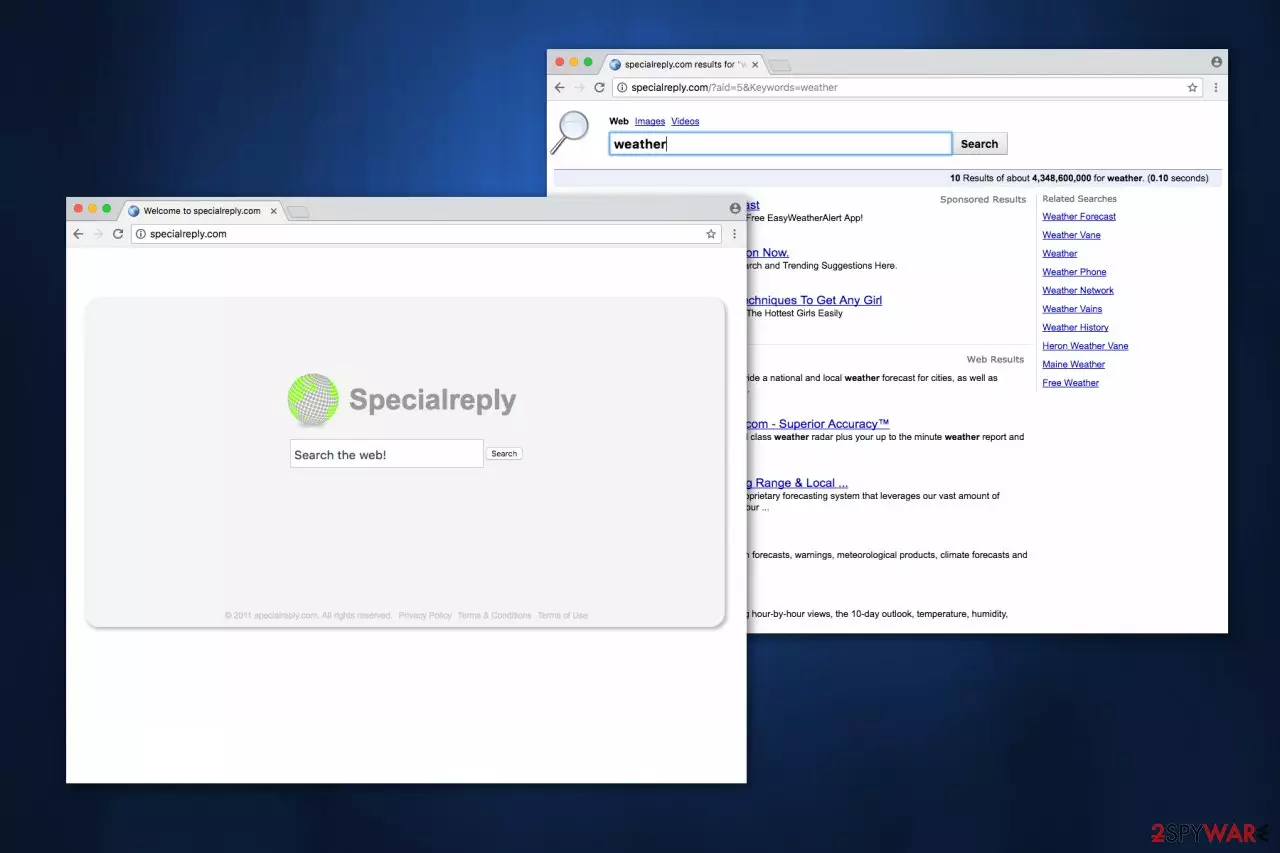
SpecialReply.com falls into a category of a browser hijacker that is usually displayed as a search engine. The developers claim that it, together with SpecialReply Desktop application, should deliver quick search results and this way increase your browsing experience. In reality, it secretly alters your homepage, new tab URL, and default search engine.
Technicians do not call the hijacker a virus, but you might run into a never-ending circle when trying to remove it. Specific potentially unwanted programs (PUPs) and plug-ins that come along with the hijacker are designed to reassign the settings mentioned above to the link of a fake search engine. Thus, making it almost impossible to get rid of the vague website.
| name | SpecialReply.com |
|---|---|
| Type | Browser hijacker, redirect virus, PUP |
| Symptoms of infection | Altered browser settings (new tab, default search engine, homepage); search results are presented from a different source and contain deceptive ads |
| Risks | Privacy leaks, monetary losses, malware infections |
| Distribution | Software bundles, official browser web stores |
| Elimination | Use reliable anti-malware software to remove this intruder |
| System healt | Check for any system irregularities and automatically fix them by using the FortectIntego system diagnostics tool |
The website looks similar to other reputable search engines such as Google, Bing or Yahoo. It is because the developers try their best to attract users into believing that the potentially unwanted program (PUP) is legitimate. It earns click-generated revenue and aims to lure naive computer users into clicking on sponsored ads.
If you think that there is nothing wrong with generating revenue by “clicks,” we want to warn you that the developers of the hijacker are not responsible for the content of the sites you might get redirected to.
In other terms, intrusive ads may redirect you to suspicious websites and increase the risk of getting infected with other potentially unwanted programs (PUPs). If that is not enough, various reports[1] state that browser hijackers tend to collect browsing-related data. This information might expose your identity and lead to serious privacy issues.
You should never submit personal details in the search bar or unconsciously provide valuable information to the developers of the fake search engine. While there are only several cases, the company might sell your details to third-party firms.
If you have noticed your computer behaving unusually, such as continuously redirecting you to suspicious websites, generating annoying ads and pop-ups — it is a warning that the system is infected. Our IT professionals recommend scanning your files with SpyHunterCombo Cleaner, MalwarebytesMalwarebytes, or any other reliable security software.
It will quickly detect the executable files and start a SpecialReply.com removal process. Afterward, you should take care of the overall health of your device. The best way to do that is to perform system diagnostics with the FortectIntego software which will ensure that all system irregularities are taken care of.

Browser hijackers are often advertised as useful tools
You might get redirected by deceiving ads to suspicious websites where developers of the hijacker usually promote it as a “useful” tool[2]. False claims about the functionality of the app lure people into unconsciously downloading a potentially unwanted program (PUP). Dieviren.de[3] IT professionals suggest bypassing intrusive ads and installing software from unofficial developers.
Also, the so-called virus is often bundled together with free software distributed online. The pre-selected box asking to install the browser hijacker along with the regular app is hidden during the download/installation process.
Thus, users who rush and choose Quick or Recommended settings end up getting infected. We strongly recommend opting for Custom or Advanced options when installing software since then you will be able to untick that box. Besides, carefully follow the steps and use a reliable security system.
Remove SpecialReply.com browser hijacker from your device automatically
You can remove SpecialReply.com virus using a reputable security application. Choose it carefully since scammers promote useless and extremely expensive ones. Check reviews online and download them only from official websites. Once installed, run a full system scan and get rid of the hijacker.
However, you have another choice — manual removal. Before trying to eliminate it by yourself, remember that potentially unwanted programs (PUPs) generate never-ending ads. If you have clicked on them, it might automatically trigger an installation of other high-risk computer infections you are not aware of. This may end up doing more harm than good to your system. To avoid that, follow the detailed guide provided below and safely uninstall this browser hijacker.
Uninstall from Windows
Uninstall from Windows 10/8:
- Type Control Panel into the Windows search box and open the result.
- Under Programs, select Uninstall a program.


Uninstall from Windows 7/XP:
- Click on Windows Start > Control Panel (Windows XP users should click on Add/Remove Programs).
- In Control Panel, select Programs > Uninstall a program.


Remove the unwanted program:
- In the Programs and Features window, look for any recently installed suspicious entries, select them, and click Uninstall.
- If User Account Control appears, click Yes to confirm, then complete the removal.


Delete from macOS
Remove the unwanted application:
- From the menu bar, select Go > Applications.
- In the Applications folder, look for any suspicious entries, then drag them to Trash (or right-click and pick Move to Trash).


Delete leftover files and folders:
- Select Go > Go to Folder.
- Enter /Library/Application Support and remove any suspicious folders related to the unwanted program.
- Repeat the same check in the /Library/LaunchAgents and /Library/LaunchDaemons folders, deleting any suspicious entries.

- Finally, empty the Trash to permanently remove the leftovers.

Remove from Microsoft Edge
Delete unwanted extensions from MS Edge:
- Select Menu (three horizontal dots at the top-right of the browser window) and pick Extensions.
- From the list, pick the extension and click on the Gear icon.
- Click Remove.


Clear cookies and other browser data:
- Click on the Menu (three horizontal dots at the top-right of the browser window) and select Settings > Privacy, search, and services..
- Under Clear browsing data, pick Choose what to clear.
- Select Cookies and other site data and Cached images and files. (apart from passwords, although you might want to include Media licenses as well, if applicable) and click on Clear.


Restore new tab and homepage settings:
- Click the menu icon and choose Settings.
- Then find On startup section.
- Click Remove next to any suspicious startup page.
Reset MS Edge if the above steps did not work:
- Press on Ctrl + Shift + Esc to open Task Manager.
- Click on More details arrow at the bottom of the window.
- Select Details tab.
- Now scroll down and locate every entry with Microsoft Edge name in it. Right-click on each of them and select End Task to stop MS Edge from running.


Instructions for Chromium-based Edge
Delete extensions from MS Edge (Chromium):
- Open Edge and click select Settings > Extensions.
- Delete unwanted extensions by clicking Remove.


Clear cache and site data:
- Click on Menu and go to Settings.
- Select Privacy, search and services.
- Under Clear browsing data, pick Choose what to clear.
- Under Time range, pick All time.
- Select Clear now.


Reset Chromium-based MS Edge:
- Click on Menu and select Settings.
- On the left side, pick Reset settings.
- Select Restore settings to their default values.
- Confirm with Reset.
- This will disable extensions and reset startup pages but will not delete bookmarks, saved passwords, or browsing history.


Remove from Mozilla Firefox (FF)
Remove dangerous extensions:
- Open Mozilla Firefox browser and click on the Menu (three horizontal lines at the top-right of the window).
- Select Add-ons.
- In here, select the unwanted extension and click Remove.


Reset the homepage:
- Click three horizontal lines at the top right corner to open the menu.
- Choose Settings.
- Under Home, set your preferred homepage and new tab settings.
Clear cookies and site data:
- Click Menu and pick Settings.
- Go to Privacy & Security section.
- Scroll down to locate Cookies and Site Data.
- Click on Clear Data...
- Select Cookies and Site Data and Temporary cached files and pages, then click Clear.


Reset Mozilla Firefox
If clearing the browser as explained above did not help, reset Mozilla Firefox:
- Open Mozilla Firefox browser and click the Menu.
- Go to Help and then choose Troubleshooting Information.

- Under Give Firefox a tune up section, click on Refresh Firefox...
- Once the pop-up shows up, confirm the action by pressing on Refresh Firefox.



Remove from Google Chrome
Delete malicious extensions from Google Chrome:
- Open Google Chrome, click on the Menu (three vertical dots at the top-right corner) and select More tools > Extensions.
- In the newly opened window, you will see all the installed extensions. Uninstall all suspicious extensions related to the unwanted program by clicking Remove.


Clear cache and web data from Chrome:
- Click on Menu and pick Settings.
- Under Privacy and security, select Clear browsing data.
- Select Browsing history, Cookies and other site data, as well as Cached images and files.
- Click Clear data.


Change your homepage:
- Click menu and choose Settings.
- Look for a suspicious site in the On startup section.
- Click on Open a specific or set of pages and click on three dots to find the Remove option.
Reset Google Chrome:
If the previous methods did not help you, reset Google Chrome to eliminate all the unwanted components:
- Click on Menu and select Settings.
- In the Settings, scroll down and click Advanced.
- Scroll down and locate Reset and clean up section.
- Now click Restore settings to their original defaults.
- Confirm with Reset settings.


Delete from Safari
Remove dangerous extensions:
- Open Safari, click Safari in the menu at the top-left of the screen, and select Preferences.
- Go to the Extensions tab, look for any suspicious entries, and click Uninstall to remove them.


Clear history and website data:
- Click Safari in the menu and pick Clear History.
- Set Clear to all history and confirm with Clear History.


Reset Safari:
- Click Safari in the menu and select Preferences > Advanced.
- Enable Show Develop menu in menu bar.
- From the menu bar, click Develop and select Empty Caches.


Did this guide help?
Be the first to comment