

PUP.Optional.Sweetpacks is a potentially unwanted application that injects ads into Chrome or another web browser
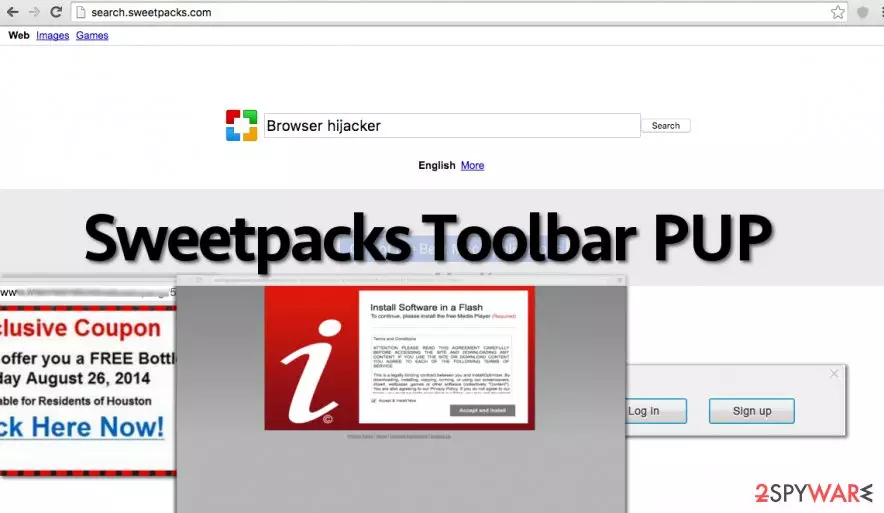
Sweetpacks, otherwise known as PUP.Optional.Sweetpacks, is a potentially unwanted program (PUP) developed by SweetIM. Once the standalone application is installed on the system, it will also download and append a browser toolbar, compatible with Google Chrome, Mozilla Firefox, or another web browser. Additionally, users will also see changes to their homepages and search page, as these are set to start.sweetpacks.com and mysearch.sweetpacks.com.
While Sweetpacks generally works as a browser hijacker,[1] (main problems initiated by this toolbar are system changes and additional redirects to sponsored websites), several features of this program have also been attributed to adware.[2] Besides, the app works much more aggressively than a regular browser-hijacking toolbar, as it also alters Windows system settings, so security applications often mark it as PUP.Optional.Sweetpacks.
| Name | Sweetpacks, PUP.Optional.Sweetpacks |
|---|---|
| Type | Potentially unwanted program/browser hijacker/adware |
| Fake claim | Improve users' searches by providing animations for online chat |
| Main issues caused | Continuous redirects to sponsored websites, popup ads |
| Main risks | Redirects to infected websites might cause malware infections, personal information (if disclosed) might end up in cybercriminals' hands |
| Termination | To uninstall adware, you can check the instructions we provide below and then perform a full system scan with a reputable anti-malware |
| System fix | Since the PUP modifies the Windows registry, it can cause unforeseen consequences after it is removed. Thus, if you system is suffering from crashes and errors, scan it with FortectIntego |
Sweetpacks has mostly been spreading with the help of software bundles. While you can easily download it from its official website as a useful browser add-on, the main way used to spread it is related to third party software. If the program manages to sneak into the system unnoticed, it initiates the following tasks:
- modifies Windows Registry;
- alters the settings of Google Chrome, Mozilla Firefox, Internet Explorer or other installed browsers on the affected device;
- sets search.sweetpacks.com as default search engine, homepage, and new tab URL;
- displays intrusive web advertisements whenever you browse the web;
- tracks information about user’s browsing activities and interests.
The main aim pf Sweet packs is to make the computer user click on the content it presents so that it would be able to reroute the user to particular Internet sites. To achieve this goal, it suggests using a vague search engine and also serves ads during each browsing session.
The PUP.Optional.Sweetpacks hijacker is designed to reject user’s attempts to replace its search engine with a credible search provider. Therefore, this shady website, full of ads and other commercial content, appears every time you open an infected web browser. However, the worst part is that developers aim to control the user’s visited websites.

Sweetpacks redirect tendencies are not only annoying but might also be dangerous. These redirects can lead you to high-risk Internet pages, phishing[3] websites, or pages that promote bogus software updates[4] that carry possibly malicious files. Therefore, you can easily experience malware attacks or privacy-related issues.
Therefore, if you want your computer to stay safe and sound, stay clear of any content powered by this questionable toolbar. However, if it was installed without your knowledge, you have to obtain reputable anti-malware and remove Sweetpacks virus with the help of it. Additionally, after elimination, we suggest you scan the system with FortectIntego to fix issues with the Windows registry.
However, if you prefer eliminating the hijacker without installing security software, you can do it as well. You can find a manual Sweetpacks removal guide at the end of the article.
PUP.Optional.Sweetpacks – a term used to describe a particular set of unwanted apps
PUP.Optional.Sweetpacks is a detection name that is used by Malwarebytes security software to detect potentially unwanted programs that install Sweetpacks adware and hijack all web browsers with a specially crafted toolbar. In most cases, users who would download the application unintentionally would see the pop-up that informs about the infection and that it was stopped successfully.
Additionally, the security app will also prevent the PUP.Optional.Sweetpacks to alter the web browser settings, and append the unwanted URLs to the homepage, start page, and the new tab address.
PUP.Optional.Sweetpacks might represent a variety of apps, however, since detection is generic. Therefore, some users might not have the same application installed and would still receive the same pop-up.
We highly recommend protecting every machine with sophisticated security software, as it stops not only potentially unwanted programs but also malware from accessing vital parts of Windows/Mac systems and making malicious changes to them.

Sneaky way to spread the hijacker
Unwanted apps like PUP.Optional.Sweetpacks hijack computers in a legitimate way. It might sound a bit ridiculous, but unfortunately, that is a complete truth. Such programs spread via freeware and shareware programs, and computer users often install them if they fail to notice such and similar statements during the installation process:
- “Yes, I agree to install Sweetpacks Toolbar.”
- “I agree to set my homepage, new tab page and default search to search.sweetpacks.com.”
You can find and deny these pre-selected permissions via Advanced or Custom settings in the installation wizard. You should opt for these installation modes at all times. Security experts from Bedynet.ru[5] remind that Default and Standard installation options often conceal these permissions without even revealing them to you.
Uninstall Sweetpacks for good
We have prepared an informative Sweetpacks Toolbar removal guide below, which will help you to locate all components of this PC parasite and remove them in a correct order. You must eliminate all files that are related to the browser hijacker to keep your computer safe.
However, considering the fact that PUPs usually do not spread alone, we strongly recommend you to scan your computer with a strong anti-malware software to see if there are no other possibly dangerous programs left on the system. Your preferred tool will remove Sweetpacks and other entries related to it.
Uninstall from Windows
Uninstall from Windows 10/8:
- Type Control Panel into the Windows search box and open the result.
- Under Programs, select Uninstall a program.


Uninstall from Windows 7/XP:
- Click on Windows Start > Control Panel (Windows XP users should click on Add/Remove Programs).
- In Control Panel, select Programs > Uninstall a program.


Remove the unwanted program:
- In the Programs and Features window, look for any recently installed suspicious entries, select them, and click Uninstall.
- If User Account Control appears, click Yes to confirm, then complete the removal.


Delete from macOS
Remove the unwanted application:
- From the menu bar, select Go > Applications.
- In the Applications folder, look for any suspicious entries, then drag them to Trash (or right-click and pick Move to Trash).


Delete leftover files and folders:
- Select Go > Go to Folder.
- Enter /Library/Application Support and remove any suspicious folders related to the unwanted program.
- Repeat the same check in the /Library/LaunchAgents and /Library/LaunchDaemons folders, deleting any suspicious entries.

- Finally, empty the Trash to permanently remove the leftovers.

Reset Internet Explorer
Remove dangerous add-ons:
- Open Internet Explorer, click on the Gear icon (IE menu) on the top-right corner of the browser
- Pick Manage Add-ons.
- You will see a Manage Add-ons window. Here, look for suspicious plugins. Click on these entries and select Disable.


Change your homepage if it was altered:
- Open IE and click on the Gear icon.
- Select Internet Options.
- In the General tab, delete the Home page address and replace it by your preferred one (for example, Google.com).
- Click Apply and then select OK.


Delete temporary files:
- Press on the Gear icon and select Internet Options.
- Under Browsing history, click Delete...
- Select relevant fields and press Delete.


Reset Internet Explorer:
- Click on Gear icon > Internet options and select Advanced tab.
- Select Reset.
- In the new window, check Delete personal settings and select Reset.


Remove from Microsoft Edge
Delete unwanted extensions from MS Edge:
- Select Menu (three horizontal dots at the top-right of the browser window) and pick Extensions.
- From the list, pick the extension and click on the Gear icon.
- Click Remove.


Clear cookies and other browser data:
- Click on the Menu (three horizontal dots at the top-right of the browser window) and select Settings > Privacy, search, and services..
- Under Clear browsing data, pick Choose what to clear.
- Select Cookies and other site data and Cached images and files. (apart from passwords, although you might want to include Media licenses as well, if applicable) and click on Clear.


Restore new tab and homepage settings:
- Click the menu icon and choose Settings.
- Then find On startup section.
- Click Remove next to any suspicious startup page.
Reset MS Edge if the above steps did not work:
- Press on Ctrl + Shift + Esc to open Task Manager.
- Click on More details arrow at the bottom of the window.
- Select Details tab.
- Now scroll down and locate every entry with Microsoft Edge name in it. Right-click on each of them and select End Task to stop MS Edge from running.


Instructions for Chromium-based Edge
Delete extensions from MS Edge (Chromium):
- Open Edge and click select Settings > Extensions.
- Delete unwanted extensions by clicking Remove.


Clear cache and site data:
- Click on Menu and go to Settings.
- Select Privacy, search and services.
- Under Clear browsing data, pick Choose what to clear.
- Under Time range, pick All time.
- Select Clear now.


Reset Chromium-based MS Edge:
- Click on Menu and select Settings.
- On the left side, pick Reset settings.
- Select Restore settings to their default values.
- Confirm with Reset.
- This will disable extensions and reset startup pages but will not delete bookmarks, saved passwords, or browsing history.


Remove from Mozilla Firefox (FF)
Remove dangerous extensions:
- Open Mozilla Firefox browser and click on the Menu (three horizontal lines at the top-right of the window).
- Select Add-ons.
- In here, select the unwanted extension and click Remove.


Reset the homepage:
- Click three horizontal lines at the top right corner to open the menu.
- Choose Settings.
- Under Home, set your preferred homepage and new tab settings.
Clear cookies and site data:
- Click Menu and pick Settings.
- Go to Privacy & Security section.
- Scroll down to locate Cookies and Site Data.
- Click on Clear Data...
- Select Cookies and Site Data and Temporary cached files and pages, then click Clear.


Reset Mozilla Firefox
If clearing the browser as explained above did not help, reset Mozilla Firefox:
- Open Mozilla Firefox browser and click the Menu.
- Go to Help and then choose Troubleshooting Information.

- Under Give Firefox a tune up section, click on Refresh Firefox...
- Once the pop-up shows up, confirm the action by pressing on Refresh Firefox.



Remove from Google Chrome
Delete malicious extensions from Google Chrome:
- Open Google Chrome, click on the Menu (three vertical dots at the top-right corner) and select More tools > Extensions.
- In the newly opened window, you will see all the installed extensions. Uninstall all suspicious extensions related to the unwanted program by clicking Remove.


Clear cache and web data from Chrome:
- Click on Menu and pick Settings.
- Under Privacy and security, select Clear browsing data.
- Select Browsing history, Cookies and other site data, as well as Cached images and files.
- Click Clear data.


Change your homepage:
- Click menu and choose Settings.
- Look for a suspicious site in the On startup section.
- Click on Open a specific or set of pages and click on three dots to find the Remove option.
Reset Google Chrome:
If the previous methods did not help you, reset Google Chrome to eliminate all the unwanted components:
- Click on Menu and select Settings.
- In the Settings, scroll down and click Advanced.
- Scroll down and locate Reset and clean up section.
- Now click Restore settings to their original defaults.
- Confirm with Reset settings.


Delete from Safari
Remove dangerous extensions:
- Open Safari, click Safari in the menu at the top-left of the screen, and select Preferences.
- Go to the Extensions tab, look for any suspicious entries, and click Uninstall to remove them.


Clear history and website data:
- Click Safari in the menu and pick Clear History.
- Set Clear to all history and confirm with Clear History.


Reset Safari:
- Click Safari in the menu and select Preferences > Advanced.
- Enable Show Develop menu in menu bar.
- From the menu bar, click Develop and select Empty Caches.


Did this guide help?
4 comments
Jacob39
Seriously guys, watch what you download to your computer. I have downloaded Sweetpacks toolbar by accident, I believe it was added to one game that I have downloaded. I remember that I didnt touch installation settings and left them set to Default. My mistake!
Michael
horrible, just horrible. Now I cannot remove sweetpacks! I will give SpyHunter a go.
anna
Worst browser extension!!! Its stuck in my chrome browser
Dani38
it changed my homepage without my permission! Thats not fair. I am not keeping it for any longer..