

System Clean Pro – a rogue system tool which claims to fix all system-related issues
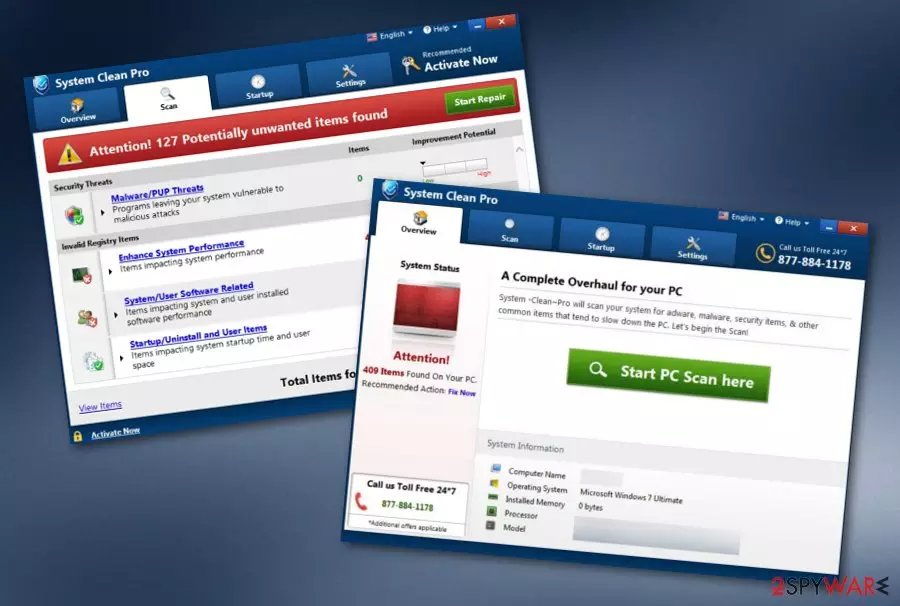
System Clean Pro is a fake computer optimization program which is not able to fix any problems even though it claims the opposite. This application can appear on your computer if you have recently downloaded some software from a third-party website or clicked on an infected hyperlink. Once installed, System Clean Pro virus starts dropping rogue alerts on the user's desktop screen which usually announces about numerous system struggles that were found during the scan. After that, victims are urged to pay for the licensed version of the software if they want to cure all flaws. However, all of this is just a strategy to earn more money from gullible people and you should not fall for believing in such system applications.
| Name | System Clean Pro |
|---|---|
| Type | System tool |
| Sub-type | Potentially unwanted program |
| Purpose | To attract users to buy the full version of the software |
| Systems infected | Windows or Mac OS X |
| Distribution sources | Other programs, infected links |
| Detection possibilities | FortectIntego is a tool which can find such PUPs |
| Elimination process | Make sure that you get rid of the tool permanently. You can use automatical tools for this process |
System Clean Pro PUP is not a tool you can trust. It offers a wide range of abilities in order to refresh, speed up, and secure the computer system, however, all it does is detect outdated programs, cache,[1] and other harmless components that might be found on a computer, and present them as dangerous infections or important computer problems which need to be removed immediately.
As a solution, System Clean Pro urges users to buy the licensed version of the potentially unwanted application. After paying the price and downloading the program, users receive a simulation of a fix which is done to the “damaged” system. Even though the rogue system optimization program claims that the system is secured, it alerts after some time that new problems are found and fixing needs to be performed again.
If you are still not sure what is real and what is not, we advise to download and install a reliable antivirus program and perform a full system scan with the tool. After the scanning process is completed, you should combine the results between the two system tools. We can guarantee you almost 100% that data which is provided by System Clean Pro is all false and misleading.
After you are concerned about the program's uselessness, we offer to remove System Clean Pro virus from your computer system permanently as there is no important reason for keeping it. We recommend choosing a reliable tool such as FortectIntego to detect the computer tool and get rid of it safely. Using specific anti-malware will ensure you that no particular components that relate to the app are left in the system.
Additionally, if you want to carry out the System Clean Pro removal on your own, you can also do that. We have provided some detailed instructions for Windows and Mac users also. Check out the guidelines below this article. Make sure that you do not use similar tools in the future in order to protect your computer system as these programs are not created for securing computers and preventing malware infiltration.

Fake security tools infiltrate the computer by bundling or infected components
If you have been experiencing pop-ups from rogue system tools lately, there is a chance that such false computer software has come together with other programs that you have downloaded from the Internet recently, or from a suspicious-looking website. However, according to technology experts from NoVirus.uk,[2] potentially unwanted applications can be avoided if you:
- Are careful while entering less-known pages. Even though the best option would be to close all suspicious websites immediately, at least you could prevent clicking on various hyperlinks and advertisements.
- Use only original downloading and installing programs. For example, we recommend choosing the Custom or Advanced installation mode which you can find in your web browser's settings. This option will forbid rogue programs from entering your computer system.
- Keep an updated antivirus program[3] on your machine. These tools can be really helpful as they offer a wide range of functions such as detecting system issues and malware by performing a scan, increasing the machine's performance, fixing various problems.
Make sure that System Clean Pro fake system optimization tool is removed safely from the system
We offer to remove System Clean Pro manually or automatically. If you have decided to use automatical computer tools, make sure that you choose reliable software for the process. This way you will be sure that the program is terminated successfully. To add, you can check our below-provided instructions in order to get rid of the potentially unwanted program from your Windows or Mac operating system.[4]
System Clean Pro removal is not such a complex process to carry out so an anti-malware tool should deal with the rogue program in just a couple of minutes. After you terminate the fake system optimization program, do not forget to memorize all precautionary measures that are necessary in order to avoid other possible infiltrations in the future. Moreover, install reliable computer software to protect your machine 24/7.
Uninstall from Windows
Uninstall from Windows 10/8:
- Type Control Panel into the Windows search box and open the result.
- Under Programs, select Uninstall a program.


Uninstall from Windows 7/XP:
- Click on Windows Start > Control Panel (Windows XP users should click on Add/Remove Programs).
- In Control Panel, select Programs > Uninstall a program.


Remove the unwanted program:
- In the Programs and Features window, look for any recently installed suspicious entries, select them, and click Uninstall.
- If User Account Control appears, click Yes to confirm, then complete the removal.


Delete from macOS
Remove the unwanted application:
- From the menu bar, select Go > Applications.
- In the Applications folder, look for any suspicious entries, then drag them to Trash (or right-click and pick Move to Trash).


Delete leftover files and folders:
- Select Go > Go to Folder.
- Enter /Library/Application Support and remove any suspicious folders related to the unwanted program.
- Repeat the same check in the /Library/LaunchAgents and /Library/LaunchDaemons folders, deleting any suspicious entries.

- Finally, empty the Trash to permanently remove the leftovers.

Did this guide help?
Be the first to comment