

System Security 2009 is a fake anti-malware program that creates system issues and diminishes Windows security
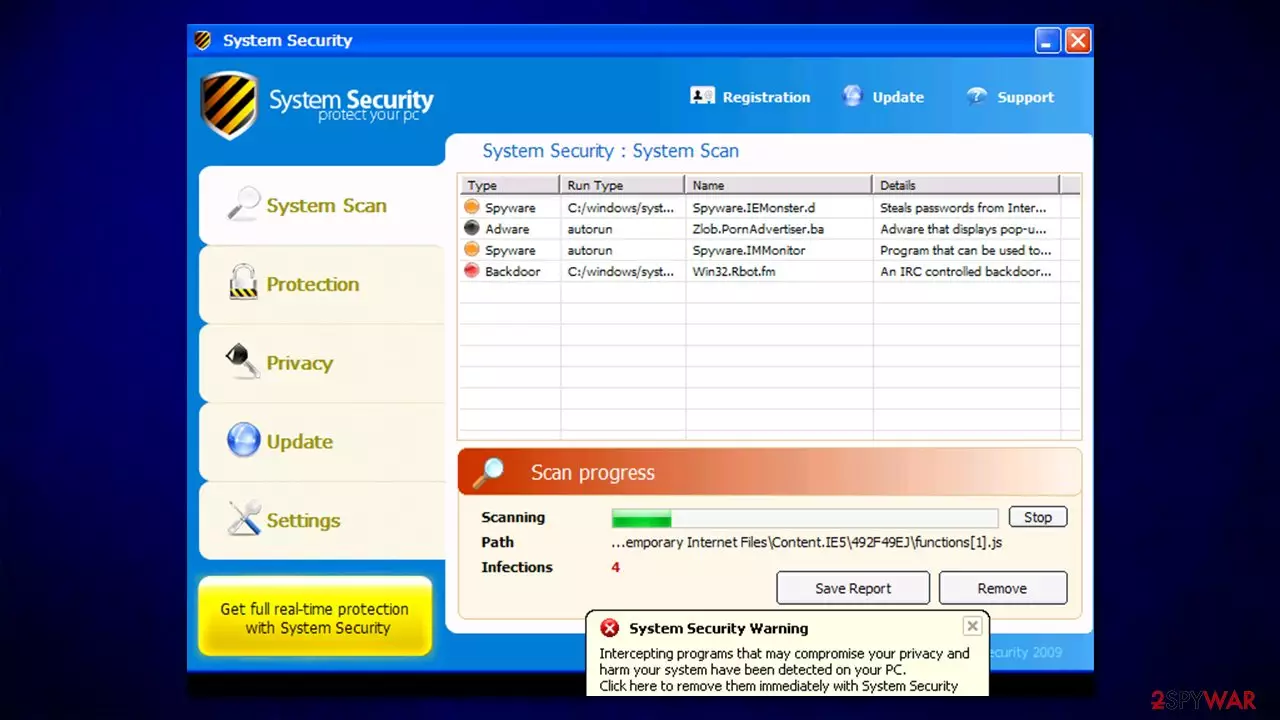
System Security 2009 is just another version of a notorious and rogue anti-spyware application called System Security. Just like its predecessors, the app's distribution and operation principles remain the same – to scam users and make them purchase its full version. However, you should never do that, as not only will you waste your money, but your computer will remain vulnerable to other cyber threats.
System Security 2009 is commonly distributed as an optional component or an ad on third-party websites, although it can also be installed automatically by Trojans already present on the machine. Therefore, if you noticed that the app is running scans on your system or showing you warnings, it is time to clean your device from malware.
| Name | System Security 2009 |
| Type | Malware, rogue anti-spyware |
| Distribution | Online scam messages, Trojans already present on the computer |
| Dangers | Windows system damage, personal data leak, monetary loss |
| Removal | Perform a full system scan with powerful anti-malware software and reset web browsers |
| System fix | Malware greatly modifies Windows OS in order to perform its malicious actions. Once it is eliminated, the damage caused could prevail. In order to fix it, you can either initiate a Windows reinstall or employ FortectIntego to do the process for you without losing any files |
Essentially, System Security 2009 is a virus itself, as it changes the way a Windows computer functions – in a negative way. Here are two examples of malicious actions that the malware engages in as soon as it is installed on the computer:
- Changes Windows registry in order to start automatically
- Can not be shut down in a regular way
- Modifies Google Chrome, Mozilla Firefox, MS Edge or Internet Explorer proxy/DNS settings, preventing users from accessing security-related websites;
- Upon uninstallation, leaves hundreds of processes running in the background
- Redirects to malicious sites, even after its removal, etc.
These are all the background activities that the virus engages itself with in order to operate as intended. Once installed, the rogue anti-spyware would show various fake pop-ups and notifications, constantly nagging users to purchase its full version; otherwise, the system is allegedly at risk.
The rogue program usually uses frighten methods to inform that the user's PC is infected with spyware, malware, or other similar infections. These notifications are typically displayed from the Windows taskbar, e.g.:
System warning:
Intercepting programs that may compromise your privacy and harm your system have been detected on your PC. Click here to remove them immediately with the latest version of System Security 2009.
Of course, the main goal of this parasite is to offer remediation in exchange for payment. However, this program is a scam. The rogue cannot detect and remove any kind of infection simply because it is an infection itself. It is highly recommended to remove it from the system upon detection.
To make matters worse, those infected would not be able to use the internet properly, even after malware is eliminated with genuine anti-spyware. Therefore, it is important to clean the web browsers accordingly and reset Windows connection settings. For that, either follow the guide below or employ an automatic solution – FortectIntego.
How to detect deception in ads on the internet
Rogue anti-malware is typically installed by users themselves, typically after they look for security software online or after they are tricked by a fake notification on a random website. Trojans can also install rogue software in the background without users interacting with anything.
Here are the main ways to defend yourself from such attacks:
- Never believe pop-ups that claim your system is infected or that it requires some type of software update (e.g., Google Chrome, Flash Player, Java, etc.). If in doubt, perform a full system scan with anti-malware software and download all the updates from official program websites or app stores.
- Equip your system with powerful anti-malware, firewall, and ad-blocking software to prevent automatic intrusions.
- Always watch the installation process of new programs carefully – pick Advanced/Custom settings instead of Recommended/Quick ones when prompted and remove all the ticks next to optional components.
Delete System Security 2009 from your computer as soon as possible
You should not keep fake security applications installed on your system, as they provide a false sense of security and oftentimes are viruses themselves. In the background, they perform malicious actions in order to make it look like the machine is infected with malware.
Therefore, download security applications from the official sources only and remove System Security 2009 as soon as possible. For that, please follow the guide below. After you uninstall the app manually, perform a full system scan with reputable anti-malware and then clean your browsers accordingly.
Uninstall from Windows
Uninstall from Windows 10/8:
- Type Control Panel into the Windows search box and open the result.
- Under Programs, select Uninstall a program.


Uninstall from Windows 7/XP:
- Click on Windows Start > Control Panel (Windows XP users should click on Add/Remove Programs).
- In Control Panel, select Programs > Uninstall a program.


Remove the unwanted program:
- In the Programs and Features window, look for any recently installed suspicious entries, select them, and click Uninstall.
- If User Account Control appears, click Yes to confirm, then complete the removal.


Remove from Microsoft Edge
Delete unwanted extensions from MS Edge:
- Select Menu (three horizontal dots at the top-right of the browser window) and pick Extensions.
- From the list, pick the extension and click on the Gear icon.
- Click Remove.


Clear cookies and other browser data:
- Click on the Menu (three horizontal dots at the top-right of the browser window) and select Settings > Privacy, search, and services..
- Under Clear browsing data, pick Choose what to clear.
- Select Cookies and other site data and Cached images and files. (apart from passwords, although you might want to include Media licenses as well, if applicable) and click on Clear.


Restore new tab and homepage settings:
- Click the menu icon and choose Settings.
- Then find On startup section.
- Click Remove next to any suspicious startup page.
Reset MS Edge if the above steps did not work:
- Press on Ctrl + Shift + Esc to open Task Manager.
- Click on More details arrow at the bottom of the window.
- Select Details tab.
- Now scroll down and locate every entry with Microsoft Edge name in it. Right-click on each of them and select End Task to stop MS Edge from running.


Instructions for Chromium-based Edge
Delete extensions from MS Edge (Chromium):
- Open Edge and click select Settings > Extensions.
- Delete unwanted extensions by clicking Remove.


Clear cache and site data:
- Click on Menu and go to Settings.
- Select Privacy, search and services.
- Under Clear browsing data, pick Choose what to clear.
- Under Time range, pick All time.
- Select Clear now.


Reset Chromium-based MS Edge:
- Click on Menu and select Settings.
- On the left side, pick Reset settings.
- Select Restore settings to their default values.
- Confirm with Reset.
- This will disable extensions and reset startup pages but will not delete bookmarks, saved passwords, or browsing history.


Remove from Mozilla Firefox (FF)
Remove dangerous extensions:
- Open Mozilla Firefox browser and click on the Menu (three horizontal lines at the top-right of the window).
- Select Add-ons.
- In here, select the unwanted extension and click Remove.


Reset the homepage:
- Click three horizontal lines at the top right corner to open the menu.
- Choose Settings.
- Under Home, set your preferred homepage and new tab settings.
Clear cookies and site data:
- Click Menu and pick Settings.
- Go to Privacy & Security section.
- Scroll down to locate Cookies and Site Data.
- Click on Clear Data...
- Select Cookies and Site Data and Temporary cached files and pages, then click Clear.


Reset Mozilla Firefox
If clearing the browser as explained above did not help, reset Mozilla Firefox:
- Open Mozilla Firefox browser and click the Menu.
- Go to Help and then choose Troubleshooting Information.

- Under Give Firefox a tune up section, click on Refresh Firefox...
- Once the pop-up shows up, confirm the action by pressing on Refresh Firefox.



Remove from Google Chrome
Delete malicious extensions from Google Chrome:
- Open Google Chrome, click on the Menu (three vertical dots at the top-right corner) and select More tools > Extensions.
- In the newly opened window, you will see all the installed extensions. Uninstall all suspicious extensions related to the unwanted program by clicking Remove.


Clear cache and web data from Chrome:
- Click on Menu and pick Settings.
- Under Privacy and security, select Clear browsing data.
- Select Browsing history, Cookies and other site data, as well as Cached images and files.
- Click Clear data.


Change your homepage:
- Click menu and choose Settings.
- Look for a suspicious site in the On startup section.
- Click on Open a specific or set of pages and click on three dots to find the Remove option.
Reset Google Chrome:
If the previous methods did not help you, reset Google Chrome to eliminate all the unwanted components:
- Click on Menu and select Settings.
- In the Settings, scroll down and click Advanced.
- Scroll down and locate Reset and clean up section.
- Now click Restore settings to their original defaults.
- Confirm with Reset settings.


Delete from Safari
Remove dangerous extensions:
- Open Safari, click Safari in the menu at the top-left of the screen, and select Preferences.
- Go to the Extensions tab, look for any suspicious entries, and click Uninstall to remove them.


Clear history and website data:
- Click Safari in the menu and pick Clear History.
- Set Clear to all history and confirm with Clear History.


Reset Safari:
- Click Safari in the menu and select Preferences > Advanced.
- Enable Show Develop menu in menu bar.
- From the menu bar, click Develop and select Empty Caches.


Did this guide help?
Be the first to comment