

System-sms.com is an insecure website that users might encounter on Google Chrome or any other browser due to PUP infection

System-sms.com is a fraudulent website that is considered to be unsafe by security experts.[1] Once users land on the domain, they are presented with a request to agree to show notifications in order to view a promised video. Site authors use social engineering[2] skills by displaying the following message that implies that the content is X-rated:
If your are 18+, click allow to play the video
However, the appeal is only there in order to make users allow notifications to be shown from System-sms.com, which come in the form of intrusive pop-up ads – these can show up at any time when the computer is on, even if Google Chrome, Mozilla Firefox, Internet Explorer, Safari or any other browser is turned off. As evident, users should not agree to the request, as it will not provide access to the promised video – it will only enable the System-sms.com site to spam ads non-stop.
| Name | System-sms.com |
| Type | Push notification virus |
| Source | If you constantly get redirected to System-sms.com and similar suspicious websites, it might be because of adware installed on your computer |
| Infiltration | Push notifications enabled after visiting the site; adware enters machines with the help of software bundle packages |
| Symptoms | Redirects to suspicious or even dangerous websites, pop-up ads on most visited websites, notifications are shown on the desktop even when the browser is turned off, altered web browser settings, changed homepage and search engine, etc. |
| Dangers | Clicking on links and interacting with unknown content might result in the installation of other PUPs or malware, as well as personal data leak and money loss |
| Termination | To disable System-sms.com ads, refer to the instructions at the bottom section, as well as ways how to reset each of the installed browsers; for adware elimination, you can employ a manual or automatic method |
| Recovery | Use FortectIntego to optimize your computer and fix any virus-affected files |
However, if, among System-sms.com, you run into sites that display offers, deals, banners, in-text links, other ads, or scam messages, there is a high chance that your machine is infected with a potentially unwanted program (adware).[3] In such a case, to remove System-sms.com and other content is shown on your web browsers, you will have to find and terminate the root cause – find all the details at the bottom of this article.
If you allowed System-sms.com notifications to be shown, they could be turned off easily via the web browser settings. Unfortunately, not many users are aware of how to accomplish that, and they are often stuck with unwanted advertisements. This is precisely what the developers of such sites like Facebook-info.com, Topernews.me, Fiterdiloin.pro and System-sms.com count on.
The trick of showing an allegedly to be played video is not the only one that System-sms.com authors might use. In other cases, for example, users might be asked to allow notifications to prove that the visitor is not a robot – it is a commonly used practice by multiple sites in order to prevent bots from accessing it.
In other words, System-sms.com relies on people who are unaware of the push notification feature (it is a legitimate technique and can help users see newly published articles from sites they are interested in) and measures to make them enable it may vary.

System-sms.com removal is not that complicated – all you have to do is disable notifications via your browser. However, if you are noticing some strange browser behavior, you will also have to eliminate all the potentially unwanted programs that were most likely installed behind your back. You can do that by following our guide below or using anti-malware tools. Additionally, if your machine was indeed infected with adware or other PUP, you should reset all installed browsers and scan your computer with FortectIntego to fix virus damage.
Software bundling is a deceptive technique that allows freeware authors to trick you into installing potentially unwanted programs
While users are already aware of the risk of downloading and installing pirated software or using software cracks, most are still unaware that pesky infections like adware are still relatively easy to catch. The lack of attentiveness and users' unwillingness to pay close attention to the installation process of free applications acquired from third-party sources often serve as the main reason for PUPs slipping into machines. What is even worse, that, after the infection, some are unable to understand that they are infected, and keep clicking on links provided by adware. Thus, being oblivious does not help cybersecurity, that is for sure.
here are some tips that will help you stay away from potentially unwanted programs:
- if possible, download the application from official sources (Google web store, Amazon, etc.)
- before installing the app, check out some reviews about it online
- when downloading from third-parties, be wary of optional content clipped to the main installer
- be aware of tricks used to make you install the PUP without noticing: pre-ticked boxes, fine print, deceptive deals/offers, misplaced buttons, etc.
- always opt for Advanced/Custom installation settings instead of Recommended/Quick ones.
Get rid of System-sms.com notifications and adware
System-sms.com removal is depending on whether your machine is indeed infected with adware. Therefore, you should first check the list of the installed applications and get rid of everything you recently installed (unintentionally). If you are unsure how to accomplish that, you can check our instructions below. Even a more straightforward way is to scan your machine with anti-malware software that also incorporates a feature that scans for PUPs – all the unwanted components would be terminated automatically. Optionally, you could also reset all the installed browsers.
If no adware was found but your seeing notifications, you need to remove System-sms.com entry from the allowed list under web browsing settings. Here's how to do that:
Google Chrome
- Pick Menu > Settings
- Scroll down and select Advanced
- Under Privacy and security, click Site Settings > Notifications
- System-sms.com entry should be under Allow section
- Click More Actions and then pick Block
Safari:
- Click Safari > Preferences…
- Under Websites tab, pick Notifications
- Select System-sms.com and then choose Deny
Mozilla Firefox:
- Select Menu > Options
- Choose Privacy & Security section and then go for Notifications
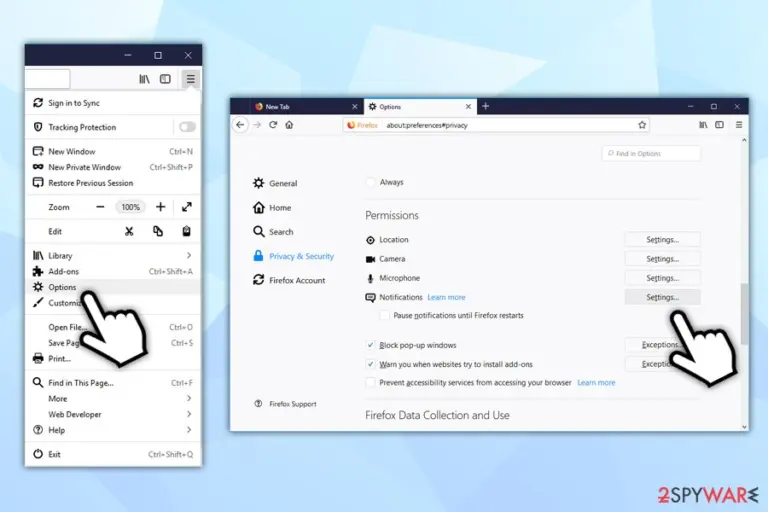
- Pick Settings – you should see System-sms.com entry
- Click on the the drop-down menu and select Block
- Save Changes

MS Edge:
- Click More and pick Settings
- Choose View advanced settings
- Select Advanced
- Click Manage permissions
- Find System-sms.com and turn off notifications
Uninstall from Windows
Uninstall from Windows 10/8:
- Type Control Panel into the Windows search box and open the result.
- Under Programs, select Uninstall a program.


Uninstall from Windows 7/XP:
- Click on Windows Start > Control Panel (Windows XP users should click on Add/Remove Programs).
- In Control Panel, select Programs > Uninstall a program.


Remove the unwanted program:
- In the Programs and Features window, look for any recently installed suspicious entries, select them, and click Uninstall.
- If User Account Control appears, click Yes to confirm, then complete the removal.


Delete from macOS
Remove the unwanted application:
- From the menu bar, select Go > Applications.
- In the Applications folder, look for any suspicious entries, then drag them to Trash (or right-click and pick Move to Trash).


Delete leftover files and folders:
- Select Go > Go to Folder.
- Enter /Library/Application Support and remove any suspicious folders related to the unwanted program.
- Repeat the same check in the /Library/LaunchAgents and /Library/LaunchDaemons folders, deleting any suspicious entries.

- Finally, empty the Trash to permanently remove the leftovers.

Reset Internet Explorer
Remove dangerous add-ons:
- Open Internet Explorer, click on the Gear icon (IE menu) on the top-right corner of the browser
- Pick Manage Add-ons.
- You will see a Manage Add-ons window. Here, look for suspicious plugins. Click on these entries and select Disable.


Change your homepage if it was altered:
- Open IE and click on the Gear icon.
- Select Internet Options.
- In the General tab, delete the Home page address and replace it by your preferred one (for example, Google.com).
- Click Apply and then select OK.


Delete temporary files:
- Press on the Gear icon and select Internet Options.
- Under Browsing history, click Delete...
- Select relevant fields and press Delete.


Reset Internet Explorer:
- Click on Gear icon > Internet options and select Advanced tab.
- Select Reset.
- In the new window, check Delete personal settings and select Reset.


Remove from Microsoft Edge
Delete unwanted extensions from MS Edge:
- Select Menu (three horizontal dots at the top-right of the browser window) and pick Extensions.
- From the list, pick the extension and click on the Gear icon.
- Click Remove.


Clear cookies and other browser data:
- Click on the Menu (three horizontal dots at the top-right of the browser window) and select Settings > Privacy, search, and services..
- Under Clear browsing data, pick Choose what to clear.
- Select Cookies and other site data and Cached images and files. (apart from passwords, although you might want to include Media licenses as well, if applicable) and click on Clear.


Restore new tab and homepage settings:
- Click the menu icon and choose Settings.
- Then find On startup section.
- Click Remove next to any suspicious startup page.
Reset MS Edge if the above steps did not work:
- Press on Ctrl + Shift + Esc to open Task Manager.
- Click on More details arrow at the bottom of the window.
- Select Details tab.
- Now scroll down and locate every entry with Microsoft Edge name in it. Right-click on each of them and select End Task to stop MS Edge from running.


Instructions for Chromium-based Edge
Delete extensions from MS Edge (Chromium):
- Open Edge and click select Settings > Extensions.
- Delete unwanted extensions by clicking Remove.


Clear cache and site data:
- Click on Menu and go to Settings.
- Select Privacy, search and services.
- Under Clear browsing data, pick Choose what to clear.
- Under Time range, pick All time.
- Select Clear now.


Reset Chromium-based MS Edge:
- Click on Menu and select Settings.
- On the left side, pick Reset settings.
- Select Restore settings to their default values.
- Confirm with Reset.
- This will disable extensions and reset startup pages but will not delete bookmarks, saved passwords, or browsing history.


Remove from Mozilla Firefox (FF)
Remove dangerous extensions:
- Open Mozilla Firefox browser and click on the Menu (three horizontal lines at the top-right of the window).
- Select Add-ons.
- In here, select the unwanted extension and click Remove.


Reset the homepage:
- Click three horizontal lines at the top right corner to open the menu.
- Choose Settings.
- Under Home, set your preferred homepage and new tab settings.
Clear cookies and site data:
- Click Menu and pick Settings.
- Go to Privacy & Security section.
- Scroll down to locate Cookies and Site Data.
- Click on Clear Data...
- Select Cookies and Site Data and Temporary cached files and pages, then click Clear.


Reset Mozilla Firefox
If clearing the browser as explained above did not help, reset Mozilla Firefox:
- Open Mozilla Firefox browser and click the Menu.
- Go to Help and then choose Troubleshooting Information.

- Under Give Firefox a tune up section, click on Refresh Firefox...
- Once the pop-up shows up, confirm the action by pressing on Refresh Firefox.



Remove from Google Chrome
Delete malicious extensions from Google Chrome:
- Open Google Chrome, click on the Menu (three vertical dots at the top-right corner) and select More tools > Extensions.
- In the newly opened window, you will see all the installed extensions. Uninstall all suspicious extensions related to the unwanted program by clicking Remove.


Clear cache and web data from Chrome:
- Click on Menu and pick Settings.
- Under Privacy and security, select Clear browsing data.
- Select Browsing history, Cookies and other site data, as well as Cached images and files.
- Click Clear data.


Change your homepage:
- Click menu and choose Settings.
- Look for a suspicious site in the On startup section.
- Click on Open a specific or set of pages and click on three dots to find the Remove option.
Reset Google Chrome:
If the previous methods did not help you, reset Google Chrome to eliminate all the unwanted components:
- Click on Menu and select Settings.
- In the Settings, scroll down and click Advanced.
- Scroll down and locate Reset and clean up section.
- Now click Restore settings to their original defaults.
- Confirm with Reset settings.


Delete from Safari
Remove dangerous extensions:
- Open Safari, click Safari in the menu at the top-left of the screen, and select Preferences.
- Go to the Extensions tab, look for any suspicious entries, and click Uninstall to remove them.


Clear history and website data:
- Click Safari in the menu and pick Clear History.
- Set Clear to all history and confirm with Clear History.


Reset Safari:
- Click Safari in the menu and select Preferences > Advanced.
- Enable Show Develop menu in menu bar.
- From the menu bar, click Develop and select Empty Caches.


Did this guide help?
Be the first to comment