

“System Warning” is a scam message which tries trick you into calling fake tech support
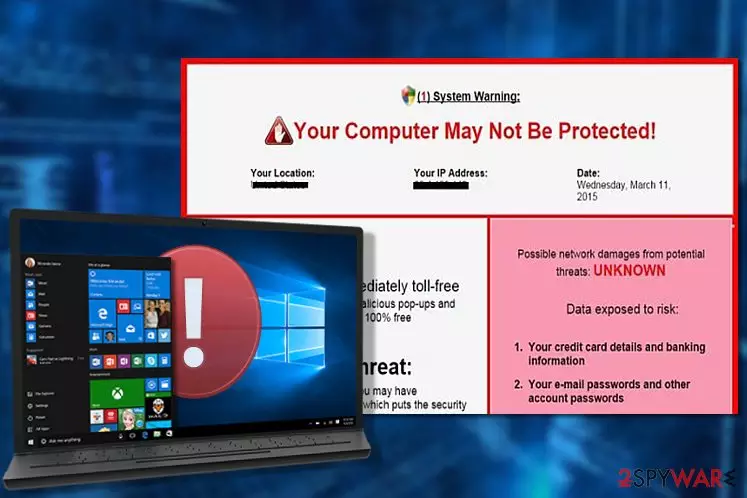
“System Warning” is a fraudulent pop-up which claims that the computer is damaged by a virus. The scam aims to trick novice computer users into believing that they must contact the so-called tech support via toll-free 844-373-0540 number. Unfortunately, such alerts are categorized as tech support scams and are merely designed to generate illegal profits or distribute less than reliable software.
| Name | “System Warning” |
|---|---|
| Type | Adware |
| Danger level | Medium |
| Distribution | Spreads via unprotected P2P networks or with the help of bundling method |
| Symptoms | Users start encountering intrusive fake alerts claiming that their systems are infected with a virus. Commonly, the scam messages persist for long periods of time and becomes annoying |
| Elimination | Simply closing the tab or window won't help uninstall “System Warning,” for permanent removal you should get FortectIntego and run a full system scan |
Microsoft security system warning popup emerged in 2009. Unfortunately, it is still actively spreading around in 2018. Since the beginning, it has improved a lot and has started using such phrases as “SYSTEM WARNING: DO NOT PRESS ANY KEY UNTIL YOUR KNOW SAFE SIDE INSTRUCTIONS”. It seems that scammers have learned new social engineering tactics which allowed them to create more advanced fraud schemes, one of which will be discussed below.
Once the victim is convinced that he/she has some problems related to PC's security, he/she is asked to dial the number which is given in the fake system warning to contact Microsoft Help and Support service. “System Warning” scam is based on the same deceptive technique.
Of course, you should never dial the number given to you on such System Warning alert because it is fake. Usually, scammers behind the line have the following goals reached with the help of “System Warning”:
- Ask remote access to the system and infiltrate potentially unwanted programs (PUPs) to ensure that you continue calling via indicated number;
- Offer counterfeit security software to promote affiliate products and gain pay-per-install revenues.
Note that if your search sessions have been interrupted by this misleading alert claiming to be from Microsoft Help and Support service, you are infected with “System Warning” virus.

Technically, it is an adware-type [1] program which hijacks every web browser installed on the system and starts displaying “System Warning” scam. Once inside computer, it alters their settings and may cause a change of your start page or the default search engine. No matter that adware-type viruses are not considered dangerous, they can't be called harmless as well.
They can not only lead you to malicious websites by redirecting your browser and cause misleading ads on your computer's desktop. They can also track you and collect NPII [2] without your consent. However, the main task of Tech support scams is to cause fake ads telling that your computer in not protected. To prevent them, you need to remove “System Warning” from your computer. For that, you can use FortectIntego.

If you have been seeing fake System Warning ads for a while, you should stay away from it! Some years ago, it had been used for promoting rogue anti-spyware application called System Protector. At the moment of writing, it seeks to scare PC users into believing that their computers are seriously infected and claims “Your computer is not protected!”.
As we have already mentioned, it claims that it belongs to Microsoft Help Center, but believe us it has nothing to do with it. This fake warning message seeks to swindle people's money by pushing them into thinking that they can dial some number for the free assistance.

If you would call this number, you would have a conversation with a scammer who will do its best to lengthen the conversation as much as possible. If you don't want to receive an increased telephone bill or install a dangerous program on your computer, stay away from this fake pop-up window.
If you have been convinced by this fake Microsoft employee that you need to install additional software on your computer and you have already done that, you need to check your computer for malware. Besides, the same is recommended if you want to take care of “System Warning” pop-up removal. You can leave this task for anti-spyware programs that are given at the end of this article.
Learn how to protect your system from adware and get rid of online scams
If you want to stop seeing fake virus messages, you must protect your system from potentially unwanted programs (PUPs) which are usually distributed in software-bundles.

This distribution method cannot be initiated without the user – he or she is the one who selects the program and follows the installation wizard. However, when you install programs straight from the Internet, you need to check the developer first and users' reviews to get more information about the program.
Then, make sure you double check optional components of the software to prevent the installation of the unwanted ones. For that, we highly recommend selecting Custom or Advanced installation option and then unchecking pre-checked check boxes that claim that you want to install additional components on your computer.
Programs that you should avoid:
- various toolbars,
- browser add-ons,
- extensions,
- plugins,
- scanners and other system tools.
If you have been suffering from “System Warning” redirect programs and similar problems while browsing the Internet, you are hijacked. Make sure you follow a guide below.
Microsoft Edge: protect your browser from fake malware warnings
Even though people believe that the most vulnerable browser of 2018 is Internet Explorer, this particular cyber threat targets Microsoft Edge users more often. In fact, a simple search on Google with a query of “Microsoft Edge virus 2018” will bring up thousands of results. Indeed, there are quite a number of adware and browser hijackers which target this particular browser.

You probably know what that means. When there is an adware infection involved, there is a high chance of encountering Microsoft Edge security warning forgery. In order not to get your Microsoft Edge infected with “SYSTEM WARNING: DO NOT PRESS ANY KEY UNTIL YOUR KNOW SAFE SIDE INSTRUCTIONS” scam, you should make sure of a few things:
- First, you must make sure your browser is updated to the newest version and receives the latest security patches.
- Also, you must enable automatic Windows Updates as they will fix and patch up vulnerabilities of the system
- Finally, don’t believe everything you see online. Security warnings and other system related notifications won’t show up on random web pages. If you see one, close your browser and run a system scan to learn whether your PC is not infected with malware.
“System Warning” FAQ
Question: Please help! I believe I am infected with Microsoft Edge Security Warning malware. I can't do anything with that browser because the virus makes it stuck. How can I remove the annoying window and close the browser? How can I remove this virus for good?
Answer: Dear visitor, if you are suffering from Microsoft Edge virus 2017 attack, we suggest you follow the instructions we provided to eliminate the virus for good. The virus is quite old but we believe that you are talking about the latest fake virus warning pop-up that cyber security experts noticed this year.
After removing unknown/suspicious/rogue computer programs and browser extensions, you have to check your computer system professionally, so make sure you use a good anti-malware software. We highly recommend using FortectIntego. If you can't remove the tech support scam virus no matter what, reboot your computer in a Safe Mode with Networking and run a full system scan using the anti-malware software once again.
Question: What is this Microsoft Security Warning pop-up 2017 trying to tell me? It displays year, month, date, type of my browser and operating system, and asks me to call someone for help. The message claims that I must get in touch with certified Microsoft technicians because my computer system was infected with a mysterious virus that does everything that a malicious program can possibly do. How do I know whether it is a scam or is my computer really in danger?
Answer: Dear visitor, if you started receiving pop-up messages telling you that you must call “certified Microsoft technicians,” understand that your computer is infected with “Security Warning” pop-up virus. It is a scam virus that attempts to frighten you and make you call tech support scammers.
However, the first thing that you want to do when such message pops in your Chrome or Firefox browser (Safari is a target, too) is to scan your computer with anti-malware software. It is the only tool that can help you identify computer problems, not some fraudster that has no access to your computer. We suggest you perform a system check to remove the tech support scam virus. Once you uninstall it, the annoying “Security Warning” pop-ups won't bother you again.
Question: Mozilla Firefox virus warning haunts me. Whenever I attempt to use this web browser, it takes about 3 minutes for it to display a scary message saying that my computer is a mess and that I have to fix the detected issues immediately. It says that my passwords, logins, personal data is being stolen and suggests calling a provided toll-free number. Is it typical or am I facing some kind of Internet scam?
Answer: Dear visitor, such overly aggressive virus warnings reveal that your computer is infected with malware that displays fake pop-ups, but doesn't actually harm your computer. However, it doesn't mean that you should ignore these warnings.
The only thing that you should know is that the message this Firefox virus is trying to deliver is fake. These messages are auto-composed and displayed to anyone infected with the same tech support scam virus. They do not reflect the real computer status at all. Therefore, we advise you to scan your PC with a good anti-malware software to identify the tech support scam malware and remove it.
Get rid of System Warning virus and enjoy safe browsing
In case you start receiving a fraudulent pop-up, you should immediately exit the tab or window and start “System Warning” removal. For that, you can choose between two options — manual and automatic elimination.
Experts from Losvirus.es[3] remind you that there can be several programs related to the appearance of this “System Warning” virus. You should get rid of them as well by checking the guidelines at the end of this article.
Unfortunately, if you have already been tricked by hackers who are hiding behind this fake System Warning, you need to scan your computer with the reliable anti-spyware to make sure that you are not infected with other dangerous cyber threats. If you want to remove “System Warning” scam manually, you should go thru the steps below.
Uninstall from Windows
Uninstall from Windows 10/8:
- Type Control Panel into the Windows search box and open the result.
- Under Programs, select Uninstall a program.


Uninstall from Windows 7/XP:
- Click on Windows Start > Control Panel (Windows XP users should click on Add/Remove Programs).
- In Control Panel, select Programs > Uninstall a program.


Remove the unwanted program:
- In the Programs and Features window, look for any recently installed suspicious entries, select them, and click Uninstall.
- If User Account Control appears, click Yes to confirm, then complete the removal.


Delete from macOS
Remove the unwanted application:
- From the menu bar, select Go > Applications.
- In the Applications folder, look for any suspicious entries, then drag them to Trash (or right-click and pick Move to Trash).


Delete leftover files and folders:
- Select Go > Go to Folder.
- Enter /Library/Application Support and remove any suspicious folders related to the unwanted program.
- Repeat the same check in the /Library/LaunchAgents and /Library/LaunchDaemons folders, deleting any suspicious entries.

- Finally, empty the Trash to permanently remove the leftovers.

Reset Internet Explorer
Remove dangerous add-ons:
- Open Internet Explorer, click on the Gear icon (IE menu) on the top-right corner of the browser
- Pick Manage Add-ons.
- You will see a Manage Add-ons window. Here, look for suspicious plugins. Click on these entries and select Disable.


Change your homepage if it was altered:
- Open IE and click on the Gear icon.
- Select Internet Options.
- In the General tab, delete the Home page address and replace it by your preferred one (for example, Google.com).
- Click Apply and then select OK.


Delete temporary files:
- Press on the Gear icon and select Internet Options.
- Under Browsing history, click Delete...
- Select relevant fields and press Delete.


Reset Internet Explorer:
- Click on Gear icon > Internet options and select Advanced tab.
- Select Reset.
- In the new window, check Delete personal settings and select Reset.


Remove from Microsoft Edge
Delete unwanted extensions from MS Edge:
- Select Menu (three horizontal dots at the top-right of the browser window) and pick Extensions.
- From the list, pick the extension and click on the Gear icon.
- Click Remove.


Clear cookies and other browser data:
- Click on the Menu (three horizontal dots at the top-right of the browser window) and select Settings > Privacy, search, and services..
- Under Clear browsing data, pick Choose what to clear.
- Select Cookies and other site data and Cached images and files. (apart from passwords, although you might want to include Media licenses as well, if applicable) and click on Clear.


Restore new tab and homepage settings:
- Click the menu icon and choose Settings.
- Then find On startup section.
- Click Remove next to any suspicious startup page.
Reset MS Edge if the above steps did not work:
- Press on Ctrl + Shift + Esc to open Task Manager.
- Click on More details arrow at the bottom of the window.
- Select Details tab.
- Now scroll down and locate every entry with Microsoft Edge name in it. Right-click on each of them and select End Task to stop MS Edge from running.


Instructions for Chromium-based Edge
Delete extensions from MS Edge (Chromium):
- Open Edge and click select Settings > Extensions.
- Delete unwanted extensions by clicking Remove.


Clear cache and site data:
- Click on Menu and go to Settings.
- Select Privacy, search and services.
- Under Clear browsing data, pick Choose what to clear.
- Under Time range, pick All time.
- Select Clear now.


Reset Chromium-based MS Edge:
- Click on Menu and select Settings.
- On the left side, pick Reset settings.
- Select Restore settings to their default values.
- Confirm with Reset.
- This will disable extensions and reset startup pages but will not delete bookmarks, saved passwords, or browsing history.


Remove from Mozilla Firefox (FF)
Remove dangerous extensions:
- Open Mozilla Firefox browser and click on the Menu (three horizontal lines at the top-right of the window).
- Select Add-ons.
- In here, select the unwanted extension and click Remove.


Reset the homepage:
- Click three horizontal lines at the top right corner to open the menu.
- Choose Settings.
- Under Home, set your preferred homepage and new tab settings.
Clear cookies and site data:
- Click Menu and pick Settings.
- Go to Privacy & Security section.
- Scroll down to locate Cookies and Site Data.
- Click on Clear Data...
- Select Cookies and Site Data and Temporary cached files and pages, then click Clear.


Reset Mozilla Firefox
If clearing the browser as explained above did not help, reset Mozilla Firefox:
- Open Mozilla Firefox browser and click the Menu.
- Go to Help and then choose Troubleshooting Information.

- Under Give Firefox a tune up section, click on Refresh Firefox...
- Once the pop-up shows up, confirm the action by pressing on Refresh Firefox.



Remove from Google Chrome
Delete malicious extensions from Google Chrome:
- Open Google Chrome, click on the Menu (three vertical dots at the top-right corner) and select More tools > Extensions.
- In the newly opened window, you will see all the installed extensions. Uninstall all suspicious extensions related to the unwanted program by clicking Remove.


Clear cache and web data from Chrome:
- Click on Menu and pick Settings.
- Under Privacy and security, select Clear browsing data.
- Select Browsing history, Cookies and other site data, as well as Cached images and files.
- Click Clear data.


Change your homepage:
- Click menu and choose Settings.
- Look for a suspicious site in the On startup section.
- Click on Open a specific or set of pages and click on three dots to find the Remove option.
Reset Google Chrome:
If the previous methods did not help you, reset Google Chrome to eliminate all the unwanted components:
- Click on Menu and select Settings.
- In the Settings, scroll down and click Advanced.
- Scroll down and locate Reset and clean up section.
- Now click Restore settings to their original defaults.
- Confirm with Reset settings.


Delete from Safari
Remove dangerous extensions:
- Open Safari, click Safari in the menu at the top-left of the screen, and select Preferences.
- Go to the Extensions tab, look for any suspicious entries, and click Uninstall to remove them.


Clear history and website data:
- Click Safari in the menu and pick Clear History.
- Set Clear to all history and confirm with Clear History.


Reset Safari:
- Click Safari in the menu and select Preferences > Advanced.
- Enable Show Develop menu in menu bar.
- From the menu bar, click Develop and select Empty Caches.


Did this guide help?
Be the first to comment