

TOPFlix is the DNS hijacker that belongs to adware-type threat family
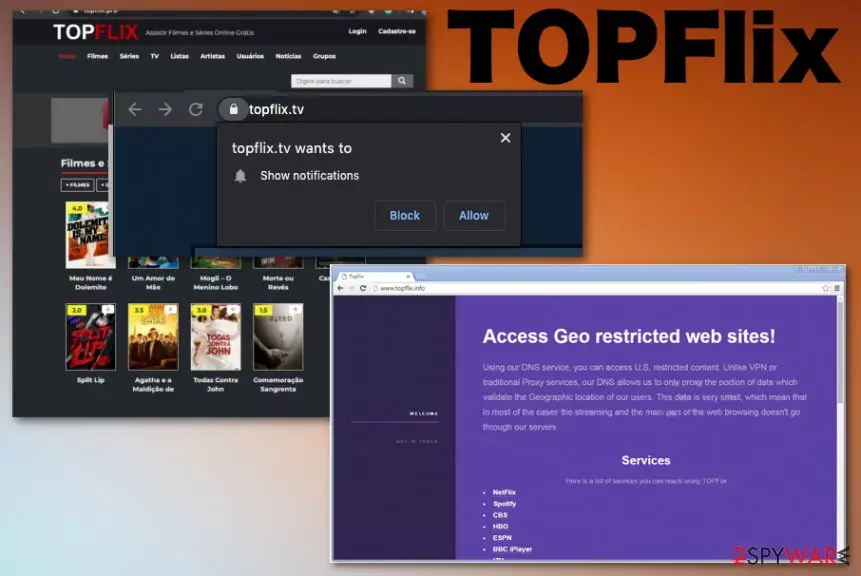
This dubious application should allow users to enter sites that are blocked or restricted in particular countries. When users see those particular promises, they believe that the app is needed and useful for them. However, later on, when TOPFlix ads start appearing out of nowhere, and PUP triggers other activities, people become frustrated since they have no idea where the shady material comes from. This is the application that classifies as the potentially unwanted program because of the stealthy infiltration and other issues regarding the time online and systems' performance.
| Name | TopFlix |
|---|---|
| Type | Adware |
| Symptoms | Sponsored content, advertisements, browser redirects to questionable websites, and affected speed of the performance are the more common symptoms of this intruder. Also, it affects other computer functionalities, installs browser-based programs or even malware |
| Issues | The program exposes users' data to attackers, can collect browsing activities, other surfing-related data, and expose the person to possible malware-related sites. Program changes system settings and can damage some files or crucial features |
| Distribution | It is known that a particular program is included in various bundles with freeware, so it gets downloaded alongside PUPs |
| Elimination | Successful TOPFlix removal results can be achieved by running a proper anti-malware tool on the machine that can detect PUPs and other intruders, so all the symptoms and malicious activities of the program can end |
| Repair | Like other PUPs, TOPFlix tries to remain persistent, so registry entries and other files on the system get affected by the intruder. You need to repair that damage with tools like FortectIntego |
While surfing the web, you might have accidentally run into the TOPFlix virus. This potentially unwanted application belongs to adware-type programs. However, even if it doesn‘t contain strict virus characteristics, you shouldn't take this PUP too lightly. It is able to generate hundreds of bothersome ads and redirect links in people's search results.
Additionally, due to such peculiarity, you might find yourself on questionable websites seeking to trick you into downloading suspicious programs. As you can see, you should not keep this program on your computer. If you have already installed it, you should consider fast TOPFlix removal instead.
Originally, TOPFlix was created as a DNS service, which provides access to restricted web sites. However, if it enters your system, you might notice an increasing amount of vivid advertisements trying to distract your attention and redirect you to sponsored websites.
Consequently, ads by TOPFlix redirect you to commercial websites trying to trick you into purchasing different products. In reality, these commercial offers are just pay-per-click ads[1] that are supposed to earn the money for their creators.
Beware that most of such advertisements do not contain any valuable information, so if you want to avoid useless purchases or installation of other unwanted programs on your computer, make sure you avoid any redirects and pop-ups or banners that appear on the screen out of nowhere.

Moreover, you can even notice that you can't access any desired website because TopFlix aims to modify DNS settings as soon as it enters the system. Beware that it can entirely readjust them according to the particular liking, and you might run into serious struggle while trying to access certain websites.
TOPFlix may activate virtual layers to show pop-ups, banners, and other content, so all the promotional ads are not originating from the page you visit initially. Some of those ads delivered to you can lead to malicious websites, so clicking on them can create risks of malware infections.
Likewise, it is advisable to remove TOPFlix without delay. However, the procedure can become difficult due to all the system changes and damage caused by the PUP itself or additional installations of threats. The easiest way to tackle the affected files and other parts of the device is to run a computer scan with a system cleaning or optimization program like FortectIntego.
Potentially unwanted programs invade computers via online content
A potentially unwanted program, such as this adware, can unnoticeably sneak into your computer along with freeware you install willingly.[3] You might wonder when and how it happens. Upon installing a new application, you select “Recommended” or “Quick” settings out of habit.
Therefore, all applications, programs, tools, and files that already got pre-checked easily get installed with the primary program. As a result, you find yourself in bewilderment, unable to remember when the PUP infiltrated your computer or how the infection happened without your knowledge.
Alternatively, next time you install free software, click “Advanced” or “Custom” installation settings, and then deselect any suspicious optional apps. All in all, keep an eye on possible attachments attempting to tiptoe into your computer so that you could avoid hijack in the future. Always trust only official sources.
TOPFlix removal guide and tips for cleaning adware traces
If you want to banish the TOPFlix virus from your computer, you should take the following actions. You can choose either a manual elimination or automatic removal method. Considering the tricky behavior and highly malicious intentions of this PUP, you may find manual guidelines too tricky.
Thus, we offer to install an anti-spyware program to remove TOPFlix once and for all. It will eliminate it in a blink of an eye. In case you still have doubts and want to ensure that the tool did its job, you can check the manual removal instructions provided below.
Finally, we would like to remind you to cautiously install new programs and restrain from peeking into suspicious websites, using torrent services or pirating. Also, remember to run a tool that could fix system issues for you after the initial TOPFlix removal.
Uninstall from Windows
Uninstall from Windows 10/8:
- Type Control Panel into the Windows search box and open the result.
- Under Programs, select Uninstall a program.


Uninstall from Windows 7/XP:
- Click on Windows Start > Control Panel (Windows XP users should click on Add/Remove Programs).
- In Control Panel, select Programs > Uninstall a program.


Remove the unwanted program:
- In the Programs and Features window, look for any recently installed suspicious entries, select them, and click Uninstall.
- If User Account Control appears, click Yes to confirm, then complete the removal.


Delete from macOS
Remove the unwanted application:
- From the menu bar, select Go > Applications.
- In the Applications folder, look for any suspicious entries, then drag them to Trash (or right-click and pick Move to Trash).


Delete leftover files and folders:
- Select Go > Go to Folder.
- Enter /Library/Application Support and remove any suspicious folders related to the unwanted program.
- Repeat the same check in the /Library/LaunchAgents and /Library/LaunchDaemons folders, deleting any suspicious entries.

- Finally, empty the Trash to permanently remove the leftovers.

Reset Internet Explorer
Remove dangerous add-ons:
- Open Internet Explorer, click on the Gear icon (IE menu) on the top-right corner of the browser
- Pick Manage Add-ons.
- You will see a Manage Add-ons window. Here, look for suspicious plugins. Click on these entries and select Disable.


Change your homepage if it was altered:
- Open IE and click on the Gear icon.
- Select Internet Options.
- In the General tab, delete the Home page address and replace it by your preferred one (for example, Google.com).
- Click Apply and then select OK.


Delete temporary files:
- Press on the Gear icon and select Internet Options.
- Under Browsing history, click Delete...
- Select relevant fields and press Delete.


Reset Internet Explorer:
- Click on Gear icon > Internet options and select Advanced tab.
- Select Reset.
- In the new window, check Delete personal settings and select Reset.


Remove from Microsoft Edge
Delete unwanted extensions from MS Edge:
- Select Menu (three horizontal dots at the top-right of the browser window) and pick Extensions.
- From the list, pick the extension and click on the Gear icon.
- Click Remove.


Clear cookies and other browser data:
- Click on the Menu (three horizontal dots at the top-right of the browser window) and select Settings > Privacy, search, and services..
- Under Clear browsing data, pick Choose what to clear.
- Select Cookies and other site data and Cached images and files. (apart from passwords, although you might want to include Media licenses as well, if applicable) and click on Clear.


Restore new tab and homepage settings:
- Click the menu icon and choose Settings.
- Then find On startup section.
- Click Remove next to any suspicious startup page.
Reset MS Edge if the above steps did not work:
- Press on Ctrl + Shift + Esc to open Task Manager.
- Click on More details arrow at the bottom of the window.
- Select Details tab.
- Now scroll down and locate every entry with Microsoft Edge name in it. Right-click on each of them and select End Task to stop MS Edge from running.


Instructions for Chromium-based Edge
Delete extensions from MS Edge (Chromium):
- Open Edge and click select Settings > Extensions.
- Delete unwanted extensions by clicking Remove.


Clear cache and site data:
- Click on Menu and go to Settings.
- Select Privacy, search and services.
- Under Clear browsing data, pick Choose what to clear.
- Under Time range, pick All time.
- Select Clear now.


Reset Chromium-based MS Edge:
- Click on Menu and select Settings.
- On the left side, pick Reset settings.
- Select Restore settings to their default values.
- Confirm with Reset.
- This will disable extensions and reset startup pages but will not delete bookmarks, saved passwords, or browsing history.


Remove from Mozilla Firefox (FF)
Remove dangerous extensions:
- Open Mozilla Firefox browser and click on the Menu (three horizontal lines at the top-right of the window).
- Select Add-ons.
- In here, select the unwanted extension and click Remove.


Reset the homepage:
- Click three horizontal lines at the top right corner to open the menu.
- Choose Settings.
- Under Home, set your preferred homepage and new tab settings.
Clear cookies and site data:
- Click Menu and pick Settings.
- Go to Privacy & Security section.
- Scroll down to locate Cookies and Site Data.
- Click on Clear Data...
- Select Cookies and Site Data and Temporary cached files and pages, then click Clear.


Reset Mozilla Firefox
If clearing the browser as explained above did not help, reset Mozilla Firefox:
- Open Mozilla Firefox browser and click the Menu.
- Go to Help and then choose Troubleshooting Information.

- Under Give Firefox a tune up section, click on Refresh Firefox...
- Once the pop-up shows up, confirm the action by pressing on Refresh Firefox.



Remove from Google Chrome
Delete malicious extensions from Google Chrome:
- Open Google Chrome, click on the Menu (three vertical dots at the top-right corner) and select More tools > Extensions.
- In the newly opened window, you will see all the installed extensions. Uninstall all suspicious extensions related to the unwanted program by clicking Remove.


Clear cache and web data from Chrome:
- Click on Menu and pick Settings.
- Under Privacy and security, select Clear browsing data.
- Select Browsing history, Cookies and other site data, as well as Cached images and files.
- Click Clear data.


Change your homepage:
- Click menu and choose Settings.
- Look for a suspicious site in the On startup section.
- Click on Open a specific or set of pages and click on three dots to find the Remove option.
Reset Google Chrome:
If the previous methods did not help you, reset Google Chrome to eliminate all the unwanted components:
- Click on Menu and select Settings.
- In the Settings, scroll down and click Advanced.
- Scroll down and locate Reset and clean up section.
- Now click Restore settings to their original defaults.
- Confirm with Reset settings.


Delete from Safari
Remove dangerous extensions:
- Open Safari, click Safari in the menu at the top-left of the screen, and select Preferences.
- Go to the Extensions tab, look for any suspicious entries, and click Uninstall to remove them.


Clear history and website data:
- Click Safari in the menu and pick Clear History.
- Set Clear to all history and confirm with Clear History.


Reset Safari:
- Click Safari in the menu and select Preferences > Advanced.
- Enable Show Develop menu in menu bar.
- From the menu bar, click Develop and select Empty Caches.


Did this guide help?
4 comments
hofner
these ads are no good. i have installed a rogue antimalware via one of its deceptive ads... had to get a real one to get these threats removed. ugh!
victoria99
I used manual removal option, and I cant complain! Cannot see topflix ads anymore ;)
Chloe
stupid ads are covering my screen even right now! hope ill get rid of them with spyhunter, just downloaded it
lindt
same happened to me... Well at least my computer is protected by a good program now. by the way, I use SpyHunter, just like this site recommends :)