

Is Top Security Tab plug-in really effective?
For your surprise, TopSecurityTab virus may disguise itself as the program which provides the services of protecting computers from cyber attacks. In fact, what you might download is none other than adware. It will not guarantee the security of the operating system but, as a matter of fact, might increase the vulnerabilities of the operating system. Thus, what should you do is remove TopSecurityTab immediately. If you delay the removal, you might be overloaded with the pop-ups. In addition, if you tempt to add any plug-ins offered by the adware, they might cause some malfunctions of the device. Find out about the possible outcomes of this adware. In the final section, we will introduce TopSecurityTab removal methods, one of which is using FortectIntego.
This application is created by the company which is a renowned manufacturer of browser hijackers – Imali Ltd. It seems that they decided to broaden their business by promoting security plug-ins and programs. Nonetheless, knowing how their hijackers worked, instead of a security plug-ins, you might download a malware installer. There is also a chance that once you add and activate their browser extensions, the supposed scanners might cram your screen with the reports about supposed viruses dwelling on the device. Such alarm-causing behavior is common among this sort of applications. Top Security Tab might convince credulous users into purchasing more unnecessary and highly questionable tools. The more of them settle on the computer, the more TopSecurityTab ads might appear. While the additionally installed applications occupy the space on the hard disk, the added plug-ins might hinder the proper functioning of the browser.
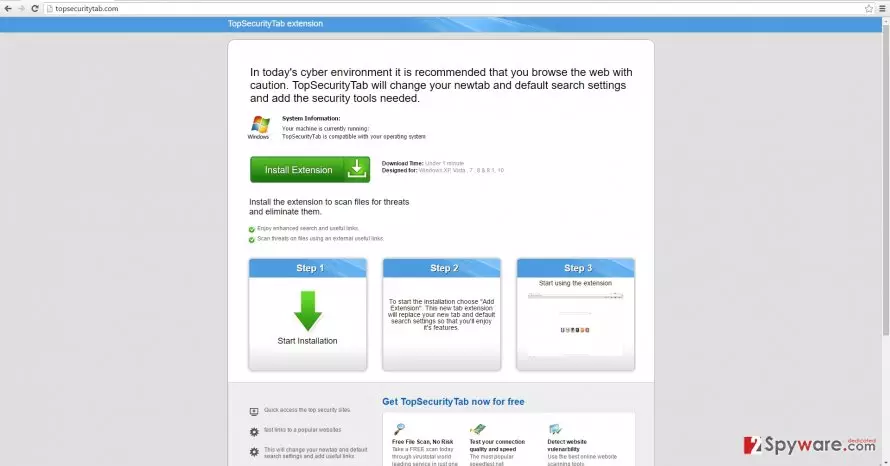
What is more, dubious plug-ins and browser extensions might also cause TopSecurityTab redirect. In short, you may be directed to other advertising domains instead of the intended destination. Nonetheless, these redirect links might be sheltering viruses and malware. Thus, using any of Top Security Tab programs put your computer under hijack risk. Lastly, if you take a look at the privacy policy provisions, you will see the provison enabling the program to transfer the collected information about your browsing habits, as well as personal information, to partner companies. This activity may only cause privacy infringement and the stream of customized ads in your browser and Inbox.
When did I get infected with this adware?
You accidentally installed the program along with the recently installed program. TopSecurityTab hijack took place when you recklessly rushed through the installation instructions. Such habit prevented you from noticing the add-on which possibly disguised the PUP. Thus, hitting the “Install” button helped the adware successfully tiptoe to the operating system. If you are willing not to repeat the same mistake again, make sure to follow these steps. First of all, opt for “Advanced” settings. Find the optional applications and unmark them one by one.
The removal guidelines of the PUP
There are two methods to remove TopSecurityTab from the computer. Uninstall the adware manually or entrust its elimination to a security program. The latter is specifically designed for dealing with similar threats, so you can be sure that it will terminate TopSecurityTab virus in a moment. Eliminating all its files is essential as well. Otherwise, the remaining files might initiate the appearance of related pop-ups. If you are used to manually deleting these computer pests, find our manual TopSecurityTab removal guide provided below.
Uninstall from Windows
Uninstall from Windows 10/8:
- Type Control Panel into the Windows search box and open the result.
- Under Programs, select Uninstall a program.


Uninstall from Windows 7/XP:
- Click on Windows Start > Control Panel (Windows XP users should click on Add/Remove Programs).
- In Control Panel, select Programs > Uninstall a program.


Remove the unwanted program:
- In the Programs and Features window, look for any recently installed suspicious entries, select them, and click Uninstall.
- If User Account Control appears, click Yes to confirm, then complete the removal.


Delete from macOS
Remove the unwanted application:
- From the menu bar, select Go > Applications.
- In the Applications folder, look for any suspicious entries, then drag them to Trash (or right-click and pick Move to Trash).


Delete leftover files and folders:
- Select Go > Go to Folder.
- Enter /Library/Application Support and remove any suspicious folders related to the unwanted program.
- Repeat the same check in the /Library/LaunchAgents and /Library/LaunchDaemons folders, deleting any suspicious entries.

- Finally, empty the Trash to permanently remove the leftovers.

Remove from Microsoft Edge
Delete unwanted extensions from MS Edge:
- Select Menu (three horizontal dots at the top-right of the browser window) and pick Extensions.
- From the list, pick the extension and click on the Gear icon.
- Click Remove.


Clear cookies and other browser data:
- Click on the Menu (three horizontal dots at the top-right of the browser window) and select Settings > Privacy, search, and services..
- Under Clear browsing data, pick Choose what to clear.
- Select Cookies and other site data and Cached images and files. (apart from passwords, although you might want to include Media licenses as well, if applicable) and click on Clear.


Restore new tab and homepage settings:
- Click the menu icon and choose Settings.
- Then find On startup section.
- Click Remove next to any suspicious startup page.
Reset MS Edge if the above steps did not work:
- Press on Ctrl + Shift + Esc to open Task Manager.
- Click on More details arrow at the bottom of the window.
- Select Details tab.
- Now scroll down and locate every entry with Microsoft Edge name in it. Right-click on each of them and select End Task to stop MS Edge from running.


Instructions for Chromium-based Edge
Delete extensions from MS Edge (Chromium):
- Open Edge and click select Settings > Extensions.
- Delete unwanted extensions by clicking Remove.


Clear cache and site data:
- Click on Menu and go to Settings.
- Select Privacy, search and services.
- Under Clear browsing data, pick Choose what to clear.
- Under Time range, pick All time.
- Select Clear now.


Reset Chromium-based MS Edge:
- Click on Menu and select Settings.
- On the left side, pick Reset settings.
- Select Restore settings to their default values.
- Confirm with Reset.
- This will disable extensions and reset startup pages but will not delete bookmarks, saved passwords, or browsing history.


Remove from Mozilla Firefox (FF)
Remove dangerous extensions:
- Open Mozilla Firefox browser and click on the Menu (three horizontal lines at the top-right of the window).
- Select Add-ons.
- In here, select the unwanted extension and click Remove.


Reset the homepage:
- Click three horizontal lines at the top right corner to open the menu.
- Choose Settings.
- Under Home, set your preferred homepage and new tab settings.
Clear cookies and site data:
- Click Menu and pick Settings.
- Go to Privacy & Security section.
- Scroll down to locate Cookies and Site Data.
- Click on Clear Data...
- Select Cookies and Site Data and Temporary cached files and pages, then click Clear.


Reset Mozilla Firefox
If clearing the browser as explained above did not help, reset Mozilla Firefox:
- Open Mozilla Firefox browser and click the Menu.
- Go to Help and then choose Troubleshooting Information.

- Under Give Firefox a tune up section, click on Refresh Firefox...
- Once the pop-up shows up, confirm the action by pressing on Refresh Firefox.



Remove from Google Chrome
Delete malicious extensions from Google Chrome:
- Open Google Chrome, click on the Menu (three vertical dots at the top-right corner) and select More tools > Extensions.
- In the newly opened window, you will see all the installed extensions. Uninstall all suspicious extensions related to the unwanted program by clicking Remove.


Clear cache and web data from Chrome:
- Click on Menu and pick Settings.
- Under Privacy and security, select Clear browsing data.
- Select Browsing history, Cookies and other site data, as well as Cached images and files.
- Click Clear data.


Change your homepage:
- Click menu and choose Settings.
- Look for a suspicious site in the On startup section.
- Click on Open a specific or set of pages and click on three dots to find the Remove option.
Reset Google Chrome:
If the previous methods did not help you, reset Google Chrome to eliminate all the unwanted components:
- Click on Menu and select Settings.
- In the Settings, scroll down and click Advanced.
- Scroll down and locate Reset and clean up section.
- Now click Restore settings to their original defaults.
- Confirm with Reset settings.


Delete from Safari
Remove dangerous extensions:
- Open Safari, click Safari in the menu at the top-left of the screen, and select Preferences.
- Go to the Extensions tab, look for any suspicious entries, and click Uninstall to remove them.


Clear history and website data:
- Click Safari in the menu and pick Clear History.
- Set Clear to all history and confirm with Clear History.


Reset Safari:
- Click Safari in the menu and select Preferences > Advanced.
- Enable Show Develop menu in menu bar.
- From the menu bar, click Develop and select Empty Caches.


Did this guide help?
3 comments
Yates
Such security tabs as this one do not look suspicious at all.
Kelly-Madison
If I weren‘t aware of it being the adware, I‘d give it a try.
Cynthia
Even major cyber security companies get the fraudulent alternatives of their programs, leave alone this odd-looking Security Tab.