

Toptonews.net search engine is not trustworthy
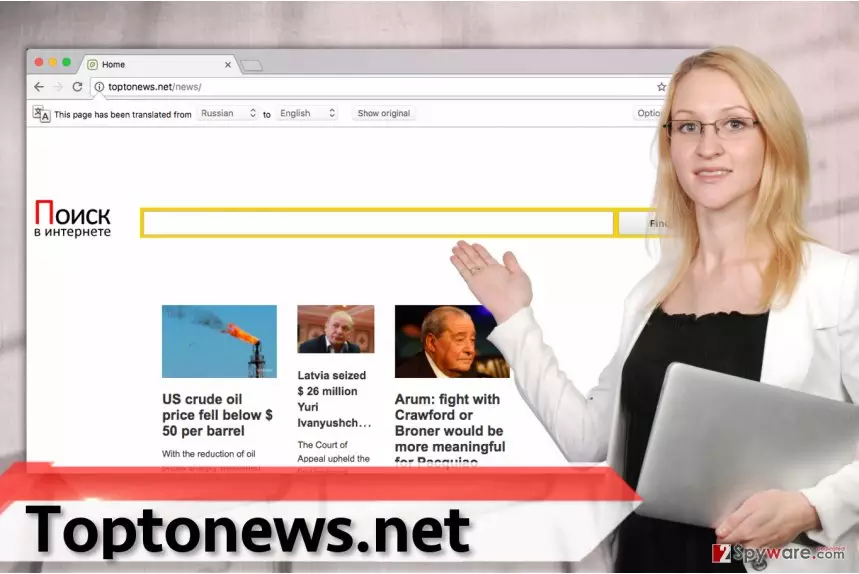
Toptonews.net virus is an infection that leads to unwanted alterations and activities. If the PUP changed the homepage address in all of your favorite web browsers, do not start using the search engine available on it at the drop of a hat. It seems that this search tool was designed for the promotion of affiliate websites and pay-per-click revenue[1] generation, sadly, it means that you will hardly find any benefits of the search engine.
| Name | Toptonews.net |
|---|---|
| Type | Browser hijacker |
| Issues | The homepage, new tab, default search engine, and other settings get changed without permission or knowledge, so more processes get controlled by the PUP |
| Distribution | Freeware installations, deceptive sites, and pop-up promotional content |
| Elimination | Your device can get cleaned with an anti-malware tool that finds all intruders and terminates them |
| Repair | Recovery tools like FortectIntego can manage data affected by the PUP |
The results it provides are likely to be sponsored, so do not expect to get relevant information via it. Thanks to special technologies, which are responsible for data collection and analysis, the browser hijacker gains access to certain information. In other words, after Toptonews.net hijack, your web browsing sessions are going to be monitored by tracking cookies and web beacons[2], which will gather your search terms, a list of recently visited websites, and more.
Based on collected data, the redirect virus chooses third-party advertisements and injects them into search results every time you attempt to use the Toptonews search engine. For this reason, we strongly recommend removing this hijacker. For the full system check and the virus removal, we advise you to use MalwarebytesMalwarebytes or SpyHunterCombo Cleaner software.
We do not say that absolutely all search results are dangerous; however, you can come across those dubious results that link to shady websites that are full of ads, questionable download links[3], and other suspicious content.
Besides, the described hijacker might also try to send you pop-up or pop-under ads or even inject them into websites you’re visiting, but this should be the last straw for you. If this happens, do not waste your valuable time any longer and remove the Toptonews.net hijacker without hesitation.
Deceiving messages lead to unwanted cyber parasites
Browser hijackers mostly spread in a bundle with freeware or shareware[4], so stay alert at all times and avoid downloading suspicious software from questionable third-party websites. If you are looking for a specific program to install, better find a trustworthy download source. We suggest avoiding shady Internet portals that provide all sorts of downloadable programs and files.
Chances are, you can download and install a software bundle when interacting with such websites. However, if you cannot find a trustworthy-looking download source, act carefully when installing your download and you might be able to avoid installing PUPs without realizing it.
We highly suggest choosing Custom/Advanced settings for software installation, because these settings will allow you to see all additional items added to your download[5]. In order to avoid installing unwanted items, just deselect them. Follow commands of the installation wizard and finish the installation then.
The best way to remove Toptonews.net from your browsers
In case you got stuck with the virus in your system, do not worry – the situation can be improved. Before you start trying to remove the Toptonews.net browser hijacker, read the instructions that our experts prepared for you. We are sure that you will learn a thing or two that you didn’t know before. However, if you are not looking for manual removal guidelines, consider installing one of the anti-spyware programs we recommend.
Uninstall from Windows
Uninstall from Windows 10/8:
- Type Control Panel into the Windows search box and open the result.
- Under Programs, select Uninstall a program.


Uninstall from Windows 7/XP:
- Click on Windows Start > Control Panel (Windows XP users should click on Add/Remove Programs).
- In Control Panel, select Programs > Uninstall a program.


Remove the unwanted program:
- In the Programs and Features window, look for any recently installed suspicious entries, select them, and click Uninstall.
- If User Account Control appears, click Yes to confirm, then complete the removal.


Delete from macOS
Remove the unwanted application:
- From the menu bar, select Go > Applications.
- In the Applications folder, look for any suspicious entries, then drag them to Trash (or right-click and pick Move to Trash).


Delete leftover files and folders:
- Select Go > Go to Folder.
- Enter /Library/Application Support and remove any suspicious folders related to the unwanted program.
- Repeat the same check in the /Library/LaunchAgents and /Library/LaunchDaemons folders, deleting any suspicious entries.

- Finally, empty the Trash to permanently remove the leftovers.

Remove from Microsoft Edge
Delete unwanted extensions from MS Edge:
- Select Menu (three horizontal dots at the top-right of the browser window) and pick Extensions.
- From the list, pick the extension and click on the Gear icon.
- Click Remove.


Clear cookies and other browser data:
- Click on the Menu (three horizontal dots at the top-right of the browser window) and select Settings > Privacy, search, and services..
- Under Clear browsing data, pick Choose what to clear.
- Select Cookies and other site data and Cached images and files. (apart from passwords, although you might want to include Media licenses as well, if applicable) and click on Clear.


Restore new tab and homepage settings:
- Click the menu icon and choose Settings.
- Then find On startup section.
- Click Remove next to any suspicious startup page.
Reset MS Edge if the above steps did not work:
- Press on Ctrl + Shift + Esc to open Task Manager.
- Click on More details arrow at the bottom of the window.
- Select Details tab.
- Now scroll down and locate every entry with Microsoft Edge name in it. Right-click on each of them and select End Task to stop MS Edge from running.


Instructions for Chromium-based Edge
Delete extensions from MS Edge (Chromium):
- Open Edge and click select Settings > Extensions.
- Delete unwanted extensions by clicking Remove.


Clear cache and site data:
- Click on Menu and go to Settings.
- Select Privacy, search and services.
- Under Clear browsing data, pick Choose what to clear.
- Under Time range, pick All time.
- Select Clear now.


Reset Chromium-based MS Edge:
- Click on Menu and select Settings.
- On the left side, pick Reset settings.
- Select Restore settings to their default values.
- Confirm with Reset.
- This will disable extensions and reset startup pages but will not delete bookmarks, saved passwords, or browsing history.


Remove from Mozilla Firefox (FF)
Remove dangerous extensions:
- Open Mozilla Firefox browser and click on the Menu (three horizontal lines at the top-right of the window).
- Select Add-ons.
- In here, select the unwanted extension and click Remove.


Reset the homepage:
- Click three horizontal lines at the top right corner to open the menu.
- Choose Settings.
- Under Home, set your preferred homepage and new tab settings.
Clear cookies and site data:
- Click Menu and pick Settings.
- Go to Privacy & Security section.
- Scroll down to locate Cookies and Site Data.
- Click on Clear Data...
- Select Cookies and Site Data and Temporary cached files and pages, then click Clear.


Reset Mozilla Firefox
If clearing the browser as explained above did not help, reset Mozilla Firefox:
- Open Mozilla Firefox browser and click the Menu.
- Go to Help and then choose Troubleshooting Information.

- Under Give Firefox a tune up section, click on Refresh Firefox...
- Once the pop-up shows up, confirm the action by pressing on Refresh Firefox.



Remove from Google Chrome
Delete malicious extensions from Google Chrome:
- Open Google Chrome, click on the Menu (three vertical dots at the top-right corner) and select More tools > Extensions.
- In the newly opened window, you will see all the installed extensions. Uninstall all suspicious extensions related to the unwanted program by clicking Remove.


Clear cache and web data from Chrome:
- Click on Menu and pick Settings.
- Under Privacy and security, select Clear browsing data.
- Select Browsing history, Cookies and other site data, as well as Cached images and files.
- Click Clear data.


Change your homepage:
- Click menu and choose Settings.
- Look for a suspicious site in the On startup section.
- Click on Open a specific or set of pages and click on three dots to find the Remove option.
Reset Google Chrome:
If the previous methods did not help you, reset Google Chrome to eliminate all the unwanted components:
- Click on Menu and select Settings.
- In the Settings, scroll down and click Advanced.
- Scroll down and locate Reset and clean up section.
- Now click Restore settings to their original defaults.
- Confirm with Reset settings.


Delete from Safari
Remove dangerous extensions:
- Open Safari, click Safari in the menu at the top-left of the screen, and select Preferences.
- Go to the Extensions tab, look for any suspicious entries, and click Uninstall to remove them.


Clear history and website data:
- Click Safari in the menu and pick Clear History.
- Set Clear to all history and confirm with Clear History.


Reset Safari:
- Click Safari in the menu and select Preferences > Advanced.
- Enable Show Develop menu in menu bar.
- From the menu bar, click Develop and select Empty Caches.


Did this guide help?
3 comments
sophie
Toptonews.net virus changed my homepage settings and I did not realize it on time. It is so annoying - I opened my laptop this morning and my browser was affected already. Im thankful for people who create anti-malware programs - I used one of the recommended ones and it deleted the virus quickly.
pa4kz
Toptonews.net site is Russian and I dont speak russian. Verdict: gotta remove it!
trance_683
Hey, thanks for explaining whats wrong with Toptonews.net website. I didnt realize it was dangerous to use it; I was just surprised that it became my homepage address all of sudden.