

Trezaa – an adware which has been detected as PUP.Optional.Trezaa by numerous anti-viruses
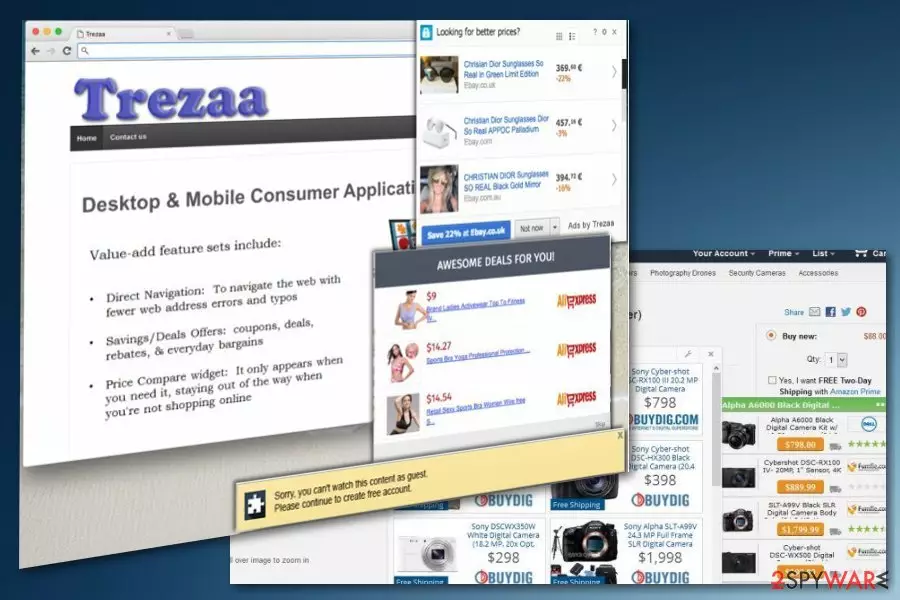
Trezaa is a potentially unwanted program which supposedly delivers coupons and similar deals while you are shopping online. However, instead of performing as promised, it causes redirects to insecure websites and even adds Trezaa.Scheduler.exe to make sure this process is persistent. As a result, it might be difficult to uninstall the virus because of the additional files on the system. If you found this PUP, you should check your recently installed apps. If you use Soft32, Softonic and Download.com to download your apps, they can be the reason users encounter sponsored ads from this adware. To identify the particular virus, check the pop-up windows or banners for this and similar phrases: “You’ve received a premium offer from Trezaa”, and similar ads.
| Name | Trezaa |
|---|---|
| Type | Adware |
| main executable file | Trezaa.Scheduler.exe |
| Symptoms | Injects advertisements onto web pages, redirects to suspicious sites |
| Distribution | Software bundles, deceptive ads, insecure download sites |
| Purpose | Displays coupons from questionable sites with competitive prices |
| Identified by these slogans |
|
| Can be detected as | PUP.Optional.Trezaa.PrxySvxRst |
| Elimination | Use FortectIntego for general cleaning and Trezaa removal |
Instead of the promised money-saving offers, Trezaa overflows your browser with multiple ads leading to the sponsored websites. According to the security experts,[1] these sites must be avoided and left without entering personal information as they can be involved to tech support scams and similar fraud activities.
In case you are infected with this virus and do not want to risk your system’s health any longer, there are some Trezaa removal tips prepared for you at the end of this article. However, if you need a quick tip, install reputable anti-spyware, update it to its latest versions and run a scan. You should get rid of every malicious component detected as unsafe.
From first sight, the adware seems harmless. However, people have been having a difficult time to get rid of the unwanted content completely. Your AV may detect this threat as PUP.Optional.Trezaa.PrxySvxRst or find the additional Trezaa.Scheduler.exe file running in the background. You should definitely remove these components if they are detected on your system.
Additionally, you may encounter Trezaa uninstall error when trying to remove the adware from the system. This error comes up because it has already made the following changes:
- added browser extensions or toolbars;
- changed data;
- installed executable files;
- altered registry entries.

Main activity by the adware – numerous ads displayed on the victim's desktop
We have already mentioned that clicking on Treeza ads can be dangerous. However, malware developers do not inject these numerous ads just for their malevolent enjoyment. You should also be aware that your clicks gather revenue for the malware developers.
The aggressive marketing method also referred to as pay-per-click revenue gathering,[2] is practiced by the vast majority of adware creators. It is based on collaborating with multiple affiliate third-parties, promoting their websites to increase their traffic, and collecting revenue for this promotion. So you need to avoid clicking on the content delivered by Trezaa virus and browsing websites you may be redirected to.
Adware may also track your data to generate more relevant ads and increase the chance of you clicking on them. So, if you accidentally click on any of the ads titled “Ads by Trezaa” or “Powered by Trezaa” and end up in such a suspicious site, it is important that you refrain from clicking on any of the links, ads, software updates or software that might be suggested to you.
In case you have started seeing similar ads and are constantly redirected to suspicious sites, scan your system with some reputable antivirus tool, such as FortectIntego, to detect and remove Treeza from your computer.
Trezaa removal is important because of the additional content and data tracking[3] issue. Scanning your device with the anti-malware tools can significantly improve the performance of your computer, even if you already have antivirus on the system. A full system scan determines corrupted, malicious files and potentially unwanted programs. We have a few suggestions of this useful software below.

Software bundles used to distribute Trezaa
Trezaa malware does not differ from other ad-supported PUPs. Speaking of its distribution methods, it spreads via the most popular PUP distribution technique called “bundling.” If you are unfamiliar with this term yet, let us explain to you what “bundling” means. When PUP developers bundle programs, they create software packages. They usually pack well-known free programs together with some potentially unwanted ones.
Unfortunately, such software package looks like an individual program, and, for this reason, a lot of computer users are tricked into installing the whole package of programs without realizing that it contains some potentially dangerous applications. You can easily refuse to install such additional components. Simply select “Advanced” or “Custom” installation settings when installing new software and untick the checkboxes next to suggestions to install optional, or “recommended” downloads.
FAQ about the adware
Question. I keep receiving pop-ups, banners, and even in-text ads by Trezaa. These adverts are really annoying, but I just don’t have an idea why they started to appear on my screen. What is the problem?
Answer. If you have noticed intrusive advertisements powered by Trezaa, it means that there is a potentially unwanted software (categorized as adware) installed on your system. It could enter your computer alongside some recently installed free program. Adware programs are extremely annoying; besides, ads that such programs generate are generally deceptive. Please, do not click on any content brought to you by Trezaa; otherwise, this program will force you to visit unreliable or even harmful third-party websites. You can remove Trezaa without a hesitation because this program is completely useless.
Trezaa removal should be performed using anti-malware tools
There is no reason to keep useless tools installed on your computer. You should stop the unpleasant activities by uninstalling this program from your computer. It is not as simple as it sounds; you can follow the manual removal guide, which is provided below, and try to remove Trezaa on your own.
However, you should keep in mind that threats like this usually install add-ons, extensions and other malicious contents, which you may not be aware of. Therefore, overlooking these additional virus-related components may affect the results of Trezaa removal. To avoid such mistakes, you can always opt for automatic elimination and terminate the virus using a trustworthy anti-malware tool. Just make sure you keep your antivirus utility updated to ensure the best protection.
Uninstall from Windows
Uninstall from Windows 10/8:
- Type Control Panel into the Windows search box and open the result.
- Under Programs, select Uninstall a program.


Uninstall from Windows 7/XP:
- Click on Windows Start > Control Panel (Windows XP users should click on Add/Remove Programs).
- In Control Panel, select Programs > Uninstall a program.


Remove the unwanted program:
- In the Programs and Features window, look for any recently installed suspicious entries, select them, and click Uninstall.
- If User Account Control appears, click Yes to confirm, then complete the removal.


Reset Internet Explorer
Remove dangerous add-ons:
- Open Internet Explorer, click on the Gear icon (IE menu) on the top-right corner of the browser
- Pick Manage Add-ons.
- You will see a Manage Add-ons window. Here, look for suspicious plugins. Click on these entries and select Disable.


Change your homepage if it was altered:
- Open IE and click on the Gear icon.
- Select Internet Options.
- In the General tab, delete the Home page address and replace it by your preferred one (for example, Google.com).
- Click Apply and then select OK.


Delete temporary files:
- Press on the Gear icon and select Internet Options.
- Under Browsing history, click Delete...
- Select relevant fields and press Delete.


Reset Internet Explorer:
- Click on Gear icon > Internet options and select Advanced tab.
- Select Reset.
- In the new window, check Delete personal settings and select Reset.


Remove from Microsoft Edge
Delete unwanted extensions from MS Edge:
- Select Menu (three horizontal dots at the top-right of the browser window) and pick Extensions.
- From the list, pick the extension and click on the Gear icon.
- Click Remove.


Clear cookies and other browser data:
- Click on the Menu (three horizontal dots at the top-right of the browser window) and select Settings > Privacy, search, and services..
- Under Clear browsing data, pick Choose what to clear.
- Select Cookies and other site data and Cached images and files. (apart from passwords, although you might want to include Media licenses as well, if applicable) and click on Clear.


Restore new tab and homepage settings:
- Click the menu icon and choose Settings.
- Then find On startup section.
- Click Remove next to any suspicious startup page.
Reset MS Edge if the above steps did not work:
- Press on Ctrl + Shift + Esc to open Task Manager.
- Click on More details arrow at the bottom of the window.
- Select Details tab.
- Now scroll down and locate every entry with Microsoft Edge name in it. Right-click on each of them and select End Task to stop MS Edge from running.


Instructions for Chromium-based Edge
Delete extensions from MS Edge (Chromium):
- Open Edge and click select Settings > Extensions.
- Delete unwanted extensions by clicking Remove.


Clear cache and site data:
- Click on Menu and go to Settings.
- Select Privacy, search and services.
- Under Clear browsing data, pick Choose what to clear.
- Under Time range, pick All time.
- Select Clear now.


Reset Chromium-based MS Edge:
- Click on Menu and select Settings.
- On the left side, pick Reset settings.
- Select Restore settings to their default values.
- Confirm with Reset.
- This will disable extensions and reset startup pages but will not delete bookmarks, saved passwords, or browsing history.


Remove from Mozilla Firefox (FF)
Remove dangerous extensions:
- Open Mozilla Firefox browser and click on the Menu (three horizontal lines at the top-right of the window).
- Select Add-ons.
- In here, select the unwanted extension and click Remove.


Reset the homepage:
- Click three horizontal lines at the top right corner to open the menu.
- Choose Settings.
- Under Home, set your preferred homepage and new tab settings.
Clear cookies and site data:
- Click Menu and pick Settings.
- Go to Privacy & Security section.
- Scroll down to locate Cookies and Site Data.
- Click on Clear Data...
- Select Cookies and Site Data and Temporary cached files and pages, then click Clear.


Reset Mozilla Firefox
If clearing the browser as explained above did not help, reset Mozilla Firefox:
- Open Mozilla Firefox browser and click the Menu.
- Go to Help and then choose Troubleshooting Information.

- Under Give Firefox a tune up section, click on Refresh Firefox...
- Once the pop-up shows up, confirm the action by pressing on Refresh Firefox.



Remove from Google Chrome
Delete malicious extensions from Google Chrome:
- Open Google Chrome, click on the Menu (three vertical dots at the top-right corner) and select More tools > Extensions.
- In the newly opened window, you will see all the installed extensions. Uninstall all suspicious extensions related to the unwanted program by clicking Remove.


Clear cache and web data from Chrome:
- Click on Menu and pick Settings.
- Under Privacy and security, select Clear browsing data.
- Select Browsing history, Cookies and other site data, as well as Cached images and files.
- Click Clear data.


Change your homepage:
- Click menu and choose Settings.
- Look for a suspicious site in the On startup section.
- Click on Open a specific or set of pages and click on three dots to find the Remove option.
Reset Google Chrome:
If the previous methods did not help you, reset Google Chrome to eliminate all the unwanted components:
- Click on Menu and select Settings.
- In the Settings, scroll down and click Advanced.
- Scroll down and locate Reset and clean up section.
- Now click Restore settings to their original defaults.
- Confirm with Reset settings.


Delete from Safari
Remove dangerous extensions:
- Open Safari, click Safari in the menu at the top-left of the screen, and select Preferences.
- Go to the Extensions tab, look for any suspicious entries, and click Uninstall to remove them.


Clear history and website data:
- Click Safari in the menu and pick Clear History.
- Set Clear to all history and confirm with Clear History.


Reset Safari:
- Click Safari in the menu and select Preferences > Advanced.
- Enable Show Develop menu in menu bar.
- From the menu bar, click Develop and select Empty Caches.


Did this guide help?
4 comments
Iaio
Thank you for providing this removal guide! I have just removed Trezaa. thumbs up!
Rovena
I thought Trezaa was a complicated virus, but actually it was easy to get rid of it. Do not be scared - Trezaa removal procedure is easier than you think ;)
phillip
Annoying virus! I am so disappointed that I did allow this threat to enter my computer system... Stupid me! Now I have my screen polluted with worthless ads. Hope this removal guide works! lets see...
phillip
Success! Removed it!