

Tuvaro virus is a browser-hijacking app you should not trust for your searches
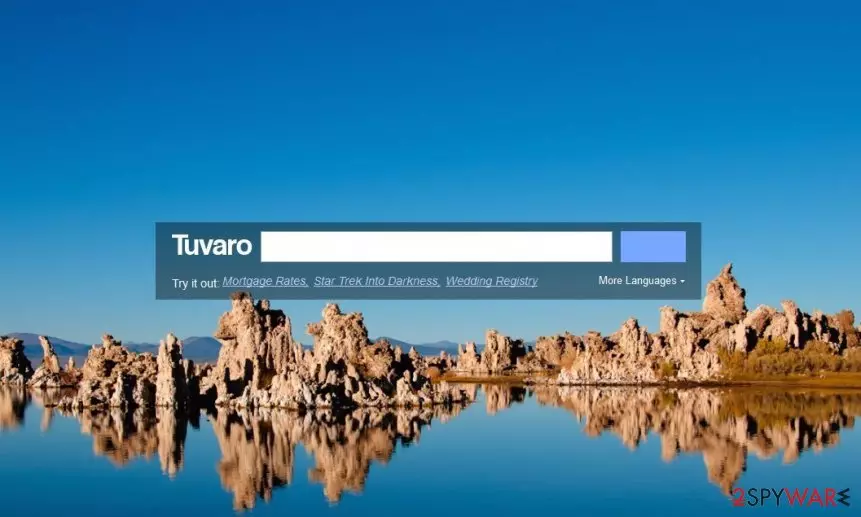
Tuvaro virus is a minor computer infection, which may start causing redirects when you are browsing on the Internet. Although it claims to provide enhanced search results for allegedly improved browsing experience, do not forget that this app is categorized as a browser hijacker – a type of a PUP (potentially unwanted program).
It typically takes over all web browsers, including:
- Google Chrome,
- Mozilla Firefox,
- Internet Explorer
- MS Edge, and others.
Once installed, it starts rerouting its victims to affiliate websites. Why its developers need this? The answer is very simple – Tuvaro redirects are used to increase page rank, visitors' traffic, and similar factors.
However, there is no guarantee that tuvaro.com won't trick you into visiting suspicious, unsafe, and sometimes even dangerous websites. Therefore, you should always be careful if you see Tuvaro hijack on your system.
If you have already noticed redirects to unknown websites, an increased amount of pop-up ads, slowdowns, and similar issues, you should check your computer with updated anti-spyware and remove suspicious programs from it.
Otherwise, you will have to deal with an increased risk of getting infected with more serious viruses. Additionally, this search engine may start tracking your browsing habits and may start collecting data, which is related to your browsing history, search terms, etc. Such information is called 'personally non-identifiable', but we think that you shouldn't let unknown parties use it behind your back.
To sum up, we can't say that tuvaro.com is malicious or that it is used to spread malware. We came to the following conclusion:
Nevertheless, it is clear that this search engine is promoted using unfair methods.
Also, it may lead you to various PC-related issues by showing you altered/forged search results or by showing continuous pop-up ads for its victims. Besides, such 'search engines' are also actively used to track users' browsing habits and then send this data to unknown third parties.
If you want to remove Tuvaro virus quickly, rely on a powerful anti-malware, and then fix system problems with FortectIntego if the need arises. Alternatively, you can opt for manual elimination by following our step-by-step guide below.
Avoiding PUPs is an easy task
Now it's time to realize that Tuvaro Search may appear on your PC system without any permission asked. Typically, its infiltration is closely related to freeware, shareware, misleading ads, and similar techniques. The most used of them is called bundling. In order to avoid it, you should start checking programs before their installation.
Please avoid Quick, Recommended, and similar installation methods because they can easily lead you to the installation of unwanted components. To prevent the installation of unwanted programs, you should select one of the following options (instead of Recommended/Quick ones):
- Custom
- Advanced
Also, make sure you uncheck all suspicious checkmarks. If this program gets on its target PC, it may alter its settings and then start causing redirects during each user's browsing session. So, soon you may find out that you can't visit Google, Yahoo, or other trustworthy search engines.
Besides, it can also install a toolbar on your computer without any permission asked. As you can see, the Tuvaro Search virus is a sneaky infection that deserves to be removed. Please, do not ignore its annoying redirections because you may get infected with more serious threats!
Tuvaro can be deleted either manually or automatically
To remove Tuvaro virus, the first thing you should do is to eliminate it from the Add/Remove Programs list. If you are unfamiliar with the program uninstallation process on your Windows or Mac machine, you can proceed with the detailed instructions we provide below this article. Remember to clean your browsers as well, as the hijacker might return otherwise.
Alternatively, Tuvaro removal can be performed with the help of a powerful anti-malware solution that will not only eliminate all the unwanted browser hijacker's components but will also check for malicious programs that might be running in the background without permission.
Uninstall from Windows
Uninstall from Windows 10/8:
- Type Control Panel into the Windows search box and open the result.
- Under Programs, select Uninstall a program.


Uninstall from Windows 7/XP:
- Click on Windows Start > Control Panel (Windows XP users should click on Add/Remove Programs).
- In Control Panel, select Programs > Uninstall a program.


Remove the unwanted program:
- In the Programs and Features window, look for any recently installed suspicious entries, select them, and click Uninstall.
- If User Account Control appears, click Yes to confirm, then complete the removal.


Delete from macOS
Remove the unwanted application:
- From the menu bar, select Go > Applications.
- In the Applications folder, look for any suspicious entries, then drag them to Trash (or right-click and pick Move to Trash).


Delete leftover files and folders:
- Select Go > Go to Folder.
- Enter /Library/Application Support and remove any suspicious folders related to the unwanted program.
- Repeat the same check in the /Library/LaunchAgents and /Library/LaunchDaemons folders, deleting any suspicious entries.

- Finally, empty the Trash to permanently remove the leftovers.

Reset Internet Explorer
Remove dangerous add-ons:
- Open Internet Explorer, click on the Gear icon (IE menu) on the top-right corner of the browser
- Pick Manage Add-ons.
- You will see a Manage Add-ons window. Here, look for suspicious plugins. Click on these entries and select Disable.


Change your homepage if it was altered:
- Open IE and click on the Gear icon.
- Select Internet Options.
- In the General tab, delete the Home page address and replace it by your preferred one (for example, Google.com).
- Click Apply and then select OK.


Delete temporary files:
- Press on the Gear icon and select Internet Options.
- Under Browsing history, click Delete...
- Select relevant fields and press Delete.


Reset Internet Explorer:
- Click on Gear icon > Internet options and select Advanced tab.
- Select Reset.
- In the new window, check Delete personal settings and select Reset.


Remove from Microsoft Edge
Delete unwanted extensions from MS Edge:
- Select Menu (three horizontal dots at the top-right of the browser window) and pick Extensions.
- From the list, pick the extension and click on the Gear icon.
- Click Remove.


Clear cookies and other browser data:
- Click on the Menu (three horizontal dots at the top-right of the browser window) and select Settings > Privacy, search, and services..
- Under Clear browsing data, pick Choose what to clear.
- Select Cookies and other site data and Cached images and files. (apart from passwords, although you might want to include Media licenses as well, if applicable) and click on Clear.


Restore new tab and homepage settings:
- Click the menu icon and choose Settings.
- Then find On startup section.
- Click Remove next to any suspicious startup page.
Reset MS Edge if the above steps did not work:
- Press on Ctrl + Shift + Esc to open Task Manager.
- Click on More details arrow at the bottom of the window.
- Select Details tab.
- Now scroll down and locate every entry with Microsoft Edge name in it. Right-click on each of them and select End Task to stop MS Edge from running.


Instructions for Chromium-based Edge
Delete extensions from MS Edge (Chromium):
- Open Edge and click select Settings > Extensions.
- Delete unwanted extensions by clicking Remove.


Clear cache and site data:
- Click on Menu and go to Settings.
- Select Privacy, search and services.
- Under Clear browsing data, pick Choose what to clear.
- Under Time range, pick All time.
- Select Clear now.


Reset Chromium-based MS Edge:
- Click on Menu and select Settings.
- On the left side, pick Reset settings.
- Select Restore settings to their default values.
- Confirm with Reset.
- This will disable extensions and reset startup pages but will not delete bookmarks, saved passwords, or browsing history.


Remove from Mozilla Firefox (FF)
Remove dangerous extensions:
- Open Mozilla Firefox browser and click on the Menu (three horizontal lines at the top-right of the window).
- Select Add-ons.
- In here, select the unwanted extension and click Remove.


Reset the homepage:
- Click three horizontal lines at the top right corner to open the menu.
- Choose Settings.
- Under Home, set your preferred homepage and new tab settings.
Clear cookies and site data:
- Click Menu and pick Settings.
- Go to Privacy & Security section.
- Scroll down to locate Cookies and Site Data.
- Click on Clear Data...
- Select Cookies and Site Data and Temporary cached files and pages, then click Clear.


Reset Mozilla Firefox
If clearing the browser as explained above did not help, reset Mozilla Firefox:
- Open Mozilla Firefox browser and click the Menu.
- Go to Help and then choose Troubleshooting Information.

- Under Give Firefox a tune up section, click on Refresh Firefox...
- Once the pop-up shows up, confirm the action by pressing on Refresh Firefox.



Remove from Google Chrome
Delete malicious extensions from Google Chrome:
- Open Google Chrome, click on the Menu (three vertical dots at the top-right corner) and select More tools > Extensions.
- In the newly opened window, you will see all the installed extensions. Uninstall all suspicious extensions related to the unwanted program by clicking Remove.


Clear cache and web data from Chrome:
- Click on Menu and pick Settings.
- Under Privacy and security, select Clear browsing data.
- Select Browsing history, Cookies and other site data, as well as Cached images and files.
- Click Clear data.


Change your homepage:
- Click menu and choose Settings.
- Look for a suspicious site in the On startup section.
- Click on Open a specific or set of pages and click on three dots to find the Remove option.
Reset Google Chrome:
If the previous methods did not help you, reset Google Chrome to eliminate all the unwanted components:
- Click on Menu and select Settings.
- In the Settings, scroll down and click Advanced.
- Scroll down and locate Reset and clean up section.
- Now click Restore settings to their original defaults.
- Confirm with Reset settings.


Delete from Safari
Remove dangerous extensions:
- Open Safari, click Safari in the menu at the top-left of the screen, and select Preferences.
- Go to the Extensions tab, look for any suspicious entries, and click Uninstall to remove them.


Clear history and website data:
- Click Safari in the menu and pick Clear History.
- Set Clear to all history and confirm with Clear History.


Reset Safari:
- Click Safari in the menu and select Preferences > Advanced.
- Enable Show Develop menu in menu bar.
- From the menu bar, click Develop and select Empty Caches.


Did this guide help?
12 comments
Aishu
Try using best internet securities like Comodo, Kaspersky etc...
steve
Should have told me I had to buy it up front!
Vegaschick
I should have been told that I have to buy up front for Xoftspy antivirus before I downloaded it & waited for almost 30 minutes for it to do its thing.
Yes
Well tuvaro is annoying if it highlights words blue/orange, then you are starting to
Be infected. Do then hovering your mouse over makes a small advertisement. So if you typed in "Buy"
It will want you buy things. You must remove tuvaro.com then.
Jim Haight
Tuvaro is not in the "Add Remove" programs list because it is disguised as something else!
Aomi
It was called Seach module on a customers computer.
Tuvaro
Any antivirus and internet securities wont help, because it comes up with a rootkit, a thing that makes a virus invisible from any securities, I have know many virus with rootkit, that includes tuvaro
Tuvaro da virus
Ok, but at least you guys are aware, at first it was just a toolbar, and it is already a threat, if you havent stopped that as a toolbar, it is harder to stop as a search engine
Tuvaro other browser
Use websites that are memorable and dont show tuvaro: in the search bar go to the browser and i found mysearchdialsearch which didnt say tuvaro, but when i opened the browser without it, it opened tuvaro
Jennnifer
How can I remove this program? I have 2 programs that will not uninstall from my computer: Search module and shopperpro.
Sandy blue
I too have this tuvaro on my computer. It messes up my facebook. I did see on the list as search module so I Feel better now about deleting that. Hope I can get it off my PC
Joho
From what I gather, this is what the virus does to your computer:
(bare with m e Im a bit baked and Im on an unfamiliar computer, but I used to do this thing day in, day out as a job. also i have been programming and scripting for as long as i have been able to read chapter books):
...1...."Trovi Toolbar":
This is a program installed on your operating system. Were going to get rid of it.
Uninstall it through "Add/Remove Programs" (or "Programs & Features" in Windows 7/8 IIRC).
1. Navigate to the above "Control Panel" item, easily through "Start" or your desktop.
2. Use the "Uninstall/Change" selection (or right-click the item and select it) for the following programs as well as any similar names: Tuvaro uninstaller; WPM17.8.0.3159, Tuvaro Browser new tab extension, lePluginService, SupTab.
3. If you have an "Apply" button (older Windows versions) make sure you do so before the next section.
---
...2...."Search Virus":
Only two small things happened here. This page only mentions Internet Explorer (IE), Mozilla Firefox, and Google Chrome--no mention of Opera or other browsers.
First, plugins were installed into your web browsers. Remedy this by:
- Internet Explorer: find your "Manage Add-Ons" area by clicking the "Gear" icon.
- Mozilla Firefox and Google Chrome: get to "Extensions" from the top-right corner menu icon under the submenu "Add-ons" (Firefox) or "Tools" (Chrome).
Now, remove any entries in the same manner as you did in "1. Trovi Toolbar". See those at the line beginning with "2. Use the "Uninstall/Change"".
Second, some of your web browser preferences were changed: your homepage/startup screen and your default/preferred search engine.
Now, be a darling and save me some typing--click right here on this comment text and then hit your "Home" button. I think the original text explains this quite well. Begin from item 3 under the appropriate browser name.
---
If you find anything resilient to uninstalls, removals, etc., then at least have a look in the "Program Files" (and "Program Files (x86)" if it exists) folder in your C: drive.
Cheers!