

Uniqdatacaptcha.top is spamming users with pop-up advertisements
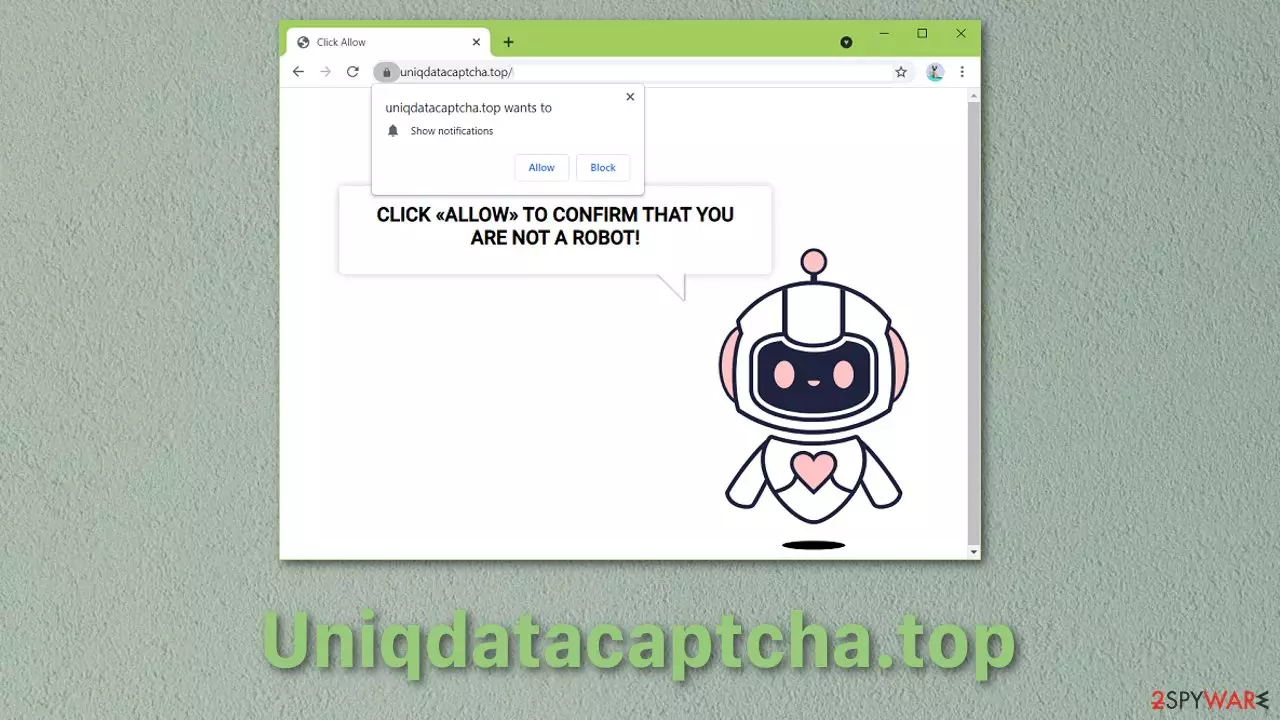
Pop-up advertising[1] in its self is not bad. It is a cost-effective way for business owners to promote their products or services. But cybercriminals have greatly adopted this feature, seeing that it can be quickly turned into a scheme to forcefully spread their malicious programs or websites for unsuspecting web surfers.
Harmful sites can disturb people's web browsing experience in a couple of different ways. Firstly, this website could have just been granted permission on the affected search engine to perform its annoying tasks. In this case, removing it should be fairly easy by going to the browser's settings. Secondly, this could be a potentially unwanted program[2] working in the background without your knowledge, therefore locating the intruder could be more complicated, and you might need extra help. In this guide, you will find how to eliminate this unsafe website manually or with the help of tools created for this purpose.
| NAME | Uniqdatacaptcha.top |
| TYPE | Push notification spam |
| DISTRIBUTION | Pop-up ads, bundled software, website redirects |
| SYMPTOMS | An increased amount of banners, windows, and other promotional content |
| DANGERS | Users can be linked to harmful websites via advertisements, download spyware, or another type of dangerous program |
| ELIMINATION | Go to your browser settings and remove the website permissions to show notifications |
| FURTHER STEPS | Check your system for adware and repair virus damage with FortectIntego if required |
The effects of having adware on your device
Adware is unwanted software designed to show advertisements on your screen, most commonly within a web browser. But some of them are capable of displaying ads even when the browser is closed. Typically, it uses methods to disguise itself as a legitimate program that provides a lot of benefit for the user or hide behind another one using software bundling to fool you into installing it on your PC, tablet, or mobile device.
Now, whenever you open your browser, you experience annoying pop-up advertisements promoting dubious programs, websites, or services and website redirects. This happens because Uniqdatacaptcha.top does not verify the legitimacy of advertisers. They want as many promoters as they can to generate more clicks. Some of the ads might include encouragement to install antivirus instruments, video games, or other kind of “handy” programs which usually have malicious intent.

Con artists find ways to exploit browser functions
Redirects are useful for web page owners in making navigating their website easier for the user, improving their experience. If a person attempts to access content before they logged in, it is practical to redirect them to the login page and put the original URL in the queue. This is why cybercriminals find open redirects so appealing. Bouncing a user off a website makes their messages less likely to be marked as malicious. A confused user might become a victim of phishing techniques, download malware, or worse.
Additionally to unwanted behavior, adware can collect your browsing data and use it as they seem fit. For this reason, you should not keep any suspicious add-ons, programs on your device. It would also be beneficial to update your browsers frequently as hackers can exploit past versions' vulnerabilities. Clean your search engines' cookies and cache to delete information websites have collected about you.
If Uniqdatacaptcha.top is given permissions to operate in your search engine, you can remove it manually by following instructions posted down below. To check your system for adware, we recommend using security tools SpyHunterCombo Cleaner and MalwarebytesMalwarebytes, which will take care of the problem automatically.
Remove unwanted notifications from Chrome:
- Open Google Chrome browser and go to Menu > Settings.
- Scroll down and click on Advanced.
- Locate Privacy and security section and pick Site Settings > Notifications.

- Look at the Allow section and look for a suspicious URL.
- Click the three vertical dots next to it and pick Block. This should remove unwanted notifications from Google Chrome.



Approaches fraudsters take to spread potentially unwanted programs
Third-party distributors use different methods to spread their deceptive programs. The most common one is bundled software[3]. Users get infected this way, usually by visiting third-party websites and downloading free or cracked versions of programs through them. Rushing during the installation process, people do not notice that additional components were included as a package. You should always read the License Agreement and look if there are any unrelated files added. If yes, uncheck the boxes next to them.
Deceitful ads are used to suggest malicious PUPs by making them seem necessary and valuable for the user. If you receive commercial pop-ups, banners, check if the spelling and grammar are correct. Inspect the imaging and determine if it looks professional. Never click on random links without thinking.
Sometimes people get PUAs by dangerous browser extensions that can operate in the background performing sneaky downloads. Research the extension before adding it to your browser. Read the reviews and see if there are complaints about it not working the way it is supposed to.
To remove granted permissions on Mozilla Firefox, do this:
- Open Mozilla Firefox and go to Menu > Options.
- Click on Privacy & Security section.
- Under Permissions, you should be able to see Notifications. Click Settings button next to it.

- In the Settings – Notification Permissions window, click on the drop-down menu by the URL in question.
- Select Block and then click on Save Changes. This should remove unwanted notifications from Mozilla Firefox.



MS Edge (Chromium)
- Open Microsoft Edge, and go to Settings.
- Select Site permissions.
- Go to Notifications on the right.
- Under Allow, you will find the unwanted entry.
- Click on More actions and select Block.


Uninstall from Windows
Uninstall from Windows 10/8:
- Type Control Panel into the Windows search box and open the result.
- Under Programs, select Uninstall a program.


Uninstall from Windows 7/XP:
- Click on Windows Start > Control Panel (Windows XP users should click on Add/Remove Programs).
- In Control Panel, select Programs > Uninstall a program.


Remove the unwanted program:
- In the Programs and Features window, look for any recently installed suspicious entries, select them, and click Uninstall.
- If User Account Control appears, click Yes to confirm, then complete the removal.


Delete from macOS
Remove the unwanted application:
- From the menu bar, select Go > Applications.
- In the Applications folder, look for any suspicious entries, then drag them to Trash (or right-click and pick Move to Trash).


Delete leftover files and folders:
- Select Go > Go to Folder.
- Enter /Library/Application Support and remove any suspicious folders related to the unwanted program.
- Repeat the same check in the /Library/LaunchAgents and /Library/LaunchDaemons folders, deleting any suspicious entries.

- Finally, empty the Trash to permanently remove the leftovers.

Remove from Microsoft Edge
Delete unwanted extensions from MS Edge:
- Select Menu (three horizontal dots at the top-right of the browser window) and pick Extensions.
- From the list, pick the extension and click on the Gear icon.
- Click Remove.


Clear cookies and other browser data:
- Click on the Menu (three horizontal dots at the top-right of the browser window) and select Settings > Privacy, search, and services..
- Under Clear browsing data, pick Choose what to clear.
- Select Cookies and other site data and Cached images and files. (apart from passwords, although you might want to include Media licenses as well, if applicable) and click on Clear.


Restore new tab and homepage settings:
- Click the menu icon and choose Settings.
- Then find On startup section.
- Click Remove next to any suspicious startup page.
Reset MS Edge if the above steps did not work:
- Press on Ctrl + Shift + Esc to open Task Manager.
- Click on More details arrow at the bottom of the window.
- Select Details tab.
- Now scroll down and locate every entry with Microsoft Edge name in it. Right-click on each of them and select End Task to stop MS Edge from running.


Instructions for Chromium-based Edge
Delete extensions from MS Edge (Chromium):
- Open Edge and click select Settings > Extensions.
- Delete unwanted extensions by clicking Remove.


Clear cache and site data:
- Click on Menu and go to Settings.
- Select Privacy, search and services.
- Under Clear browsing data, pick Choose what to clear.
- Under Time range, pick All time.
- Select Clear now.


Reset Chromium-based MS Edge:
- Click on Menu and select Settings.
- On the left side, pick Reset settings.
- Select Restore settings to their default values.
- Confirm with Reset.
- This will disable extensions and reset startup pages but will not delete bookmarks, saved passwords, or browsing history.


Remove from Mozilla Firefox (FF)
Remove dangerous extensions:
- Open Mozilla Firefox browser and click on the Menu (three horizontal lines at the top-right of the window).
- Select Add-ons.
- In here, select the unwanted extension and click Remove.


Reset the homepage:
- Click three horizontal lines at the top right corner to open the menu.
- Choose Settings.
- Under Home, set your preferred homepage and new tab settings.
Clear cookies and site data:
- Click Menu and pick Settings.
- Go to Privacy & Security section.
- Scroll down to locate Cookies and Site Data.
- Click on Clear Data...
- Select Cookies and Site Data and Temporary cached files and pages, then click Clear.


Reset Mozilla Firefox
If clearing the browser as explained above did not help, reset Mozilla Firefox:
- Open Mozilla Firefox browser and click the Menu.
- Go to Help and then choose Troubleshooting Information.

- Under Give Firefox a tune up section, click on Refresh Firefox...
- Once the pop-up shows up, confirm the action by pressing on Refresh Firefox.



Remove from Google Chrome
Delete malicious extensions from Google Chrome:
- Open Google Chrome, click on the Menu (three vertical dots at the top-right corner) and select More tools > Extensions.
- In the newly opened window, you will see all the installed extensions. Uninstall all suspicious extensions related to the unwanted program by clicking Remove.


Clear cache and web data from Chrome:
- Click on Menu and pick Settings.
- Under Privacy and security, select Clear browsing data.
- Select Browsing history, Cookies and other site data, as well as Cached images and files.
- Click Clear data.


Change your homepage:
- Click menu and choose Settings.
- Look for a suspicious site in the On startup section.
- Click on Open a specific or set of pages and click on three dots to find the Remove option.
Reset Google Chrome:
If the previous methods did not help you, reset Google Chrome to eliminate all the unwanted components:
- Click on Menu and select Settings.
- In the Settings, scroll down and click Advanced.
- Scroll down and locate Reset and clean up section.
- Now click Restore settings to their original defaults.
- Confirm with Reset settings.


Delete from Safari
Remove dangerous extensions:
- Open Safari, click Safari in the menu at the top-left of the screen, and select Preferences.
- Go to the Extensions tab, look for any suspicious entries, and click Uninstall to remove them.


Clear history and website data:
- Click Safari in the menu and pick Clear History.
- Set Clear to all history and confirm with Clear History.


Reset Safari:
- Click Safari in the menu and select Preferences > Advanced.
- Enable Show Develop menu in menu bar.
- From the menu bar, click Develop and select Empty Caches.


Did this guide help?
Be the first to comment