

Vanilla-search.com is the site that should provide improved search results as it claims, but this is a questionable browser app
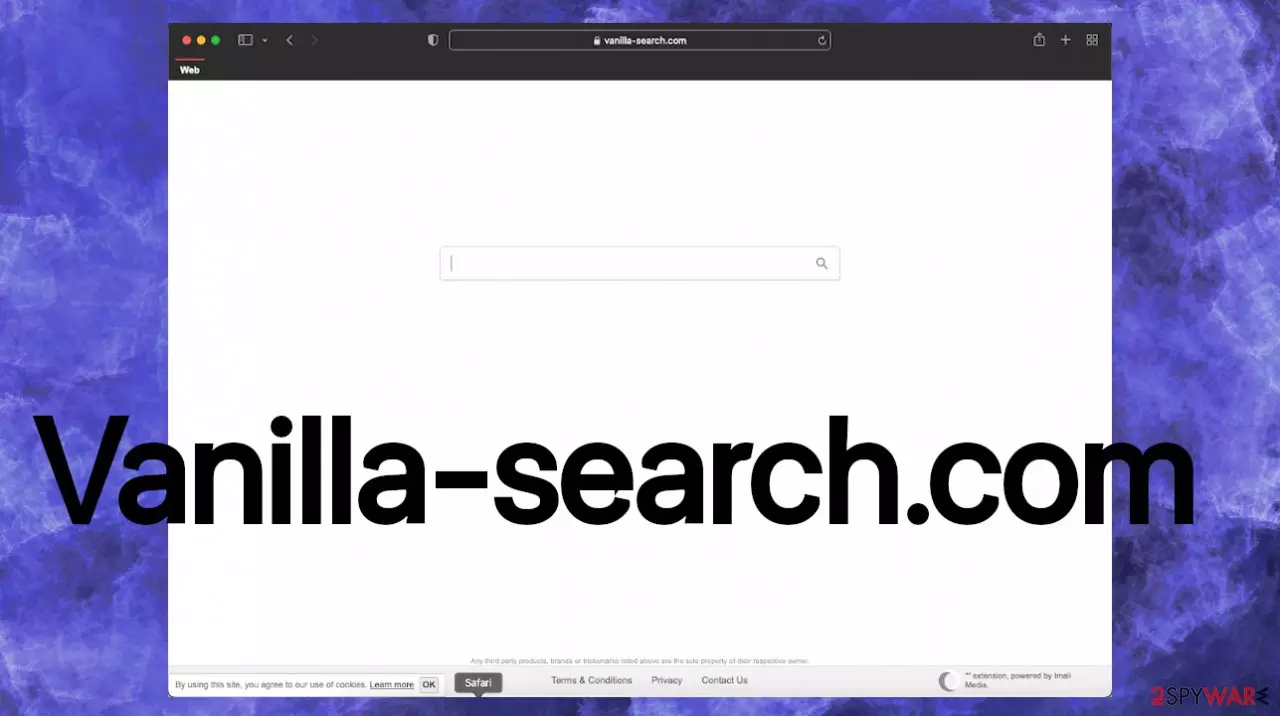
Vanilla-search.com browser hijacker is the potentially unwanted program that causes redirects and shows more advertisement content than normal search results. It is intrusive and can cause exposure to dangerous online pages. Hence it is considered potentially dangerous.[1] Common symptoms include changed browser preferences and speed issues when a particular browser hijacker is installed on a computer. These problems indicate the PUP-type infection that is triggering unwanted activities with your web browsing tools. Unfortunately, these apps are not installed willingly in most cases.
Your web search queries get redirected through this site out of nowhere, and then it displays ads as layers on the screen; it could also mean that an extension or a PUP program has been added without your knowledge. In many cases, these applications come without your interaction during software installs and start with the changes. The worst thing about the search hijacker is the fact that this program is the one that alters how you access certain websites. It significantly diminished the time on the internet.
| Name | Vanilla-search.com |
|---|---|
| Type | Browser hijacker, redirect, fake search engine |
| Category | Potentially unwanted program |
| Symptoms | The browsing process gets affected by redirects, and constant commercial content delivery, homepage, default search engine, new tab, new page preferences get altered. Hijacker injects various ads to the list of search results |
| Distribution | Freeware installations result in PUP infections, deceptive online material, and other programs like this can trigger the drop of an unwanted application |
| Removal | Anti-malware tools can help with eliminating any of the intruders |
| Repair | Try to run the program like FortectIntego to clear any damaged pieces |
The computer could be redirected to an unknown web page if you are viewing the site with a browser hijacker. This is because these apps will replace your original, intended search engine, reroutes all the search attempts via Vanilla-search.com, and injects links, pop-ups, banners with promotional material. The result can either lead back to potentially unwanted sites or, worse, to redirect to malicious pages or malware-delivering platforms.[2]
Reasons why you encounter the hijacker
If redirects appear often and you see all the preferences altered – a suspicious browser extension or program is installed on your computer. This could be because of misleading advertisements; deceptive content is one of the methods used by hackers to get their software onto computers without permission from the user. Experts[3] always not that torrents, pirating, and random ads can deliver PUP or malware to your machine.
When you perform a search through Vanilla-search.com, you get redirected to the results from Yahoo!, Bing, or Google Custom Search that provide links and ads themselves. This third-party content cannot be safe. You’ll also be shown with annoying pop-ups! The developers of this app do it just so they can make some money off those pesky advertisements on their site. Banners, pop-ups, hyperlinks, other content can trigger more reroutes to advertisements.

Unfortunately, it is a browser-based intruder that acts intrusive and annoying on Google Chrome, Mozilla Firefox, Safari, other web browsing apps. This behavior is not gonna stop until the main PUP is terminated. However, the program you need to get rid of is hidden in the system. Get SpyHunterCombo Cleaner or MalwarebytesMalwarebytes and remove the intruder entirely with the help of a full system scan.
Unfortunately, there is data tracking going on as well (IP addresses; URLs visited; etc). These features are included on these commercial sites besides the search hijacker. Vanilla-search.com is related to various third parties, so content is having cookies and other tracking methods and can lead to privacy issues.
Identity theft and personalized advertising campaigns can be the consequence of the PUP infection, so you must remove the hijacker as soon as it is possible. When the machine gets fully cleared, you can be calmer that the tracking is not happening so aggressively, but sometimes browsers still behave intrusively.
This is why you should clear the web browser manually. Since the most affected is the one that is popular, you can see the guide for Chrome. However, below the article is the full list of tips for other browsers that Vanilla-search.com might affect.
Delete malicious extensions from Google Chrome:
- Open Google Chrome, click on the Menu (three vertical dots at the top-right corner) and select More tools > Extensions.
- In the newly opened window, you will see all the installed extensions. Uninstall all the suspicious plugins that might be related to the unwanted program by clicking Remove.


Clear cache and web data from Chrome:
- Click on Menu and pick Settings.
- Under Privacy and security, select Clear browsing data.
- Select Browsing history, Cookies and other site data, as well as Cached images and files.
- Click Clear data.


Change your homepage:
- Click menu and choose Settings.
- Look for a suspicious site in the On startup section.
- Click on Open a specific or set of pages and click on three dots to find the Remove option.
Reset Google Chrome:
If the previous methods did not help you, reset Google Chrome to eliminate all the unwanted components:
- Click on Menu and select Settings.
- In the Settings, scroll down and click Advanced.
- Scroll down and locate Reset and clean up section.
- Now click Restore settings to their original defaults.
- Confirm with Reset settings.


Avoiding misleading content and keeping from PUP infiltrations
Vanilla-search.com browser hijacker is the application that can be added to the machine on purpose because of the platforms where this piece is promoted as a useful and needed addition to your browsing experience. If the person falls for these advertising tricks the browser-based intruder gets installed. However, people get frustrated even more when the piece is not providing any positives.
This is disappointing because people expect to get a great program and gets advertisements, redirects. Nevertheless, there are additional issues with the PUP because the common way of distribution also includes deceptive pages, torrent sites, pirating services, and other deceptive techniques.
We always warn about the danger of browsing without caution. If you get exposed to commercial content and do not pay enough attention to details, you can allow the PUP without noticing. Internet ads are often related to third parties, questionable platforms. The browser hijacker developers cannot control the content you may end up viewing there, neither do you.
It is possible to avoid infiltrations like this and stay away from any suspicious engines like Vanilla-search.com. You need to trust only official websites and developers of the applications that directly distribute their software and other tools on trustworthy sites or official app stores.
Anything gotten from ransom pop-up ads or pirating platforms can include pre-bundled applications, and during such freeware installations, you receive a bunch of useless apps besides the one that you intended to get. Choose Advanced or Custom options, check the list of programs promoted, and make sure to de-select anything even remotely suspicious. This is the way. Otherwise, you allow all intruders to get downloaded, and programs like Vanilla Search immediately affect the performance. Also, keeping AV tools on the PC is beneficial in many ways.
Uninstall from Windows
Uninstall from Windows 10/8:
- Type Control Panel into the Windows search box and open the result.
- Under Programs, select Uninstall a program.


Uninstall from Windows 7/XP:
- Click on Windows Start > Control Panel (Windows XP users should click on Add/Remove Programs).
- In Control Panel, select Programs > Uninstall a program.


Remove the unwanted program:
- In the Programs and Features window, look for any recently installed suspicious entries, select them, and click Uninstall.
- If User Account Control appears, click Yes to confirm, then complete the removal.


Delete from macOS
Remove the unwanted application:
- From the menu bar, select Go > Applications.
- In the Applications folder, look for any suspicious entries, then drag them to Trash (or right-click and pick Move to Trash).


Delete leftover files and folders:
- Select Go > Go to Folder.
- Enter /Library/Application Support and remove any suspicious folders related to the unwanted program.
- Repeat the same check in the /Library/LaunchAgents and /Library/LaunchDaemons folders, deleting any suspicious entries.

- Finally, empty the Trash to permanently remove the leftovers.

Remove from Microsoft Edge
Delete unwanted extensions from MS Edge:
- Select Menu (three horizontal dots at the top-right of the browser window) and pick Extensions.
- From the list, pick the extension and click on the Gear icon.
- Click Remove.


Clear cookies and other browser data:
- Click on the Menu (three horizontal dots at the top-right of the browser window) and select Settings > Privacy, search, and services..
- Under Clear browsing data, pick Choose what to clear.
- Select Cookies and other site data and Cached images and files. (apart from passwords, although you might want to include Media licenses as well, if applicable) and click on Clear.


Restore new tab and homepage settings:
- Click the menu icon and choose Settings.
- Then find On startup section.
- Click Remove next to any suspicious startup page.
Reset MS Edge if the above steps did not work:
- Press on Ctrl + Shift + Esc to open Task Manager.
- Click on More details arrow at the bottom of the window.
- Select Details tab.
- Now scroll down and locate every entry with Microsoft Edge name in it. Right-click on each of them and select End Task to stop MS Edge from running.


Instructions for Chromium-based Edge
Delete extensions from MS Edge (Chromium):
- Open Edge and click select Settings > Extensions.
- Delete unwanted extensions by clicking Remove.


Clear cache and site data:
- Click on Menu and go to Settings.
- Select Privacy, search and services.
- Under Clear browsing data, pick Choose what to clear.
- Under Time range, pick All time.
- Select Clear now.


Reset Chromium-based MS Edge:
- Click on Menu and select Settings.
- On the left side, pick Reset settings.
- Select Restore settings to their default values.
- Confirm with Reset.
- This will disable extensions and reset startup pages but will not delete bookmarks, saved passwords, or browsing history.


Remove from Mozilla Firefox (FF)
Remove dangerous extensions:
- Open Mozilla Firefox browser and click on the Menu (three horizontal lines at the top-right of the window).
- Select Add-ons.
- In here, select the unwanted extension and click Remove.


Reset the homepage:
- Click three horizontal lines at the top right corner to open the menu.
- Choose Settings.
- Under Home, set your preferred homepage and new tab settings.
Clear cookies and site data:
- Click Menu and pick Settings.
- Go to Privacy & Security section.
- Scroll down to locate Cookies and Site Data.
- Click on Clear Data...
- Select Cookies and Site Data and Temporary cached files and pages, then click Clear.


Reset Mozilla Firefox
If clearing the browser as explained above did not help, reset Mozilla Firefox:
- Open Mozilla Firefox browser and click the Menu.
- Go to Help and then choose Troubleshooting Information.

- Under Give Firefox a tune up section, click on Refresh Firefox...
- Once the pop-up shows up, confirm the action by pressing on Refresh Firefox.



Delete from Safari
Remove dangerous extensions:
- Open Safari, click Safari in the menu at the top-left of the screen, and select Preferences.
- Go to the Extensions tab, look for any suspicious entries, and click Uninstall to remove them.


Clear history and website data:
- Click Safari in the menu and pick Clear History.
- Set Clear to all history and confirm with Clear History.


Reset Safari:
- Click Safari in the menu and select Preferences > Advanced.
- Enable Show Develop menu in menu bar.
- From the menu bar, click Develop and select Empty Caches.


Did this guide help?
Be the first to comment