

WebIntegration – a dangerous Mac virus that can seriously compromise your device
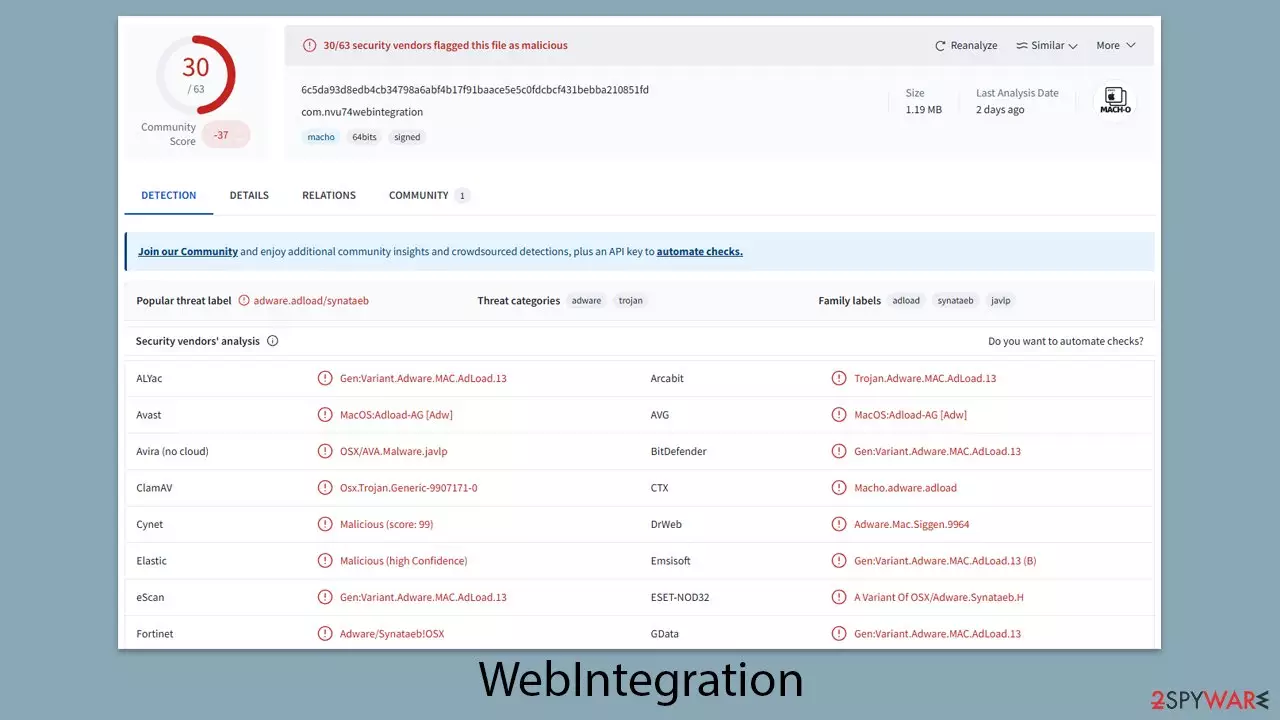
WebIntegration is a malicious program specifically targeting Mac users, operating as part of the expansive Adload malware family, which has been active for years and includes hundreds of variants. While the primary goal of this malware is to function as adware by flooding users with unwanted advertisements to generate income for cybercriminals, its activities go beyond simple adware behavior and can pose significant risks.
One of the most common methods used to distribute WebIntegration involves fake installers for software, such as Flash Player, or bundled applications downloaded from dubious websites. These deceptive tactics enable the malware to infiltrate Mac systems. Once installed, it often modifies browser settings by replacing the homepage or search engine with alternatives, such as Safe Finder, and relentlessly exposes users to intrusive ads and misleading sponsored links.
In addition to disrupting browser settings, WebIntegration is designed to collect sensitive user information, including login credentials and financial data. This data theft can lead to severe privacy violations and potential security breaches. Removing the malware can be especially difficult, as it employs various mechanisms to maintain its presence on the system and resist removal efforts. To address this threat effectively and ensure it does not return, specific actions are necessary, which are outlined below.
| Name | WebIntegration |
| Type | Mac virus, adware, browser hijacker |
| Malware family | Adload |
| Distribution | Fake Flash Player installers or bundled software from malicious sources |
| Symptoms | Installs a new extension and application on the system; changes homepage and new tab of the browser; inserts ads and malicious links; tracks sensitive user data via extension |
| Risks | Installation of PUPs or malware, sensitive information disclosure, financial losses |
| Removal | You can remove Mac malware effectively with the help of a powerful security tool, such as SpyHunterCombo Cleaner. If you want to attempt to get rid of the threat yourself, check the manual guide below |
| Other tips | For best performance and system remediation, employ FortectIntego. Also, cleaning web browser caches is highly advised after the elimination of malware for better privacy and security |
The malware family that was active for years
In the past, Mac devices were often considered immune to the wide range of cyber threats commonly targeting other operating systems. However, advancements in cybercriminal techniques and an evolving cybersecurity landscape have proven that Macs are not exempt from digital vulnerabilities, leaving them exposed to a variety of online threats.
One significant example of this shift is the Adload malware family, which has been responsible for generating numerous variants over the years. These variants, while differing in some specific features, generally rely on similar distribution methods and operational behaviors to compromise systems.
A distinctive feature of Adload infections is the use of a magnifying glass icon, which appears consistently across its primary applications and related browser extensions. This visual marker serves as a key identifier of infections associated with this malware family.
While adware is often seen as a lesser threat compared to other forms of malware, certain Adload variants, such as WebIntegration, highlight the potential for more serious risks. Beyond the intrusive display of advertisements, this malware exhibits behaviors typical of more dangerous threats, posing significant risks to privacy and security. This increasing complexity of malware targeting Mac systems emphasizes the critical need for strong security practices and updated defenses.
Dangers of the infection
WebIntegration poses a significant threat to Mac systems, initiating harmful activities immediately after gaining access to a device. One of its primary actions is modifying browser settings, including changing the default homepage and search engine. These alterations are designed to redirect traffic through specific channels, generating revenue for attackers via ad monetization. Users may notice their search queries being rerouted through unfamiliar platforms, often leading to questionable or unsafe websites.
The risks associated with WebIntegration extend beyond browser disruptions, as it severely compromises user privacy and security. The malware installs itself with elevated permissions, allowing it to bypass Mac's native protections, such as XProtect, and exploit tools like AppleScript. With this high-level access, WebIntegration monitors user activity, collecting sensitive information like passwords, account credentials, and credit card details. This level of surveillance makes it critical to avoid entering personal data while the device remains infected.
In addition, WebIntegration, like other variants of the Adload family, frequently directs users to dubious websites. These sites may contain additional malware, promote fake subscriptions, or advertise fraudulent services. Interacting with such links can lead to further harm, highlighting the urgency of removing the malware and staying cautious during web browsing activities.

Remove the virus effectively
Just like other Adload malware variants, removing WebIntegration can be particularly difficult due to its ability to obtain elevated system privileges. The malware not only installs harmful files but also creates additional user profiles and login items to ensure persistence. Deleting its main application or browser extension is rarely enough, as the malware can regenerate its components.
For a thorough and reliable removal, using anti-malware tools such as SpyHunterCombo Cleaner or MalwarebytesMalwarebytes is highly recommended. These tools are specifically designed to detect and eliminate persistent malware. To keep up with constantly evolving threats, it’s essential to update these programs regularly to maintain their effectiveness.
If you opt for manual removal, detailed steps are outlined below. However, be cautious – partial removal may leave traces of the virus that allow it to return. The process typically begins with identifying and stopping any suspicious processes associated with malware via the Activity Monitor. After this, you can proceed to remove the primary application.
To complete the cleanup, optimizing the system and clearing browser caches are crucial. Using tools designed for system optimization, such as FortectIntego, can help ensure that all remnants of the malware are removed. Although manual instructions are provided, automated removal with specialized tools is generally more effective and reduces the risk of leaving behind any components of the virus on your Mac.
Manual removal
Malware often relies on background processes to carry out its harmful activities without drawing attention. As a result, before attempting to remove the primary WebIntegration application, it is essential to identify and terminate any active processes linked to the malware. These background tasks can interfere with the removal process if left running. To address this, you can follow these steps to open the Activity Monitor on your Mac and stop any suspicious processes:
- Open the Applications folder and go to Utilities
- Double-click the Activity Monitor and shut down all the suspicious processes.
- From the menu bar, select Go > Applications.
- In the Applications folder, look for all related entries.

- Click on the app and drag it to Trash (or right-click and pick Move to Trash)

Your next task is to remove all the virus-related Login items and new Profiles that could be used by it.
- Go to Preferences and pick Accounts
- Click Login items and delete everything suspicious
- Next, pick System Preferences > Users & Groups
- Find Profiles and remove unwanted profiles from the list.
Small configuration files known as PLIST can hold various settings information. They might prevent the virus from being removed properly.
- Select Go > Go to Folder.
- Enter /Library/Application Support and click Go or press Enter.
- In the Application Support folder, look for any dubious entries and then delete them.
- Now enter /Library/LaunchAgents and /Library/LaunchDaemons folders the same way and delete all the related .plist files.


Clean your browsers
The browser extension is a key component in the functionality of WebIntegration. It triggers significant changes to essential browser settings, such as the homepage, search engine, and new tab page. These modifications enable the persistent display of intrusive advertisements, disrupting the user experience. Even more troubling is the extension’s ability to access and gather all information entered into the browser, including sensitive details like login credentials and credit card information.
If you opted for the automatic removal method, the extension should already be removed, minimizing potential risks. However, for those who chose the manual removal route, it is crucial to verify that the extension has been completely deleted to prevent further security issues.
Remove from Mozilla Firefox (FF)
Remove dangerous extensions:
- Open Mozilla Firefox browser and click on the Menu (three horizontal lines at the top-right of the window).
- Select Add-ons.
- In here, select the unwanted extension and click Remove.


Reset the homepage:
- Click three horizontal lines at the top right corner to open the menu.
- Choose Settings.
- Under Home, set your preferred homepage and new tab settings.
Clear cookies and site data:
- Click Menu and pick Settings.
- Go to Privacy & Security section.
- Scroll down to locate Cookies and Site Data.
- Click on Clear Data...
- Select Cookies and Site Data and Temporary cached files and pages, then click Clear.


Reset Mozilla Firefox
If clearing the browser as explained above did not help, reset Mozilla Firefox:
- Open Mozilla Firefox browser and click the Menu.
- Go to Help and then choose Troubleshooting Information.

- Under Give Firefox a tune up section, click on Refresh Firefox...
- Once the pop-up shows up, confirm the action by pressing on Refresh Firefox.



Remove from Google Chrome
Delete malicious extensions from Google Chrome:
- Open Google Chrome, click on the Menu (three vertical dots at the top-right corner) and select More tools > Extensions.
- In the newly opened window, you will see all the installed extensions. Uninstall all suspicious extensions related to the unwanted program by clicking Remove.


Clear cache and web data from Chrome:
- Click on Menu and pick Settings.
- Under Privacy and security, select Clear browsing data.
- Select Browsing history, Cookies and other site data, as well as Cached images and files.
- Click Clear data.


Change your homepage:
- Click menu and choose Settings.
- Look for a suspicious site in the On startup section.
- Click on Open a specific or set of pages and click on three dots to find the Remove option.
Reset Google Chrome:
If the previous methods did not help you, reset Google Chrome to eliminate all the unwanted components:
- Click on Menu and select Settings.
- In the Settings, scroll down and click Advanced.
- Scroll down and locate Reset and clean up section.
- Now click Restore settings to their original defaults.
- Confirm with Reset settings.


Delete from Safari
Remove dangerous extensions:
- Open Safari, click Safari in the menu at the top-left of the screen, and select Preferences.
- Go to the Extensions tab, look for any suspicious entries, and click Uninstall to remove them.


Clear history and website data:
- Click Safari in the menu and pick Clear History.
- Set Clear to all history and confirm with Clear History.


Reset Safari:
- Click Safari in the menu and select Preferences > Advanced.
- Enable Show Develop menu in menu bar.
- From the menu bar, click Develop and select Empty Caches.


Did this guide help?
Be the first to comment