

Websearch.fastsearchings.info – a browser hijacker that can include the “Fast Searching” extension into the web browser settings
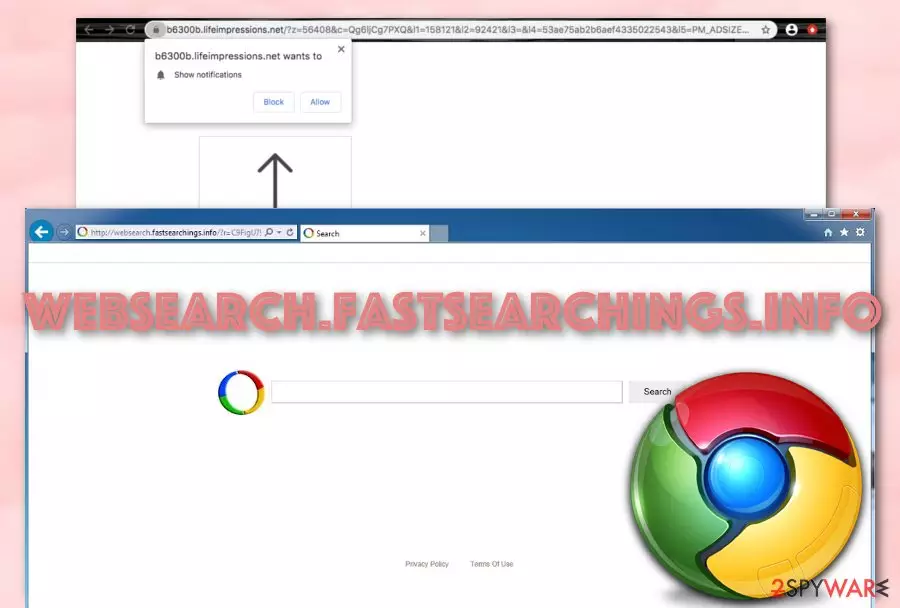
Websearch.fastsearchings.info is a potentially unwanted program[1] that converts the default search provider, homepage, and new tab URL to http://search.smartaddressbar.com. This app is not an evil one like ransomware or spyware, however, it still brings unpleasant functionality and interrupts users' activities.
Also categorized as a browser hijacker, the virus can make the beforementioned changes on different types of web browsers, including Google Chrome, Mozilla Firefox, Internet Explorer, Microsoft Edge, and Safari. The PUP can settle on all of these browser apps but it usually picks one, for example, Google Chrome. Afterward, you are likely to find the “Fast Searching” plug-in added to the web browser settings.
Furthermore, websearch.fastsearchings.info often is bundled with freeware and shareware such as PDF converters, download managers, and various players that come from third-party downloading sources such as softonic.com, soft32.com, cnet.com, and download.com.
This type of PUP distribution technique is widespread through third-party developers and has been named “software bundling”.[2] Keep reading and learn more about all the annoying features that this browser hijacker includes.
| Name | websearch.fastsearchings.info |
|---|---|
| Type | Potentially unwanted program |
| Sub-type | Browser hijacker |
| Extension | This suspicious program can add the “Fast Searching” extension to the hijacked web browser settings |
| Changes | Once the browser hijacker appears on the targeted web browser, it initiates some modifications on the default search provider, new tab URL, and homepage sections and sets them to http://search.smartaddressbar.com |
| Targets | The potentially unwanted program can appear on any type of web browser apps such as Google Chrome, Mozilla Firefox, Internet Explorer, Microsoft Edge, and Safari |
| Elimination | You can permanently erase the browser hijacker with the help of antimalware software or by using the manual step-by-step guidelines that have been included at the end of this page |
| Fix tool | Some system alterings might have shown up after the browser hijacker made a mess on your PC and browsers. If necessary, fix the affected areas by trying out software such as FortectIntego |
According to cybersecurity experts from NoVirus.uk,[3] the main sign that a browser hijacker has appeared is a different search engine than you had in the past. Legitimate and reliable search engines such as Google, Bing, or Yahoo are used by a big variety of people but any other type of search provider can signify a browser hijacker.
Beware that when websearch.fastsearchings.info sets your search provider to a new one and modifies other settings such as the homepage and new tab URL bar, you will not be able to reverse these changes unless you get rid of the potentially unwanted program completely. Plus, you will be forced to complete search queries via the new search engine that might lead you to unknown directories all over the web and provide you with misleading search results.
If the PUP arrives together with the “Fast Searching” browser extension,[4] you might experience some types of other changes in some of your web browser apps. For example, the new plug-in can disable the Content Security Policy in Mozilla Firefox and also include a lock component to prevent other similar products from modifying their main settings. If it is Explorer that got hijacked, the browser might receive the modification of the load time threshold.
If it is a Windows computer on which websearch.fastsearchings.info lands, you might see that your Task Manager is filled with bogus processes that you have never encountered and some random content has appeared in the C:\ProgramFiles\ or C:\ProgramData folders. If the browser hijacker appears on a Mac computer, it might include random folders and apps in the Applications directory.

Websearch.fastsearchings.info can also load the user with interruptive advertising content. The browser hijacker might start pushing annoying pop-up ads straight to the computer screen when the user is completing browser sessions. These advertisements might come filled with bogus offers of fake security utilities, encourage the user to subscribe to useless services and try to lure the person into various scams.
If you have spotted the first symptoms of browser hijacking lately, you should look for ways to remove websearch.fastsearchings.info from your computer system and web browser apps. The potentially unwanted program can get successfully eliminated with the help of malware removal tools, such as MalwarebytesMalwarebytes and SpyHunterCombo Cleaner.
Furthermore, you can perform the removal yourself. Our security experts have added a detailed step-by-step guide to the end of this article where the entire process is explained. Note: do not forget to clean and refresh the web browsers as these apps are particularly filled with suspicious content after the hijack. If you do not get rid of all the bogus objects, the browser hijacker might return the next time you launch your browser. Lastly, run a scan with FortectIntego PC repair tool to fix any virus damage.

Factors that increase the risk of getting infected by a browser hijacker
There are many unsecured downloading sources such as cnet.com, download.com, softonic.com, and soft32.com that suggest downloading various PDF converters, download managers, and players for free. Regarding the fact that this type of software is free, a lot of users decided to get it instead from the official developers. However, this is a mistake to make because it increases the chances of receiving a browser hijacker on your device and web browser.
Developers often hide such potentially unwanted programs in software packages that come from secondary downloading networks. If you still decide to use the same pages for completing your downloads, you can at least be extra careful while dealing with the download/installation yourself. Do not skip any steps, select the Custom or Advanced downloading mode and make sure to opt-out of content that looks suspicious to you and raises some types of concerns.
To add, browser hijackers can get hidden in various advertisements and hyperlinks that you should be aware of while browsing the web. If you have ever entered a website that was previously marked as unsafe by your web browser or antivirus software, you should exit it immediately. Nevertheless, do not think about stepping on unknown content that is provided in such web pages as some of it might hide the potentially unwanted program.
Remove Websearch.fastsearchings.info in an effective way
Technically, Websearch.fastsearchings.info is not a virus but it still requires elimination as it triggers the natural operating process of the computer system and web browser apps. As we have already discussed, the browser hijacker initiates many unknown changes on your web browser and acts very annoyingly. These are the main reasons why we suggest performing the removal as soon as you discover the PUP on your computer.
To remove Websearch.fastsearchings.info effectively, you will need to use reliable malware removal software that is capable of dealing with such programs in a few minutes and cleaning the entire operating system from the browser hijacker and all the additional apps that it might have brought to it.
Furthermore, there is also a way to uninstall the virus by putting in your own effort only. However, you need to be at least a little bit experienced in manual elimination for this. If you are, follow the cleaning instructions at the end that are written for both Windows and Mac operating systems and web browser apps such as Google Chrome, Mozilla Firefox, Internet Explorer, Microsoft Edge, Safari, and others.
Uninstall from Windows
Uninstall from Windows 10/8:
- Type Control Panel into the Windows search box and open the result.
- Under Programs, select Uninstall a program.


Uninstall from Windows 7/XP:
- Click on Windows Start > Control Panel (Windows XP users should click on Add/Remove Programs).
- In Control Panel, select Programs > Uninstall a program.


Remove the unwanted program:
- In the Programs and Features window, look for any recently installed suspicious entries, select them, and click Uninstall.
- If User Account Control appears, click Yes to confirm, then complete the removal.


Delete from macOS
Remove the unwanted application:
- From the menu bar, select Go > Applications.
- In the Applications folder, look for any suspicious entries, then drag them to Trash (or right-click and pick Move to Trash).


Delete leftover files and folders:
- Select Go > Go to Folder.
- Enter /Library/Application Support and remove any suspicious folders related to the unwanted program.
- Repeat the same check in the /Library/LaunchAgents and /Library/LaunchDaemons folders, deleting any suspicious entries.

- Finally, empty the Trash to permanently remove the leftovers.

Remove from Microsoft Edge
Delete unwanted extensions from MS Edge:
- Select Menu (three horizontal dots at the top-right of the browser window) and pick Extensions.
- From the list, pick the extension and click on the Gear icon.
- Click Remove.


Clear cookies and other browser data:
- Click on the Menu (three horizontal dots at the top-right of the browser window) and select Settings > Privacy, search, and services..
- Under Clear browsing data, pick Choose what to clear.
- Select Cookies and other site data and Cached images and files. (apart from passwords, although you might want to include Media licenses as well, if applicable) and click on Clear.


Restore new tab and homepage settings:
- Click the menu icon and choose Settings.
- Then find On startup section.
- Click Remove next to any suspicious startup page.
Reset MS Edge if the above steps did not work:
- Press on Ctrl + Shift + Esc to open Task Manager.
- Click on More details arrow at the bottom of the window.
- Select Details tab.
- Now scroll down and locate every entry with Microsoft Edge name in it. Right-click on each of them and select End Task to stop MS Edge from running.


Instructions for Chromium-based Edge
Delete extensions from MS Edge (Chromium):
- Open Edge and click select Settings > Extensions.
- Delete unwanted extensions by clicking Remove.


Clear cache and site data:
- Click on Menu and go to Settings.
- Select Privacy, search and services.
- Under Clear browsing data, pick Choose what to clear.
- Under Time range, pick All time.
- Select Clear now.


Reset Chromium-based MS Edge:
- Click on Menu and select Settings.
- On the left side, pick Reset settings.
- Select Restore settings to their default values.
- Confirm with Reset.
- This will disable extensions and reset startup pages but will not delete bookmarks, saved passwords, or browsing history.


Remove from Mozilla Firefox (FF)
Remove dangerous extensions:
- Open Mozilla Firefox browser and click on the Menu (three horizontal lines at the top-right of the window).
- Select Add-ons.
- In here, select the unwanted extension and click Remove.


Reset the homepage:
- Click three horizontal lines at the top right corner to open the menu.
- Choose Settings.
- Under Home, set your preferred homepage and new tab settings.
Clear cookies and site data:
- Click Menu and pick Settings.
- Go to Privacy & Security section.
- Scroll down to locate Cookies and Site Data.
- Click on Clear Data...
- Select Cookies and Site Data and Temporary cached files and pages, then click Clear.


Reset Mozilla Firefox
If clearing the browser as explained above did not help, reset Mozilla Firefox:
- Open Mozilla Firefox browser and click the Menu.
- Go to Help and then choose Troubleshooting Information.

- Under Give Firefox a tune up section, click on Refresh Firefox...
- Once the pop-up shows up, confirm the action by pressing on Refresh Firefox.



Remove from Google Chrome
Delete malicious extensions from Google Chrome:
- Open Google Chrome, click on the Menu (three vertical dots at the top-right corner) and select More tools > Extensions.
- In the newly opened window, you will see all the installed extensions. Uninstall all suspicious extensions related to the unwanted program by clicking Remove.


Clear cache and web data from Chrome:
- Click on Menu and pick Settings.
- Under Privacy and security, select Clear browsing data.
- Select Browsing history, Cookies and other site data, as well as Cached images and files.
- Click Clear data.


Change your homepage:
- Click menu and choose Settings.
- Look for a suspicious site in the On startup section.
- Click on Open a specific or set of pages and click on three dots to find the Remove option.
Reset Google Chrome:
If the previous methods did not help you, reset Google Chrome to eliminate all the unwanted components:
- Click on Menu and select Settings.
- In the Settings, scroll down and click Advanced.
- Scroll down and locate Reset and clean up section.
- Now click Restore settings to their original defaults.
- Confirm with Reset settings.


Delete from Safari
Remove dangerous extensions:
- Open Safari, click Safari in the menu at the top-left of the screen, and select Preferences.
- Go to the Extensions tab, look for any suspicious entries, and click Uninstall to remove them.


Clear history and website data:
- Click Safari in the menu and pick Clear History.
- Set Clear to all history and confirm with Clear History.


Reset Safari:
- Click Safari in the menu and select Preferences > Advanced.
- Enable Show Develop menu in menu bar.
- From the menu bar, click Develop and select Empty Caches.


Did this guide help?
Be the first to comment